
MiraScreen G2
MiraScreen G2 Wireless HDMI Display Receiver User Manual
รุ่น : G2
1. สินค้าหมดview
The MiraScreen G2 is a wireless HDMI display receiver designed to mirror content from your compatible devices (PC, smartphone, tablet) to a larger display such as an HDTV or projector. It offers a convenient way to enjoy videos, photos, and presentations on a big screen without the need for cables. Its compact and portable design makes it ideal for various environments, from home entertainment to business meetings.

Image: The MiraScreen G2 wireless HDMI dongle, a compact black circular device with an integrated HDMI cable and a central logo.

Image: The MiraScreen G2 device shown alongside its branding and icons representing supported features like DLNA, AirPlay, Miracast, WiFi, and Cloud connectivity.
2. Getting Started: Setup and Installation
Setting up your MiraScreen G2 is a straightforward plug-and-play process. No additional drivers are required for most operating systems.
2.1 เนื้อหาบรรจุภัณฑ์
- 1 x MiraScreen G2 Wireless HDMI Dongle
- สาย USB 1 เส้น
- 1 x Bilingual User Manual (English and Chinese)
2.2 ขั้นตอนการเชื่อมต่อ
- Connect to TV/Projector: Plug the HDMI connector of the MiraScreen G2 into an available HDMI port on your HDTV or projector.
- เปิดเครื่อง: Connect the USB cable to the MiraScreen G2 and then plug the other end into a 5V/1A USB power adapter (not included) or a USB port on your TV/projector that provides sufficient power. Ensure the device powers on, indicated by an LED light.
- เลือกอินพุต: Switch your TV or projector's input source to the corresponding HDMI port where the MiraScreen G2 is connected. You should see the MiraScreen setup screen.
- Switch Mode (if necessary): The MiraScreen G2 has a switching button to easily toggle between AirPlay mode (for iOS/macOS) and Miracast mode (for Android/Windows). Select the appropriate mode for your device.
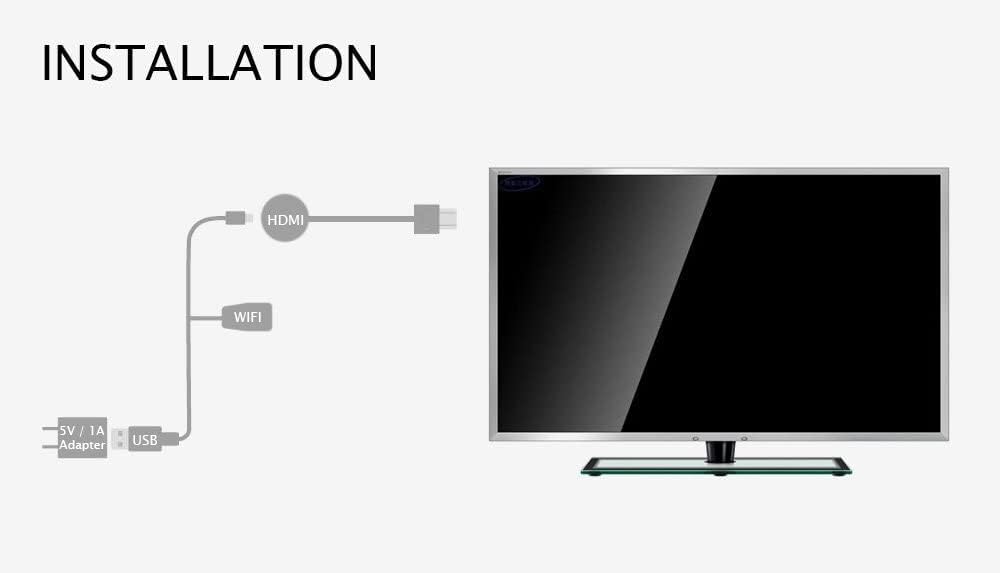
Image: A diagram illustrating the installation process, showing the MiraScreen G2 connected via HDMI to a TV and powered by a 5V/1A adapter via USB.
3. คู่มือการใช้งาน
Once connected, the MiraScreen G2 allows you to wirelessly mirror content from your mobile devices or computers to your display.
3.1 ความเข้ากันได้ในวงกว้าง
The device is compatible with a wide range of operating systems:
- Android 4.2 ขึ้นไป
- Mac OS X 10.9 ขึ้นไป
- iOS 7.0 ขึ้นไป
- Windows 8.1 ขึ้นไป

Image: A diagram showing the MiraScreen G2 connecting wirelessly to various devices (smartphone, tablet, laptop) and then via HDMI to an HDTV or projector, illustrating its broad compatibility.
3.2 Mirroring Content
To mirror your device's screen, enable the screen mirroring feature on your smartphone, tablet, or PC (e.g., Screen Mirroring, Smart View, AirPlay, Miracast, Wireless Display). Select the MiraScreen G2 from the list of available devices.
3.3 Key Applications
- โรงภาพยนตร์ส่วนตัว: Enjoy high-definition movies and videos (up to 1080P) from your device on your TV, creating a personal cinematic experience.
- Game Paradise: Play mobile games on a larger screen, enhancing your gaming experience and allowing for shared fun with family and friends.
- Business Meeting: Conduct wireless presentations and share documents or media from your laptop or tablet directly to a projector or large display, making meetings more efficient.
- Real-time Photography: Synchronize photos from your phone to the TV for easier viewing and sharing with others.
- Online Playing: Stream online videos from your phone directly to your TV, providing a more immersive viewการสร้างประสบการณ์

Image: A visual demonstrating the MiraScreen G2's use for a 'Private Cinema' experience with a 1080P TV and 'Game Paradise' for playing mobile games on a large screen with friends.

Image: An illustration showing the MiraScreen G2 facilitating a wireless presentation in a business meeting setting, projecting content from a laptop to a large screen.

Image: A depiction of using the MiraScreen G2 for 'Real-time Photography', allowing users to synchronize and view photos from their phone directly on a TV screen.
Image: A visual illustrating 'Online Playing' where videos from a phone are streamed to a TV, and 'Real-time Edit' showing how to use brush tools to edit photos on a larger screen.
4. ข้อมูลจำเพาะทางเทคนิค
| คุณสมบัติ | ข้อมูลจำเพาะ |
|---|---|
| แบบอย่าง | G2 |
| ความถี่ WiFi | 2.4กิกะเฮิรตซ์ |
| ช่วง WiFi | 10m and less |
| WiFi Module / Version | 8188FTV |
| ปณิธาน | 1920 x 1080 (max 1080P) |
| ระบบปฏิบัติการ | ลินุกซ์ |
| ความเร็วซีพียู | 600เมกะเฮิรตซ์ |
| แรม | DDR3 128 เมกะไบต์ |
| แฟลชภายใน | SLC 128MB |
| รูปแบบวิดีโอที่รองรับ | AVI, DIVX, MKV, DAT, VOB, MPG, MPEG, MOV, MP4, RM, RMVB, WMV |
| ขนาด | 12.5 x 10 x 4.4 ซม. (บรรจุภัณฑ์) |
| น้ำหนักสินค้า | 86 กรัม |
5 การแก้ไขปัญหา
If you encounter issues with your MiraScreen G2, please refer to the following common solutions:
- ไม่มีการแสดงผล/สัญญาณ:
- Ensure the MiraScreen G2 is securely plugged into the HDMI port of your TV/projector.
- Verify that the USB power cable is connected and receiving sufficient power (5V/1A recommended).
- Check that your TV/projector is set to the correct HDMI input source.
- ไม่สามารถเชื่อมต่อ WiFi ได้:
- Ensure your WiFi router is operating on the 2.4GHz frequency, as the MiraScreen G2 supports this band.
- Check for any obstructions or excessive distance between the MiraScreen G2 and your WiFi router.
- Poor Resolution/Lagging Display:
- Confirm that your display device (TV/projector) supports 1080P resolution.
- Ensure your source device (smartphone, PC) is capable of outputting at 1080P.
- Reduce the distance between the MiraScreen G2 and your mirroring device to improve signal strength.
- Unable to Mirror Content:
- Verify that the MiraScreen G2 is in the correct mode (AirPlay for iOS/macOS, Miracast for Android/Windows) using the mode switching button.
- Ensure your source device's operating system is compatible (Android 4.2+, Mac OS X 10.9+, iOS 7.0+, Windows 8.1+).
- Restart both the MiraScreen G2 (by unplugging and replugging power) and your source device.
6. การดูแลรักษา
To ensure the longevity and optimal performance of your MiraScreen G2, follow these guidelines:
- รักษาความสะอาดของอุปกรณ์โดยการเช็ดด้วยผ้าแห้งนุ่มๆ หลีกเลี่ยงการใช้น้ำยาทำความสะอาดหรือวัสดุที่มีฤทธิ์กัดกร่อน
- เก็บอุปกรณ์ไว้ในที่แห้งและเย็น หลีกเลี่ยงแสงแดดโดยตรงและอุณหภูมิที่สูงหรือต่ำเกินไป
- โปรดใช้งานอุปกรณ์อย่างระมัดระวังเพื่อป้องกันความเสียหาย หลีกเลี่ยงการทำตกหรือการกระแทกอย่างแรง
- ห้ามถอดประกอบหรือซ่อมแซมอุปกรณ์ด้วยตนเอง เนื่องจากจะทำให้การรับประกันเป็นโมฆะ
7. การรับประกันและการสนับสนุน
For warranty information, please refer to the documentation included with your purchase or contact the retailer. Specific warranty terms and conditions may vary by region and seller.
For technical support or further assistance, please consult the official MiraScreen website or contact their customer service. You may also refer to the seller's support channels if purchased through an online marketplace.
For more information about MiraScreen products, you can visit the MiraScreen brand page on Amazon.
Ask a question about this manual
Ask about setup, troubleshooting, compatibility, parts, safety, or missing instructions. Manuals+ will review the question and use this page’s manual context to help answer it.