
FIDECO US-PL319
FIDECO USB 3.0 to SATA or IDE Adapter Instruction Manual
Model: US-PL319
1. บทนำ
This manual provides comprehensive instructions for the FIDECO USB 3.0 to SATA or IDE Adapter, Model US-PL319. This device is designed to connect various types of hard disk drives (HDDs) and solid-state drives (SSDs), including 2.5-inch and 3.5-inch SATA drives, and 2.5-inch and 3.5-inch IDE drives, to your computer via a USB 3.0 interface. It also supports optical drives such as DVD-ROM, CD-ROM, CD-RW, DVD-RW, and DVD+RW. Please read this manual carefully before use to ensure proper operation and to maximize the product's functionality.
2. สินค้าหมดview
2.1 เนื้อหาบรรจุภัณฑ์
- FIDECO USB 3.0 to SATA/IDE Adapter
- สายข้อมูล USB 3.0
- อะแดปเตอร์ 12V
- IDE 4-Pin Power Cable
2.2 Adapter Features
- เข้ากันได้สากล: Supports 2.5"/3.5" SATA HDD/SSD, 2.5"/3.5" IDE HDD, and various optical drives.
- การถ่ายโอนข้อมูลความเร็วสูง: USB 3.0 interface provides data transfer speeds up to 5Gbps, backward compatible with USB 2.0.
- รองรับความจุขนาดใหญ่: Compatible with hard drives up to 24TB.
- การเชื่อมต่อพร้อมกัน: Connect up to three drives concurrently (one 2.5" IDE, one 3.5" IDE, one 2.5"/3.5" SATA).
- ปลั๊กแอนด์เพลย์: Driver-free installation for most operating systems.
- Broad System Support: Compatible with Windows 10/8.1/8/7/Vista/XP, Mac OS 9/10, Linux, etc.

Figure 1: FIDECO USB 3.0 to SATA or IDE Adapter and included cables.

รูปที่ 2: รายละเอียด view of the adapter's ports, including SATA, 3.5 IDE, 2.5 IDE, USB 3.0, DC 12V power input, and ON/OFF switch.
3. คำแนะนำในการตั้งค่า
Follow these steps to connect your hard drive or optical drive to your computer using the FIDECO adapter.
3.1 Connecting a SATA Drive (2.5" or 3.5" HDD/SSD)
- Insert Your HDD or SSD: Connect the SATA data and power connectors from the adapter to your 2.5-inch or 3.5-inch SATA hard drive or SSD. Ensure a firm connection.
- เชื่อมต่อแหล่งจ่ายไฟ: For 3.5-inch SATA drives and all IDE drives, connect the included 12V power adapter to the DC 12V port on the FIDECO adapter, then plug it into a wall outlet. For 2.5-inch SATA drives, external power is usually not required, but can be used if needed.
- Connect to Your PC: Plug the USB 3.0 data cable into the USB 3.0 port on the FIDECO adapter and the other end into an available USB port on your computer. For optimal performance, use a USB 3.0 port on your computer.
- เปิดสวิตช์ไฟ: If using external power, switch the ON/OFF button on the adapter to the 'ON' position. The indicator lights on the adapter will illuminate.

Figure 3: Easy connection steps for the FIDECO adapter.
3.2 Connecting an IDE Drive (2.5" or 3.5" HDD/Optical Drive)
- Set IDE Jumper Settings: Before connecting, ensure your IDE drive's jumpers are correctly set to 'Master' or 'Single' mode. Incorrect jumper settings can prevent the drive from being recognized. Refer to your IDE drive's documentation for specific jumper configurations.
- Connect IDE Drive: For 3.5-inch IDE drives, connect the 40-pin IDE connector from the adapter to the drive. For 2.5-inch IDE drives, use the smaller 44-pin IDE connector. Ensure the connection is secure and correctly oriented.
- Connect IDE Power: Use the included IDE 4-pin power cable. Connect one end to the IDE 4-pin power port on the FIDECO adapter and the other end to the IDE power input on your drive.
- Connect 12V Power Adapter: Plug the 12V power adapter into the DC 12V port on the FIDECO adapter and into a wall outlet.
- Connect to Your PC: Plug the USB 3.0 data cable into the USB 3.0 port on the FIDECO adapter and the other end into an available USB port on your computer.
- เปิดสวิตช์ไฟ: Switch the ON/OFF button on the adapter to the 'ON' position.
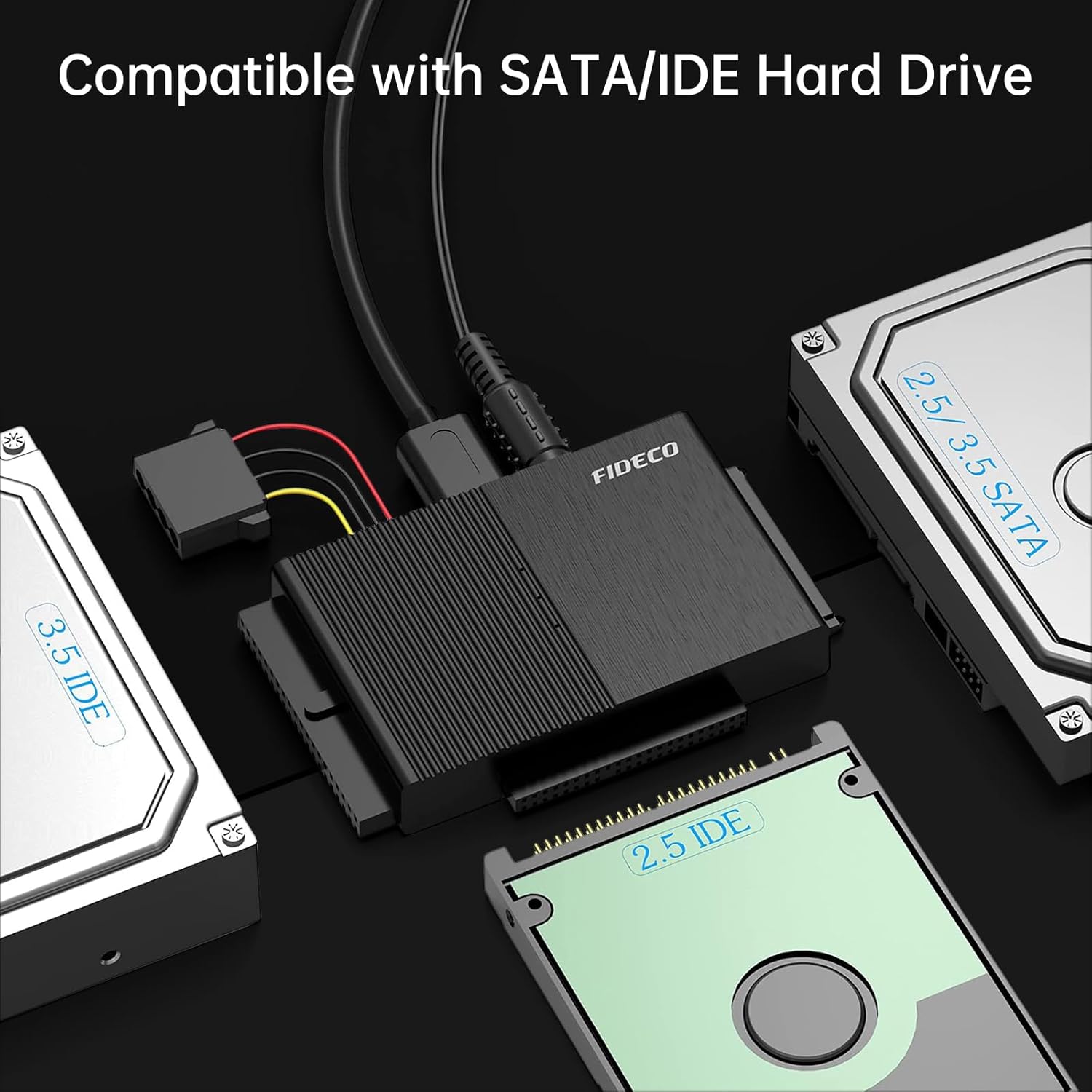
Figure 4: The FIDECO adapter supports various SATA and IDE hard drive types.
4. คู่มือการใช้งาน
4.1 Initializing New Drives
For new HDDs or SSDs, the drive needs to be initialized and formatted by your computer's operating system before it can be recognized and used. This process typically involves using Disk Management in Windows or Disk Utility in macOS.
4.2 การถ่ายโอนข้อมูล
Once connected and recognized, your drive will appear as an external storage device. You can then drag and drop files, perform backups, or access data as you would with any other external drive. The USB 3.0 interface supports data transfer speeds up to 5Gbps, enabling efficient data management.
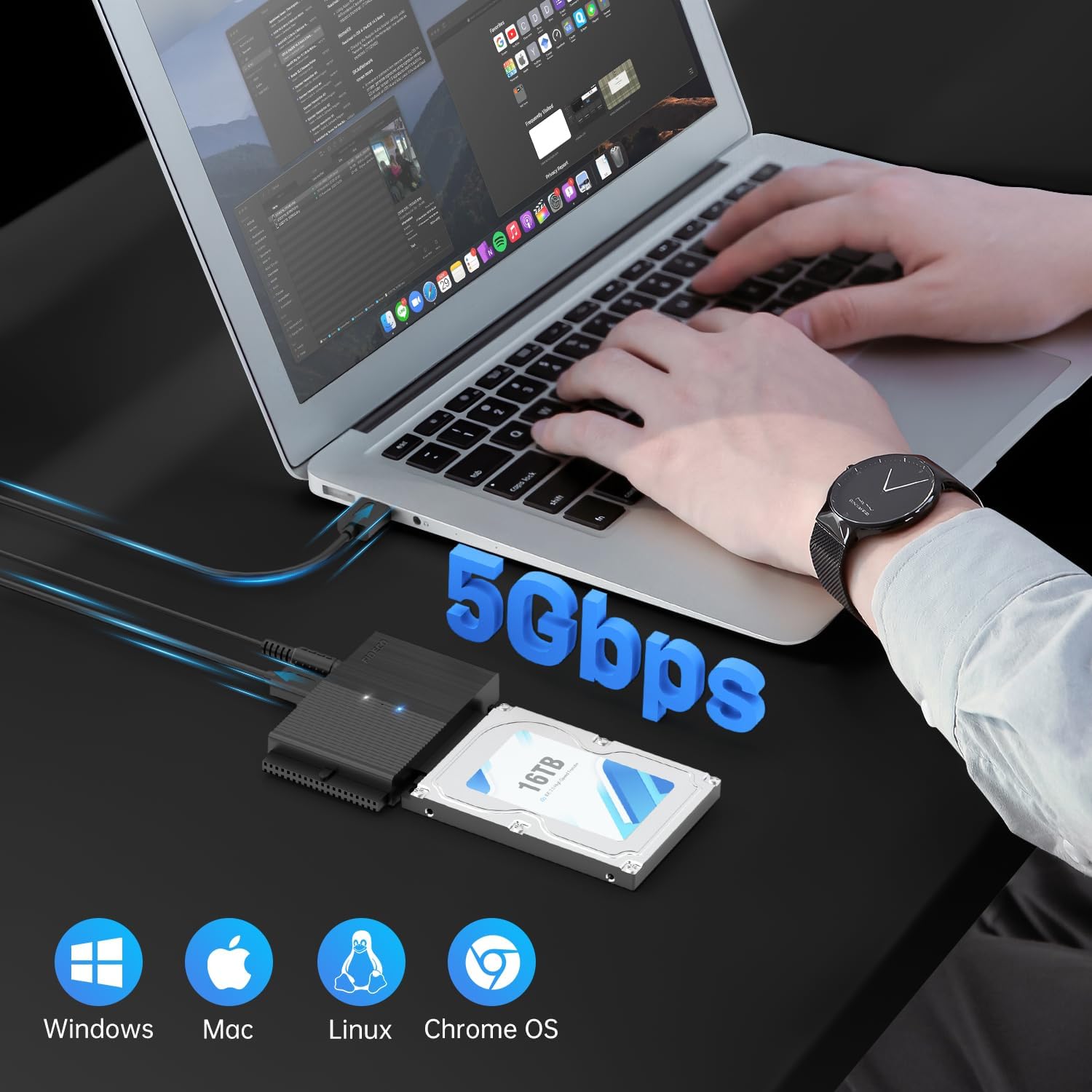
Figure 5: High-speed data transfer with the FIDECO adapter.
4.3 ความเข้ากันได้ของระบบ
The FIDECO adapter is universally compatible with various operating systems, including Windows 10/8.1/8/7/Vista/XP, Mac OS 9/10, and Linux. No additional drivers are typically required for installation.
5. การบำรุงรักษา
- รักษาอะแดปเตอร์ให้สะอาดและปราศจากฝุ่น ใช้ผ้านุ่มและแห้งเช็ดทำความสะอาด
- หลีกเลี่ยงการให้อุปกรณ์สัมผัสกับอุณหภูมิ ความชื้น หรือแสงแดดโดยตรง
- Do not attempt to disassemble or repair the adapter yourself. Contact support if issues arise.
- Store the adapter and cables in a safe place when not in use to prevent damage.
6 การแก้ไขปัญหา
6.1 ไม่พบไดรฟ์
- ตรวจสอบการเชื่อมต่อ: Ensure all cables (data and power) are securely connected to both the adapter and the drive, and to the computer and wall outlet.
- แหล่งจ่ายไฟ: Verify that the 12V power adapter is correctly connected and the ON/OFF switch on the FIDECO adapter is in the 'ON' position. 3.5-inch drives and all IDE drives require external power.
- New Drive Initialization: If it's a new HDD or SSD, it must be initialized and formatted through your operating system's disk management utility before it can be recognized.
- IDE Jumper Settings: For IDE drives, confirm that the jumpers are set to 'Master' or 'Single' mode. Incorrect jumper settings are a common cause of detection issues.
- ลองใช้พอร์ต USB อื่น: Connect the adapter to a different USB port on your computer.
- Test with Another Drive: If possible, test the adapter with a known working drive to isolate the issue.
6.2 ความเร็วในการถ่ายโอนข้อมูลช้า
- พอร์ต USB 3.0: Ensure the adapter is connected to a USB 3.0 port on your computer. Connecting to a USB 2.0 port will limit speeds to 480Mbps.
- Drive Condition: The speed of the connected drive itself can affect transfer rates. Older or slower drives will naturally have lower performance.
- ทรัพยากรระบบ: High CPU usage or other background processes on your computer can impact transfer speeds.
7. ข้อมูลจำเพาะ
| คุณสมบัติ | รายละเอียด |
|---|---|
| หมายเลขรุ่น | ยูเอส-พีแอล319 |
| อินเทอร์เฟซ | USB 3.0 (เข้ากันได้กับ USB 2.0 ย้อนหลัง) |
| ไดรฟ์ที่รองรับ | 2.5"/3.5" SATA HDD/SSD, 2.5"/3.5" IDE HDD, CD-ROM, CD-RW, DVD-ROM, DVD-RW, DVD+RW |
| ความจุสูงสุด | สูงสุดถึง 24TB |
| ความเร็วในการถ่ายโอนข้อมูล | สูงสุด 5Gbps (USB 3.0) |
| ความเข้ากันได้ของระบบปฏิบัติการ | Windows 10/8.1/8/7/Vista/XP, Mac OS 9/10, Linux |
| กำลังไฟเข้า | DC 12V (via included power adapter) |
| สี | สีดำ |
| น้ำหนักสินค้า | 8.8 ออนซ์ |
| ขนาดแพ็คเกจ | 5.67 x 3.66 x 2.52 นิ้ว |
8. การรับประกันและการสนับสนุน
FIDECO products are designed for reliability and performance. For technical support, firmware updates, or any questions regarding your FIDECO USB 3.0 to SATA or IDE Adapter, please contact our customer support team.
อีเมล: การสนับสนุน@fideco.cn
Please provide your model number (US-PL319) and a detailed description of your issue when contacting support for faster assistance.
Ask a question about this manual
Ask about setup, troubleshooting, compatibility, parts, safety, or missing instructions. Manuals+ will review the question and use this page’s manual context to help answer it.