
1. บทนำ
Thank you for choosing the Yosoo Hands-Free Desktop Omnidirectional 1D/2D/QR Barcode Scanner. This device is designed for efficient and reliable barcode reading in various environments, including retail, self-service kiosks, and industrial assembly lines. Its advanced CMOS image processing technology allows for quick and accurate scanning of both printed and screen-displayed barcodes, including damaged or incomplete ones. Please read this manual thoroughly before operating the device to ensure proper use and optimal performance.
2. สินค้าหมดview

Figure 2.1: Yosoo Hands-Free Desktop Omnidirectional Barcode Scanner

Figure 2.2: Barcode Scanner with USB Cable for connection
คุณสมบัติหลัก:
- Advanced CMOS Image Processing: Enables 360° scanning of 1D, 2D, and QR codes from various surfaces, including mobile phone screens and even incomplete or damaged codes.
- การสแกนรอบทิศทาง: No need to precisely align the barcode, improving scanning efficiency.
- Large Scan Window: นำเสนอขอบเขตที่กว้างขวาง view for quick and easy scanning of diverse printed and screen-displayed barcodes.
- การเชื่อมต่อแบบพลักแอนด์เพลย์: Features a convenient data interface for easy connection to devices.
- เสียงตอบรับ: A built-in buzzer provides clear confirmation upon successful scans.
- การออกแบบที่กะทัดรัดและมีสไตล์: With dimensions of 95mm x 75mm x 63mm, it offers a professional appearance and comfortable user experience.
- Multiple Interface Support: Supports USB (USB-KBW, USB-COM), TTL, and RS232 for broad compatibility.
สถานการณ์การใช้งาน:
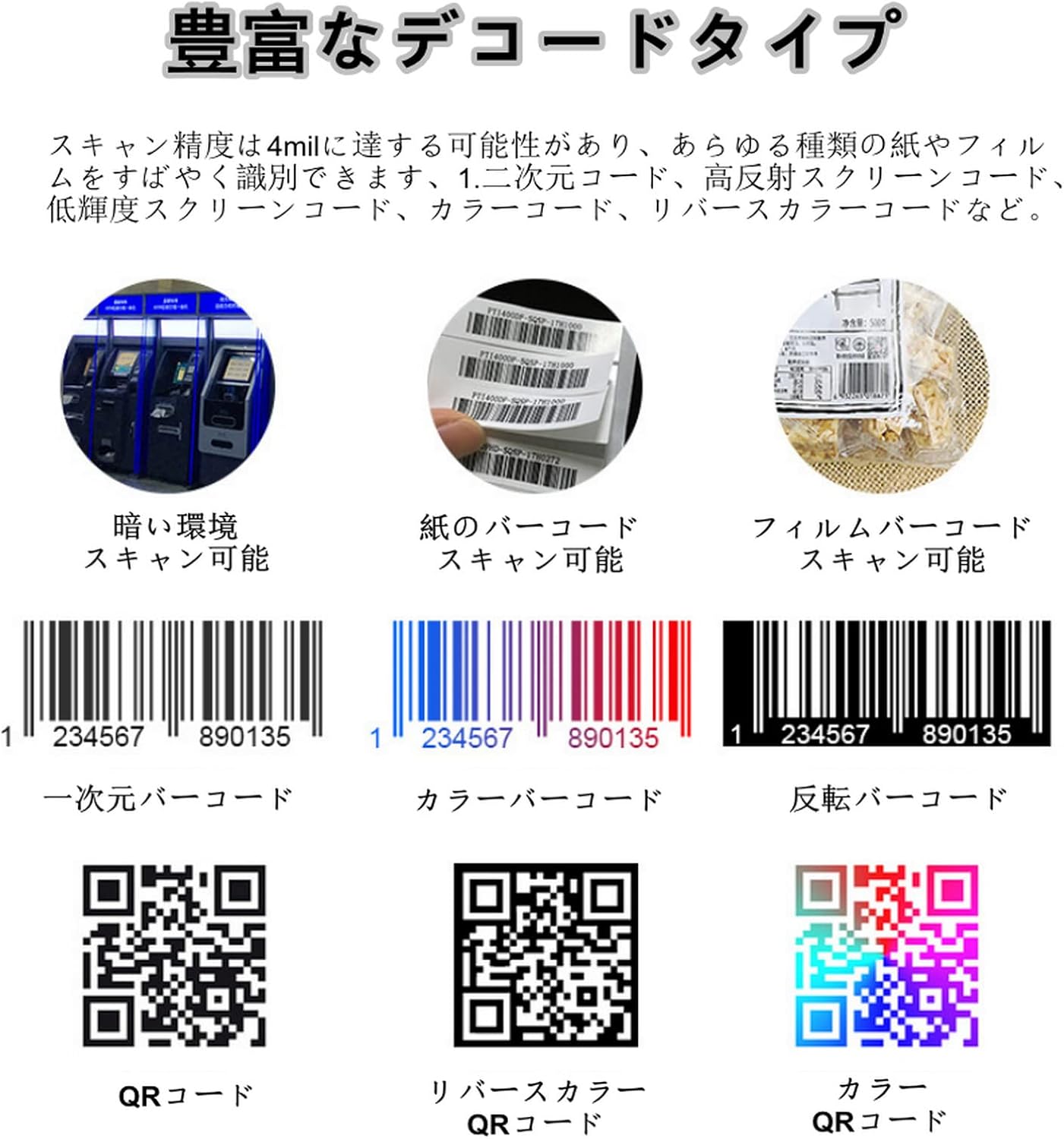
Figure 2.3: Scanning QR codes from mobile phone screens for mobile payments.

Figure 2.4: Use in retail checkout counters for product scanning.
This scanner is versatile and can be integrated into various systems such as self-service terminals, ticket machines, retail POS systems, industrial assembly lines, and access control points.
3. ข้อมูลจำเพาะ
| คุณสมบัติ | คำอธิบาย |
|---|---|
| ประเภทสินค้า | เครื่องสแกนบาร์โค้ดบนเดสก์ท็อป |
| เซ็นเซอร์รับภาพ | ซีมอส |
| แหล่งกำเนิดแสง | 620nm Visible Red Light Diode |
| โหมดทริกเกอร์ | Continuous Automatic Induction |
| ปณิธาน | 640 x 480 |
| อินเทอร์เฟซ | RS232, ยูเอสบี |
| ถอดรหัสความเร็ว | 500 สแกน/วินาที |
| Minimum Contrast | ≥25% |
| ความสามารถในการถอดรหัส 1 มิติ | UPC/EAN, Code128, Code39, Code39 Full ASCII, Coda Bar, Industrial/Interleaved 2 of 5, Code93, Code11, ISBN, ISSN, China Post, GS1 Databar, etc. |
| ความสามารถในการถอดรหัส 2 มิติ | PDF417, QR, Aztec, DataMatrix, Maxicode, MicroPDF417, etc. |
| Depth of Field (Code39, 5MIL) | 40-120มม. |
| Depth of Field (EAN-13, 13MIL) | 20-300มม. |
| Depth of Field (PDF417, 6.8MIL) | 20-150มม. |
| Depth of Field (QR Code, 20MIL) | 15-250มม. |
| สแกนมุม | Roll 55°, Pitch ±25°, Tilt ±75° |
| ปฏิบัติการฉบับที่tage | 5V |
| แม็กซ์ปัจจุบัน | 212มิลลิแอมป์ |
| กระแสไฟฟ้าที่ใช้งาน | 156mA ~ 212mA |
| กระแสไฟสแตนด์บาย | 156มิลลิแอมป์ |
| น้ำหนักผลิตภัณฑ์ | 252 กรัม |
| ขนาด (กว้าง x ยาว x สูง) | 95มม. x 75มม. x 63มม. |
4. คำแนะนำในการตั้งค่า
The Yosoo Barcode Scanner is designed for simple plug-and-play setup.
- แกะเครื่องสแกนเนอร์: นำเครื่องสแกนบาร์โค้ดและสาย USB ออกจากบรรจุภัณฑ์อย่างระมัดระวัง
- เชื่อมต่อสาย USB: Insert the USB connector of the scanner cable into an available USB port on your computer or host device.
- การจดจำระบบ: ระบบปฏิบัติการของคุณควรตรวจจับและติดตั้งไดรเวอร์ที่จำเป็นโดยอัตโนมัติ กระบวนการนี้อาจใช้เวลาสักครู่
- การจัดวาง: Place the scanner on a stable, flat surface, ensuring the scanning window is clear and unobstructed.
- ทดสอบเครื่องสแกน: Open a text editor (e.g., Notepad, Word) or any application that accepts keyboard input. Hold a barcode or QR code in front of the scanner's window. A successful scan will be indicated by an audible beep, and the barcode data will appear in your open application.
Figure 4.1: Connecting the USB cable for initial setup.
5. คู่มือการใช้งาน
การสแกนบาร์โค้ด:
- Ensure the scanner is properly connected to your host device and powered on.
- Position the barcode or QR code within the scanning window. The scanner's omnidirectional capability means precise alignment is not strictly necessary, but ensure the code is flat and clearly visible.
- The scanner will automatically detect and read the code. A successful scan will be confirmed by an audible beep.
- The decoded data will be transmitted to your connected device as keyboard input.
Figure 5.1: Scanning a QR code displayed on a mobile phone screen.
ประเภทบาร์โค้ดที่รองรับ:
The scanner supports a wide range of 1D and 2D barcode symbologies, including:
- รหัส 1D: UPC/EAN, Code128, Code39, Code39 Full ASCII, Coda Bar, Industrial/Interleaved 2 of 5, Code93, Code11, ISBN, ISSN, China Post, GS1 Databar, etc.
- รหัส 2D: PDF417, QR Code, Aztec, DataMatrix, Maxicode, MicroPDF417, etc.

รูปที่ 5.2: อดีตamples of various scannable barcode types.
6. การบำรุงรักษา
To ensure the longevity and optimal performance of your Yosoo Barcode Scanner, follow these maintenance guidelines:
- การทำความสะอาด: ทำความสะอาดช่องสแกนเป็นประจำด้วยผ้าเนื้อนุ่มที่ไม่เป็นขุย สำหรับคราบสกปรกที่ลบยาก ให้ใช้ผ้าชุบน้ำหมาดๆ เช็ดเบาๆampชุบผ้าด้วยน้ำหรือน้ำยาทำความสะอาดอ่อนๆ ที่ไม่ทำให้เกิดรอยขีดข่วน หลีกเลี่ยงสารเคมีรุนแรงหรือวัสดุที่มีฤทธิ์กัดกร่อนที่อาจทำให้กระจกเป็นรอยได้
- พื้นที่จัดเก็บ: เมื่อไม่ใช้งาน ควรเก็บเครื่องสแกนไว้ในที่สะอาดและแห้ง หลีกเลี่ยงแสงแดดโดยตรงและอุณหภูมิที่สูงหรือต่ำเกินไป
- การจัดการ: Handle the scanner with care. Avoid dropping it or subjecting it to strong impacts, which could damage internal components.
- การดูแลสายเคเบิล: Do not bend or twist the USB cable excessively. Always grasp the plug when disconnecting, rather than pulling on the cable itself.
7 การแก้ไขปัญหา
If you encounter issues with your barcode scanner, please refer to the following common problems and solutions:
| ปัญหา | สาเหตุที่เป็นไปได้ | สารละลาย |
|---|---|---|
| เครื่องสแกนเนอร์ไม่สามารถเปิดเครื่องได้ | สาย USB ไม่ได้เชื่อมต่ออย่างถูกต้องหรือพอร์ต USB ชำรุด | ตรวจสอบให้แน่ใจว่าสาย USB เชื่อมต่อกับเครื่องสแกนและอุปกรณ์โฮสต์อย่างแน่นหนาแล้ว ลองใช้พอร์ต USB อื่นหรือคอมพิวเตอร์เครื่องอื่นดู |
| เครื่องสแกนไม่สามารถอ่านบาร์โค้ดได้ | Barcode is damaged, poorly printed, or not within the scanning range. Scanning window is dirty. Incorrect symbology settings (less common for omnidirectional). | Ensure the barcode is clear and undamaged. Position the barcode correctly within the scanning window. Clean the scanning window. Refer to the product specifications for supported barcode types. |
| ไม่มีข้อมูลส่งออกหลังจากการสแกน | Scanner not recognized by the system or application. | Verify that the scanner is recognized by your operating system (check Device Manager). Ensure the application you are using is ready to receive keyboard input. Restart the application or computer. |
| เครื่องสแกนส่งเสียงบี๊บแต่ไม่มีข้อมูลปรากฏขึ้น | Output format issue or application not focused. | Ensure the cursor is active in the input field of your application. Check if the scanner's output mode matches your system's requirements (e.g., USB-KBW for keyboard emulation). |
8. การรับประกันและการสนับสนุน
The Yosoo Barcode Scanner comes with a standard manufacturer's warranty. Please refer to the warranty card included in your product packaging for specific terms and conditions, including warranty duration and coverage.
For technical support, troubleshooting assistance beyond this manual, or warranty claims, please contact your retailer or the Yosoo customer service department. Contact information can typically be found on the product packaging or the official Yosoo webเว็บไซต์.
When contacting support, please have your product model number (Yosooayn7o0cpbs1511-11) and purchase date available.
