
1. สินค้าหมดview
The SIIG JU-DK0L11-S1 is a versatile USB 3.0 Dual Monitor Docking Station designed to expand your laptop or desktop's connectivity and display capabilities. It supports up to two 1080p@60Hz Full HD video displays via two HDMI ports, along with multiple USB ports, Gigabit Ethernet, and a 3.5mm audio jack. This docking station is compatible with both Windows and macOS operating systems, including Mac M1/M2/M3 Pro&Max.
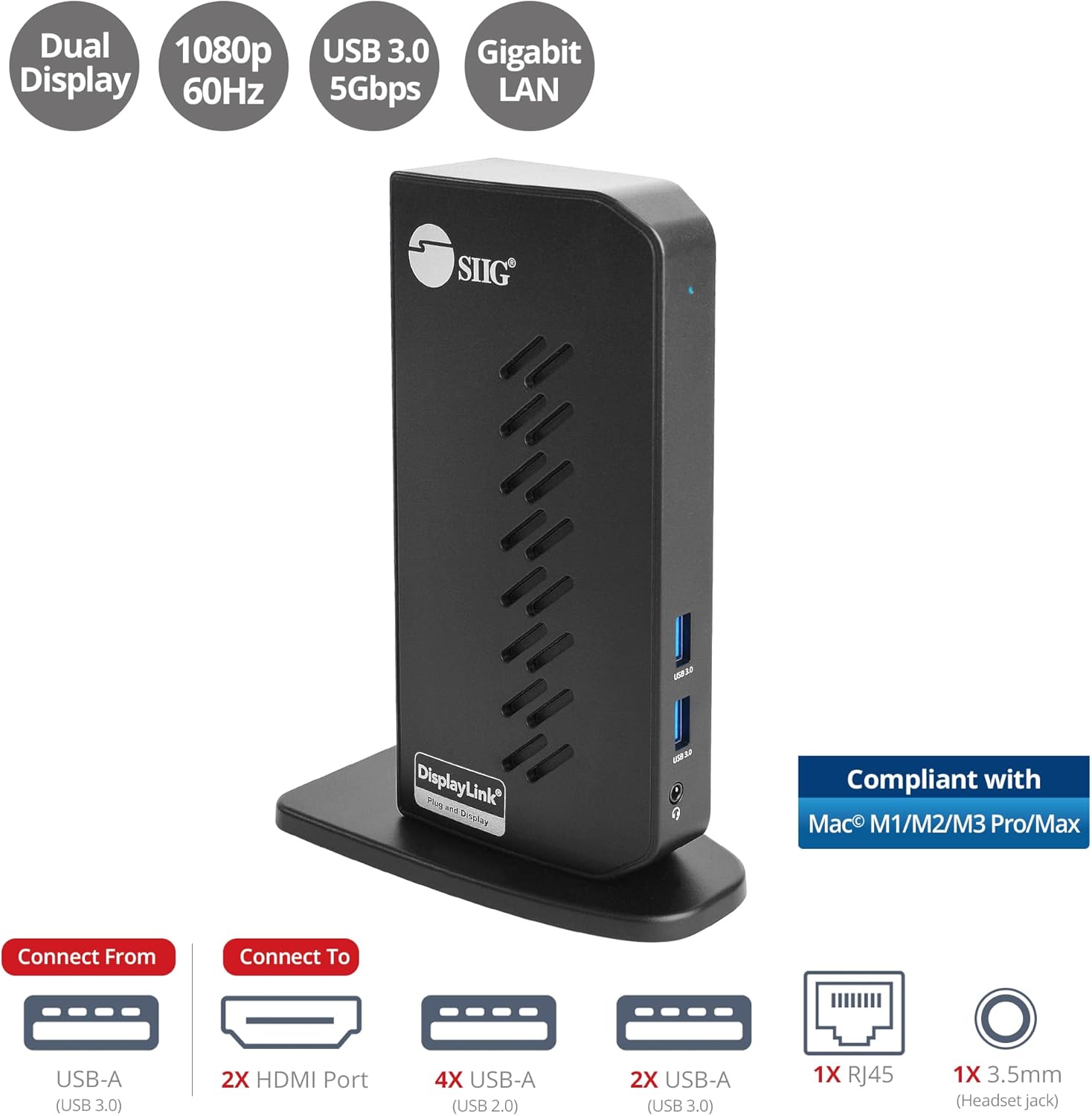
Image 1.1: The SIIG JU-DK0L11-S1 Dual Monitor Docking Station, showcasing its compact vertical design and various connectivity options.
2. เนื้อหาบรรจุภัณฑ์
ตรวจสอบว่ามีรายการทั้งหมดอยู่ในบรรจุภัณฑ์ก่อนดำเนินการติดตั้ง
- SIIG JU-DK0L11-S1 Dual Head Full HD HDMI Video Docking Station
- อะแดปเตอร์แปลงไฟ (12V/2A)
- USB 3.0 Type-A to Type-B Cable
- Driver CD (Drivers can also be downloaded from the official SIIG webงาน)
- คู่มือการใช้งาน

Image 2.1: All components included in the SIIG JU-DK0L11-S1 docking station package, including the docking station, power adapter, USB cable, driver CD, and user manual.
3. เค้าโครงฮาร์ดแวร์
Familiarize yourself with the ports and indicators on the docking station.
แผงด้านหน้า
- กำลังไฟ LED: บ่งชี้สถานะพลังงาน
- พอร์ต USB 3.0 จำนวน 2 ช่อง: For connecting high-speed USB devices (5Gbps, 4.5W/900mA).
- แจ็คหูฟังขนาด 3.5 มม.: For connecting headphones or stereo speakers with microphone input.
แผงด้านหลัง
- พอร์ต USB 2.0 จำนวน 4 ช่อง: For connecting standard USB devices (480Mbps, 5V/900mA).
- พอร์ต RJ45 Gigabit Ethernet: สำหรับการเชื่อมต่อเครือข่ายแบบใช้สาย (10/100/1000Mbps)
- 2x HDMI Outputs: For connecting external displays (up to 1080p@60Hz).
- พอร์ต USB 3.0 Type-B: For connecting the docking station to your host computer.
- แจ็คพาวเวอร์: สำหรับเชื่อมต่ออะแดปเตอร์ไฟ 12V/2A

ภาพที่ 3.1: รายละเอียด view of the front and rear panels of the docking station, highlighting all available ports and their functions.
4. คำแนะนำในการตั้งค่า
ปฏิบัติตามขั้นตอนเหล่านี้เพื่อตั้งค่าสถานีเชื่อมต่อของคุณ:
- ติดตั้งไดรเวอร์ DisplayLink: Before connecting the docking station, install the necessary DisplayLink drivers on your computer. You can use the included driver CD or download the latest drivers from the official DisplayLink webงาน (www.displaylink.com/downloads) or SIIG's support page.
- เชื่อมต่อพลังงาน: Plug the provided 12V/2A power adapter into the docking station's power jack and then into a wall outlet. The Power LED on the front panel should illuminate.
- เชื่อมต่อกับคอมพิวเตอร์โฮสต์: Use the supplied USB 3.0 Type-A to Type-B cable to connect the docking station's USB 3.0 Type-B port to an available USB 3.0 Type-A port on your laptop or desktop computer.
- เชื่อมต่อจอแสดงผล: Connect your external monitors to the two HDMI output ports on the rear of the docking station using HDMI cables.
- เชื่อมต่ออุปกรณ์ต่อพ่วง: Connect your USB devices (keyboard, mouse, printer, flash drives, etc.) to the available USB 3.0 and USB 2.0 ports. Connect an Ethernet cable to the RJ45 port for a wired network connection. Plug your headset or speakers into the 3.5mm audio jack.
Video 4.1: An official video demonstrating the setup and connectivity of the SIIG JU-DK0L11-S1 Dual Head Full HD HDMI Docking Station, showing how to connect monitors and peripherals.
5. คู่มือการใช้งาน
Once the docking station is set up, you can configure your display settings and utilize the connected peripherals.
โหมดการแสดงผล
The docking station supports three primary display modes:
- โหมดมิเรอร์: Duplicates your primary display onto the external monitors.
- โหมดขยาย: ขยายเดสก์ท็อปของคุณไปยังหลายหน้าจอ ช่วยเพิ่มพื้นที่ทำงานให้มากขึ้น
- โหมดหลัก: Designates one of the connected displays as the main display.
คุณสามารถกำหนดค่าการตั้งค่าเหล่านี้ได้ผ่านการตั้งค่าการแสดงผลของระบบปฏิบัติการของคุณ (เช่น การตั้งค่าการแสดงผลของ Windows หรือ การตั้งค่าระบบของ macOS > การแสดงผล)

Image 5.1: A typical dual 1080p monitor setup utilizing the SIIG docking station, demonstrating an extended display configuration for enhanced productivity.
การเชื่อมต่อ USB
The docking station provides two USB 3.0 ports for high-speed data transfer (e.g., external hard drives, SSDs) and four USB 2.0 ports for standard peripherals (e.g., keyboard, mouse, printer). Simply plug your devices into the corresponding ports.
กิกะบิตอีเทอร์เน็ต
For a stable and fast internet connection, connect an Ethernet cable from your router or modem to the RJ45 port on the docking station. This provides a more reliable connection than Wi-Fi, supporting 10/100/1000 BASE-T wired networks.

ภาพที่ 5.2: ภาพระยะใกล้ view of the Gigabit RJ45 Ethernet port and USB ports, illustrating their use for network and high-speed data transmission.
การเชื่อมต่อเสียง
The 3.5mm headset jack allows you to connect headphones, speakers, or a microphone. Ensure your operating system's audio settings are configured to use the docking station's audio output/input.
6. Specifications (Model: JU-DK0L11-S1)
| ยี่ห้อ | ซิก |
| หมายเลขรุ่น | จู-DK0L11-S1 |
| ฮาร์ดแวร์อินเตอร์เฟซ | 3.5mm Audio, Ethernet, HDMI, USB 1.1, USB 2.0, USB 3.0 |
| อุปกรณ์ที่รองรับ | Desktop or laptop computer with an available USB 3.0 Type-A port. Compatible with Windows® 11/10/8.1/8/7 and macOS® 11 / 10.15 to 10.10. |
| พอร์ต USB รวม | 6 (2x USB 3.0, 4x USB 2.0) |
| พอร์ต HDMI ทั้งหมด | 2 |
| ความละเอียดสูงสุด | 1080p@60Hz (per display) |
| ความเร็วอีเธอร์เน็ต | กิกะบิต (10/100/1000 เมกะบิตต่อวินาที) |
| อินพุต Voltage | 100 โวลต์ (AC) |
| ขนาดสินค้า (กว้าง x ยาว x สูง) | 5.31" x 2.87" x 7.36" |
| น้ำหนักสินค้า | 0.75 ปอนด์ |

Image 6.1: Physical dimensions of the SIIG JU-DK0L11-S1 docking station, illustrating its compact and space-saving design.
7 การแก้ไขปัญหา
- ไม่มีการแสดงผล:
- ตรวจสอบให้แน่ใจว่าแท่นวางเปิดใช้งานอยู่และไฟ LED แสดงสถานะการทำงานติดสว่าง
- Verify that the USB 3.0 cable is securely connected between the docking station and your computer.
- Check that HDMI cables are firmly connected to both the docking station and your monitors.
- Confirm that DisplayLink drivers are correctly installed and up to date.
- ลองรีสตาร์ทเครื่องคอมพิวเตอร์ของคุณ
- อุปกรณ์ USB ไม่ได้รับการรู้จัก:
- Ensure the docking station is powered and connected to your computer.
- ลองเสียบอุปกรณ์ USB เข้ากับพอร์ตอื่นบนแท่นวางดู
- Connect the USB device directly to your computer to rule out device issues.
- ไม่มีการเชื่อมต่อเครือข่าย:
- Verify the Ethernet cable is securely connected to the RJ45 port on the docking station and your network source.
- ตรวจสอบการตั้งค่าเครือข่ายของคอมพิวเตอร์เพื่อให้แน่ใจว่าได้เปิดใช้งานอะแดปเตอร์อีเธอร์เน็ตแล้ว
- Confirm that your router/modem is functioning correctly.
- ปัญหาเกี่ยวกับเสียง:
- Ensure your headset/speakers are properly plugged into the 3.5mm jack.
- Check your computer's sound settings to select the docking station as the default audio output/input device.
8. การบำรุงรักษา
To ensure the longevity and optimal performance of your SIIG docking station, follow these maintenance guidelines:
- รักษาความสะอาดของอุปกรณ์โดยการเช็ดด้วยผ้าแห้งนุ่มๆ หลีกเลี่ยงการใช้น้ำยาทำความสะอาดหรือสเปรย์กระป๋อง
- Ensure proper ventilation around the docking station to prevent overheating. The vertical design with heat dissipation features aids in this.
- หลีกเลี่ยงการให้อุปกรณ์สัมผัสกับอุณหภูมิ ความชื้น หรือแสงแดดโดยตรง
- จับสายเคเบิลและขั้วต่ออย่างระมัดระวังเพื่อป้องกันความเสียหาย
9. การรับประกันและการสนับสนุน
For warranty information and technical support, please refer to the documentation included with your product or visit the official SIIG website. SIIG is committed to providing reliable products and customer assistance.
For further assistance, you may contact SIIG customer support directly through their webเว็บไซต์หรือข้อมูลติดต่อที่ระบุไว้ในบรรจุภัณฑ์ของผลิตภัณฑ์ของคุณ