
1. สินค้าหมดview
The HDWR HD6600 is a compact, portable 1D/2D barcode scanner designed for efficiency and convenience. Its ergonomic design, resembling a car key, makes it easy to carry and use in various environments. This device supports both 1D and 2D barcode types, including QR codes, and offers flexible connectivity options.
คุณสมบัติหลัก:
- ขนาดกะทัดรัดและพกพาสะดวก: Designed for easy handling and pocket storage, optimizing space in any workplace.
- Dual Wireless Communication: Connects via radio using the included USB micro-receiver or via Bluetooth.
- Integrated Memory: Stores up to 5000 standard codes for later transmission, enhancing operational flexibility.
- การสแกนที่หลากหลาย: Capable of high-quality reading for 1D and 2D barcodes, including QR codes, even if they are difficult to read or damaged.
- การดำเนินการที่เรียบง่าย: Features an illuminated scan button and an on/off button for straightforward use.
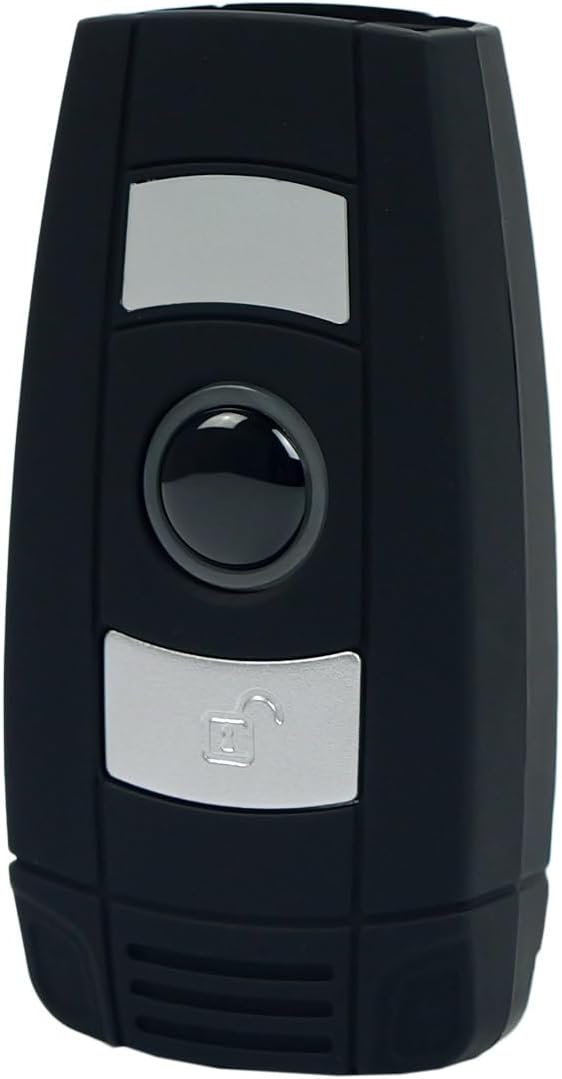
รูปที่ 1 : ด้านหน้า view of the HDWR HD6600 barcode scanner, showing the scan and function buttons.
2. เนื้อหาบรรจุภัณฑ์
ตรวจสอบว่ามีรายการทั้งหมดอยู่ในแพ็คเกจของคุณ:
- HDWR HD6600 Barcode Scanner
- สายชาร์จ USB
- USB Micro-Receiver (for radio communication)
- คู่มือการใช้งาน (เอกสารนี้)
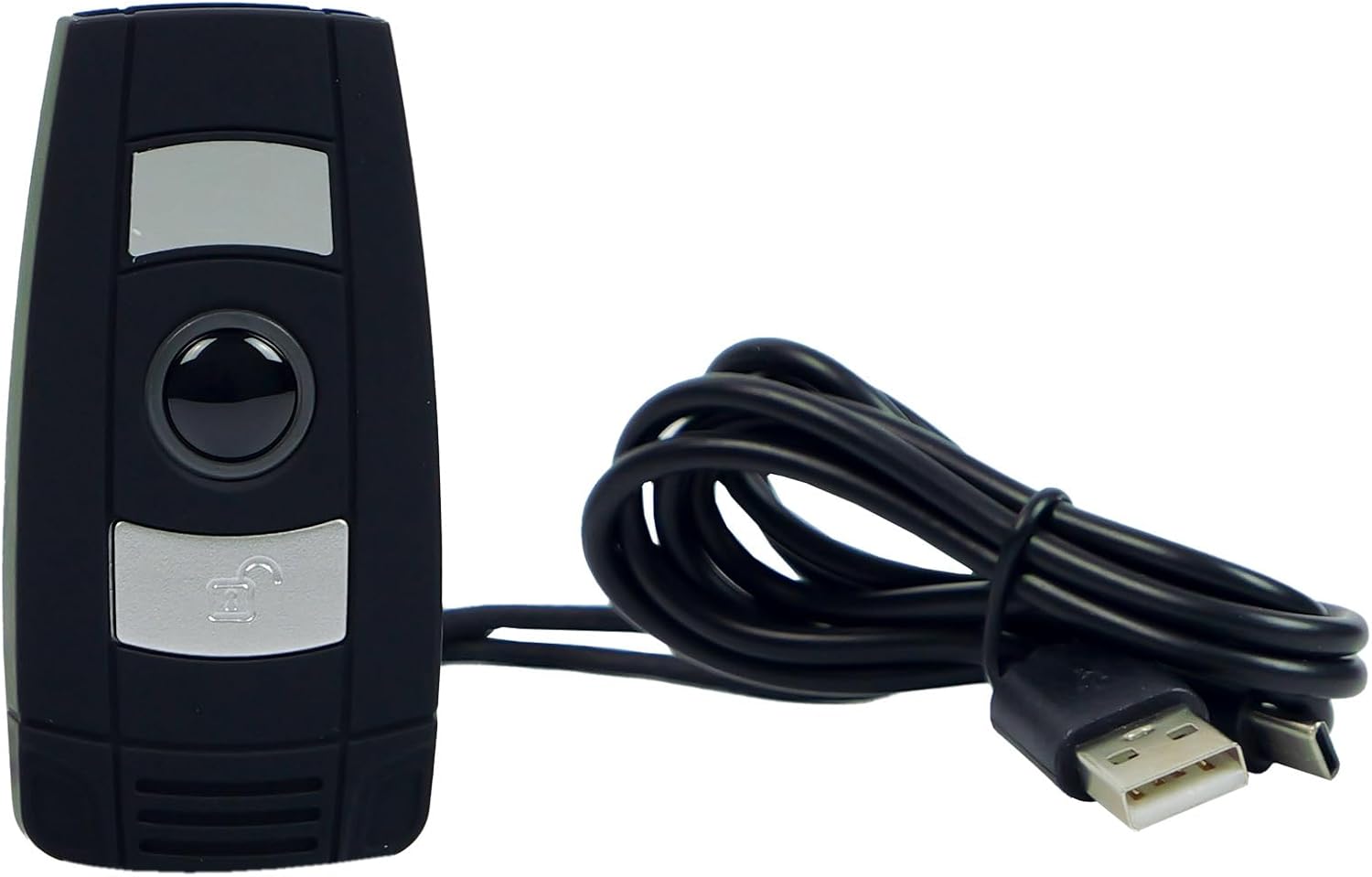
Figure 2: The HDWR HD6600 barcode scanner shown with its USB charging cable.
3. การตั้งค่าเริ่มต้น
3.1 การชาร์จอุปกรณ์
Before first use, fully charge the scanner. Connect the provided USB charging cable to the scanner's USB-C port and to a power source (e.g., computer USB port or USB wall adapter). The charging indicator light will show the charging status.
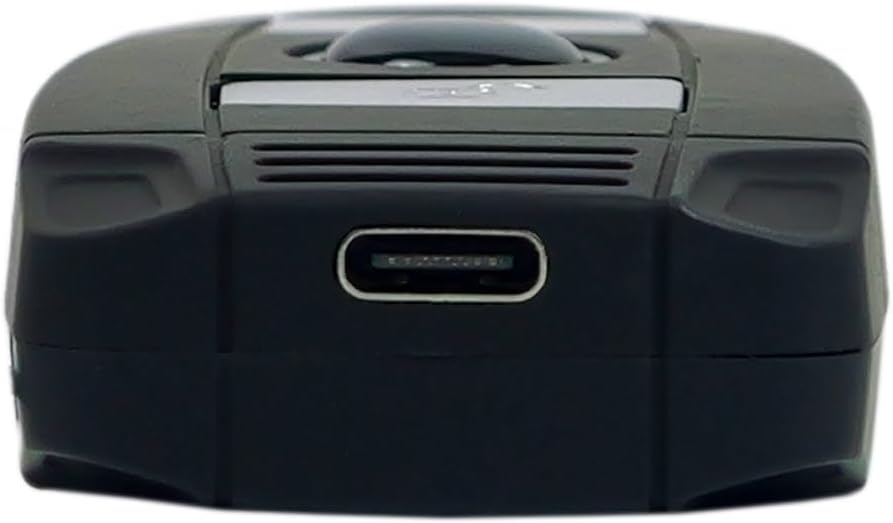
Figure 3: The USB-C charging port located at the bottom of the scanner.
3.2 การเปิด/ปิดเครื่อง
To power on the scanner, press and hold the On/Off button until the indicator light illuminates. To power off, press and hold the On/Off button again until the indicator light turns off.
3.3 การเชื่อมต่อกับอุปกรณ์
The HD6600 offers two primary connection methods:
3.3.1 USB Micro-Receiver (Radio Communication)
- Plug the USB micro-receiver into an available USB port on your computer or host device.
- The scanner will automatically attempt to pair with the receiver. A successful connection is indicated by a specific sound or light pattern (refer to device indicators).
3.3.2 การสื่อสารบลูทู ธ
- ตรวจสอบให้แน่ใจว่าสแกนเนอร์เปิดอยู่
- To switch to Bluetooth mode, press and hold the scan button for 8 seconds. The scanner will emit a sound or show a light pattern indicating it is in Bluetooth pairing mode.
- On your host device (computer, tablet, smartphone), enable Bluetooth and search for available devices.
- Select "HD6600" from the list of found devices to pair.
- เมื่อจับคู่เสร็จแล้ว เครื่องสแกนก็พร้อมใช้งาน
4. คู่มือการใช้งาน
4.1 การสแกนบาร์โค้ด
หากต้องการสแกนบาร์โค้ด:
- Point the scanner's lens at the barcode you wish to read.
- Press the illuminated scan button.
- A successful scan will be indicated by a beep and/or a green light. The scanned data will be transmitted to your connected device.
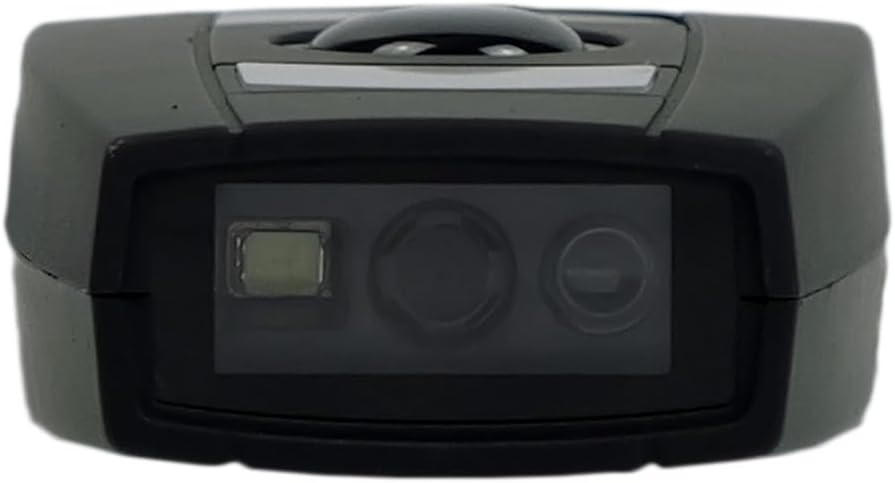
Figure 4: The scanning lens of the HDWR HD6600 barcode scanner.
4.2 Using Integrated Memory
The HD6600 can store up to 5000 standard barcodes when not connected or when operating in inventory mode. To retrieve stored data, connect the scanner to your host device and follow the instructions for data transfer (usually by scanning a specific function code or entering a data upload mode).
4.3 Switching Communication Modes
To switch between radio (USB micro-receiver) and Bluetooth communication modes, press and hold the scan button for 8 seconds. The scanner will confirm the mode change with an audible alert or indicator light change.
Video 1: Demonstration of the HDWR HD6600 barcode scanner's features and operation, including its compact design and scanning capabilities.
5. การดูแลรักษา
- การทำความสะอาด: Use a soft, dry cloth to clean the scanner's exterior. For the scanning lens, use a lens cleaning cloth and solution. Avoid abrasive cleaners or solvents.
- พื้นที่จัดเก็บ: Store the scanner in a cool, dry place away from direct sunlight and extreme temperatures. The maximum storage temperature is 60 degrees Celsius.
- แบตเตอรี่: The device contains a Lithium-ion battery. Do not attempt to replace the battery yourself. Dispose of the device according to local regulations for electronic waste.
- การป้องกัน: While durable, avoid dropping the scanner or exposing it to excessive moisture or dust.
6 การแก้ไขปัญหา
| ปัญหา | สาเหตุที่เป็นไปได้ | สารละลาย |
|---|---|---|
| เครื่องสแกนเนอร์ไม่สามารถเปิดเครื่องได้ | แบตเตอรี่อ่อน | ชาร์จเครื่องสแกนโดยใช้สาย USB ที่ให้มา |
| Scanner does not connect to host device. | Incorrect communication mode; not paired; out of range. | Ensure correct mode (radio/Bluetooth). Re-pair the device. Move scanner closer to the host device. |
| ไม่สามารถสแกนบาร์โค้ดได้ | Barcode damaged; scanner lens dirty; insufficient lighting. | Try scanning a different barcode. Clean the scanner lens. Ensure adequate lighting. |
| ข้อมูลที่สแกนไม่ถูกต้องหรือไม่สมบูรณ์ | Partial scan; incorrect symbology settings. | Ensure the entire barcode is within the scanning area. Check scanner configuration for supported barcode types. |
7. ข้อมูลจำเพาะทางเทคนิค
| คุณสมบัติ | รายละเอียด |
|---|---|
| หมายเลขรุ่น | เอชดี6600 |
| ยี่ห้อ | HDWR |
| เทคโนโลยีการเชื่อมต่อ | บลูทูธ, ยูเอสบี, ไวไฟ |
| อุปกรณ์ที่รองรับ | คอมพิวเตอร์ |
| ประเภทแบตเตอรี่ | ลิเธียมไอออน 1 ก้อน (รวมอยู่ด้วย) |
| ปฏิบัติการฉบับที่tage | 5 โวลต์ |
| น้ำหนักสินค้า | 130 กรัม |
| อุณหภูมิการจัดเก็บสูงสุด | 60 องศาเซลเซียส |
| จำนวนรายการ | 1 |
| ความพร้อมของอะไหล่ | ไม่มีข้อมูล |
| รับประกันการอัปเดตซอฟต์แวร์จนถึง | ไม่มีข้อมูล |
8. ข้อมูลการรับประกัน
The HDWR HD6600 barcode scanner comes with a รับประกัน 2 ปี from the date of purchase. This warranty covers manufacturing defects and malfunctions under normal use. It does not cover damage caused by misuse, accidents, unauthorized modifications, or improper maintenance. Please retain your proof of purchase for warranty claims.
9. การสนับสนุนลูกค้า
For further assistance, technical support, or warranty inquiries, please contact HDWR customer service. Refer to the product packaging or the official HDWR webเว็บไซต์สำหรับข้อมูลการติดต่อล่าสุด
แหล่งข้อมูลออนไลน์: Visit the official HDWR webเว็บไซต์นี้รวบรวมคำถามที่พบบ่อย (FAQ) ไดรเวอร์เวอร์ชั่นล่าสุด และเอกสารสนับสนุนเพิ่มเติม