
VENZ R4040-V2
VENZ Indoor Camera R4040-V2 User Manual
Model: R4040-V2 | Brand: VENZ
สินค้าเกินview
The VENZ Indoor Camera R4040-V2 is a 1080P HD home security camera designed for indoor use. It features 360° pan-tilt-zoom (PTZ) capabilities, two-way audio, motion detection, and night vision, making it suitable for monitoring babies, pets, or general home security.
คุณสมบัติหลัก
- ความละเอียด HD 1080P: Provides clear and smooth video.
- ฟังก์ชันการหมุน 360° PTZ: Offers 360° horizontal rotation and 104° vertical view เพื่อความคุ้มครองที่ครอบคลุม
- เสียงสองทาง: มีไมโครโฟนและลำโพงในตัวสำหรับใช้ในการสื่อสาร
- การตรวจจับและติดตามการเคลื่อนไหว: Sends instant alerts and tracks detected movement.
- การมองเห็นตอนกลางคืน: IR LEDs provide clear vision up to 28 feet in low light.
- ตัวเลือกการจัดเก็บข้อมูลหลากหลาย: Supports cloud storage and up to 128GB Micro SD card (not included).
- ความเข้ากันได้ของการควบคุมด้วยเสียง: Works with Echo Show/Spot/Fire TV and Google Nest Hub/Chromecast.
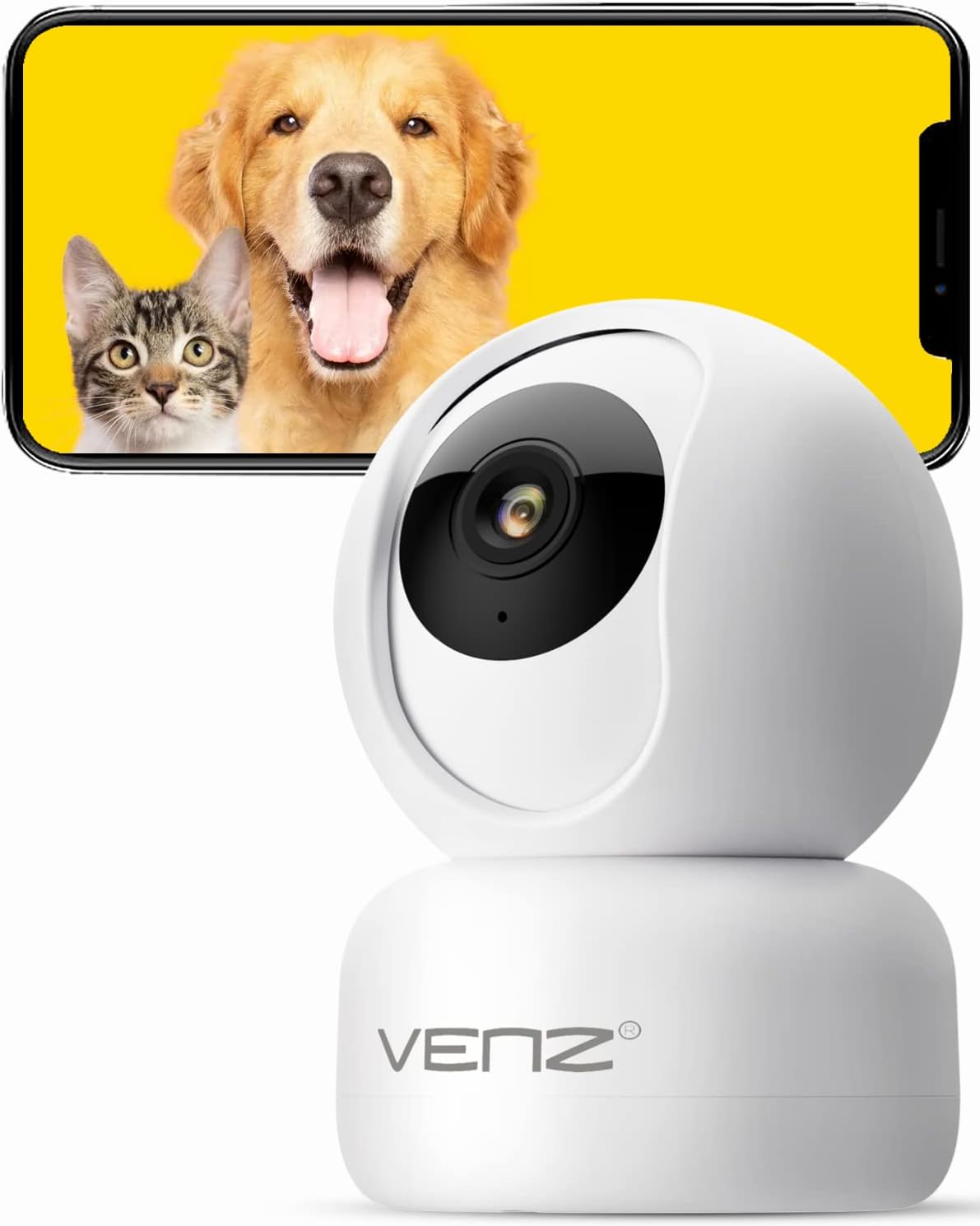
Image: The VENZ Indoor Camera R4040-V2, a white dome-shaped camera, shown next to a smartphone displaying live feed of a dog and a cat, illustrating its use for pet monitoring.
มีอะไรอยู่ในกล่อง
ตรวจสอบว่าส่วนประกอบทั้งหมดมีอยู่ก่อนดำเนินการติดตั้ง
- กล้อง PTZ อัจฉริยะ x 1
- สาย USB x 1
- คู่มือการใช้งาน x 1
- ขายึด x 1
- อะแดปเตอร์ x 1
- ถุงเกลียว x 1
- สติ๊กเกอร์เจาะรู x 1
- รีเซ็ตพิน x 1
คู่มือการติดตั้ง
1. การเปิดกล้อง
- เชื่อมต่อสาย USB ที่ให้มากับพอร์ตจ่ายไฟของกล้อง
- Plug the USB cable into the adapter.
- Plug the adapter into a standard electrical outlet (DC 5V).
- รอจนกว่าไฟแสดงสถานะของกล้องจะกะพริบ ซึ่งแสดงว่ากล้องพร้อมสำหรับการตั้งค่าแล้ว
2. การติดตั้งแอปและการสร้างบัญชี
The VENZ Indoor Camera operates via the Woox Home App.
- Download the "Woox Home" app from the ร้านค้า Google Play or แอปสโตร์ของแอปเปิล.
- เปิดแอปและลงทะเบียนบัญชีใหม่หากคุณยังไม่มีหรือเข้าสู่ระบบด้วยข้อมูลประจำตัวที่มีอยู่

Image: The Woox Home App logo, indicating compatibility with Amazon Alexa and Google Assistant, and showing the app interface on a smartphone and a smart display.
3. การเพิ่มกล้องลงในแอป
- In the Woox Home app, tap the "+" icon to add a new device.
- Select "Camera" or "Security Camera" from the device list.
- ทำตามคำแนะนำบนหน้าจอเพื่อเชื่อมต่อกล้องกับเครือข่าย Wi-Fi 2.4GHz ของคุณ ตรวจสอบให้แน่ใจว่ารหัสผ่าน Wi-Fi ของคุณถูกต้อง
- The app will display a QR code. Position your camera to scan this QR code from your phone screen. Hold the phone approximately 6-8 inches (15-20 cm) from the camera lens.
- Once the camera successfully scans the QR code, it will emit a confirmation sound. Tap "I heard a prompt" in the app.
- The camera will then connect to your Wi-Fi network. Once connected, you can name your camera and begin using it.

Image: A hand holding a smartphone displaying a QR code, with the VENZ Indoor Camera positioned to scan it, illustrating the quick setup process.
4. การติดตั้งกล้อง (ไม่บังคับ)
The camera can be placed on a flat surface or mounted to a wall or ceiling using the included bracket.
- Choose a suitable location for mounting, ensuring it has a clear view และอยู่ในระยะสัญญาณ Wi-Fi
- Use the punched sticker to mark the drilling positions on the wall/ceiling.
- เจาะรูและติดตั้งพุกยึดผนัง
- Attach the mounting bracket to the wall/ceiling using the provided screws.
- Secure the camera onto the mounting bracket by twisting it into place.
การใช้งานกล้อง
สด View และการควบคุม PTZ
- Open the Woox Home app and select your camera from the device list.
- ฟีดวิดีโอสดจะปรากฏขึ้น
- Use the on-screen joystick or directional arrows to pan (rotate horizontally 360°) and tilt (rotate vertically 104°) the camera lens.
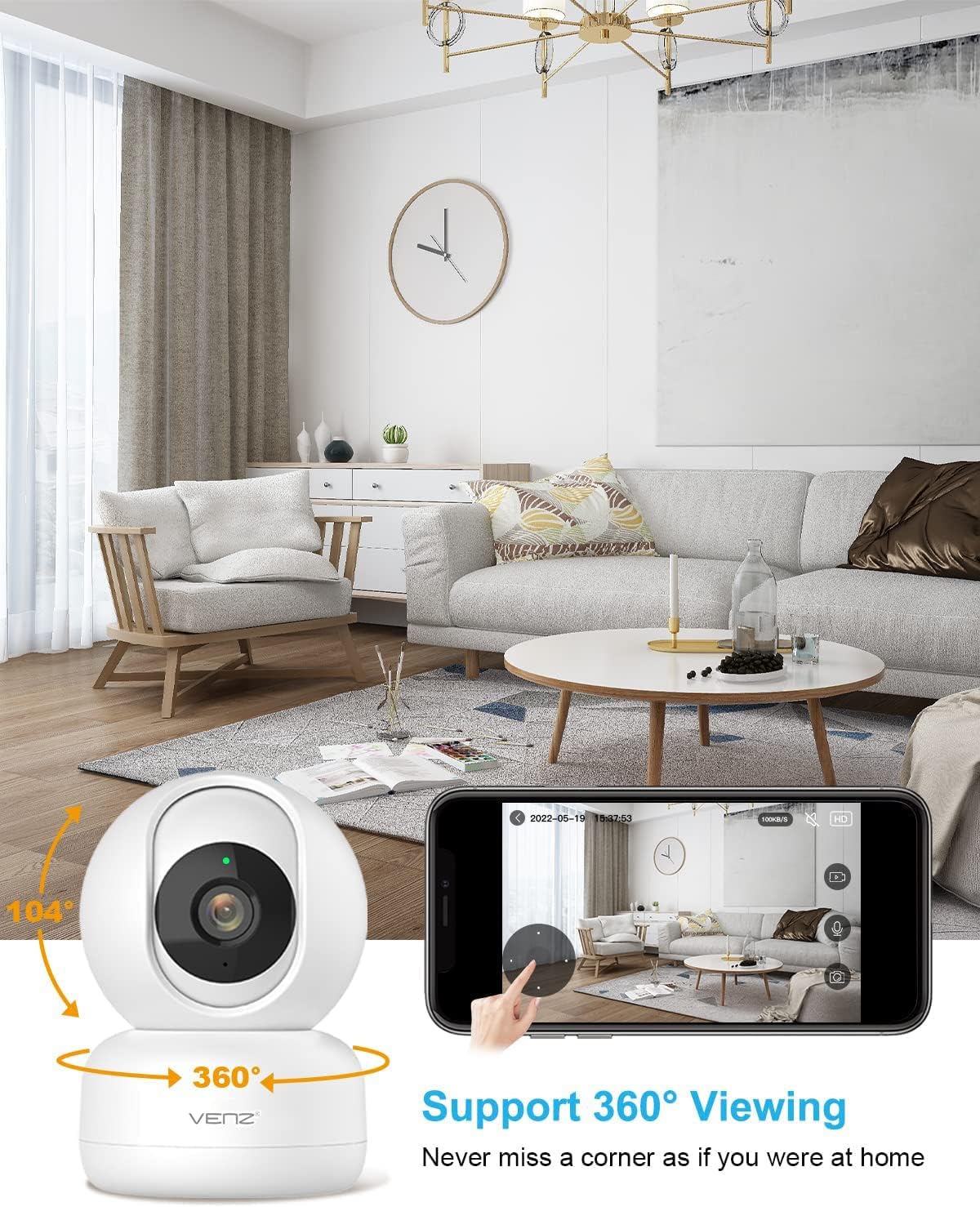
Image: The VENZ Indoor Camera with arrows indicating its 360-degree horizontal rotation and 104-degree vertical tilt capabilities, alongside a smartphone displaying the live view อินเทอร์เฟซ
ระบบเสียงสองทาง
- ขณะถ่ายทอดสด view, tap the microphone icon in the app to speak through the camera.
- แตะไอคอนลำโพงเพื่อฟังเสียงจากบริเวณรอบกล้อง

Image: Illustrations showing a woman speaking into her phone and a child interacting with a dog near the camera, demonstrating the two-way audio communication feature.
การตรวจจับและติดตามการเคลื่อนไหว
- Navigate to the camera settings within the Woox Home app.
- Enable "Motion Detection" to receive instant alerts on your phone when movement is detected.
- Activate "Motion Tracking" for the camera to automatically follow and keep the detected subject within its field of view.
- Adjust sensitivity levels and set activity areas as needed.

Image: A child and an adult entering a room, with the camera's motion tracking feature highlighted by red boxes, and a smartphone displaying a "Motion Tracking Detection" notification from the Woox Home app.

Image: Two cats in a living room, with one jumping and the other sitting, demonstrating the camera's motion tracking capability by highlighting the subjects with yellow crosses, and a smartphone showing real-time motion detection notifications.
การมองเห็นตอนกลางคืน
- กล้องจะสลับไปที่โหมดมองเห็นตอนกลางคืนโดยอัตโนมัติเมื่ออยู่ในสภาวะแสงน้อย
- Infrared LEDs provide clear black-and-white video up to 28 feet (8.5 meters).
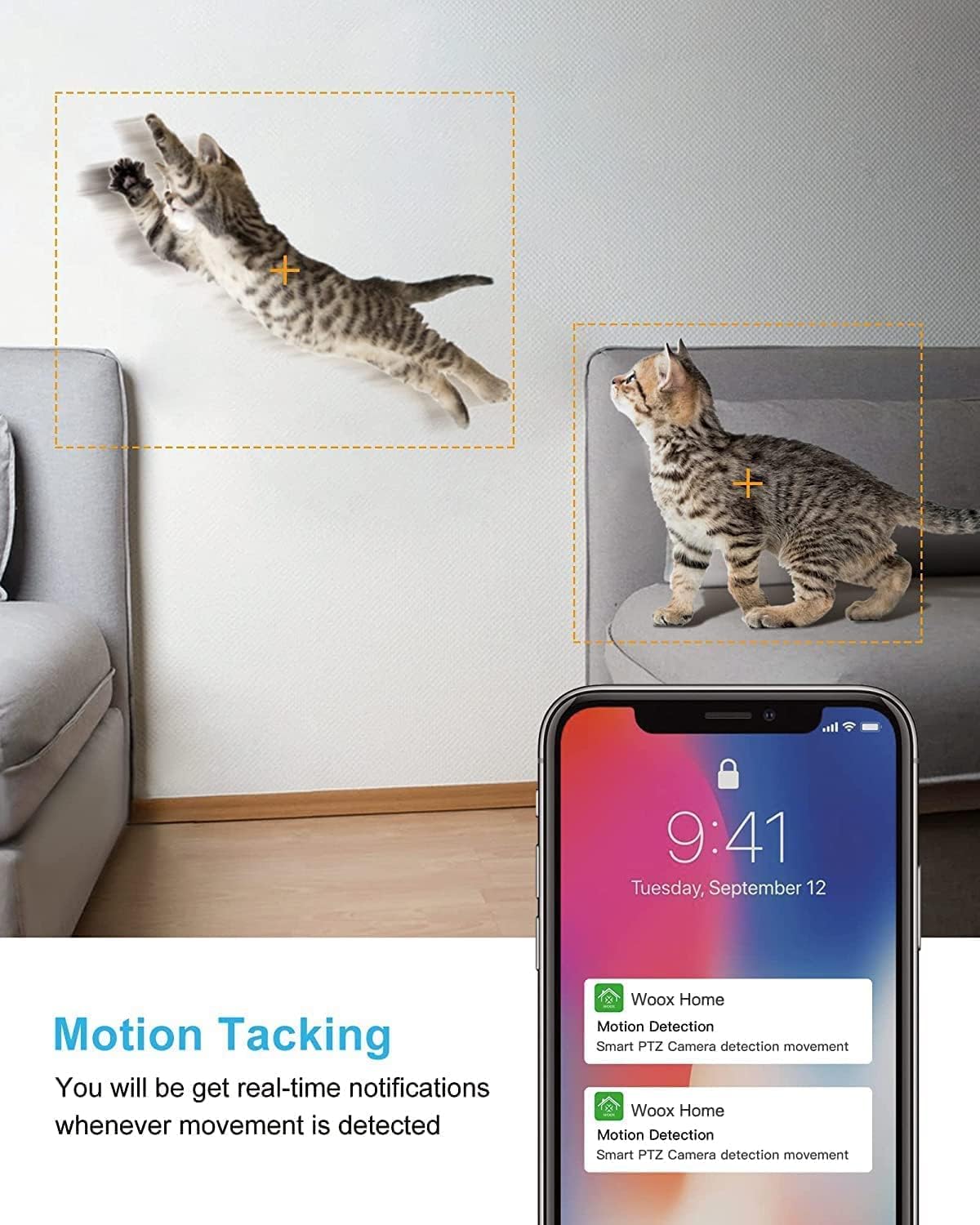
Image: A split image showing a baby sleeping in a crib in a dark room (top, black and white) and a woman viewing a clear image on her phone in bed (bottom), illustrating the camera's clear night vision capability.
การจัดเก็บและการเล่น
- การ์ด Micro SD: Insert a Micro SD card (up to 128GB, not included) into the camera's slot for local storage of recordings.
- การเก็บข้อมูลบนคลาวด์: Subscribe to the optional cloud storage service via the Woox Home app for secure, encrypted data storage.
- การเข้าถึงที่บันทึกไว้ footage through the "Playback" or "History" section in the app.

Image: The VENZ Indoor Camera with an arrow pointing to its Micro SD card slot and a cloud icon with a shield, illustrating both local (Micro SD) and cloud storage options for recording and playback.
Multi-User and Multi-Device Access
- Share camera access with family members through the Woox Home app.
- แอพรองรับ viewing multiple Wi-Fi cameras simultaneously (up to 4 live videos on one screen).
การซ่อมบำรุง
- การทำความสะอาด: ใช้ผ้านุ่มและแห้งเช็ดเลนส์และตัวกล้อง หลีกเลี่ยงน้ำยาทำความสะอาดหรือสารละลายที่มีฤทธิ์กัดกร่อน
- อัพเดตเฟิร์มแวร์: Regularly check for and install firmware updates through the Woox Home app to ensure optimal performance and security.
- ความเสถียรของเครือข่าย: Ensure your Wi-Fi network is stable and strong to prevent connection issues and maintain continuous monitoring.
- การจัดการการ์ด SD: If using a Micro SD card, periodically check its storage capacity and format it if necessary to prevent data corruption.
การแก้ไขปัญหา
| ปัญหา | สาเหตุที่เป็นไปได้ | สารละลาย |
|---|---|---|
| กล้องออฟไลน์/ไม่สามารถเชื่อมต่อ Wi-Fi ได้ |
|
|
| Poor video quality/Lagging feed |
|
|
| การตรวจจับการเคลื่อนไหวไม่ทำงาน |
|
|
| ไม่มีเสียง/เสียงสองทางไม่ชัด |
|
|
| การ์ด SD ไม่บันทึก |
|
|
ข้อมูลจำเพาะ
| คุณสมบัติ | รายละเอียด |
|---|---|
| หมายเลขรุ่น | R4040-V2 |
| การใช้งานภายใน/ภายนอกอาคาร | ในร่ม |
| ความละเอียดในการจับภาพวิดีโอ | 1080p |
| ที่ดินของ View | 360 องศา (แพน), 104 องศา (เอียง) |
| ช่วงการมองเห็นตอนกลางคืน | 28 ฟุต (8.5 เมตร) |
| โปรโตคอลการเชื่อมต่อ | Wi-Fi (2.4GHz เท่านั้น) |
| แหล่งพลังงาน | ใช้ไฟฟ้าแบบมีสาย (DC 5V) |
| ประเภทตัวควบคุม | ผู้ช่วย Google, Amazon Alexa |
| ตัวเลือกการจัดเก็บข้อมูล | พื้นที่จัดเก็บข้อมูลบนคลาวด์, การ์ด Micro SD (สูงสุด 128GB) |
| ขนาด (กว้าง x ยาว x สูง) | 2.91 x 2.91 x 4.21 นิ้ว |
| น้ำหนักสินค้า | 13.1 ออนซ์ |
| วัสดุ | พีวีซี |
| ยูพีซี | 751004742501 |
การรับประกันและการสนับสนุน
ข้อมูลการรับประกัน
โดยทั่วไป รายละเอียดการรับประกันเฉพาะจะระบุไว้ในเอกสารการซื้อหรือในเว็บไซต์อย่างเป็นทางการของผู้ผลิต website. Please refer to the warranty card included in your product packaging for the most accurate and up-to-date information regarding coverage and duration.
การสนับสนุนลูกค้า
For technical assistance, troubleshooting, or any inquiries regarding your VENZ Indoor Camera, please visit the official VENZ website or contact their customer support team. You can often find contact information (email, phone, or support portal) on the product packaging or the brand's online presence.
Visit the official VENZ Store for more information and support: VENZ Store on Amazon
Ask a question about this manual
Ask about setup, troubleshooting, compatibility, parts, safety, or missing instructions. Manuals+ will review the question and use this page’s manual context to help answer it.