
1. บทนำ
This manual provides essential information for setting up, operating, maintaining, and troubleshooting your TECLAST F15S 15.6-inch laptop. Please read this manual thoroughly before using your device to ensure proper function and longevity.
2. สินค้าหมดview
2.1. ลักษณะทางกายภาพ
The TECLAST F15S is designed for portability and efficiency, featuring a thin metal body and a 15.6-inch Full HD display.
- แสดง: 15.6-inch IPS Full HD (1920x1080) with a narrow bezel.
- ออกแบบ: Metal chassis, 7mm thin, and approximately 1.8 kg in weight.


2.2. Key Components and Performance
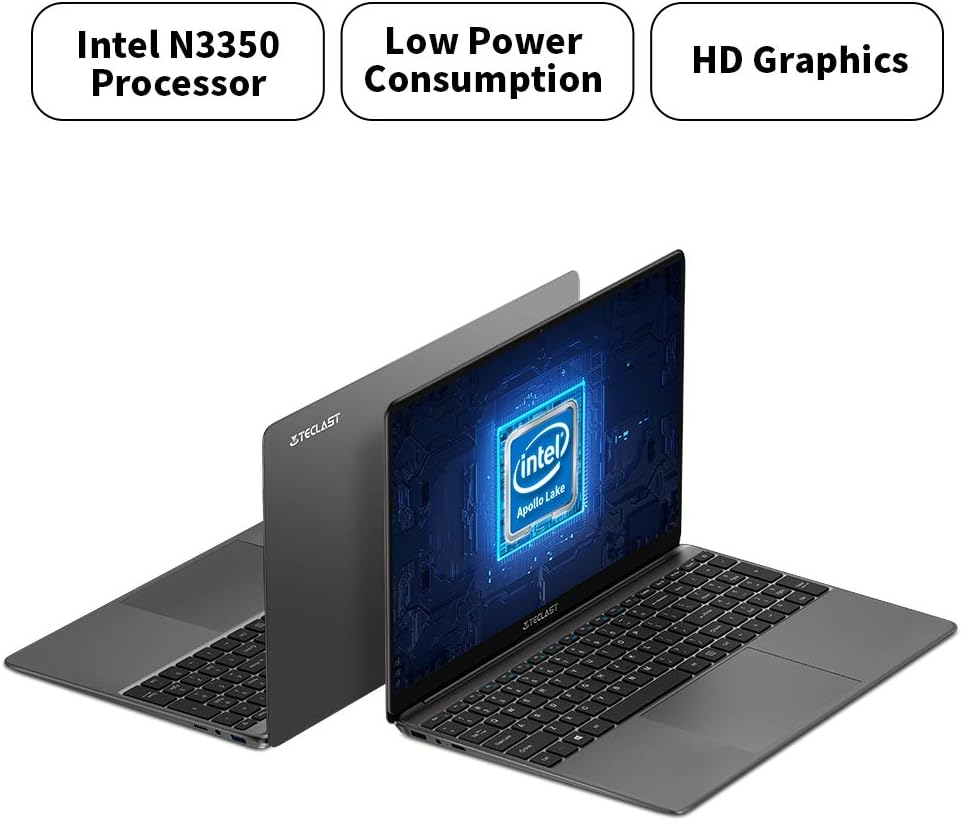
The F15S is equipped with an Intel Celeron N3350 processor, 8GB RAM, and 128GB eMMC storage, running on Windows 10.
- โปรเซสเซอร์: Intel Celeron N3350 Dual-Core (up to 2.4 GHz).
- กราฟิก: Intel HD Graphics 500.
- หน่วยความจำ: แรม DDR3 8GB.
- พื้นที่จัดเก็บ: 128GB eMMC, expandable via TF card (up to 128GB) or SSD upgrade.
- ระบบปฏิบัติการ: Windows 10.

2.3. พอร์ตและการเชื่อมต่อ
The laptop offers various ports for connectivity and expansion.
- พอร์ต USB: 2 x USB 3.0
- เอาท์พุตวิดีโอ: 1 x Mini HDMI.
- เสียง: 1 x Earphone Jack.
- การขยายพื้นที่เก็บข้อมูล: 1 x TF-Card Slot.
- ไร้สาย: Dual-band Wi-Fi (2.4G/5G), Bluetooth 4.2.

3. การตั้งค่า
3.1. การชาร์จครั้งแรก
Before first use, connect the laptop to the power adapter and charge it fully. The battery capacity is 38000mWh, providing approximately 7 hours of usage on a full charge.
3.2. First Power-On and Windows 10 Configuration
- กดปุ่มเพาเวอร์เพื่อเปิดแล็ปท็อป
- During the initial Windows 10 setup, it is recommended NOT to connect to Wi-Fi immediately. If you connect to Wi-Fi, you might encounter issues with account authentication, potentially leading to a frozen setup process.
- On the Wi-Fi connection screen, look for an option like "I don't have internet" or "Skip for now" (exact wording may vary) in the bottom right corner. Select this option.
- Proceed with the setup, creating a local user account.
- Once the setup is complete and you are on the desktop, you can then connect to your Wi-Fi network and sign in with your Microsoft account if desired. The temporary local account can be removed later.
3.3. การเชื่อมต่ออุปกรณ์ต่อพ่วง
Use the available USB 3.0 ports to connect external devices such as a mouse, keyboard, or external storage. The Mini HDMI port allows connection to external displays.
4. คู่มือการใช้งาน
4.1. คีย์บอร์ดและทัชแพด
The laptop features a full-size keyboard with an independent numeric keypad for efficient typing. The large 140mm x 95mm touchpad supports multi-touch gestures for convenient control.
4.2. การเชื่อมต่อไร้สาย
- ไวไฟ : Access network settings in Windows 10 to connect to available 2.4GHz or 5GHz Wi-Fi networks.
- บลูทูธ: Enable Bluetooth in Windows settings to pair with compatible devices such as headphones, speakers, or other peripherals.
4.3. การเชื่อมต่อจอแสดงผลภายนอก
Connect an external monitor or projector using a Mini HDMI to HDMI cable. Once connected, you can configure display settings (duplicate, extend, or second screen only) through Windows display settings.
4.4. การขยายพื้นที่เก็บข้อมูล
The TECLAST F15S supports storage expansion:
- บัตร TF: Insert a TF (Micro SD) card into the dedicated slot for additional storage, supporting up to 128GB.
- อัพเกรด SSD: The laptop supports upgrades with solid-state drives (SSD) for increased storage capacity and performance. Refer to the manufacturer's guidelines for compatible SSD types and installation procedures.
5. การบำรุงรักษา
5.1. การทำความสะอาด
- หน้าจอ: ใช้ผ้านุ่มไม่เป็นขุยเช็ดเล็กน้อยampล้างออกด้วยน้ำหรือน้ำยาทำความสะอาดหน้าจอ หลีกเลี่ยงสารเคมีรุนแรง
- ร่างกาย: Wipe the laptop's exterior with a soft, dry cloth.
- พอร์ต: Keep ports free of dust and debris. Use compressed air if necessary, ensuring the laptop is powered off.
5.2. การดูแลแบตเตอรี่
- หลีกเลี่ยงการปล่อยแบตเตอรี่จนหมดบ่อยครั้ง
- อย่าวางแล็ปท็อปไว้ในที่ที่มีอุณหภูมิสูงหรือต่ำเกินไป
- หากต้องเก็บแล็ปท็อปไว้เป็นเวลานาน ควรตรวจสอบให้แน่ใจว่าแบตเตอรี่มีประจุอยู่ประมาณ 50-70%
5.3. การอัปเดตซอฟต์แวร์
ตรวจสอบและติดตั้งการอัปเดต Windows เป็นประจำ เพื่อให้มั่นใจถึงเสถียรภาพ ความปลอดภัย และประสิทธิภาพสูงสุดของระบบ
6 การแก้ไขปัญหา
6.1. ปัญหาทั่วไปและวิธีแก้ไข
- แล็ปท็อปไม่สามารถเปิดเครื่องได้: ตรวจสอบให้แน่ใจว่าอะแดปเตอร์แปลงไฟเสียบแน่นดีแล้ว และแบตเตอรี่มีประจุเพียงพอ ลองเสียบกับปลั๊กไฟอื่นดู
- ประสิทธิภาพช้า: Close unnecessary applications, check for background processes, and ensure sufficient free storage space. Consider performing a disk cleanup.
- ปัญหาการเชื่อมต่อ Wi-Fi: Ensure Wi-Fi is enabled. Restart your router and the laptop. Check network drivers in Device Manager.
- Screen remains black on startup (pointer visible): This can sometimes occur during updates or system initialization. If it persists, try a hard reset (hold power button until off, then restart). If the issue is related to the initial Windows setup, refer to section 3.2.
- แบตเตอรี่หมดเร็ว: Adjust power settings, reduce screen brightness, close power-intensive applications, and ensure no background processes are consuming excessive power.
6.2. การติดต่อฝ่ายสนับสนุน
If you encounter issues that cannot be resolved using this guide, please contact TECLAST customer support or your retailer for further assistance.
7. ข้อมูลจำเพาะ
| คุณสมบัติ | ข้อมูลจำเพาะ |
|---|---|
| ชื่อรุ่น | เอฟ15เอส |
| ขนาดจอแสดงผล | 15.6 นิ้ว |
| ความละเอียดการแสดงผล | 1920 x 1080 พิกเซล (ฟูลเอชดี) |
| เทคโนโลยีการแสดงผล | จอ LCD ไอพีเอส |
| โปรเซสเซอร์ | Intel Celeron N3350 (Dual-Core, up to 2.4 GHz) |
| กราฟฟิก | กราฟิก Intel HD 500 |
| แรม | แรม 8GB DDR3 |
| การจัดเก็บข้อมูลภายใน | 128GB อีเอ็มซี |
| การขยายพื้นที่เก็บข้อมูล | TF Card Slot (up to 128GB), SSD upgrade support |
| ระบบปฏิบัติการ | วินโดวส์ 10 |
| ไวไฟ | Dual-band (2.4G / 5G) |
| บลูทูธ | บลูทูธ 4.2 |
| พอร์ต USB | พอร์ต USB 2 จำนวน 3.0 พอร์ต |
| เอาท์พุตวิดีโอ | 1 x มินิ HDMI |
| พอร์ตเสียง | 1 x Earphone Jack |
| กล้องหน้า | 2.0MP |
| แบตเตอรี่ | 38000mWh (approx. 7 hours usage) |
| น้ำหนัก | 1.88 กก. |
| ขนาด (ความหนา) | 7 มม. |
8. การรับประกันและการสนับสนุน
8.1. ข้อมูลการรับประกัน
For specific warranty terms and conditions, please refer to the documentation provided with your purchase or contact the retailer/manufacturer directly. Warranty coverage typically includes defects in materials and workmanship under normal use.
8.2. การสนับสนุนลูกค้า
If you require technical assistance, have questions about your product, or need to report an issue, please contact TECLAST customer support through their official website or the contact information provided by your seller.