
1. บทนำ
This manual provides detailed instructions for the setup, operation, maintenance, and troubleshooting of your HISTTON Fanless Industrial Mini PC. Please read this manual thoroughly before using the device to ensure proper functionality and longevity.
2. เนื้อหาบรรจุภัณฑ์
ตรวจสอบว่ารายการทั้งหมดที่ระบุไว้ด้านล่างมีอยู่ในแพ็คเกจผลิตภัณฑ์ของคุณ:
- 1 x HISTTON Mini PC
- อะแดปเตอร์ไฟฟ้า 1 ตัว
- 1 x คู่มือผู้ใช้
- สาย HDMI 1 เส้น
- 1 x DVD for drivers (if applicable)
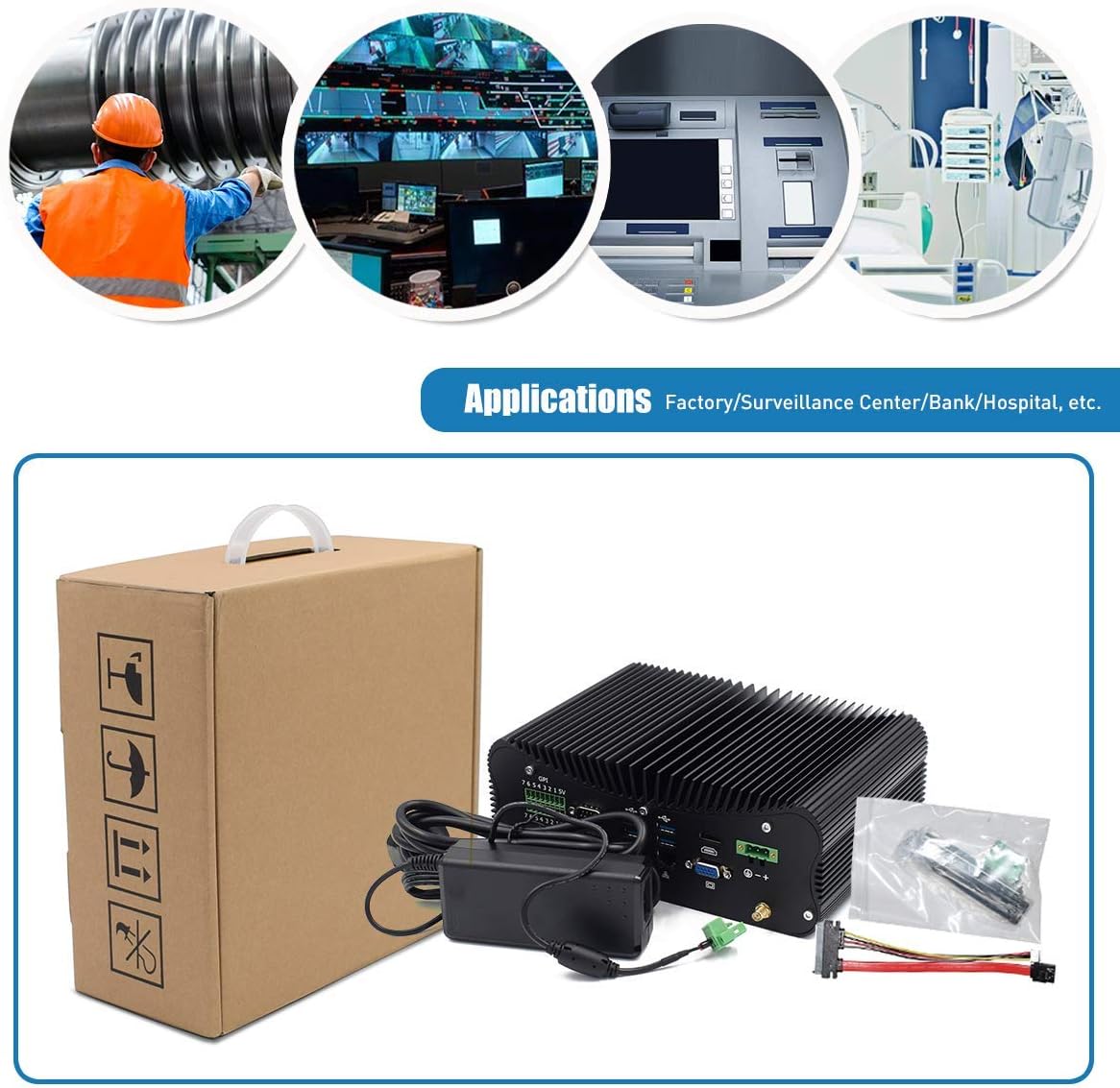
Figure 2.1: Included accessories and the Mini PC.
3. สินค้าหมดview
Familiarize yourself with the various ports and features of your HISTTON Mini PC.
3.1 พอร์ตแผงด้านหลัง

รูปที่ 3.1: ตัวเลือกการเชื่อมต่อแผงด้านหลัง
- GPIO (General Purpose Input/Output): 7 input and 7 output ports for industrial control.
- COM Ports (RS232/422/485): 4 ports for serial communication.
- พอร์ต USB 3.0: 4 ports for high-speed peripheral connections.
- LAN Ports (RJ45 Gigabit Ethernet): 2 ports for wired network connectivity.
- พอร์ต HDMI: For digital video and audio output.
- พอร์ต VGA: สำหรับเอาต์พุตวิดีโอแบบอนาล็อก
- กระแสตรงใน: 3-pin Phoenix terminal for DC 9-36V power input.
- ขั้วต่อเสาอากาศ WiFi: For external WiFi antennas.
3.2 Side Panel Ports

Figure 3.2: Side panel connectivity and controls.
- สวิตช์เปิด/ปิด: การควบคุมพลังงานหลัก
- พอร์ต USB 2.0: มีพอร์ตสำหรับเชื่อมต่ออุปกรณ์ต่อพ่วง 2 พอร์ต
- แจ็คเสียง: 1 x SPK Out (speaker), 1 x MIC In (microphone).
- พอร์ต PS/2: สำหรับการเชื่อมต่อคีย์บอร์ดและเมาส์แบบเก่า
- ATX/AT Switch: For power mode selection.
- CMOS Button Hole: For resetting CMOS settings.
3.3 ส่วนประกอบภายใน

Figure 3.3: Internal layout for storage and memory expansion.
- ช่องเสียบ M.2 SSD: For M.2 solid-state drives.
- mSATA SSD Slot: For mSATA solid-state drives.
- 2.5 inch HDD Slot: For 2.5-inch SATA SSD/HDD.
- DDR4 RAM Slots: Two 260-pin SO-DIMM slots supporting up to 64GB DDR4 memory.
- WiFi Module Slot: M.2 slot for dual-band 802.11AC WiFi with Bluetooth 4.0.
4. คำแนะนำในการตั้งค่า
Follow these steps to set up your Mini PC for first use.
- เชื่อมต่ออุปกรณ์ต่อพ่วง: Connect your monitor(s) to the HDMI and/or VGA ports. Connect a USB keyboard and mouse to the available USB ports.
- การเชื่อมต่อเครือข่าย: For wired internet, connect an Ethernet cable to one of the RJ45 LAN ports. For wireless internet, attach the provided WiFi antennas to the connectors on the rear panel.
- การเชื่อมต่อไฟฟ้า: Connect the power adapter to the DC In port on the rear panel, then plug the adapter into a power outlet.
- เปิดเครื่อง: Press the power button on the side panel to turn on the Mini PC. The power indicator light will illuminate.
Video 4.1: Demonstration of connecting peripherals and powering on the Mini PC.
5. Operating System and Basic Use
Your Mini PC comes with Windows 10 Pro 64bit pre-installed and activated, ready for immediate use.
5.1 การตั้งค่าจอแสดงผลคู่
The Mini PC supports dual display output via HDMI and VGA ports, allowing for extended desktop or mirrored display configurations. Connect two monitors to the respective ports and configure display settings within the Windows operating system.

Figure 5.1: Dual monitor setup for enhanced productivity.
5.2. การดำเนินการทั่วไป
The Intel Core i7-10510U processor and Intel UHD Graphics provide stable and efficient performance for various tasks, including office applications, web browsing, multimedia playback, and light gaming. The integrated M.2 Dual Band 802.11AC WiFi with Bluetooth 4.0 ensures reliable wireless connectivity.
6. การบำรุงรักษา
The HISTTON Mini PC features a fanless cooling design, which contributes to its durability and silent operation. This design minimizes dust accumulation and reduces the need for frequent internal cleaning.

Figure 6.1: Fanless cooling system for silent and reliable operation.
เพื่อรักษาประสิทธิภาพสูงสุด:
- Keep the exterior of the device clean by wiping it with a soft, dry cloth.
- Ensure adequate airflow around the device, especially around the heat sink fins, to facilitate heat dissipation.
- Avoid placing the Mini PC in direct sunlight or near heat sources.
- Do not obstruct the heat sink fins.
7 การแก้ไขปัญหา
หากคุณพบปัญหาเกี่ยวกับมินิพีซี โปรดดูขั้นตอนการแก้ไขปัญหาทั่วไปต่อไปนี้:
- ไม่มีไฟฟ้า: ตรวจสอบให้แน่ใจว่าอะแดปเตอร์แปลงไฟเชื่อมต่อกับมินิพีซีและเต้ารับไฟฟ้าที่ใช้งานได้แน่นหนาแล้ว ตรวจสอบว่าไฟแสดงสถานะเปิดเครื่องติดอยู่หรือไม่
- ไม่มีจอแสดงผล: Verify that the monitor cable(s) are securely connected to both the Mini PC and the monitor(s). Ensure the monitor is powered on and set to the correct input source (HDMI/VGA).
- ไม่มีการเชื่อมต่ออินเทอร์เน็ต: For wired connections, check the Ethernet cable and router status. For wireless connections, ensure WiFi antennas are attached, WiFi is enabled in the operating system, and you are connected to the correct network.
- อุปกรณ์ต่อพ่วงไม่ทำงาน: Ensure USB devices (keyboard, mouse) are properly connected. Try connecting them to different USB ports.
- ระบบไม่ตอบสนอง: Press and hold the power button for 5-10 seconds to force a shutdown, then restart the device. If issues persist, consider resetting the CMOS using the button hole on the side panel (refer to Section 3.2).
8. ข้อมูลจำเพาะ
Detailed technical specifications for the HISTTON Fanless Industrial Mini PC:
| คุณสมบัติ | ข้อมูลจำเพาะ |
|---|---|
| หน่วยประมวลผล (CPU) | Intel Core i7-10510U, 1.80 GHz (up to 4.90 GHz), 8M Cache |
| กราฟฟิก | กราฟิก Intel UHD สำหรับโปรเซสเซอร์ Intel รุ่นที่ 10 |
| หน่วยความจำ (RAM) | 64GB DDR4 (2 x 32GB SO-DIMM slots, max 64GB) |
| พื้นที่จัดเก็บ | 1TB SSD (Supports M.2 SSD + mSATA SSD + 2.5 inch SATA SSD/HDD) |
| ระบบปฏิบัติการ | Windows 10 Pro (64bit, activated) |
| การเชื่อมต่อแบบไร้สาย | M.2 Dual Band 802.11AC WiFi with Bluetooth 4.0 |
| แลน | 2 x Intel L211/210 RJ45 Gigabit Ethernet |
| พอร์ต USB | 4 x USB 3.0, 2 x USB 2.0 |
| เอาท์พุตวิดีโอ | 1 x HDMI, 1 x VGA Port (Supports 4K UHD dual display) |
| พอร์ตซีเรียล | 4 x RS232/422/485 COM, 2 x RS232 COM |
| จีพีไอโอ | 7 x Ports Input, 7 x Ports Output |
| เสียง | 1 x SPK Out, 1 x MIC In |
| แหล่งจ่ายไฟ | 12V DC In (3-pin Phoenix terminal DC 9-36V Input) |
| การใช้พลังงาน | Max 15W (real use), TDP Down 10W |
| วัสดุตัวเรือน | โลหะผสมอลูมิเนียม |
| ขนาด (กxยxส) | 9.45 x 6.30 x 3.39 นิ้ว |
| น้ำหนัก | 5.07 lb (Net weight) |
| อุณหภูมิในการทำงาน | 0 ℃ ถึง 70 ℃ |
| ความชื้นในการทำงาน | 10% - 85% |
9. การรับประกันและการสนับสนุน
For warranty information and technical assistance, please use the following contact methods:

Figure 9.1: Support contact details.
- การสนับสนุนของ Amazon: Log in to your Amazon account, navigate to 'Your Account' > 'Your Orders', and select 'Ask Product Question' for assistance.
- การสนับสนุนหลังการขาย: For direct technical support, you may send an email to the After-Sales Team at minipc_service@yeah.net. This service is available 24/7.
คำเตือน: Please connect the power supply correctly. Keep away from damp and high-temperature environments, as well as sources of fire and water. Parents should strictly control kids' device time and content access.