
DOOGEE S40 Pro
คู่มือผู้ใช้โทรศัพท์ DOOGEE S40 Pro
รุ่น : S40 Pro
การแนะนำ
The DOOGEE S40 Pro is a rugged smartphone designed for durability and performance in challenging environments. It features a 5.45-inch display, Android 10, a 4650mAh battery, and dual rear cameras. This manual provides essential information for setting up, operating, maintaining, and troubleshooting your device.

ภาพ: ด้านหน้าและด้านหลัง view of the DOOGEE S40 Pro rugged phone, showcasinด้วยการออกแบบที่แข็งแรงทนทานและโมดูลกล้อง
1. การตั้งค่า
1.1 การแกะกล่องและเนื้อหาภายในบรรจุภัณฑ์
Carefully unbox your DOOGEE S40 Pro. Verify that all standard accessories are included in the package.

Image: Contents of the DOOGEE S40 Pro package, including the phone, power adapter, USB cable, user manual, and warranty information.
- DOOGEE S40 Pro Smartphone
- อะแดปเตอร์แปลงไฟ
- สาย USB
- คู่มือการใช้งาน
- บัตรรับประกัน
1.2 การติดตั้งซิมการ์ดและการ์ด SD
The DOOGEE S40 Pro supports dual SIM cards and an expandable SD card for additional storage. Locate the SIM tray on the side of the device.
- Use the provided SIM ejector tool to open the SIM card tray.
- Carefully place your Nano-SIM cards and/or microSD card into the designated slots on the tray. Ensure the gold contacts are facing down.
- ค่อยๆ ดันถาดกลับเข้าไปในโทรศัพท์จนกระทั่งแนบสนิทกับตัวเครื่อง
1.3 การชาร์จเริ่มต้น
แนะนำให้ชาร์จอุปกรณ์ให้เต็มก่อนใช้งานครั้งแรก
- เชื่อมต่อสาย USB เข้ากับอะแดปเตอร์จ่ายไฟ
- Plug the USB cable into the charging port of the phone.
- เสียบอะแดปเตอร์ไฟฟ้าเข้ากับเต้ารับไฟฟ้าที่ผนัง
- ไฟแสดงสถานะการชาร์จจะปรากฏบนหน้าจอ ปล่อยให้โทรศัพท์ชาร์จจนกว่าไอคอนแบตเตอรี่จะแสดงว่าเต็ม
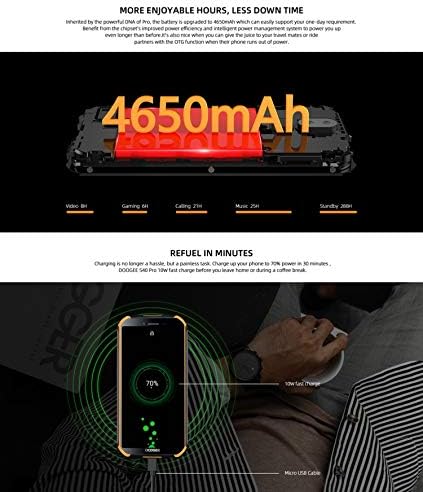
Image: The DOOGEE S40 Pro connected to a charger, showing the charging animation and battery percentage.
1.4 เปิด/ปิดเครื่อง
- การเปิดเครื่อง: กดปุ่มเปิด/ปิด (อยู่ด้านขวา) ค้างไว้จนกว่าโลโก้ DOOGEE จะปรากฏขึ้น
- วิธีปิดเครื่อง: กดปุ่มเปิด/ปิดค้างไว้จนกระทั่งเมนูตัวเลือกพลังงานปรากฏขึ้น เลือก "ปิดเครื่อง" และยืนยัน
- ในการรีสตาร์ท: จากเมนูตัวเลือกพลังงาน เลือก "รีสตาร์ท" และยืนยัน
2. คู่มือการใช้งาน
2.1 การนำทางพื้นฐาน
The DOOGEE S40 Pro operates on Android 10.0 and uses a touchscreen for navigation.
- แตะ: สัมผัสหน้าจอหนึ่งครั้งเพื่อเลือกรายการหรือเปิดแอปพลิเคชัน
- ปัด: ลากนิ้วของคุณบนหน้าจอเพื่อเลื่อนดูหน้าต่างๆ หรือรายการต่างๆ
- บีบเพื่อซูม: วางนิ้วสองนิ้วบนหน้าจอแล้วเลื่อนออกจากกันหรือเข้าหากันเพื่อซูมเข้าหรือออก
- กดแบบยาว: กดค้างที่รายการเพื่อเข้าถึงตัวเลือกเพิ่มเติมหรือย้ายไอคอน
2.2 การโทรและการส่งข้อความ
- โทรออก: เปิดแอปโทรศัพท์ ป้อนหมายเลข และแตะไอคอนโทร
- การรับสาย: Swipe up to answer or down to decline an incoming call.
- การส่งข้อความ: เปิดแอปข้อความ แตะไอคอนข้อความใหม่ ป้อนผู้รับและข้อความ จากนั้นแตะส่ง
2.3 การใช้งานกล้อง
The S40 Pro features dual rear cameras (13MP Sony primary sensor + 2MP portrait camera) and a front camera for selfies.

Image: Diagram highlighting the AI Rear Dual Camera setup on the DOOGEE S40 Pro, showing the 13MP Sony sensor and 2MP portrait camera, along with exampรูปภาพ
- เปิดแอปกล้องจากหน้าจอหลักหรือลิ้นชักแอปของคุณ
- สลับระหว่างกล้องด้านหน้าและด้านหลังโดยใช้ไอคอนสวิตช์กล้อง
- แตะปุ่มชัตเตอร์เพื่อถ่ายภาพ
- Explore different modes like Portrait, Video, and Panorama.
2.4 ปลดล็อคด้วยลายนิ้วมือ
The device includes a rear-mounted fingerprint sensor for quick and secure unlocking.

Image: Illustration of the fingerprint unlock feature on the DOOGEE S40 Pro, showing a finger interacting with the rear-mounted sensor.
- ไปที่ การตั้งค่า > ความปลอดภัยและตำแหน่งที่ตั้ง > ลายนิ้วมือ.
- ปฏิบัติตามคำแนะนำบนหน้าจอเพื่อลงทะเบียนลายนิ้วมือของคุณ
- Once registered, simply place your finger on the sensor to unlock the phone.
2.5 NFC and Google Pay
The DOOGEE S40 Pro supports NFC (Near Field Communication) for convenient data transmission and mobile payments like Google Pay.

Image: Visual representation of NFC functionality for Google Pay and data transmission, and the 3.5mm headphone jack on the DOOGEE S40 Pro.
- To enable NFC: ไปที่ การตั้งค่า > อุปกรณ์ที่เชื่อมต่อ > เอ็นเอฟซี แล้วเปิดใช้งาน
- Google Pay: Ensure Google Pay is set up with your payment methods. Tap your phone to compatible terminals for contactless payments.
2.6 การเชื่อมต่อ
- ไวไฟ : เชื่อมต่อกับเครือข่ายไร้สายผ่าน การตั้งค่า > เครือข่ายและอินเตอร์เน็ต > ไวไฟ.
- บลูทูธ: จับคู่กับอุปกรณ์บลูทูธผ่านทาง การตั้งค่า > อุปกรณ์ที่เชื่อมต่อ > บลูทูธ.
- ยูเอสบี: Connect to a computer using the provided USB cable for file ถ่ายโอนหรือชาร์จ
- แจ็คหูฟัง 3.5 มม.: Plug in wired headphones for audio.
3. การบำรุงรักษา
3.1 Rugged Features and Durability
The DOOGEE S40 Pro is built to withstand harsh conditions, featuring IP68 water and dust resistance and MIL-STD-810G certification for drops and extreme temperatures.

Image: The DOOGEE S40 Pro submerged in water, dropped onto concrete, and surviving a fall, illustrating its IP68 and MIL-STD-810G durability.
- ความต้านทานต่อน้ำ (IP68): Can withstand submersion up to 1.5 meters for 30 minutes. Ensure all port covers are securely closed before exposure to water.
- Dust Resistance (IP68): ป้องกันฝุ่นเข้าได้อย่างเต็มประสิทธิภาพ
- Drop Resistance (MIL-STD-810G): ออกแบบมาให้ทนทานต่อการตกจากที่สูงถึง 1.2 เมตร ลงบนพื้นผิวแข็ง
- ความทนทานต่ออุณหภูมิ: Operates in extreme temperatures from -55°C to 70°C.

Image: The DOOGEE S40 Pro shown in extreme cold (-55°C) and hot (70°C) environments, highlighting its robust temperature tolerance.
3.2 การทำความสะอาดอุปกรณ์ของคุณ
To clean your DOOGEE S40 Pro:
- เช็ดหน้าจอและตัวเครื่องด้วยผ้าที่ไม่เป็นขุยและนุ่ม
- สำหรับสิ่งสกปรกที่ฝังแน่นงampชุบผ้าให้เปียกหมาดๆ หลีกเลี่ยงสารเคมีรุนแรงหรือวัสดุที่มีฤทธิ์กัดกร่อน
- If the device has been exposed to saltwater, rinse it thoroughly with fresh water and dry it completely before charging.
3.3 การอัปเดตซอฟต์แวร์
ตรวจสอบการอัปเดตซอฟต์แวร์เป็นประจำเพื่อให้มั่นใจถึงประสิทธิภาพและความปลอดภัยที่เหมาะสมที่สุด
- ไปที่ การตั้งค่า > ระบบ > การอัพเดทระบบ.
- Follow the on-screen prompts to download and install any available updates. Ensure your device has sufficient battery and a stable internet connection during updates.
4 การแก้ไขปัญหา
| ปัญหา | วิธีแก้ปัญหาที่เป็นไปได้ |
|---|---|
| อุปกรณ์ไม่เปิดเครื่อง | Ensure the battery is charged. Connect to a charger and wait a few minutes before attempting to power on again. If unresponsive, try a forced restart by holding the Power button for 10-15 seconds. |
| แบตเตอรี่หมดเร็วมาก | Check for background apps consuming power. Reduce screen brightness. Disable Wi-Fi, Bluetooth, or GPS when not in use. Perform a software update. |
| ไม่สามารถเชื่อมต่อ Wi-Fi ได้ | ตรวจสอบให้แน่ใจว่าได้เปิดใช้งาน Wi-Fi แล้ว รีสตาร์ทเราเตอร์และโทรศัพท์ของคุณ ลบข้อมูลเครือข่ายออกจากระบบ แล้วเชื่อมต่อใหม่อีกครั้ง |
| Phone is slow or unresponsive. | Close unnecessary background apps. Clear cache. Restart the device. If issues persist, consider a factory reset (back up data first). |
| กล้องไม่ทำงาน | Restart the phone. Clear the Camera app's cache and data in Settings > Apps. Ensure no other app is using the camera. |
5. ข้อมูลจำเพาะ
Key technical specifications for the DOOGEE S40 Pro:
- ชื่อรุ่น : เอส40โปร
- ระบบปฏิบัติการ: แอนดรอยด์ 10.0
- แสดง: 5.45 inches, LCD, 1440 x 720 resolution
- แรม : 4GB
- พื้นที่เก็บข้อมูลภายใน: 64 GB (เพิ่มได้ผ่าน microSD)
- แบตเตอรี่: 4650mAh
- กล้องหลัง: Dual Back Cameras (13MP Sony primary + 2MP portrait)
- กล้องหน้า: ใช่
- โปรเซสเซอร์: Octa Core (CPU speed: 1.8 GHz, CPU model: Snapdragon)
- การเชื่อมต่อ: 4G Cellular, Wi-Fi, Bluetooth, USB, GPS, NFC
- คุณสมบัติพิเศษ: Touchscreen, Fingerprint Sensor, 3.5mm Headphone Jack
- ความทนทาน: IP68 Water & Dust Resistant, MIL-STD-810G Drop Resistant
- สี: สีดำ
- อะไรอยู่ในกล่อง: อะแดปเตอร์, สาย USB
6. การรับประกันและการสนับสนุน
For warranty information and customer support, please refer to the warranty card included in your product package or visit the official DOOGEE webไซต์นี้ โปรดเก็บหลักฐานการซื้อไว้เพื่อใช้ยืนยันการรับประกัน
- เป็นทางการ Webเว็บไซต์: www.doogee.cc (โปรดทราบ: นี่เป็นเพียงตัวอย่างชั่วคราว) URL, refer to your product's specific documentation for the correct support webเว็บไซต์.)
- บริการลูกค้า: Contact details may be found on the official webเว็บไซต์หรือบัตรรับประกันของคุณ
Ask a question about this manual
Ask about setup, troubleshooting, compatibility, parts, safety, or missing instructions. Manuals+ will review the question and use this page’s manual context to help answer it.