
1. บทนำ
The Yottamaster DF5U3 is a 5-bay external hard drive enclosure designed for both 2.5-inch and 3.5-inch SATA HDD/SSDs. It supports a total capacity of up to 90TB (5 x 18TB drives) and features a USB 3.0 interface for data transfer speeds up to 6Gbps. This enclosure is built with an aluminum alloy frame and includes an 80mm RGB silent fan for efficient cooling. This manual provides detailed instructions for the proper setup, operation, and maintenance of your Yottamaster DF5U3 enclosure.
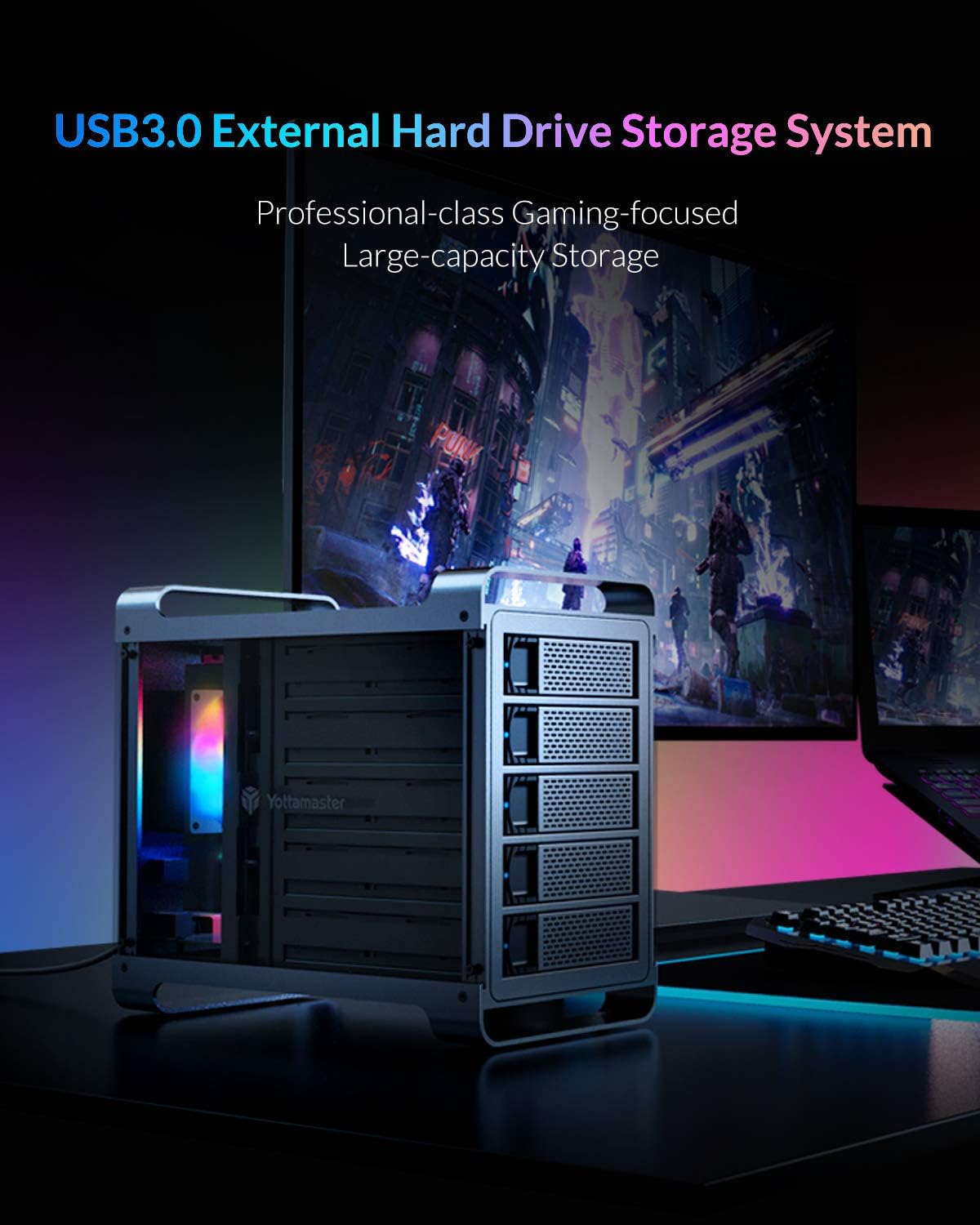
Figure 1: Yottamaster 5-Bay USB 3.0 Hard Drive Enclosure (DF5U3)
2. เนื้อหาบรรจุภัณฑ์
โปรดตรวจสอบว่าสินค้าทั้งหมดมีอยู่ในแพ็คเกจของคุณ:
- Yottamaster 5-Bay USB 3.0 Hard Drive Enclosure (DF5U3)
- USB 3.0 Type-B Data Cable
- อะแดปเตอร์แปลงไฟ (150W)
- Screws for Drive Installation
- ไขควง
- คู่มือการใช้งาน
3. คุณสมบัติหลัก
- ความจุสูง: Supports up to 90TB total storage (5 x 18TB drives).
- ความเข้ากันได้ของไดรฟ์: Designed for both 2.5-inch and 3.5-inch SATA I/II/III HDD/SSDs.
- Fast Transfer Speed: USB 3.0 interface provides data transfer rates up to 6Gbps.
- การระบายความร้อนที่มีประสิทธิภาพ: Features an 80mm RGB silent fan to maintain optimal drive temperatures.
- โครงสร้างทนทาน: Built with a robust aluminum alloy frame.
- ปลั๊กแอนด์เพลย์: Driverless installation for ease of use.
- Non-RAID Version: This model does not support hardware RAID. Software RAID can be configured using your operating system's tools.
4. คู่มือการติดตั้ง
4.1 การติดตั้งไดรฟ์
- Gently pull the lever on the front of an empty drive bay to release and slide out the drive tray.
- Place your 2.5-inch or 3.5-inch SATA HDD/SSD onto the drive tray. Align the screw holes on the drive with those on the tray.
- Secure the drive to the tray using the provided screws and screwdriver.
- Slide the loaded drive tray back into the enclosure until it clicks securely into place.
- ทำซ้ำขั้นตอนนี้สำหรับไดรฟ์ทั้งหมดที่ต้องการ

Figure 2: Inserting a drive into the tray

Figure 3: Drive trays ready for installation
4.2 Connecting the Enclosure
- Connect the power adapter to the AC-in port on the rear of the enclosure and then to a power outlet.
- Connect one end of the USB 3.0 Type-B data cable to the USB 3.0 port on the rear of the enclosure.
- ต่อปลายอีกด้านของสายเคเบิลข้อมูล USB 3.0 เข้ากับพอร์ต USB 3.0 ที่ว่างอยู่บนคอมพิวเตอร์ของคุณ
- Press the power switch on the rear of the enclosure to the "ON" position. The enclosure will power on, and the RGB fan will illuminate.

รูปที่ 4: การเชื่อมต่อแผงด้านหลัง
5. คู่มือการใช้งาน
5.1 Initializing and Formatting Drives
For new hard drives, or if you wish to erase existing data, you will need to initialize and format them. This process creates partitions and prepares the drives for use with your operating system.
Video 1: Guide on how to format a hard drive partition in Windows or Mac OS. This video demonstrates the steps to initialize and format your drives for first-time use.
5.2 Adjusting/Disabling Sleep Mode
The enclosure may enter a sleep mode after a period of inactivity to conserve power and reduce wear on the drives. You can adjust or disable this feature if needed.
Video 2: Instructions on how to cancel the sleep mode for Yottamaster multi-bay HDD enclosures.
Video 3: A step-by-step guide to adjust or disable the sleep mode on the enclosure, providing detailed visual instructions.
6. การบำรุงรักษา
To ensure the longevity and optimal performance of your Yottamaster DF5U3 enclosure, follow these maintenance guidelines:
- การทำความสะอาด: Regularly clean the exterior of the enclosure with a soft, dry cloth. Ensure the fan vents are free from dust accumulation to maintain proper airflow.
- สิ่งแวดล้อม: Operate the enclosure in a well-ventilated area, away from direct sunlight, heat sources, and excessive moisture.
- การกำจัดอย่างปลอดภัย: Always safely eject the enclosure from your operating system before disconnecting the USB cable or power to prevent data corruption.
- อัพเดตเฟิร์มแวร์: Check the Yottamaster official website periodically for any available firmware updates that may improve performance or address issues.
7 การแก้ไขปัญหา
If you encounter issues with your Yottamaster DF5U3 enclosure, please refer to the following common solutions:
- ไม่พบไดรฟ์:
- ตรวจสอบให้แน่ใจว่าสายเคเบิลทั้งหมด (USB และสายไฟ) เชื่อมต่อแน่นสนิทแล้ว
- Verify that the enclosure is powered on.
- Check Disk Management (Windows) or Disk Utility (Mac) to see if the drives are detected but uninitialized/unformatted. Refer to the formatting video in Section 5.1.
- ลองเชื่อมต่อกล่องหุ้มเข้ากับพอร์ต USB หรือคอมพิวเตอร์เครื่องอื่นดู
- Ensure the drives are properly seated in their trays and secured with screws.
- Enclosure Goes to Sleep Unexpectedly:
- Refer to the videos in Section 5.2 for instructions on how to adjust or disable the sleep timer function.
- Check your operating system's power management settings, as they can also influence drive sleep behavior.
- ความเร็วในการถ่ายโอนข้อมูลช้า:
- โปรดตรวจสอบให้แน่ใจว่าคุณใช้พอร์ต USB 3.0 บนคอมพิวเตอร์ของคุณ การเชื่อมต่อกับพอร์ต USB 2.0 จะทำให้ความเร็วในการถ่ายโอนข้อมูลช้าลง
- Verify the quality of your USB 3.0 cable.
- Performance can be affected by the speed of the installed hard drives themselves.
- เสียงพัดลมดังเกินไป:
- Ensure the enclosure is placed on a stable, flat surface to prevent vibrations.
- Check for any obstructions in the fan or vents.
If these steps do not resolve your issue, please contact Yottamaster customer support.
8. ข้อมูลจำเพาะ
| คุณสมบัติ | รายละเอียด |
|---|---|
| หมายเลขรุ่น | ดีเอฟโฟร์ยู5 |
| ยี่ห้อ | โยตตามาสเตอร์ |
| ช่องไดรฟ์ | 5 |
| ความจุสูงสุด | 90 เทราไบต์ (5 x 18 เทราไบต์) |
| ไดรฟ์ที่เข้ากันได้ | 2.5" และ 3.5" SATA I/II/III HDD/SSD |
| อินเทอร์เฟซ | USB 3.0 ประเภท B |
| อัตราการถ่ายโอนข้อมูล | สูงสุดถึง 6Gbps |
| การทำให้เย็น | 80mm RGB Silent Fan |
| วัสดุ | โลหะผสมอลูมิเนียม |
| ระบบปฏิบัติการที่รองรับ | วินโดวส์, แมค, ลินุกซ์ |
| แหล่งจ่ายไฟ | อะแดปเตอร์ไฟภายนอก 150 วัตต์ |
9. การรับประกันและการสนับสนุน
9.1 ข้อมูลการรับประกัน
Yottamaster products come with a standard manufacturer's warranty. Please refer to the warranty card included in your package or visit the official Yottamaster webเว็บไซต์สำหรับข้อกำหนดและเงื่อนไขการรับประกันโดยละเอียดที่เฉพาะเจาะจงกับภูมิภาคของคุณ
9.2 การสนับสนุนลูกค้า
For technical assistance, troubleshooting, or any product-related inquiries, please contact Yottamaster customer support through their official channels:
- เป็นทางการ Webเว็บไซต์: www.yottamaster.com
- หน้าสนับสนุน: Visit the 'Support' or 'Downloads' section on the official website for FAQs, drivers, and firmware updates.