
1. บทนำ
This manual provides detailed instructions for setting up, operating, and maintaining your D-Link COVR 1100 AC1200 Whole Home EasyMesh Wi-Fi Router. The COVR-1100 is designed to provide seamless, high-speed Wi-Fi coverage throughout your home.
คุณสมบัติหลัก:
- AC1200 Mbps WAVE 2 Dual Band Wi-Fi
- Certified EasyMesh for whole-home coverage
- Supports 802.11 a/b/g/n/ac standards
- Speeds of 300 Mbps on 2.4 GHz and 867 Mbps on 5 GHz
- Triple Play VLAN for multiple service support
- Single SSID for a unified Wi-Fi network
- Two Gigabit Ethernet ports per unit
- Voice assistant compatibility (Google Assistant & Alexa)
- Easy setup via D-Link Wi-Fi Mobile App or Web กุ้ยช่าย
- โปรfile-based parental controls
- Expandable mesh network with additional COVR-1100 units
2. เนื้อหาบรรจุภัณฑ์
ตรวจสอบว่าแพ็คเกจของคุณมีรายการต่อไปนี้:
- 1 x D-Link COVR-1100 Router Unit
- อะแดปเตอร์ไฟฟ้า 1 ตัว
- 1 x Ethernet Cable
- 1 x การ์ดติดตั้งด่วน
- Device Setup Information
- Voice Control Information
3. ทางกายภาพมากกว่าview
The D-Link COVR-1100 unit features a compact design with essential ports and indicators for network connectivity.

รูปที่ 1 : ด้านหน้า view of the D-Link COVR-1100 router, showcasing การออกแบบสีขาวเรียบง่าย
พอร์ตและตัวบ่งชี้:
- พอร์ตไฟ: เชื่อมต่อกับอะแดปเตอร์ไฟฟ้าที่ให้มา
- WAN/LAN Gigabit Ethernet Ports: Two ports for connecting to your modem or wired devices. These ports automatically detect WAN or LAN function.
- ปุ่มรีเซ็ต: ใช้สำหรับคืนค่าอุปกรณ์กลับสู่การตั้งค่าเริ่มต้นจากโรงงาน
- ไฟแสดงสถานะ LED: Provides status information (e.g., power, internet connectivity, mesh status).
4. คำแนะนำในการตั้งค่า
Follow these steps to set up your D-Link COVR-1100 router.
4.1 Initial Setup (Single Unit)
- แกะ: นำรายการทั้งหมดออกจากบรรจุภัณฑ์อย่างระมัดระวัง
- ตำแหน่ง: Place the COVR-1100 unit in a central location within your home, away from obstructions and other electronic devices that may cause interference.
- เชื่อมต่อพลังงาน: Connect the power adapter to the COVR-1100's power port and plug it into a power outlet. Wait for the LED indicator to turn solid white (or blue, depending on the specific model's indicator behavior, refer to Quick Install Card).
- เชื่อมต่อกับโมเด็ม: Connect one end of the included Ethernet cable to the WAN/LAN port on the COVR-1100 and the other end to your internet modem's LAN port.
- ดาวน์โหลดแอพ: Download the D-Link Wi-Fi app from your mobile device's app store (App Store for iOS, Google Play Store for Android).
- เปิดแอปและทำตามคำแนะนำ: Open the D-Link Wi-Fi app and follow the on-screen instructions to set up your new Wi-Fi network, including creating a Wi-Fi name (SSID) and password.
- ทางเลือก Web การตั้งค่า: If you prefer, you can connect a computer to the COVR-1100 via Ethernet or its default Wi-Fi network (details on Quick Install Card) and navigate to
http://covr.local./or the IP address provided in the Quick Install Card to access the webตัวช่วยสร้างการตั้งค่าตาม
4.2 Expanding Your Mesh Network (Multiple Units)
The COVR-1100 supports EasyMesh, allowing you to add additional units to expand your Wi-Fi coverage. You can add up to 4 COVR-1100 units to create a seamless whole-home mesh network.

Figure 2: Illustration of multiple D-Link COVR-1100 units deployed to create a whole-home mesh Wi-Fi network.
- เปิดเครื่อง: Place the additional COVR-1100 unit(s) in areas requiring extended coverage and connect them to power outlets.
- Add via App: Open the D-Link Wi-Fi app, navigate to the mesh network settings, and follow the instructions to add new COVR units to your existing mesh network. The app will guide you through the pairing process.
- การจัดวาง: Ensure optimal placement of additional units to maintain strong signal strength between them and the primary COVR unit for seamless roaming.
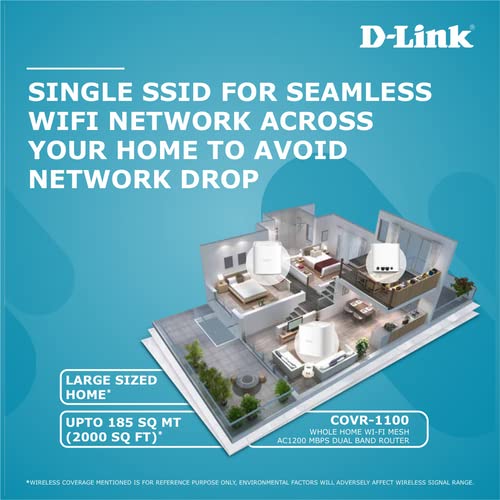
Figure 3: A diagram illustrating how a single COVR-1100 unit provides Wi-Fi coverage across a large area, and how multiple units can extend this coverage throughout a multi-story home.
5. คู่มือการใช้งาน
5.1 การเชื่อมต่ออุปกรณ์
- อุปกรณ์ไร้สาย: ค้นหา your Wi-Fi network name (SSID) on your smartphone, tablet, or computer and enter the password you created during setup.
- อุปกรณ์แบบมีสาย: Connect devices such as smart TVs, gaming consoles, or desktop computers to the available Gigabit Ethernet ports on the COVR-1100 unit using an Ethernet cable.
5.2 การควบคุมโดยผู้ปกครอง
The D-Link Wi-Fi app allows you to set up profile-based parental controls to manage internet access for specific devices or users. This includes scheduling internet access and blocking certain webเว็บไซต์
- Open the D-Link Wi-Fi app.
- Navigate to the Parental Controls section.
- สร้างโปรfiles for family members and assign devices.
- Configure access schedules and content filters as needed.
5.3 การควบคุมด้วยเสียง
The COVR-1100 is compatible with Google Assistant and Amazon Alexa. You can use voice commands to manage certain router functions.
- Ensure your voice assistant device is set up and connected to your COVR Wi-Fi network.
- Enable the D-Link skill/action in your Google Home or Amazon Alexa app.
- Follow the app instructions to link your D-Link account.
- Refer to the voice control information provided in your package for specific commands.
6. การบำรุงรักษา
การอัปเดตเฟิร์มแวร์ 6.1 รายการ
D-Link regularly releases firmware updates to improve performance, add features, and enhance security. It is recommended to keep your router's firmware up to date.
- Check for updates via the D-Link Wi-Fi app or the webอินเทอร์เฟซการจัดการตาม
- Follow the on-screen instructions to perform firmware updates. Do not power off the device during an update.
6.2 รีเซ็ตเป็นค่าโรงงาน
A factory reset will erase all custom settings and restore the router to its original factory defaults. This can be useful for troubleshooting persistent issues or when reconfiguring the device.
- With the router powered on, use a paperclip or similar pointed object to press and hold the Reset button (usually located on the back or bottom of the unit) for approximately 10 seconds.
- Release the button when the LED indicator changes color or flashes.
- The router will restart with factory default settings. You will need to reconfigure it as if it were a new device.
7 การแก้ไขปัญหา
This section addresses common issues you might encounter with your COVR-1100 router.
7.1 ไม่มีการเชื่อมต่ออินเทอร์เน็ต
- ตรวจสอบสายเคเบิล: Ensure all Ethernet cables are securely connected to the COVR-1100 and your modem.
- สถานะโมเด็ม: Verify that your internet modem is working correctly and has an active internet connection.
- รีสตาร์ทอุปกรณ์: Power cycle your modem, then your COVR-1100 router. Wait a few minutes for each device to fully boot up.
- การตั้งค่า ISP: Confirm that your Internet Service Provider (ISP) settings (e.g., PPPoE username/password, DHCP) are correctly configured in the router.
7.2 สัญญาณ Wi-Fi อ่อนหรือโซนอับสัญญาณ
- ตำแหน่งการวางเราเตอร์: Relocate the COVR-1100 to a more central location, away from walls, large metal objects, and other electronics that may cause interference.
- Add COVR Units: If you have a large home, consider adding additional COVR-1100 units to expand your mesh network coverage.
- การรบกวน: Avoid placing the router near microwave ovens, cordless phones, or Bluetooth devices.
7.3 ไม่สามารถเข้าถึงการตั้งค่าเราเตอร์ได้
- ที่อยู่ที่ถูกต้อง: ตรวจสอบให้แน่ใจว่าคุณใช้อุปกรณ์ที่ถูกต้อง web ที่อยู่ (
http://covr.local./หรือที่อยู่ IP - การเชื่อมต่อเครือข่าย: Verify your device is connected to the COVR-1100's Wi-Fi network or via an Ethernet cable.
- แคชเบราว์เซอร์: เคลียร์ของคุณ web แคชและคุกกี้ของเบราว์เซอร์หรือลองใช้เบราว์เซอร์อื่น
- รีเซ็ตเป็นค่าเริ่มต้นจากโรงงาน: If all else fails, perform a factory reset (see Section 6.2) and reconfigure the router.
8. ข้อมูลจำเพาะ
| คุณสมบัติ | รายละเอียด |
|---|---|
| ยี่ห้อ | ดีลิงค์ |
| หมายเลขรุ่น | โควีอาร์-1100 |
| ไร้มาตรฐาน | 802.11a/b/g/n/ac |
| ระดับย่านความถี่ | ดูอัลแบนด์ (2.4 GHz และ 5 GHz) |
| ความเร็วไร้สาย | AC1200 (300 Mbps บน 2.4 GHz, 867 Mbps บน 5 GHz) |
| พอร์ตอีเทอร์เน็ต | 2 x Gigabit WAN/LAN Auto-Sensing Ports |
| เสาอากาศ | เสาอากาศภายใน 2 เสา |
| ขนาด (กxยxส) | 11.8 x 12.1 x 17 ซม. |
| น้ำหนักสินค้า | 470 กรัม |
| ประเภทการเชื่อมต่อ | ไวไฟ |
| คุณสมบัติพิเศษ | EasyMesh, MU-MIMO, Voice Control Compatible (Google Assistant & Alexa), Parental Controls, Access Point Mode |
| ความเข้ากันได้ของระบบปฏิบัติการ | Windows (for web interface access), iOS/Android (for D-Link Wi-Fi App) |
9. การรับประกันและการสนับสนุน
9.1 ข้อมูลการรับประกัน
The D-Link COVR-1100 router comes with a รับประกันแบรนด์ 3 ปี นับจากวันที่ซื้อ โปรดเก็บหลักฐานการซื้อไว้เพื่อขอรับสิทธิ์การรับประกัน การรับประกันครอบคลุมข้อบกพร่องจากการผลิตภายใต้สภาพการใช้งานปกติ
9.2 การสนับสนุนด้านเทคนิค
For further assistance, technical support, or to report issues not covered in this manual, please visit the official D-Link support website or contact their customer service. Contact details can typically be found on the D-Link webไซต์หรือบนบรรจุภัณฑ์ผลิตภัณฑ์
การสนับสนุน D-Link Webเว็บไซต์: www.dlink.com/support (Please replace with the specific regional support link if available)