
1. บทนำ
This manual provides detailed instructions for the Smartab Tab 7 Android Tablet, Model ST7160. Please read this manual thoroughly before using your device to ensure proper operation and to maximize its lifespan. Keep this manual for future reference.
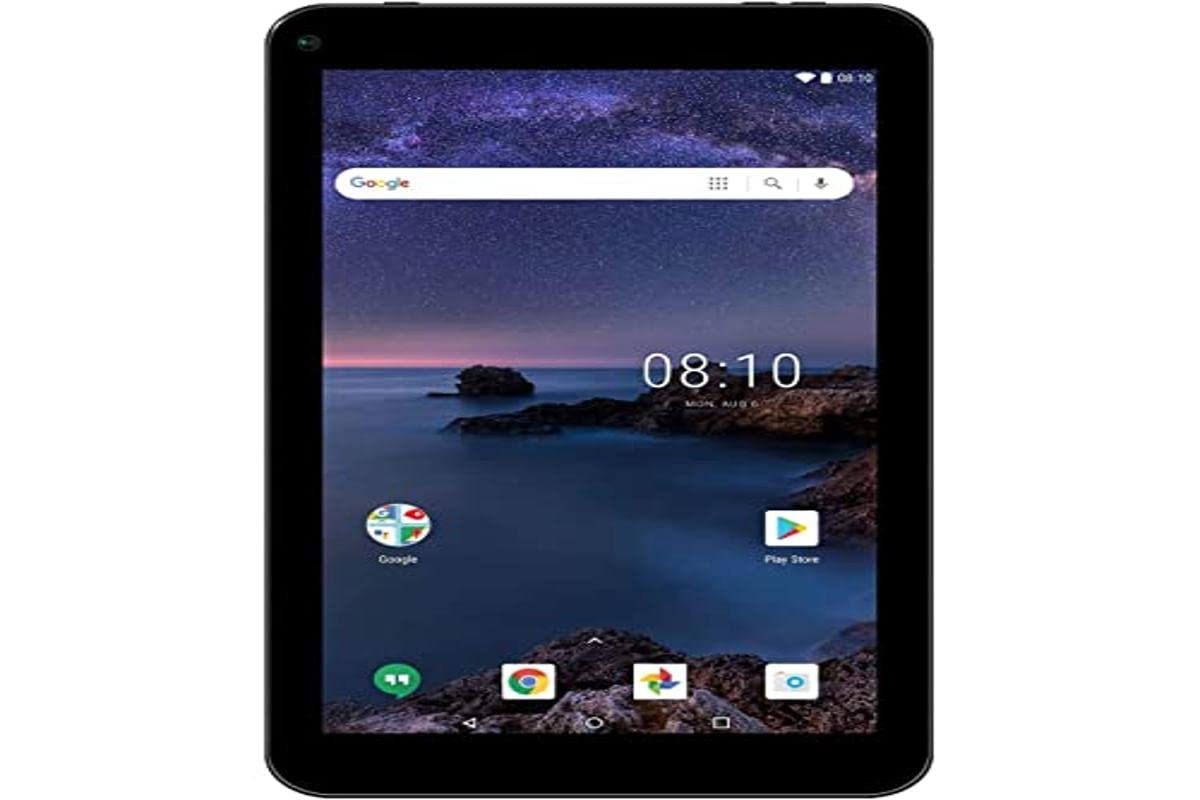
ภาพ: ด้านหน้า view of the Smartab Tab 7 Android Tablet, displaying its 7-inch screen with a nature-themed wallpaper and app icons.
2. การตั้งค่าเริ่มต้น
2.1. การชาร์จแท็บเล็ต
Before first use, fully charge the tablet. Connect the included USB cable to the tablet's USB port and the other end to a compatible USB power adapter (not always included) or a computer's USB port. The charging indicator will show the charging status.
2.2. การเปิด/ปิดเครื่อง
- วิธีเปิดเครื่อง: กดปุ่มเปิด/ปิดค้างไว้จนกว่าหน้าจอจะสว่างขึ้น
- To power off: Press and hold the Power button until a power-off menu appears. Select "Power off" and confirm.
2.3. การกำหนดค่าเริ่มต้น
Upon first power-on, follow the on-screen prompts to select your language, connect to a Wi-Fi network, and set up your Google account. A Google account is required to download apps from the Google Play Store.
3. คุณสมบัติหลัก
3.1. การแสดงผล
- ขนาดหน้าจอ: 7-inch LED touch display.
- ปณิธาน: 1024 x 600 pixels, providing clear visuals for media consumption and browsing.
3.2. กล้องถ่ายรูป
- กล้องหน้า: 2 MP, suitable for video calls and selfies.
- กล้องคู่: The tablet is equipped with dual cameras for versatile photography.
3.3. ประสิทธิภาพและการจัดเก็บ
- ระบบปฏิบัติการ: Android 9 Pie - Go Edition, optimized for entry-level devices.
- แรม : 1 GB RAM for essential multitasking.
- พื้นที่เก็บข้อมูลภายใน: 16 GB flash storage for apps and files.
- พื้นที่เก็บข้อมูลที่ขยายได้: Micro SD card slot supports up to 32 GB for additional storage.
- จีพียู: Mali-400 MP graphics coprocessor for basic graphics tasks.
3.4. Connectivity & Audio
- LAN ไร้สาย: Wi-Fi 802.11b/g/n for internet access.
- บลูทูธ: For connecting wireless accessories like headphones or speakers.
- พอร์ต USB: Available for data transfer and charging.
- เสียง: Built-in speaker for audio playback.
4. คู่มือการใช้งาน
4.1. การนำทางพื้นฐาน
The tablet uses a touch interface. Swipe to navigate between screens, tap to open apps, and pinch to zoom. Use the navigation bar at the bottom of the screen for Home, Back, and Recent Apps functions.
4.2. การเชื่อมต่อกับ Wi-Fi
- ไปที่ การตั้งค่า > เครือข่ายและอินเตอร์เน็ต > ไวไฟ.
- สลับ Wi-Fi On.
- เลือกเครือข่ายที่คุณต้องการจากรายการ
- ป้อนรหัสผ่านหากได้รับแจ้งและแตะ เชื่อมต่อ.
4.3. Using Google Play Store
The Google Play Store is pre-installed. Tap the Play Store icon to browse and download apps, games, movies, and books. You must be signed in with a Google account to use this feature.
4.4. การจับคู่บลูทู ธ
- Ensure the Bluetooth device you wish to pair is in pairing mode.
- บนแท็บเล็ตของคุณ ให้ไปที่ การตั้งค่า > อุปกรณ์ที่เชื่อมต่อ > บลูทูธ.
- สลับบลูทูธ On.
- แตะ จับคู่อุปกรณ์ใหม่ and select your device from the list.
- ปฏิบัติตามคำแนะนำบนหน้าจอเพื่อทำการจับคู่ให้เสร็จสิ้น
5. การบำรุงรักษา
5.1. การทำความสะอาดแท็บเล็ต
ใช้ผ้าเนื้อนุ่มที่ไม่เป็นขุยเช็ดทำความสะอาดหน้าจอและตัวเครื่องแท็บเล็ต หลีกเลี่ยงการใช้สารเคมีรุนแรงหรือวัสดุที่มีฤทธิ์กัดกร่อน ซึ่งอาจทำให้หน้าจอหรือพื้นผิวเสียหายได้
5.2. การอัปเดตซอฟต์แวร์
ตรวจสอบการอัปเดตซอฟต์แวร์เป็นระยะเพื่อให้มั่นใจถึงประสิทธิภาพและความปลอดภัยที่เหมาะสมที่สุด ไปที่ การตั้งค่า > ระบบ > การอัพเดทระบบ เพื่อตรวจสอบและติดตั้งการอัพเดทที่มีอยู่
5.3. การดูแลแบตเตอรี่
To prolong battery life, avoid extreme temperatures. Do not leave the tablet fully charged or fully discharged for extended periods. For long-term storage, charge the battery to about 50%.
6 การแก้ไขปัญหา
- แท็บเล็ตเปิดไม่ติด: Ensure the battery is charged. Connect the charger and try again. If unresponsive, press and hold the Power button for 10-15 seconds to force a restart.
- หน้าจอไม่ตอบสนอง: รีสตาร์ทแท็บเล็ต หากปัญหายังคงอยู่ โปรดตรวจสอบให้แน่ใจว่าหน้าจอสะอาดและไม่มีเศษฝุ่น
- ไม่สามารถเชื่อมต่อกับ Wi-Fi: Check if Wi-Fi is enabled in settings. Ensure you have the correct password. Restart your Wi-Fi router and the tablet.
- Apps are crashing or slow: Close unused apps. Clear app cache (Settings > Apps > [App Name] > Storage > Clear cache). Consider uninstalling rarely used apps to free up storage.
- แบตเตอรี่หมดเร็ว: Reduce screen brightness. Close background apps. Disable Wi-Fi, Bluetooth, and GPS when not in use.
7. ข้อมูลจำเพาะ
| คุณสมบัติ | รายละเอียด |
|---|---|
| ยี่ห้อ | Smartab |
| หมายเลขรุ่น | ST7160 |
| ระบบปฏิบัติการ | Android 9 Pie - Go Edition |
| ขนาดหน้าจอ | 7 นิ้ว |
| ความละเอียดหน้าจอ | 1024 x 600 |
| แรม | 1GB |
| การจัดเก็บข้อมูลภายใน | 16GB |
| พื้นที่เก็บข้อมูลแบบขยายได้ | ช่องเสียบการ์ด Micro SD (สูงสุด 32 GB) |
| โคโปรเซสเซอร์กราฟิก | Mali-400 MP |
| กล้องหน้า | 2 MP |
| การเชื่อมต่อ | Wi-Fi 802.11b/g/n, Bluetooth, USB Port |
| แบตเตอรี่ | Lithium-ion, 2500 mAh capacity |
| ขนาด | 24.13 x 12.7 x 3.81 ซม. |
| น้ำหนัก | 440 กรัม |
8. อะไรอยู่ในกล่อง
The Smartab Tab 7 Android Tablet package includes:
- Smartab Tab 7 Android Tablet (Model ST7160)
- สายชาร์จ USB
- คู่มือการใช้งาน (เอกสารนี้)
วิดีโอ: จบแล้วview of the Smartab Tab 7 Android Tablet, highlighting its 7-inch LED display, 2MP front camera, dual cameras, 2500 mAh battery, 1GB RAM, 16GB storage with Micro SD slot, built-in speaker, USB, Bluetooth, Wi-Fi connectivity, Android 9 Pie OS, and pre-installed Google Play Store. This video is provided by the seller.
9. การรับประกันและการสนับสนุน
This product includes a standard manufacturer's warranty. For detailed warranty information, please refer to the warranty card included in your product packaging or visit the official Smartab website. For technical support or service inquiries, please contact Smartab customer service.
หากต้องการข้อมูลเพิ่มเติมเกี่ยวกับผลิตภัณฑ์ โปรดไปที่ product details page on Amazon.com.mx.