
Bmax X15
Bmax X15 Laptop User Manual
แบบ: X15
การแนะนำ
This manual provides comprehensive instructions for the setup, operation, and maintenance of your Bmax X15 laptop. Please read this manual carefully before using your device to ensure proper functionality and longevity.
สินค้าเกินview
ด้านหน้า View

The Bmax X15 features a vibrant 15.6-inch Full HD display, providing clear and crisp visuals for all your computing needs.
คีย์บอร์ดและทัชแพด

Equipped with a full-sized keyboard including a numeric keypad and a large 4.7-inch multi-touch touchpad for comfortable and efficient input.
ไซด์โปรfile และท่าเรือ

The slim design incorporates essential ports including two USB 3.0 ports, a Micro HDMI output, a DC power input, and a headphone jack for versatile connectivity.
หลัง View

The Bmax X15 features a durable metal back cover, enhancing both its aesthetic appeal and structural integrity.
การตั้งค่า
การเปิดเครื่องครั้งแรก
- ชาร์จแบตเตอรี่: Before first use, connect the included power adapter to the laptop's DC port and a power outlet. Allow the battery to charge fully. The charging indicator light will typically change color or turn off when fully charged.
- เปิดเครื่อง: Open the laptop lid and press the power button, usually located on the top right of the keyboard area.
- การตั้งค่า Windows: Follow the on-screen prompts to complete the Windows 10 Pro setup. This includes selecting your language, region, connecting to a Wi-Fi network, and creating a user account.
การเชื่อมต่ออุปกรณ์ต่อพ่วง
- อุปกรณ์ยูเอสบี: Connect USB mice, keyboards, or external drives to the USB 3.0 ports on the sides of the laptop.
- จอแสดงผลภายนอก: Use a Micro HDMI cable to connect the laptop to an external monitor or TV. Ensure the external display is set to the correct input source.
- อุปกรณ์เสียง: Plug headphones or external speakers into the 3.5mm audio jack.
- การ์ด Micro-SD: Insert a Micro-SD card into the designated slot for additional storage.
คำแนะนำการใช้งาน
การใช้งานคีย์บอร์ดและทัชแพด
The Bmax X15 features a responsive keyboard and a large touchpad. The touchpad supports multi-touch gestures for enhanced navigation. Refer to Windows settings for customizing touchpad gestures.
การตั้งค่าการแสดงผล
The 15.6-inch Full HD IPS display offers excellent clarity. You can adjust display settings such as brightness, resolution, and scaling through Windows Display Settings.
การขยายพื้นที่เก็บข้อมูล
Expandable M.2 SSD Slot
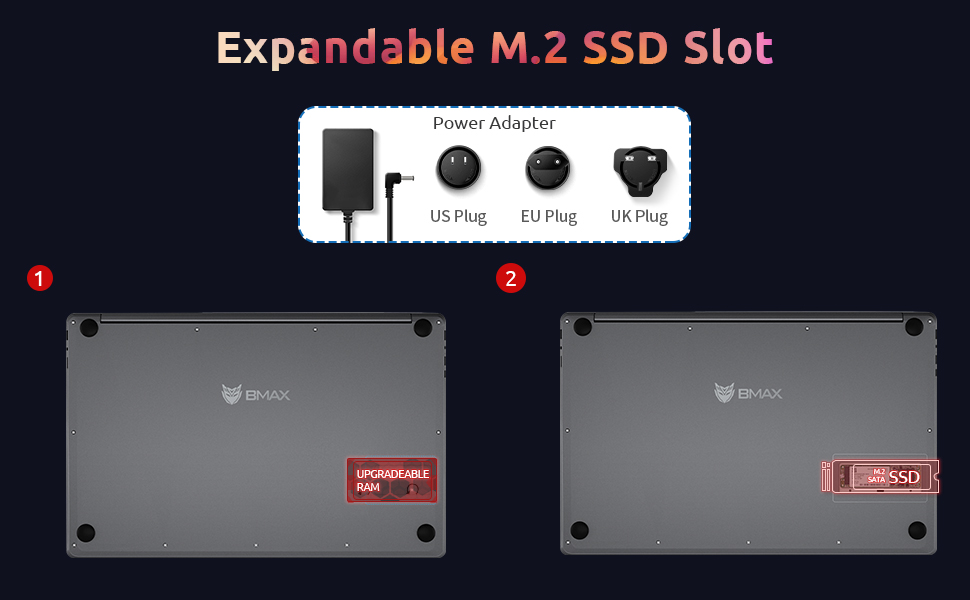
The Bmax X15 comes with a 256GB SSD and supports further storage expansion via an M.2 SATA SSD slot. This allows for significant upgrades to your storage capacity.
การซ่อมบำรุง
การทำความสะอาด
- หน้าจอ: ใช้ผ้านุ่มไม่เป็นขุยเช็ดเล็กน้อยampล้างออกด้วยน้ำหรือน้ำยาทำความสะอาดหน้าจอ ห้ามฉีดน้ำยาลงบนหน้าจอโดยตรง
- แป้นพิมพ์และตัวเครื่อง: ใช้ผ้านุ่มและแห้ง สำหรับคราบฝังแน่น ให้เช็ดเบาๆamp สามารถใช้ผ้าได้เพื่อให้แน่ใจว่าไม่มีของเหลวเข้าไปในช่องเปิด
- พอร์ต: ใช้ลมอัดเพื่อเป่าฝุ่นออกจากพอร์ตอย่างอ่อนโยน
การดูแลแบตเตอรี่
- หลีกเลี่ยงการปล่อยแบตเตอรี่จนหมดบ่อยครั้ง
- เก็บแล็ปท็อปไว้ในที่แห้งและเย็น หากไม่ได้ใช้งานเป็นเวลานาน โดยให้แบตเตอรี่มีประจุประมาณ 50%
- Use only the original Bmax power adapter.
การอัพเดตซอฟต์แวร์
Regularly check for and install Windows updates to ensure system stability, security, and optimal performance. Go to การตั้งค่า > การอัปเดตและความปลอดภัย > Windows Update.
การแก้ไขปัญหา
| ปัญหา | สาเหตุที่เป็นไปได้ | สารละลาย |
|---|---|---|
| โน๊ตบุ๊คไม่สามารถเปิดเครื่องได้ | Low battery; Power adapter issue; Hardware fault. | Ensure power adapter is securely connected and outlet is working. Allow battery to charge for at least 30 minutes before attempting to power on again. |
| หน้าจอว่างเปล่าหรือกะพริบ | Incorrect display settings; Driver issue; Hardware fault. | กด Fn+F1 (or relevant display toggle key) to cycle through display modes. Update graphics drivers. Restart the laptop. |
| ปัญหาการเชื่อมต่อ Wi-Fi | Wi-Fi adapter off; Router issue; Driver issue. | Ensure Wi-Fi is enabled in Windows settings. Restart your router. Update network drivers. |
| ประสิทธิภาพการทำงานช้า | Too many programs running; Low storage space; Malware. | Close unnecessary applications. Free up disk space. Run a virus scan. Consider upgrading SSD or RAM if consistently slow. |
ข้อมูลจำเพาะ
| คุณสมบัติ | รายละเอียด |
|---|---|
| แบบอย่าง | Bmax X15 |
| โปรเซสเซอร์ | Intel Celeron N4120 Quad Core (up to 2.6 GHz) |
| แรม | แรม 8GB DDR4 |
| พื้นที่จัดเก็บ | 256 GB SSD (Expandable via M.2 SATA SSD slot) |
| แสดง | 15.6-inch Full HD (1920x1080) IPS |
| กราฟฟิก | Intel UHD Graphics 600 (รวม) |
| ระบบปฏิบัติการ | Windows 10 Pro (Supports Linux OS) |
| การเชื่อมต่อแบบไร้สาย | 802.11ac Wi-Fi, บลูทูธ |
| พอร์ต | 2x USB 3.0, 1x Micro HDMI, 1x DC Power, 1x 3.5mm Headphone Jack, 1x Micro-SD Card Reader |
| Webลูกเบี้ยว | 0.3 MP |
| อายุการใช้งานแบตเตอรี่ | สูงสุด 5 ชั่วโมง (การใช้งานทั่วไป) |
| ขนาด (กxยxส) | 14.8 x 9.6 x 0.8 นิ้ว |
| น้ำหนัก | 4.4 ปอนด์ |
การรับประกันและการสนับสนุน
Bmax offers a worry-free 30-day return policy and a 12-month warranty for the X15 laptop. For technical support or warranty claims, please refer to the contact information provided with your product packaging or visit the official Bmax support webเว็บไซต์.
Customer service is available 7 days a week, 24 hours a day.
หากต้องการข้อมูลเพิ่มเติมสามารถเยี่ยมชมได้ที่ Bmax Store on Amazon.
Ask a question about this manual
Ask about setup, troubleshooting, compatibility, parts, safety, or missing instructions. Manuals+ will review the question and use this page’s manual context to help answer it.