
1. บทนำ
ขอบคุณสำหรับการซื้อasing the MEIZE Android 11 Tablet. This manual provides essential information for setting up, operating, and maintaining your device. Please read it carefully to ensure proper use and to maximize your tablet's performance. Keep this manual for future reference.
2. สินค้าหมดview
The MEIZE Android 11 Tablet is a versatile device designed for various tasks, from entertainment to productivity. It features a vibrant 10.1-inch IPS display, a powerful 8-core processor, and a long-lasting battery.
คุณสมบัติหลัก
- High-Performance 8-Core Processor: Equipped with a 1.6GHz 8-core CPU and a built-in gravity sensor, ensuring stable and fast operation for a smooth user experience.
- ระบบปฏิบัติการ Android 11: Runs on a stable and enhanced Android 11 system, offering a convenient user interface and excellent app performance.
- การเชื่อมต่อ Wi-Fi: Supports 2.4GHz Wi-Fi for stable and high-speed wireless communication, enabling efficient power saving for wireless devices. Compatible with popular apps like Facebook, Twitter, YouTube, Line, and Instagแกะ.
- High-Definition IPS Display: Features a vivid 10.1-inch Full HD 1280x800 IPS display, providing clear and bright images with a 178-degree viewing angle. The wear-resistant touch panel enhances usability.
- กล้องคู่: Includes a 13MP rear camera and a 5MP front camera for capturing photos and engaging in video calls.
- ลำโพงคู่: Delivers immersive audio for an enhanced multimedia experience.
- ความจุขนาดใหญ่: Comes with 32GB of internal storage, expandable up to 128GB via a microSD card (sold separately), allowing ample space for photos, files, e-books, videos, music, and games.
- แบตเตอรี่ 6000mAh: A large-capacity battery provides up to 10 hours of continuous use on a single charge, ideal for commuting, travel, and extended entertainment.
- มัลติฟังก์ชัน: Integrated GPS allows for offline navigation with downloaded maps. An FM radio function is included for radio enthusiasts. Bluetooth connectivity enables easy pairing with speakers and other compatible devices.

รูปที่ 2.1: ด้านหน้าและด้านหลัง view of the MEIZE Android 11 Tablet.

Figure 2.2: The tablet running Android 10.0 OS, showcasing its interface and app compatibility.
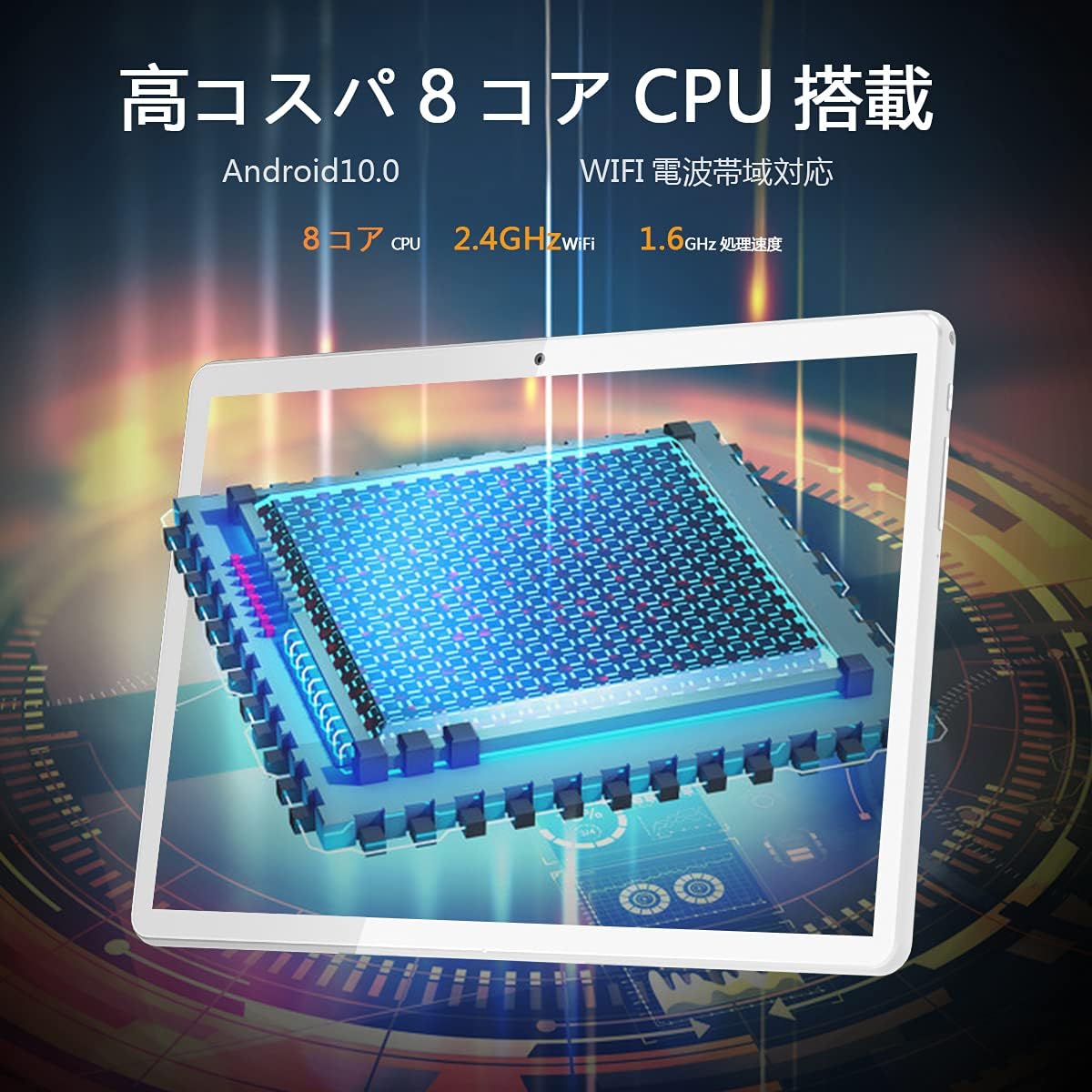
Figure 2.3: Illustration of the tablet's high-performance 8-core CPU.

Figure 2.4: The 10.1-inch Full HD IPS display showcasing vivid colors and wide viewมุมการเอียง

Figure 2.5: The tablet's large storage capacity (32GB ROM, 2GB RAM) and microSD expansion capability.

Figure 2.6: The tablet's dual camera system, featuring a 5MP front camera and a 13MP rear camera.
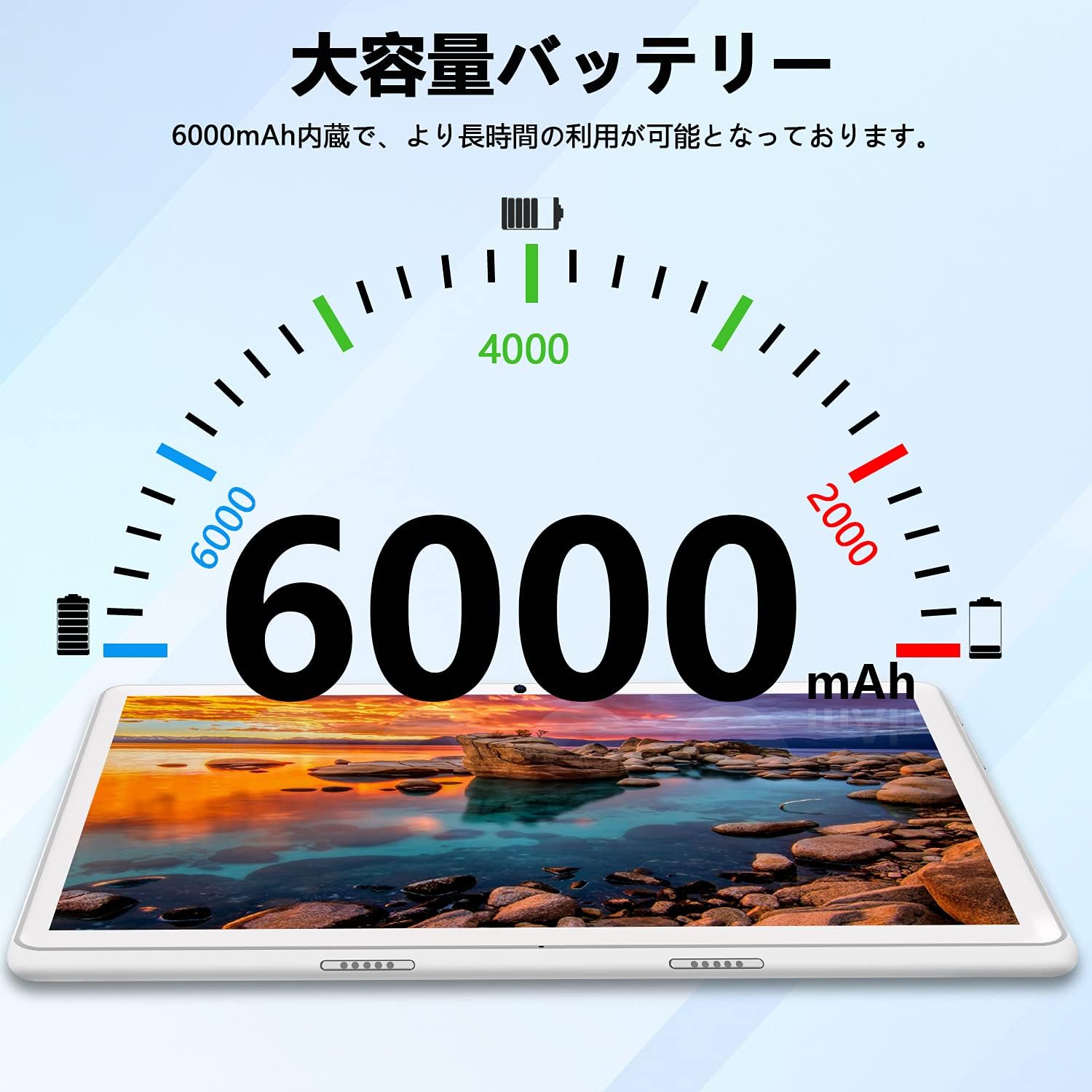
Figure 2.7: The tablet's 6000mAh large-capacity battery, providing extended usage time.
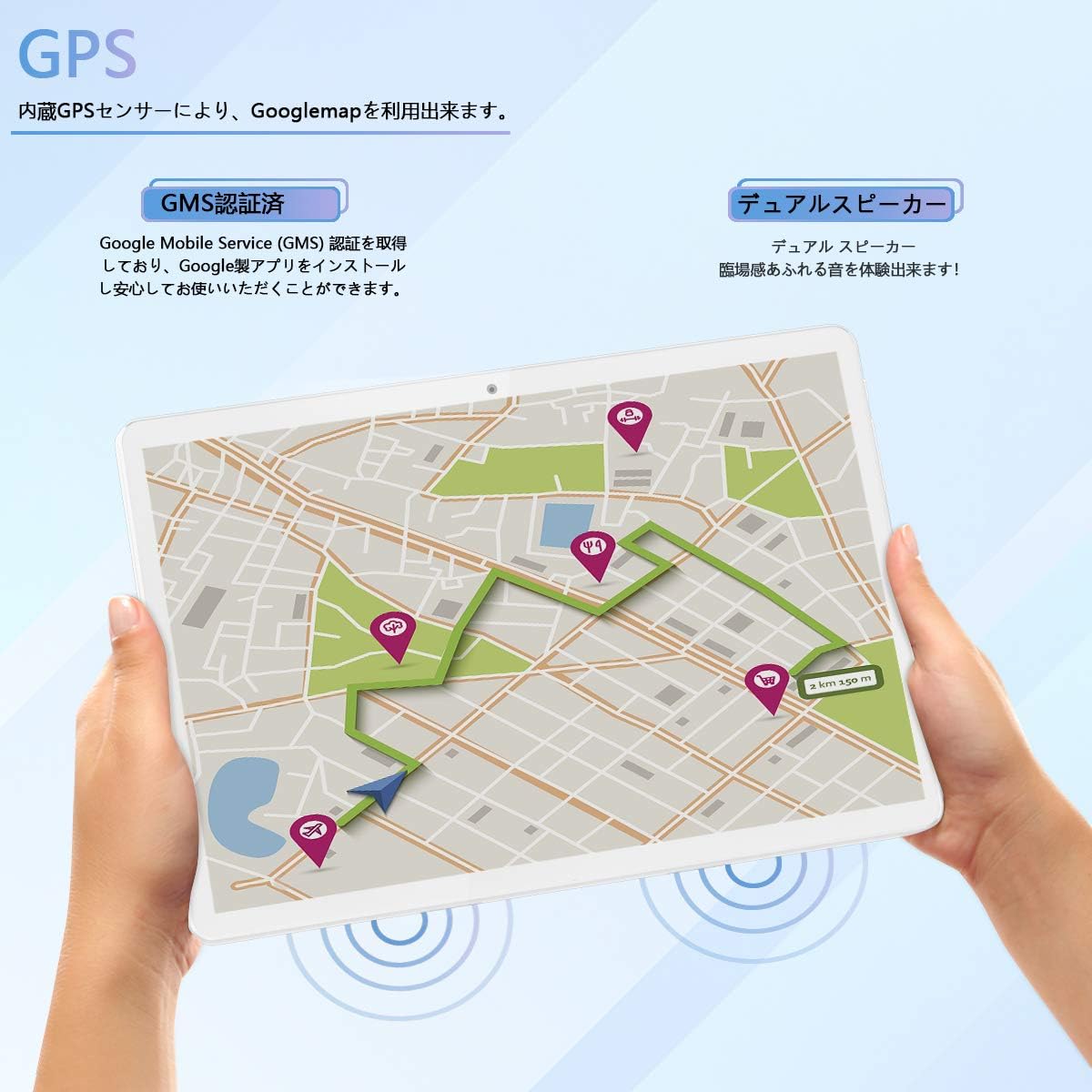
Figure 2.8: The tablet's GPS navigation capabilities and dual speaker system.
3. การตั้งค่า
3.1 การชาร์จเริ่มต้น
Before first use, fully charge the tablet using the provided USB cable and power adapter. The battery indicator on the screen will show the charging status. A full charge typically takes several hours.
3.2 เปิด/ปิดเครื่อง
- การเปิดเครื่อง: Press and hold the Power button until the MEIZE logo appears on the screen.
- วิธีปิดเครื่อง: กดปุ่มเปิด/ปิดค้างไว้จนกว่าตัวเลือกการเปิด/ปิดจะปรากฏขึ้น เลือก "ปิดเครื่อง" แล้วยืนยัน
- ในการรีสตาร์ท: กดปุ่มเปิด/ปิดค้างไว้จนกว่าตัวเลือกการเปิด/ปิดจะปรากฏขึ้น เลือก "รีสตาร์ท" แล้วยืนยัน
3.3 การเชื่อมต่อ Wi-Fi
- ไปที่ "การตั้งค่า" > "เครือข่ายและอินเทอร์เน็ต" > "Wi-Fi"
- Toggle the Wi-Fi switch to the "On" position.
- The tablet will scan for available Wi-Fi networks. Select your desired network from the list.
- หากระบบถาม ให้ป้อนรหัสผ่านเครือข่ายแล้วแตะ "เชื่อมต่อ"
- เมื่อเชื่อมต่อแล้วไอคอน Wi-Fi จะปรากฏบนแถบสถานะ
3.4 การตั้งค่า Android เบื้องต้น
Follow the on-screen prompts to complete the initial Android setup, which includes selecting your language, connecting to Wi-Fi, setting up a Google account, and configuring security options.
4. คู่มือการใช้งาน
4.1 การนำทางพื้นฐาน
- สัมผัส: แตะไอคอนหรือตัวเลือกเพื่อเลือก
- แตะค้างไว้: กดและค้างรายการเพื่อเข้าถึงตัวเลือกเพิ่มเติมหรือย้ายรายการ
- ปัด: ลากนิ้วของคุณไปตามหน้าจอเพื่อเลื่อนดูรายการหรือสลับระหว่างหน้าจอหลัก
- หยิก: ใช้สองนิ้วเพื่อซูมเข้าหรือออกจากรูปภาพและ web หน้า
4.2 การติดตั้งและการจัดการแอปพลิเคชัน
- เปิดแอป Google Play Store
- ค้นหา แอปที่ต้องการ
- แตะ "ติดตั้ง" เพื่อดาวน์โหลดและติดตั้งแอป
- To uninstall an app, go to "Settings" > "Apps & notifications", select the app, and tap "Uninstall".
4.3 การใช้กล้อง
- เปิดแอป "กล้อง"
- แตะไอคอนกล้องเพื่อสลับระหว่างกล้องหน้าและกล้องหลัง
- แตะปุ่มชัตเตอร์เพื่อถ่ายภาพหรือเริ่ม/หยุดการบันทึกวิดีโอ
- Access photos and videos in the "Gallery" app.
4.4 ระบบนำทาง GPS
The tablet has a built-in GPS sensor. You can use navigation apps like Google Maps. For offline navigation, download maps in advance through the app settings.
4.5 การเชื่อมต่อบลูทูธ
- Go to "Settings" > "Connected devices" > "Bluetooth".
- สลับบลูทูธเป็น "เปิด"
- The tablet will scan for nearby Bluetooth devices. Select the device you wish to pair with.
- ปฏิบัติตามคำแนะนำบนหน้าจอเพื่อดำเนินการจับคู่ให้เสร็จสมบูรณ์
4.6 วิทยุ FM
To use the FM radio, connect wired headphones (not included) to the 3.5mm audio jack. The headphones act as an antenna. Open the FM Radio app and scan for available stations.
5. การบำรุงรักษา
5.1 การทำความสะอาดแท็บเล็ต
Use a soft, lint-free cloth to clean the screen and body of the tablet. Avoid using harsh chemicals, abrasive cleaners, or aerosol sprays, as these can damage the device.
5.2 การดูแลแบตเตอรี่
- หลีกเลี่ยงการสัมผัสแท็บเล็ตในอุณหภูมิที่สูงหรือต่ำเกินไป (ร้อนหรือเย็น)
- อย่าปล่อยให้แบตเตอรี่หมดบ่อยเกินไป ชาร์จก่อนถึง 0%
- ใช้เฉพาะเครื่องชาร์จของแท้หรือที่ได้รับการรับรองว่าเข้ากันได้เท่านั้น
5.3 การอัปเดตซอฟต์แวร์
Periodically check for system updates to ensure your tablet has the latest features and security patches. Go to "Settings" > "System" > "System update" to check for updates.
5.4 การจัดการการจัดเก็บข้อมูล
เคลียร์สิ่งที่ไม่จำเป็นออกเป็นประจำ files and apps to maintain optimal performance. You can check storage usage in "Settings" > "Storage". Consider using a microSD card for additional storage.
6 การแก้ไขปัญหา
| ปัญหา | วิธีแก้ปัญหาที่เป็นไปได้ |
|---|---|
| แท็บเล็ตไม่สามารถเปิดเครื่องได้ | Ensure the tablet is charged. Connect it to the charger for at least 30 minutes, then try powering it on again. |
| ปัญหาการเชื่อมต่อ Wi-Fi | Check if Wi-Fi is enabled in settings. Restart your router and the tablet. Ensure you have entered the correct password. |
| แท็บเล็ตทำงานช้าลง | Close unused apps. Clear cache for frequently used apps. Free up storage space. Restart the tablet. |
| แอปกำลังขัดข้อง | Ensure apps are updated to their latest versions. Clear the app's cache and data in "Settings" > "Apps & notifications". Reinstall the app if necessary. |
| หน้าจอไม่ตอบสนอง | Restart the tablet by holding the power button for about 10-15 seconds until it forces a restart. |
หากคุณพบปัญหาที่ไม่ได้ระบุไว้ในที่นี้ หรือหากวิธีแก้ปัญหาที่แนะนำไม่สามารถแก้ไขปัญหาได้ โปรดติดต่อฝ่ายบริการลูกค้า
7. ข้อมูลจำเพาะ
| คุณสมบัติ | ข้อมูลจำเพาะ |
|---|---|
| ยี่ห้อ | ไมซ์ |
| หมายเลขรุ่น | Meize k106 |
| ระบบปฏิบัติการ | แอนดรอยด์ 11 |
| ซีพียู | Spreadtrum SC9863A 1.6GHz 8-core |
| ขนาดหน้าจอ | 10.1 นิ้ว |
| ความละเอียดการแสดงผลสูงสุด | 1280x800 pixels (Full HD IPS) |
| แรม | 2GB |
| การจัดเก็บข้อมูลภายใน | 32GB |
| พื้นที่เก็บข้อมูลแบบขยายได้ | Up to 128GB via microSD card (sold separately) |
| กล้องหลัง | 13 MP |
| กล้องหน้า | 5 MP |
| ความจุของแบตเตอรี่ | 6000 มิลลิแอมป์ |
| ประเภทไร้สาย | Wi-Fi (2.4GHz, 802.11bgn) |
| การเชื่อมต่อ | Bluetooth, GPS, FM Radio, 3.5mm Headphone Jack |
| สี | สีขาว |
| น้ำหนักสินค้า | 835 กรัม |
| GTIN/UPC | 779139339939 |
8. การรับประกันและการสนับสนุน
This product comes with a manufacturer's warranty. Please refer to the warranty card included in the packaging for specific terms and conditions. For any questions or technical assistance, our Japanese support team is available to respond within 24 hours via email. Please contact us through the email address provided in your purchase documentation.