
1. บทนำ
This manual provides detailed instructions for the installation, operation, and maintenance of your D-Link DCS-8627LH Full HD Outdoor Wi-Fi Camera with Spotlight. Please read this manual thoroughly before using the device to ensure proper setup and functionality. Keep this manual for future reference.
2. สินค้าหมดview
The D-Link DCS-8627LH is an outdoor Wi-Fi camera designed for security monitoring, featuring Full HD 1080p resolution, a built-in spotlight, and advanced detection capabilities. It integrates with the mydlink app for remote access and smart home ecosystems like Google Assistant and Amazon Alexa.
2.1 เนื้อหาบรรจุภัณฑ์
- กล้อง Wi-Fi กลางแจ้งความละเอียด Full HD D-Link DCS-8627LH
- ชุดติดตั้ง (สกรู, ปลั๊กผนัง)
- อะแดปเตอร์แปลงไฟ
- คู่มือการติดตั้งแบบด่วน
2.2 คุณสมบัติกล้อง
- ความละเอียด Full HD 1080p: Captures clear video at 30 frames per second.
- สปอตไลท์แบบรวม: Enhances color night vision and acts as a deterrent.
- อินฟราเรดคืนวิสัยทัศน์: Provides clear video up to 7 meters in low light conditions.
- เสียงสองทาง: มีไมโครโฟนและลำโพงในตัวสำหรับใช้ในการสื่อสาร
- การตรวจจับการเคลื่อนไหวและเสียง: Triggers recording and sends notifications.
- การเชื่อมต่อ Wi-Fi: ติดตั้งและใช้งานแบบไร้สายได้ง่าย
- การจัดเก็บข้อมูลภายในเครื่อง: Supports microSD card for video recording.
- การออกแบบที่ทนฝนและแดด: เหมาะสำหรับติดตั้งภายนอกอาคาร
- การรวมระบบบ้านอัจฉริยะ: Compatible with mydlink app, Google Assistant, Amazon Alexa, and IFTTT.
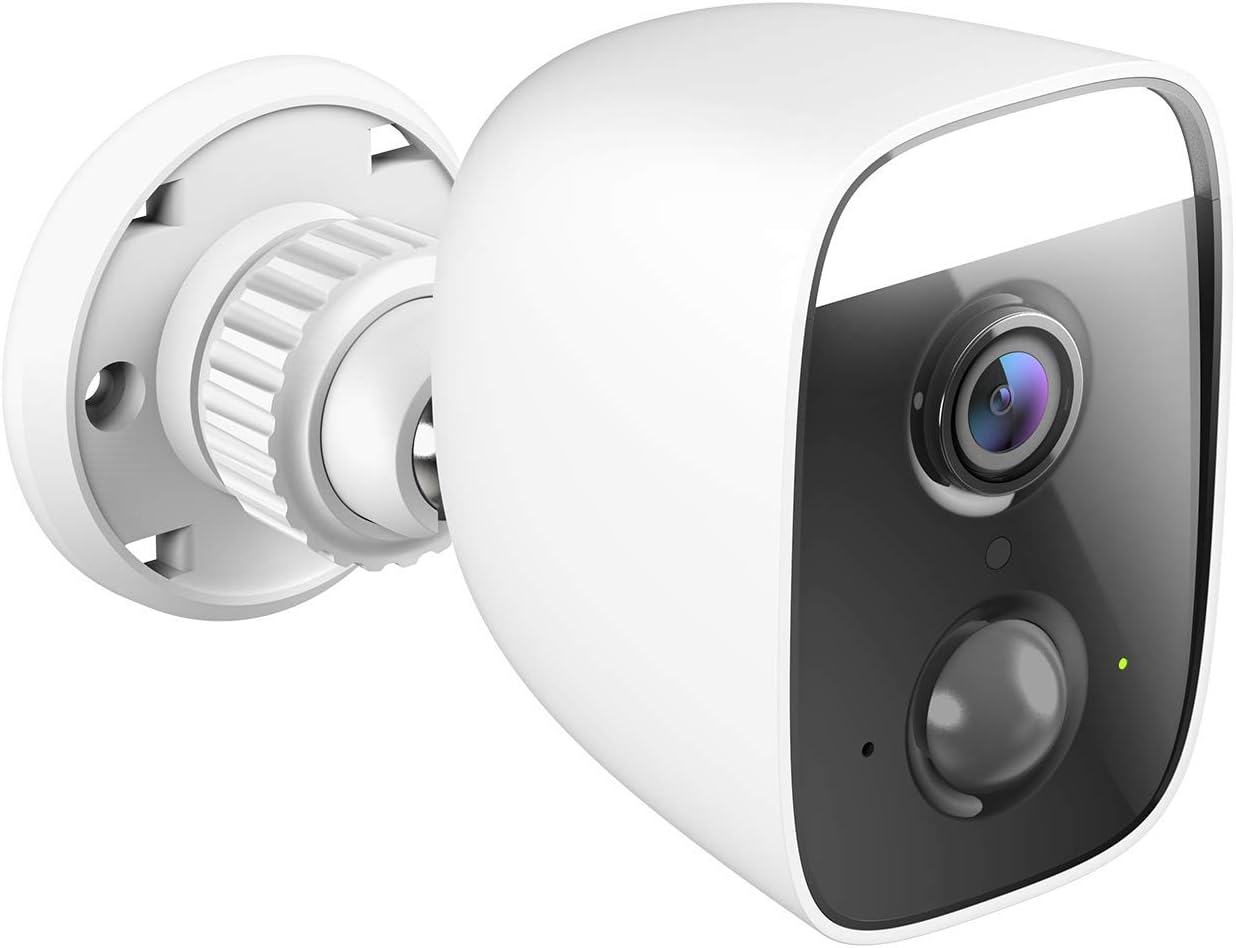
รูปที่ 1: มุม view of the D-Link DCS-8627LH camera, showcasing its compact design and integrated spotlight.

รูปที่ 2: ด้านหน้า view of the D-Link DCS-8627LH camera, highlighting the lens, motion sensor, and spotlight.
3. การตั้งค่า
3.1 ก่อนที่คุณจะเริ่มต้น
- Ensure your Wi-Fi network is active and you have the Wi-Fi password.
- Have your smartphone or tablet ready.
- Choose a suitable outdoor location for installation, ensuring Wi-Fi signal strength and access to a power outlet.
3.2 mydlink App Installation
- Download the free mydlink app from the App Store (iOS) or Google Play (Android).
- Launch the mydlink app and create a new account or log in with an existing one.
3.3 Adding the Camera to mydlink
- Plug the camera into a power outlet near your Wi-Fi router for initial setup.
- Wait for the camera's LED indicator to flash orange, indicating it's ready for setup.
- In the mydlink app, tap the menu icon (☰) and select "Add a Device."
- Scan the setup QR code located on the camera or its packaging.
- ทำตามคำแนะนำบนหน้าจอในแอปเพื่อเชื่อมต่อกล้องกับเครือข่าย Wi-Fi ของคุณ
- Once connected, the LED indicator will turn solid green.
3.4 การติดตั้งทางกายภาพ
The DCS-8627LH camera is designed for wall or pole mounting. Ensure the chosen location provides a clear view and is within range of your Wi-Fi signal and a power source.
- Use the provided mounting template to mark screw holes on the wall or pole.
- หากติดตั้งบนผนังก่ออิฐ ให้เจาะรูนำร่องก่อน แล้วจึงใส่พุกยึดผนัง
- ยึดขายึดเข้ากับพื้นผิวโดยใช้สกรู
- ติดตั้งกล้องเข้ากับขายึดและปรับมุมตามต้องการ
- Connect the power adapter to the camera and plug it into a weather-protected outdoor power outlet.

รูปที่ 3: มุม view of the D-Link DCS-8627LH camera, showing the adjustable mounting base.

รูปที่ 4: หลัง view of the camera, indicating the location of the microSD card slot and reset button.
4. คู่มือการใช้งาน
The D-Link DCS-8627LH camera is primarily operated through the mydlink app.
4.1 Using the mydlink App
- สด View: แตะที่ไอคอนกล้องในแอปเพื่อ view ฟีดวิดีโอสด
- การบันทึก: Manually record video or configure event-based recording (motion/sound detection).
- การเล่นซ้ำ: Access recorded videos stored on the microSD card or mydlink cloud (if subscribed).
- การแจ้งเตือน: รับการแจ้งเตือนแบบพุชบนสมาร์ทโฟนของคุณเมื่อตรวจพบการเคลื่อนไหวหรือเสียง
- เสียงสองทาง: ใช้ไอคอนไมโครโฟนในการถ่ายทอดสด view เพื่อพูดผ่านลำโพงของกล้อง
- การควบคุมสปอตไลท์: Manually turn the spotlight on/off or configure it to activate upon motion detection.

รูปที่ 5: A smartphone screen showing a mydlink app notification for motion detection, with options for live view or contacting security.
4.2 การตรวจจับการเคลื่อนไหวและเสียง
Configure detection zones and sensitivity levels within the mydlink app settings for your camera. This allows you to customize when the camera triggers recordings and sends alerts.
4.3 การรวมระบบบ้านอัจฉริยะ
The DCS-8627LH supports integration with:
- ผู้ช่วย Google: ใช้คำสั่งเสียงเพื่อ view your camera feed on compatible devices.
- อเมซอนอเล็กซ่า: ควบคุมกล้องของคุณและ view its feed using Alexa-enabled devices.
- IFTTT (If This Then That): Create custom automation rules with other smart devices and services.
Refer to the respective platform's documentation or the mydlink app for detailed setup instructions for these integrations.
5. การบำรุงรักษา
5.1 การทำความสะอาดกล้อง
ทำความสะอาดเลนส์และตัวเรือนกล้องเป็นระยะด้วยผ้านุ่มๆamp เช็ดทำความสะอาดด้วยผ้า หลีกเลี่ยงการใช้สารเคมีรุนแรงหรือวัสดุที่มีฤทธิ์กัดกร่อนซึ่งอาจทำให้เลนส์หรือพื้นผิวเสียหายได้
การอัปเดตเฟิร์มแวร์ 5.2 รายการ
D-Link regularly releases firmware updates to improve performance and add new features. Check for and install updates via the mydlink app to ensure your camera has the latest enhancements and security patches.
5.3 การจัดการการ์ด MicroSD
If using a microSD card for local storage, ensure it is properly inserted and formatted through the mydlink app. Regularly check the card's status and consider replacing it if errors occur or its performance degrades.
6 การแก้ไขปัญหา
This section addresses common issues you might encounter with your D-Link DCS-8627LH camera.
6.1 ปัญหาการเชื่อมต่อ
- ไม่มีการเชื่อมต่อ: Ensure the camera is powered on and within Wi-Fi range. Check your router's internet connection.
- สัญญาณ Wi-Fi อ่อน: Relocate the camera closer to your router or consider using a Wi-Fi extender.
- Setup Failure: Try resetting the camera and repeating the setup process in the mydlink app.
6.2 ปัญหาคุณภาพของภาพ
- ภาพเบลอ: ทำความสะอาดเลนส์กล้อง ตรวจสอบให้แน่ใจว่าไม่มีสิ่งกีดขวางอยู่ด้านหน้าเลนส์
- การมองเห็นตอนกลางคืนไม่ดี: Ensure the infrared LEDs are not obstructed. Check for reflective surfaces close to the camera.
6.3 ไม่ได้รับการแจ้งเตือน
- Check mydlink app settings to ensure notifications are enabled for your camera.
- Verify your smartphone's notification settings for the mydlink app.
- Adjust motion/sound detection sensitivity and zones in the app.
6.4 การรีเซ็ตกล้อง
To perform a factory reset, locate the reset button (refer to Figure 4). With the camera powered on, use a paperclip to press and hold the reset button for approximately 10 seconds until the LED changes color. Release the button and wait for the camera to restart. You will then need to set up the camera again through the mydlink app.
7. ข้อมูลจำเพาะ
| คุณสมบัติ | ข้อมูลจำเพาะ |
|---|---|
| หมายเลขรุ่น | DCS-8627LH |
| ความละเอียดวิดีโอ | ความละเอียด Full HD 1080p (1920x1080) |
| อัตราเฟรม | 30 เฟรมต่อวินาที |
| Viewอิงแองเกิล | 123.8 องศา |
| ช่วงการมองเห็นตอนกลางคืน | สูงสุด 7 เมตร (อินฟราเรด) |
| การเชื่อมต่อแบบไร้สาย | Wi-Fi (2.4 GHz), Bluetooth (for setup) |
| แหล่งพลังงาน | Electric cable (12 Volts) |
| ความต้านทานต่อน้ำ | กันน้ำ |
| อุณหภูมิในการทำงาน | Up to 45 degrees Celsius |
| ขนาด (กว้าง x ยาว x สูง) | 12.6 x 6 x 8.4 ซม. |
| น้ำหนัก | 237 กรัม |
| การจัดเก็บข้อมูลภายในเครื่อง | ช่องเสียบการ์ด MicroSD |
| อุปกรณ์ที่รองรับ | Smartphone (mydlink app), Google Assistant, Amazon Alexa |
8. การรับประกันและการสนับสนุน
8.1 การรับประกันของผู้ผลิต
The D-Link DCS-8627LH camera comes with a การรับประกันจากผู้ผลิต 2 ปี นับจากวันที่ซื้อ การรับประกันนี้ครอบคลุมถึงความบกพร่องของวัสดุและฝีมือการผลิตภายใต้การใช้งานปกติ โปรดเก็บหลักฐานการซื้อไว้เพื่อขอรับสิทธิ์การรับประกัน
8.2 ความพร้อมของชิ้นส่วนอะไหล่
Spare parts for this product are available for a period of 2 ปี ตั้งแต่วันที่ซื้อสินค้า
8.3 การสนับสนุนด้านเทคนิค
For technical assistance, troubleshooting beyond this manual, or warranty inquiries, please visit the official D-Link support website or contact their customer service. Contact information can typically be found on the D-Link webเว็บไซต์สำหรับภูมิภาคของคุณ