
1. สินค้าหมดview
The MEIZE 10-inch Android Tablet K105 is a versatile device designed for both productivity and entertainment. Featuring a 10.1-inch HD display, a quad-core processor, and the Android 9.0 Pie operating system, it offers a smooth user experience. This tablet supports dual SIM cards for cellular connectivity and includes a 6000mAh battery for extended usage.

ภาพ: ด้านหน้า view of the MEIZE 10-inch Android Tablet K105, displaying its home screen with various application icons.
2. อะไรอยู่ในกล่อง
Upon unboxing your MEIZE K105 tablet, please verify that all the following items are included:
- MEIZE 10-inch Android Tablet K105
- อะแดปเตอร์ AC
- สาย USB
- คู่มือการใช้งาน (เอกสารนี้)

Image: The MEIZE tablet alongside its included accessories, such as the charging cable and power adapter.
3. การจัดวางและส่วนประกอบของผลิตภัณฑ์
ทำความคุ้นเคยกับลักษณะทางกายภาพของแท็บเล็ตของคุณ:
- ปุ่มเปิด/ปิด: ปุ่มนี้อยู่ด้านข้าง ใช้สำหรับเปิด/ปิดแท็บเล็ต หรือเปิด/ปิดหน้าจอ
- ปุ่มปรับระดับเสียง: ปรับระดับเอาท์พุตเสียง
- พอร์ต USB: สำหรับการชาร์จและถ่ายโอนข้อมูล
- แจ็คหูฟัง: สำหรับการเชื่อมต่อหูฟังแบบมีสาย
- กล้องหน้า: For video calls and selfies (2.0 MP).
- กล้องหลัง: สำหรับถ่ายภาพและวิดีโอ (5.0 MP)
- ผู้บรรยาย: เอาท์พุตเสียง
- ช่องใส่ซิมการ์ด/การ์ด SD: Houses the dual SIM card slots and the microSD card slot for expandable storage.

ภาพ: ระยะใกล้ view of the MEIZE tablet's side, showing the open cover for the SD card and dual SIM card slots.

Image: Diagram highlighting the locations of the 2.0 MP front camera and 5.0 MP rear camera on the MEIZE tablet.
4. การตั้งค่า
4.1 การชาร์จแท็บเล็ต
Before first use, fully charge your tablet. Connect the USB cable to the tablet's USB port and the AC adapter, then plug the adapter into a power outlet. The battery indicator on the screen will show charging status.
4.2 การเปิด/ปิดเครื่อง
- การเปิดเครื่อง: Press and hold the Power button until the MEIZE logo appears.
- วิธีปิดเครื่อง: กดปุ่มเปิด/ปิดค้างไว้จนกว่าเมนูตัวเลือกพลังงานจะปรากฏขึ้น จากนั้นเลือก "ปิดเครื่อง"
- วิธีเข้า/ออกการนอนหลับ: กดปุ่มเปิดปิดสั้นๆ
4.3 ตัวช่วยการตั้งค่าเริ่มต้น
The first time you power on the tablet, you will be guided through an initial setup process. Follow the on-screen prompts to select your language, connect to Wi-Fi, set up your Google account, and configure other basic settings.
4.4 การใส่ซิมการ์ดและการ์ด SD
The MEIZE K105 supports dual SIM cards and expandable storage via a microSD card.
- Locate the SIM/SD card slot cover on the side of the tablet.
- เปิดฝาอย่างระมัดระวัง
- Insert your SIM cards into the designated SIM1 and SIM2 slots with the gold contacts facing down.
- Insert your microSD card (up to 128GB, not included) into the SD card slot until it clicks into place.
- ปิดฝาช่องให้แน่น

Image: Detailed diagram showing how to correctly insert SIM cards (SIM1, SIM2) and an SD card into their respective slots on the MEIZE tablet.
5. การใช้งานแท็บเล็ต
5.1 การนำทางหน้าจอหลัก
The home screen is your central hub. Swipe left or right to access different panels. Tap on app icons to open applications. Swipe down from the top of the screen to access the notification panel and quick settings.
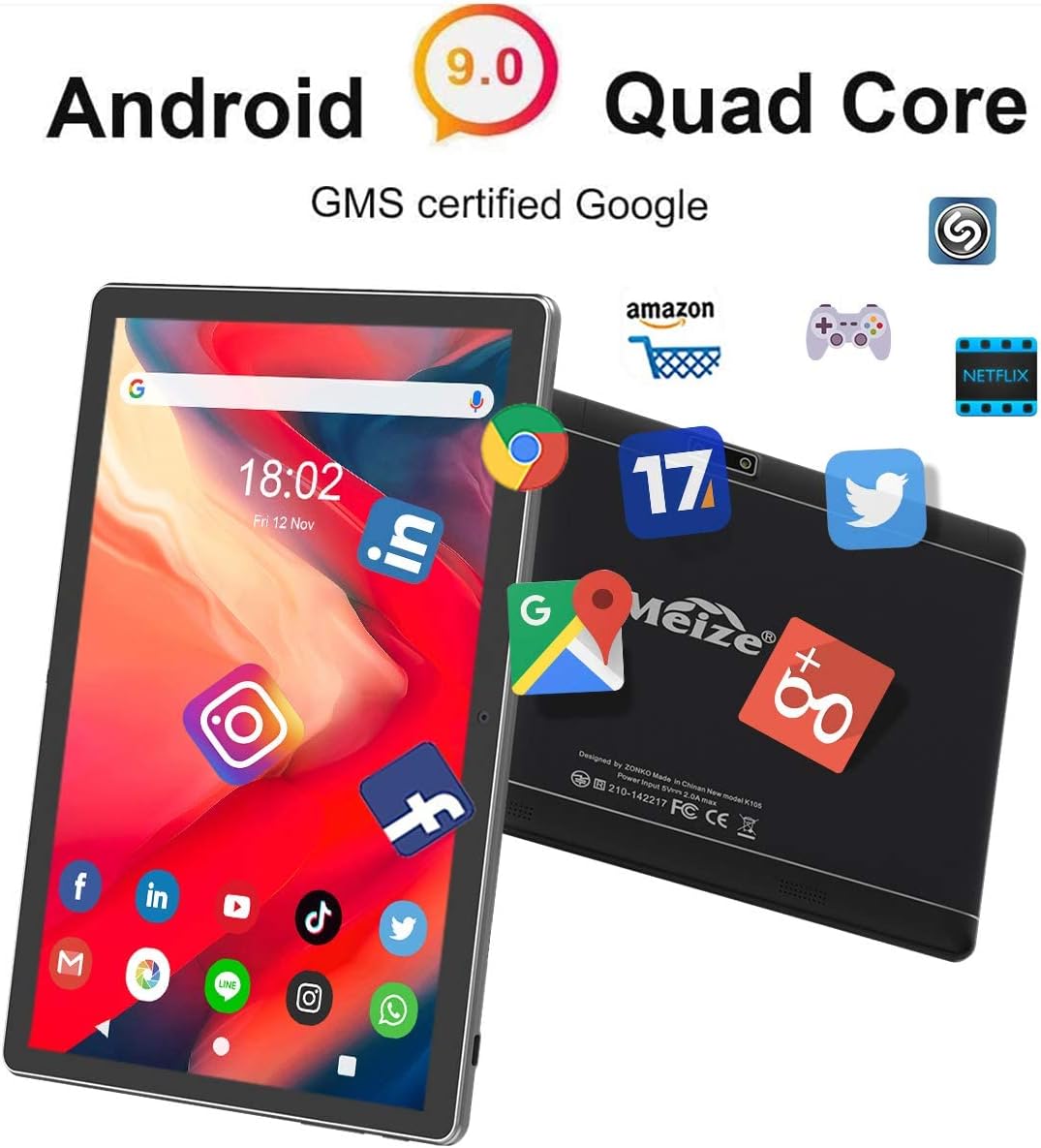
Image: The MEIZE tablet displaying its home screen filled with various application icons, demonstrating the user interface.
5.2 การเชื่อมต่อกับ Wi-Fi
- ไปที่ การตั้งค่า > เครือข่ายและอินเตอร์เน็ต > ไวไฟ.
- สลับ Wi-Fi เป็นเปิด
- เลือกเครือข่าย Wi-Fi ที่คุณต้องการจากรายการ
- ป้อนรหัสผ่านหากได้รับแจ้ง จากนั้นแตะ เชื่อมต่อ.
5.3 การจับคู่บลูทูธ
- ไปที่ การตั้งค่า > อุปกรณ์ที่เชื่อมต่อ > บลูทูธ.
- เปิดบลูทูธ
- ตรวจสอบให้แน่ใจว่าอุปกรณ์ที่คุณต้องการจับคู่อยู่ในโหมดจับคู่แล้ว
- เลือกอุปกรณ์จากรายการอุปกรณ์ที่มีอยู่ และทำตามคำแนะนำบนหน้าจอเพื่อทำการจับคู่ให้เสร็จสมบูรณ์
5.4 Making Calls and Using Cellular Data
With inserted SIM cards, your tablet can function as a large phone. Use the pre-installed Phone app to make calls and the Messages app for SMS. Ensure mobile data is enabled in การตั้งค่า > เครือข่ายและอินเตอร์เน็ต > เครือข่ายมือถือ to use cellular data.
5.5 การใช้งานกล้อง
Open the Camera app from your home screen or app drawer. You can switch between front and rear cameras, select photo or video mode, and adjust basic settings like flash or timer.
5.6 การจัดการพื้นที่จัดเก็บข้อมูล
Your tablet comes with 32GB of internal storage. You can expand this by inserting a microSD card (up to 128GB). To view การใช้พื้นที่เก็บข้อมูล ไปที่ การตั้งค่า > พื้นที่จัดเก็บ.
5.7 Installing and Uninstalling Apps
- ติดตั้ง: Open the Google Play Store app, search for your desired app, and tap ติดตั้ง.
- ถอนการติดตั้ง: ไปที่ การตั้งค่า > แอปและการแจ้งเตือนเลือกแอปแล้วแตะ ถอนการติดตั้ง. Alternatively, long-press the app icon on the home screen or app drawer and drag it to "Uninstall."

Image: A person holding the MEIZE tablet, watching a video, demonstrating its use for entertainment.
6. การบำรุงรักษา
6.1 การทำความสะอาด
ใช้ผ้านุ่มที่ไม่เป็นขุยทำความสะอาดหน้าจอและตัวเครื่องแท็บเล็ต หลีกเลี่ยงการใช้สารเคมีรุนแรงหรือวัสดุขัดถูที่อาจทำลายพื้นผิว
6.2 การดูแลแบตเตอรี่
To prolong battery life, avoid exposing the tablet to extreme temperatures. It is recommended to keep the battery charge between 20% and 80% for optimal longevity. Avoid completely draining the battery frequently.
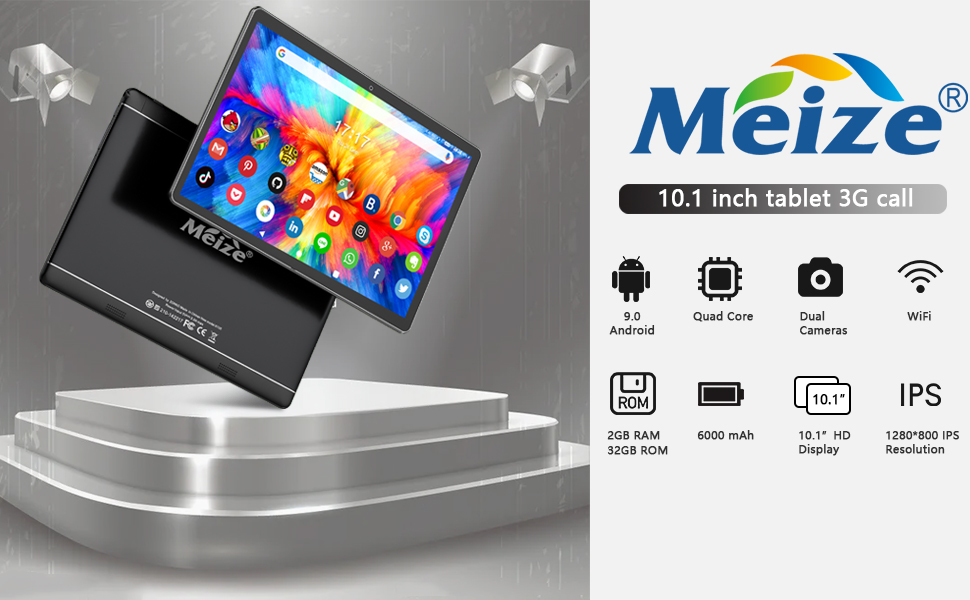
Image: Graphic illustrating the 6000mAh battery capacity of the MEIZE tablet, highlighting its endurance for video, browsing, and e-book reading.
6.3 การอัปเดตซอฟต์แวร์
ตรวจสอบการอัปเดตระบบเป็นระยะเพื่อให้แน่ใจว่าแท็บเล็ตของคุณมีฟีเจอร์และแพตช์ความปลอดภัยล่าสุด ไปที่ การตั้งค่า > ระบบ > ขั้นสูง > การอัพเดทระบบ.
6.4 Backup Data
Regularly back up important data to a cloud service or external storage device to prevent data loss.
7 การแก้ไขปัญหา
หากคุณประสบปัญหาเกี่ยวกับแท็บเล็ตของคุณ ให้ลองวิธีแก้ปัญหาต่อไปนี้:
- แท็บเล็ตเปิดไม่ติด: Ensure the tablet is charged. Connect it to the charger for at least 30 minutes before attempting to power on again.
- แท็บเล็ตทำงานช้าหรือไม่ตอบสนอง: Close unused applications. Restart the tablet. Clear cache data from apps in การตั้งค่า > แอปและการแจ้งเตือน.
- ปัญหาการเชื่อมต่อ Wi-Fi: ตรวจสอบให้แน่ใจว่าได้เปิดใช้งาน Wi-Fi แล้ว รีสตาร์ทเราเตอร์ Wi-Fi ของคุณ ลบการเชื่อมต่อเครือข่ายในตั้งค่าแท็บเล็ต แล้วเชื่อมต่อใหม่อีกครั้ง
- แอปขัดข้อง: Ensure the app is updated to the latest version. Clear the app's cache and data in การตั้งค่า > แอปและการแจ้งเตือน. Reinstall the app if necessary.
- รีเซ็ตเป็นค่าโรงงาน (ทางเลือกสุดท้าย): หากปัญหายังคงมีอยู่ คุณอาจต้องดำเนินการรีเซ็ตเป็นค่าจากโรงงาน Warning: This will erase all data on your tablet. ไปที่ การตั้งค่า > ระบบ > ขั้นสูง > ตัวเลือกการรีเซ็ต > ลบข้อมูลทั้งหมด (รีเซ็ตเป็นค่าโรงงาน).
สำหรับปัญหาที่ไม่ได้รับการแก้ไขโดยขั้นตอนเหล่านี้ โปรดติดต่อฝ่ายสนับสนุนลูกค้า
8. ข้อมูลจำเพาะ
Key technical specifications for the MEIZE 10-inch Android Tablet K105:
| คุณสมบัติ | ข้อมูลจำเพาะ |
|---|---|
| ขนาดจอแสดงผล | 10.1 นิ้ว |
| ความละเอียดหน้าจอ | 1280 x 800 (ความคมชัดสูง) |
| ระบบปฏิบัติการ | ระบบปฏิบัติการ Android 9 Pie |
| โปรเซสเซอร์ | ควอดคอร์ 1.3 GHz |
| แรม | 2GB |
| การจัดเก็บข้อมูลภายใน | 32GB |
| พื้นที่เก็บข้อมูลแบบขยายได้ | สูงสุด 128GB (microSD) |
| กล้องหลัง | 5 MP |
| กล้องหน้า | 2 MP |
| ความจุของแบตเตอรี่ | 6000 มิลลิแอมป์ |
| การเชื่อมต่อแบบไร้สาย | Wi-Fi (802.11bgn), Bluetooth, GPS |
| Cellular Support | Dual SIM (2G/3G) |
| น้ำหนักสินค้า | 1.85 ปอนด์ |
| ขนาดสินค้า | 9.84 x 6 x 0.5 นิ้ว |
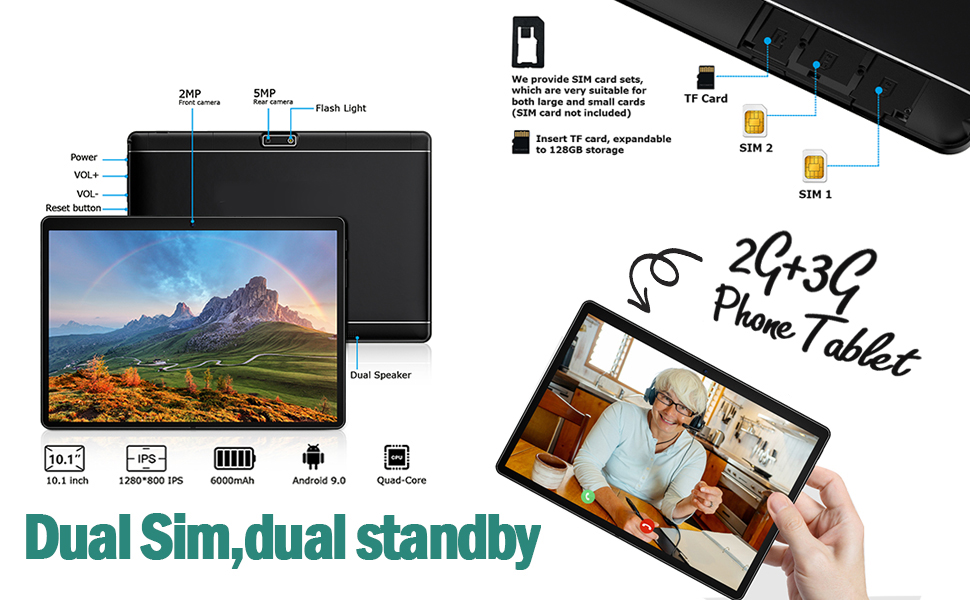
Image: A visual summary of the MEIZE tablet's technical specifications, including processor, memory, camera, and battery details.
9. การรับประกันและการสนับสนุน
MEIZE provides a 1-year return and exchange service for this product. If you have any questions or require assistance, please contact our customer service team. We are available to assist you 24 hours a day.
For customer service inquiries, please refer to the contact information provided with your purchase or visit the official MEIZE support webเว็บไซต์.