
MEIZE k105
MEIZE Tablet 10.1 Inch User Manual
Model: k105 | Brand: MEIZE
การแนะนำ
Thank you for choosing the MEIZE 10.1 Inch Tablet. This manual provides essential information for setting up, operating, and maintaining your device. Please read it carefully to ensure optimal performance and longevity of your tablet.

Figure 1: MEIZE 10.1 Inch Tablet
This image displays the MEIZE 10.1 Inch Tablet from an angled perspective, showcasing its vibrant display with a variety of application icons and widgets, including a clock, calendar, weather, and common communication apps.
คุณสมบัติผลิตภัณฑ์
The MEIZE 10.1 Inch Tablet is designed for versatile use, offering a blend of performance and connectivity. Key features include:
- แสดง: 10.1-inch HD IPS touchscreen with 1280x800 resolution for clear and vibrant visuals.
- ผลงาน: Powered by a 1.3 GHz Quad-Core processor and 2GB RAM for smooth operation.
- พื้นที่จัดเก็บ: 32GB internal storage, expandable up to 128GB via microSD card (not included).
- การเชื่อมต่อ: Dual SIM card slots for 3G phone calls and multi-network connection, Wi-Fi (802.11 b/g/n), Bluetooth 4.0, GPS, and OTG.
- กล้องถ่ายรูป: Equipped with a 5MP rear camera and a 2MP front camera.
- แบตเตอรี่: 6000mAh rechargeable lithium battery for extended usage.
- ระบบปฏิบัติการ: Android 9.0 Pie.

Figure 2: High-Definition IPS Screen
This image highlights the tablet's 1280x800 IPS screen, emphasizing its fast response time and wide 178-degree viewing angle, ideal for immersive visual experiences.

Figure 3: Front and Rear Cameras
This image illustrates the tablet's camera capabilities, featuring a 2MP front camera suitable for video calls and a 5MP rear camera for capturing photos and videos.
มีอะไรอยู่ในกล่อง
เมื่อแกะกล่องออกมาจะพบรายการดังต่อไปนี้:
- 1 x MEIZE Tablet
- อะแดปเตอร์ไฟฟ้า 1 ตัว
- สาย USB 1 เส้น
- 1 x คู่มือผู้ใช้
คู่มือการติดตั้ง
1. การชาร์จครั้งแรก
Before first use, fully charge your MEIZE tablet. Connect the provided USB cable to the tablet's charging port and the other end to the power adapter. Plug the adapter into a wall outlet. The charging indicator will typically light up.
2. การใส่ซิมและการ์ด SD
The tablet supports dual SIM cards for 3G phone calls and a microSD card for expandable storage.
- หาช่องใส่ซิมการ์ด/การ์ด SD ที่ด้านข้างของแท็บเล็ต
- Carefully open the tray cover.
- Insert your SIM cards (SIM1, SIM2) and/or microSD card into the designated slots, ensuring correct orientation as indicated on the tray.
- Close the tray cover securely.
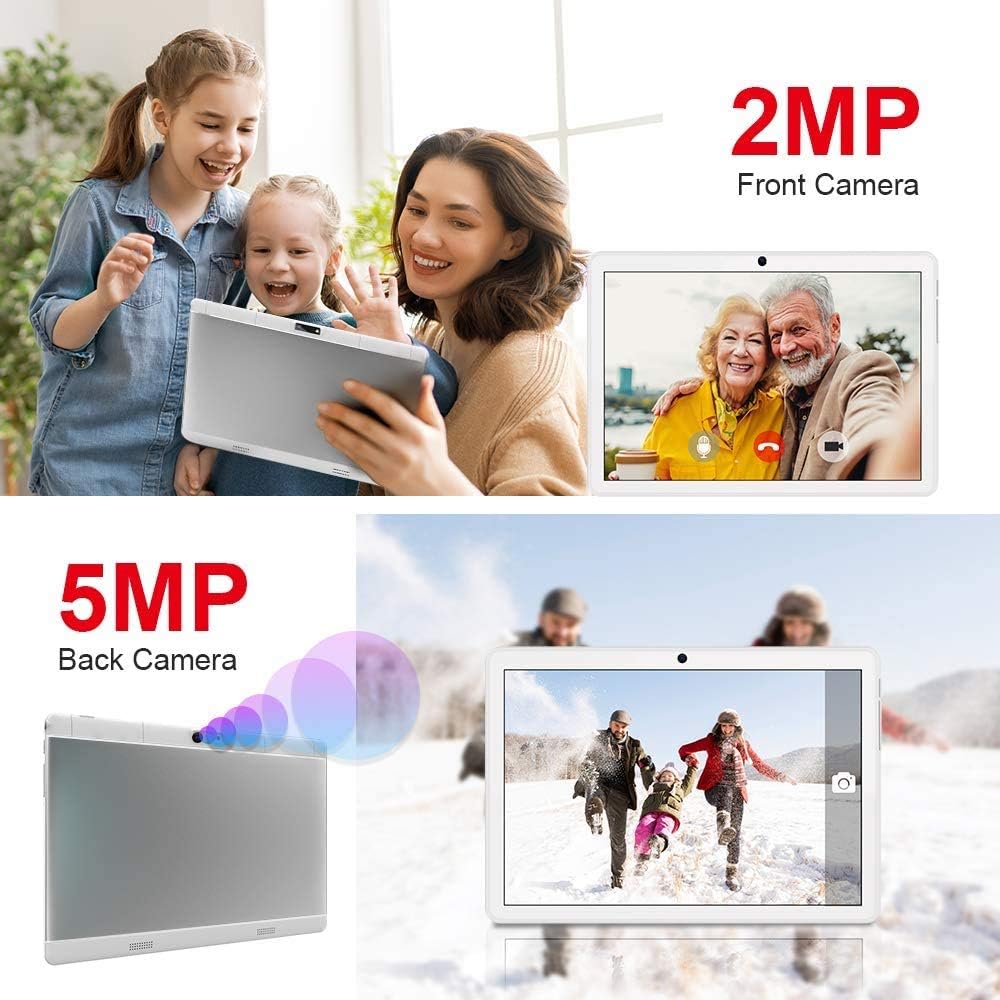
Figure 4: SIM and SD Card Installation
This image demonstrates the location and method for inserting an SD card, SIM1, and SIM2 into the tablet's dedicated slots, highlighting its dual SIM and expandable storage capabilities.
3. การเปิด/ปิดเครื่อง
- การเปิดเครื่อง: Press and hold the Power button until the MEIZE logo appears on the screen.
- วิธีปิดเครื่อง: กดปุ่มเปิด/ปิดค้างไว้จนกว่าเมนูปิดเครื่องจะปรากฏขึ้น เลือก "ปิดเครื่อง" แล้วยืนยัน
- ในการรีสตาร์ท: จากเมนูปิดเครื่อง ให้เลือก "รีสตาร์ท"
4. การตั้งค่าเริ่มต้น
เมื่อเปิดเครื่องครั้งแรก แท็บเล็ตจะแนะนำคุณผ่านกระบวนการตั้งค่าเริ่มต้น ซึ่งโดยทั่วไปจะประกอบด้วย:
- การเลือกภาษาของคุณ
- การเชื่อมต่อกับเครือข่าย Wi-Fi
- Setting up your Google account (optional, but recommended for app downloads).
- การตั้งวันที่และเวลา
- Configuring screen lock options.
คำแนะนำการใช้งาน
1. การนำทางพื้นฐาน
The MEIZE tablet uses a capacitive touchscreen for interaction:
- แตะ: ในการเปิดแอป ให้เลือกรายการ หรือกดปุ่ม
- แตะค้างไว้: การเข้าถึงเมนูบริบทหรือย้ายไอคอน
- ปัด: เพื่อเลื่อนดูหน้าต่างๆ รายการ หรือสลับระหว่างหน้าจอหลัก
- หยิก: การซูมเข้าหรือออกจากภาพและ web หน้า
2. การเชื่อมต่อกับ Wi-Fi
- ไปที่ การตั้งค่า > เครือข่ายและอินเตอร์เน็ต > ไวไฟ.
- สลับ Wi-Fi On.
- เลือกเครือข่าย Wi-Fi ที่คุณต้องการจากรายการ
- ป้อนรหัสผ่านหากได้รับแจ้งและแตะ เชื่อมต่อ.
3. การจับคู่บลูทู ธ
- ไปที่ การตั้งค่า > อุปกรณ์ที่เชื่อมต่อ > บลูทูธ.
- สลับบลูทูธ On.
- โปรดตรวจสอบให้แน่ใจว่าอุปกรณ์ที่คุณต้องการจับคู่ด้วยอยู่ในโหมดจับคู่
- Select the device from the "Available devices" list and follow on-screen prompts to complete pairing.
4. การใช้ GPS
The tablet features built-in GPS for navigation and location-based services. Ensure location services are enabled in การตั้งค่า > ที่ตั้ง. You can then use pre-installed map applications or download others from the Google Play Store.
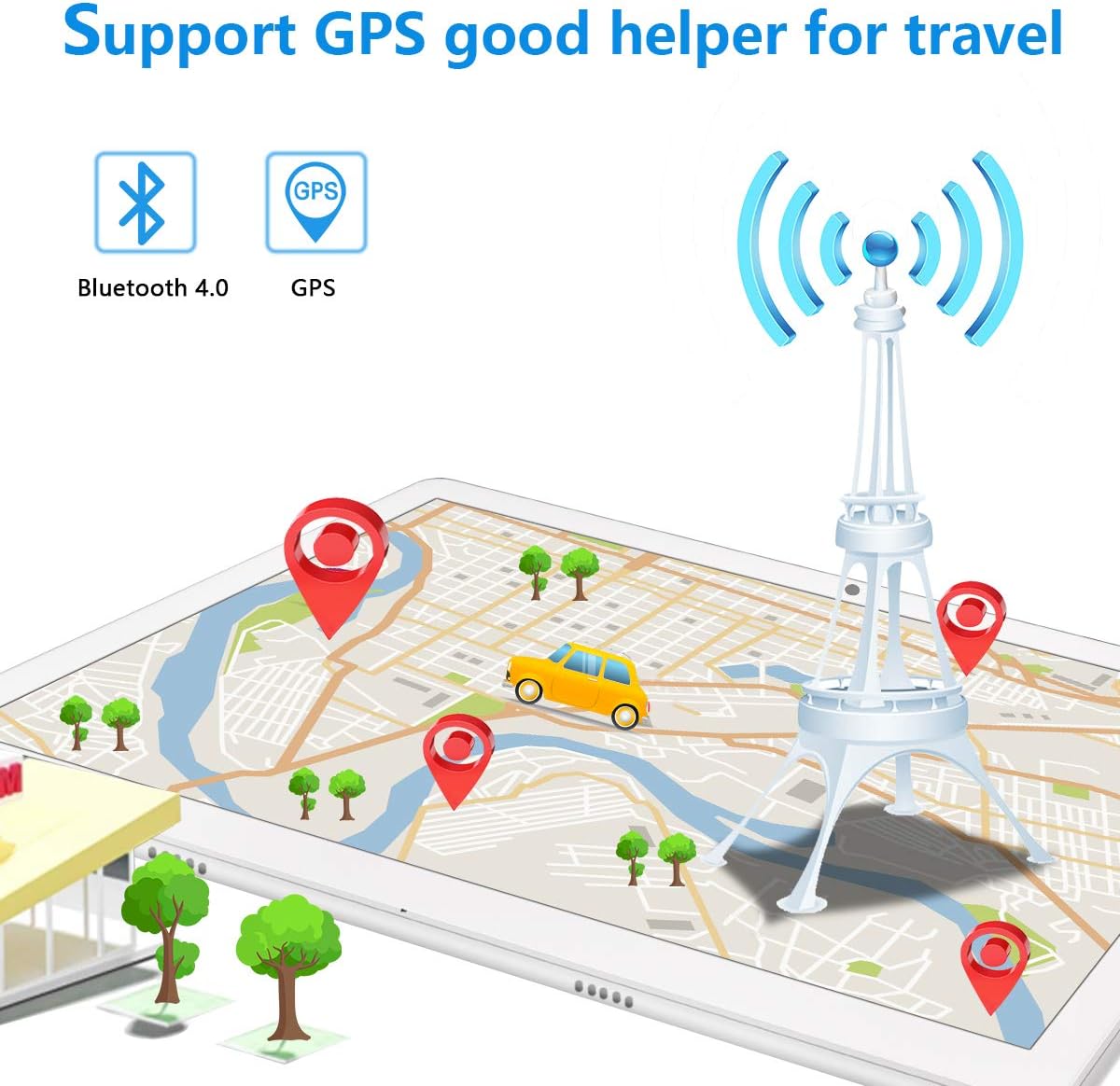
Figure 5: GPS and Bluetooth Functionality
This image illustrates the tablet's integrated GPS and Bluetooth 4.0 capabilities, showing a map with navigation points, indicating its utility for travel and connectivity with external devices.
5. Making Phone Calls (3G)
With a compatible 3G SIM card inserted, you can make and receive phone calls directly from your tablet.
- เปิด โทรศัพท์ แอปพลิเคชัน.
- Dial the desired number using the on-screen keypad or select a contact.
- แตะปุ่มโทรเพื่อเริ่มการโทร
6. การใช้กล้อง
The tablet features a 5MP rear camera and a 2MP front camera for photos and videos.
- เปิด กล้อง แอปพลิเคชัน.
- สลับระหว่างกล้องด้านหน้าและด้านหลังโดยใช้ไอคอนสวิตช์กล้อง
- Tap the shutter button to take a photo or record a video.
7. การจัดการการจัดเก็บข้อมูล
Your tablet comes with 32GB of internal storage. You can expand this by up to 128GB using a microSD card. To manage storage:
- ไปที่ การตั้งค่า > พื้นที่จัดเก็บ ถึง view ลดการใช้พื้นที่จัดเก็บข้อมูลและเพิ่มพื้นที่ว่าง
- Regularly transfer photos and videos to your computer or cloud storage to prevent storage issues.

Figure 6: App and Media Enjoyment
This image showcases the tablet's ability to run various applications and display media, including social media, video streaming, and photo galleries, emphasizing its entertainment capabilities.
การซ่อมบำรุง
1. การดูแลแบตเตอรี่
เพื่อยืดอายุการใช้งานแบตเตอรี่ให้ยาวนานที่สุด:
- หลีกเลี่ยงอุณหภูมิที่สูงหรือต่ำเกินไป
- อย่าปล่อยให้แบตเตอรี่หมดก่อนจะชาร์จบ่อยๆ
- ใช้เครื่องชาร์จและสายเคเบิลดั้งเดิมที่ให้มา
- For prolonged storage, charge the tablet to about 50% and power it off.
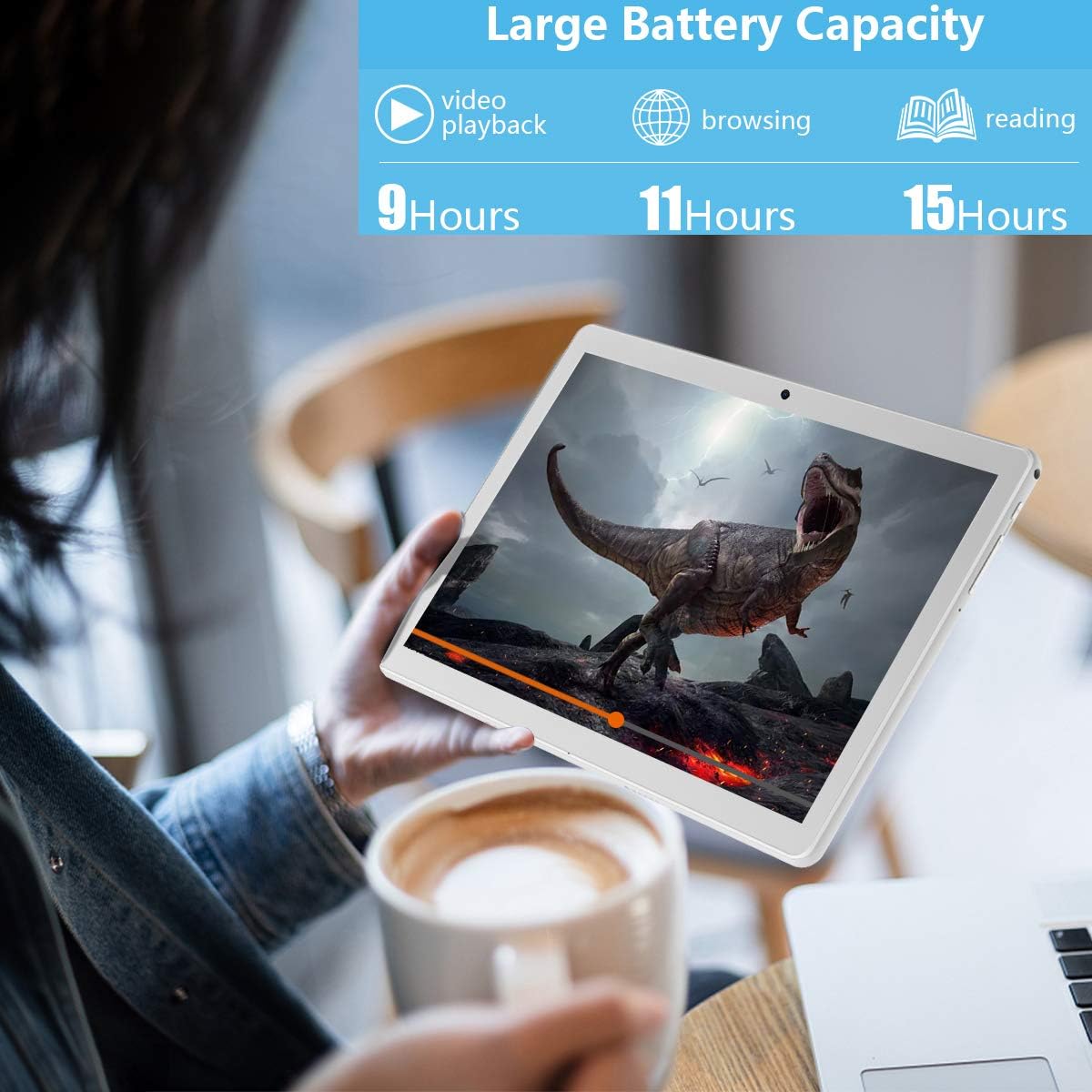
รูปที่ 7: อายุการใช้งานแบตเตอรี่ที่เพิ่มขึ้น
This image highlights the tablet's large battery capacity, indicating approximately 9 hours of video playback, 11 hours of browsing, and 15 hours of reading on a single charge.
2. การทำความสะอาด
ใช้ผ้านุ่มที่ไม่เป็นขุยทำความสะอาดหน้าจอและตัวเครื่องแท็บเล็ต หลีกเลี่ยงการใช้สารเคมีรุนแรงหรือวัสดุที่มีฤทธิ์กัดกร่อน
3. การอัปเดตซอฟต์แวร์
ตรวจสอบการอัปเดตระบบเป็นระยะเพื่อให้แน่ใจว่าแท็บเล็ตของคุณมีฟีเจอร์และแพตช์ความปลอดภัยล่าสุด ไปที่ การตั้งค่า > ระบบ > การอัพเดทระบบ.
การแก้ไขปัญหา
If you encounter issues with your MEIZE tablet, refer to the following common solutions:
| ปัญหา | วิธีแก้ปัญหาที่เป็นไปได้ |
|---|---|
| แท็บเล็ตไม่สามารถเปิดเครื่องได้ | ตรวจสอบให้แน่ใจว่าแบตเตอรี่ชาร์จเต็มแล้ว เสียบสายชาร์จไว้อย่างน้อย 30 นาทีก่อนลองเปิดเครื่องอีกครั้ง |
| Wi-Fi connection is unstable or drops frequently. | รีสตาร์ทเราเตอร์ Wi-Fi ของคุณ ลบการเชื่อมต่อเครือข่ายบนแท็บเล็ตของคุณแล้วเชื่อมต่อใหม่อีกครั้ง ตรวจสอบให้แน่ใจว่าคุณอยู่ในระยะสัญญาณ Wi-Fi |
| แอปทำงานช้าหรือขัดข้อง | ปิดแอปพลิเคชันเบื้องหลัง ล้างแคชแอปพลิเคชัน (การตั้งค่า > แอปและการแจ้งเตือน > เลือกแอป > การจัดเก็บและแคช > ล้างแคช) รีสตาร์ทแท็บเล็ต |
| Tablet is not charging. | Check if the charging cable and adapter are securely connected. Try a different power outlet. Inspect the charging port for any debris. |
| ตรวจไม่พบซิมการ์ด | Ensure the SIM card is correctly inserted into the tray. Restart the tablet. Verify the SIM card is active with your carrier. |
If the problem persists after trying these solutions, please contact MEIZE customer support.
ข้อมูลจำเพาะ
| คุณสมบัติ | รายละเอียด |
|---|---|
| ยี่ห้อ | ไมซ์ |
| ชื่อรุ่น | เลข 105 |
| ระบบปฏิบัติการ | ระบบปฏิบัติการ Android 9 Pie |
| ขนาดหน้าจอ | 10.1 นิ้ว |
| ความละเอียดหน้าจอ | 1280 x 800 |
| โปรเซสเซอร์ | ควอดคอร์ 1.3 GHz |
| แรม | แรม SDRAM DDR3 ขนาด 2 GB |
| การจัดเก็บข้อมูลภายใน | 32GB |
| พื้นที่เก็บข้อมูลแบบขยายได้ | ความจุสูงสุด 128 GB (microSD) |
| ความละเอียดกล้องหลัง | 5 MP |
| ความละเอียดของกล้องหน้า | 2 MP (from image) |
| ประเภทไร้สาย | 802.11b (Wi-Fi), Bluetooth 4.0 |
| ความจุของแบตเตอรี่ | 6000mAh |
| อายุการใช้งานแบตเตอรี่โดยเฉลี่ย | 8 ชั่วโมง |
| ขนาด (กxยxส) | 9.84 x 6 x 0.5 นิ้ว |
| น้ำหนักสินค้า | 1.65 ปอนด์ |
| สี | เงิน |
การรับประกันและการสนับสนุน
MEIZE offers customer support for its products. For any inquiries, technical assistance, or warranty claims, please refer to the contact information provided with your purchase or visit the official MEIZE website. The product typically includes a 30-day replacement service and lifetime support.
หากต้องการความช่วยเหลือเพิ่มเติม คุณสามารถไปที่ MEIZE Store on Amazon.
Ask a question about this manual
Ask about setup, troubleshooting, compatibility, parts, safety, or missing instructions. Manuals+ will review the question and use this page’s manual context to help answer it.