
1. บทนำ
This manual provides detailed instructions for the installation, operation, and maintenance of your Bluavido 10-inch IPS Car DVR Camera. This device is designed to enhance your driving experience with features such as dual-lens recording, GPS navigation, 4G connectivity, and advanced driver-assistance systems (ADAS). Please read this manual thoroughly before using the product to ensure proper function and safety.
2. สินค้าหมดview
2.1 คุณสมบัติหลัก
- 10-inch IPS Touch Screen Display
- ระบบปฏิบัติการ Android 8.1
- Dual Lens Recording (Front 720P, Rear 1080P)
- Integrated GPS Navigation with Free Maps
- 4G/3G/2G Network Connectivity
- Advanced Driver-Assistance Systems (ADAS): LDWS, FCWS
- G-Sensor for Automatic Collision Detection
- ระบบตรวจสอบที่จอดรถตลอด 24 ชั่วโมง
- ความสามารถในการมองเห็นตอนกลางคืน
- Bluetooth 4.0 for Hands-free Calls and Music
- ฟังก์ชั่น Wi-Fi
- ระยะไกล View ฟังก์ชันการทำงาน
- Max External Memory: 64GB (Class 10 required)
2.2 เนื้อหาบรรจุภัณฑ์
แพ็คเกจประกอบด้วยรายการต่อไปนี้:
- Bluavido 10-inch Car DVR Camera
- หลังview กล้อง
- เสาอากาศ GPS
- สายไฟ (USB)
- เมาท์กาว
- การ์ดหน่วยความจำ
- คู่มือการใช้งาน (เอกสารนี้)
3. การตั้งค่า
3.1 Mounting the DVR
The Bluavido Car DVR uses an adhesive mount for secure placement on your vehicle's dashboard or windshield. Ensure the chosen location provides a clear view of the road and does not obstruct the driver's vision.
- Clean the mounting surface thoroughly to ensure optimal adhesion.
- Attach the adhesive mount to the desired location.
- Securely attach the DVR to the mount.
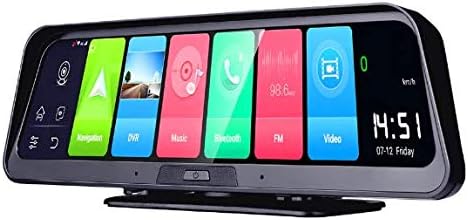
Image: The Bluavido 10-inch Car DVR, showing its sleek design and the main Android interface with various application icons like Navigation, DVR, Music, and Bluetooth.
3.2 การเชื่อมต่อกล้องวงจรปิด
The DVR supports dual-lens recording. The front camera is integrated into the main unit, while the rear camera needs to be connected separately.
- Connect the rear camera cable to the designated AV-In port on the main DVR unit.
- Route the rear camera cable discreetly along the vehicle's interior to the rear of the car.
- Mount the rear camera in a position that provides a clear view of the road behind, typically near the license plate or on the rear window.

Image: A diagram illustrating the coverage areas of the front (720P @ 25fps, 140° view) and rear (1080P @ 25fps, 120° view) cameras, indicating their respective recording resolutions and angles.
3.3 การใส่การ์ดหน่วยความจำ
A Class 10 Micro SD/TF card (up to 64GB) is required for recording. A memory card is included in the package.
- Locate the Micro SD/TF card slot on the DVR unit.
- Insert the memory card with the contacts facing down until it clicks into place.
- ในการถอดออก ให้ดันการ์ดเบาๆ จนกระทั่งการ์ดเด้งออกมา
3.4 การเชื่อมต่อสายไฟ
Connect the provided USB power cable to the DVR and then to your vehicle's 12V power outlet (cigarette lighter socket).
3.5 การเปิดเครื่องครั้งแรกและการตั้งค่าเครือข่าย
Once powered, the device will boot up. Follow the on-screen prompts for initial setup, including language selection and time zone. To enable 4G connectivity, insert a compatible SIM card (not included) into the designated slot. For Wi-Fi, navigate to the settings menu to connect to an available network.

Image: The Bluavido 10-inch Car DVR shown with its rear camera. Key features are highlighted, including 2GB/32GB memory, Android 8.1, 4G & WiFi connectivity, phone control, free GPS maps, and ADAS/LDWS functionality.
4. คู่มือการใช้งาน
The Bluavido DVR features a responsive IPS touch screen for easy navigation. All functions can be accessed via the on-screen interface.
4.1 การบันทึกพื้นฐาน
Upon powering on, the DVR will automatically begin loop recording. Video files are saved to the memory card. When the card is full, the oldest files will be overwritten by new recordings (cyclic recording).
4.2 ระบบนำทาง GPS
The device comes with pre-installed free maps and an external GPS logger for accurate positioning. Access the navigation application from the main screen to plan routes and receive turn-by-turn directions.

Image: The Bluavido Car DVR mounted on a dashboard, with its screen clearly showing a detailed GPS navigation map, guiding the driver on a road.
4.3 ระบบช่วยเหลือผู้ขับขี่ขั้นสูง (ADAS)
The ADAS features, including Lane Departure Warning System (LDWS) and Forward Collision Warning System (FCWS), provide real-time alerts to help prevent accidents. These features can be configured in the settings menu.

Image: A visual representation of the ADAS Plus functions (LDWS, FCWS, FVMA) as seen through the Bluavido DVR's rearview mirror display, showing distance indicators to vehicles ahead on a multi-lane highway.
4.4 การตรวจสอบที่จอดรถ
The 24-hour parking monitoring feature automatically activates and records when an impact or collision is detected while the vehicle is parked, providing security footage.
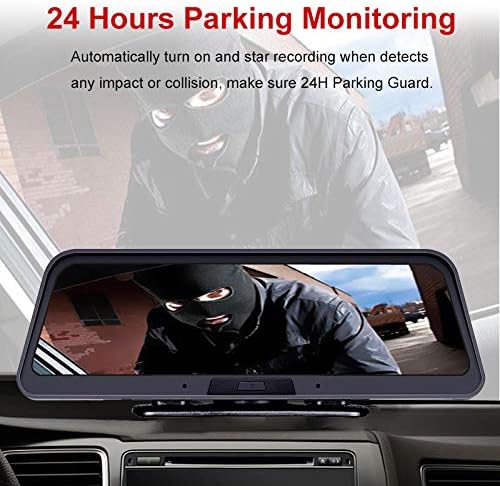
Image: The Bluavido DVR screen displaying a scene captured during 24-hour parking monitoring, showing a masked individual near a vehicle, indicating the system's ability to record suspicious activity.
4.5 G-เซ็นเซอร์
The built-in 3-axis G-Sensor detects sudden acceleration, braking, or collisions. In such events, it automatically locks the current video footagเพื่อป้องกันไม่ให้ข้อมูลถูกเขียนทับ ทำให้มั่นใจได้ว่าหลักฐานสำคัญจะได้รับการเก็บรักษาไว้

Image: An illustration explaining the G-Sensor's automatic locking function, depicting two crashed cars and a padlock icon, symbolizing the protection of critical footagอีในระหว่างเกิดอุบัติเหตุ
4.6 Auto Parking Line
When the vehicle is shifted into reverse gear, the DVR automatically switches to the rear camera view and displays parking guidelines on the screen, assisting with safer parking maneuvers.

Image: The Bluavido DVR screen displaying the rear camera view with dynamic parking lines overlaid, assisting a driver in reverse parking within a parking garage.
4.7 Connectivity (4G, Wi-Fi, Bluetooth)
The device supports 4G/3G/2G networks for online features, Wi-Fi for internet access, and Bluetooth 4.0 for hands-free calling and music playback. These functions are managed through the Android 8.1 interface.

Image: A composite image demonstrating various functionalities of the Bluavido DVR, including web surfing, music playback, video viewing, remote monitoring via phone, GPS navigation, and Bluetooth phone connectivity, along with network speed information.
5. การบำรุงรักษา
5.1 การทำความสะอาดเครื่อง
To maintain optimal performance and clear visibility, regularly clean the DVR screen and camera lenses. Use a soft, lint-free cloth. For stubborn marks, slightly dampชุบผ้าด้วยน้ำหรือน้ำยาทำความสะอาดที่ปลอดภัยต่อหน้าจอ หลีกเลี่ยงวัสดุที่มีฤทธิ์กัดกร่อนหรือสารเคมีรุนแรง
5.2 การจัดการการ์ดหน่วยความจำ
Periodically format the memory card within the DVR's settings to ensure stable recording and prevent data corruption. Back up any important video files to another storage device before formatting.
6 การแก้ไขปัญหา
If you encounter issues with your Bluavido Car DVR, refer to the following common problems and solutions:
- อุปกรณ์ไม่เปิดเครื่อง: Ensure the power cable is securely connected to both the DVR and the vehicle's power outlet. Check the vehicle's fuse for the power outlet.
- ปัญหาการบันทึก: Verify that a Class 10 memory card is inserted correctly and has sufficient free space. Format the memory card if necessary.
- การสูญเสียสัญญาณ GPS: ตรวจสอบให้แน่ใจว่าเสาอากาศ GPS เชื่อมต่ออย่างถูกต้องและอยู่ในตำแหน่งที่มองเห็นได้ชัดเจน view ของท้องฟ้า
- คุณภาพของภาพไม่ดี: Clean the camera lenses. Check the recording resolution settings.
- หน้าจอสัมผัสไม่ตอบสนอง: Restart the device. If the issue persists, a factory reset may be required (note: this will erase all user data).
For further assistance, please contact Bluavido customer support.
7. ข้อมูลจำเพาะ
| คุณสมบัติ | ข้อมูลจำเพาะ |
|---|---|
| แบบอย่าง | เอซี89 |
| แสดง | หน้าจอสัมผัส IPS ขนาด 10 นิ้ว |
| ระบบปฏิบัติการ | แอนดรอยด์ 8.1 |
| โปรเซสเซอร์ | Spreadtrum SL8541E |
| แรม/รอม | 2GB / 32GB |
| ความละเอียดของกล้องหน้า | 1280x720P @ 25fps |
| ความละเอียดกล้องหลัง | 1920x1080P @ 25fps |
| View มุม | Front: 140°, Rear: 120° (Total 170° field of view) |
| รูปแบบวิดีโอ | TS (H.264) |
| หน่วยความจำภายนอกสูงสุด | 64GB Micro SD/TF (Class 10) |
| จีพีเอส | External GPS Logger, Built-in GPS, Free Maps |
| แบนด์เครือข่าย | LTE:FDD,2100(B1)/1800(B3); WCDMA:2100(B1)/900(B8); GSM:900(B8)/1800(B3) |
| การเชื่อมต่อ | 4G, Wi-Fi, Bluetooth 4.0, USB2.0, AV-Out |
| คุณสมบัติพิเศษ | G-Sensor, Cycle Recording, ADAS (LDWS, FCWS), Night Vision, Parking Monitoring, Dual Lens, Remote View |
| ประเภทการติดตั้ง | เมาท์กาว |
| แหล่งพลังงาน | USB (Car Charger) |
8. การรับประกันและการสนับสนุน
Your Bluavido Car DVR comes with a standard manufacturer's warranty. Please refer to the warranty card included in your package for specific terms and conditions. For technical support, troubleshooting assistance, or warranty claims, please contact your retailer or the official Bluavido customer service channels.