
1. บทนำ
The OWC Mercury Elite Pro is a high-performance external hard drive enclosure designed for 3.5-inch SATA drives, offering versatile connectivity and robust data storage solutions. This manual provides essential information for setting up, operating, maintaining, and troubleshooting your device.
คุณสมบัติหลัก:
- Top Tier Performance: Achieve real-world data transfer speeds of 252MB/s, ideal for professional video editing, backups, and data storage.
- ความเข้ากันได้ที่หลากหลาย: Compatible with Mac, Windows, and Linux systems, as well as PlayStation, Xbox, and Smart TVs.
- การเชื่อมต่อที่รวดเร็ว: Features USB 3.2 Gen 1 Type-B for up to 5Gb/s transfer speeds and supports both USB-C (Thunderbolt) and USB-A connections.
- ตัวเลือกการตั้งค่าที่ยืดหยุ่น: Position vertically using the included stand or horizontally with non-skid feet. Multiple units can be stacked for expanded storage.
2. การตั้งค่า
2.1 อะไรอยู่ในกล่อง
- OWC Mercury Elite Pro External Storage Solution
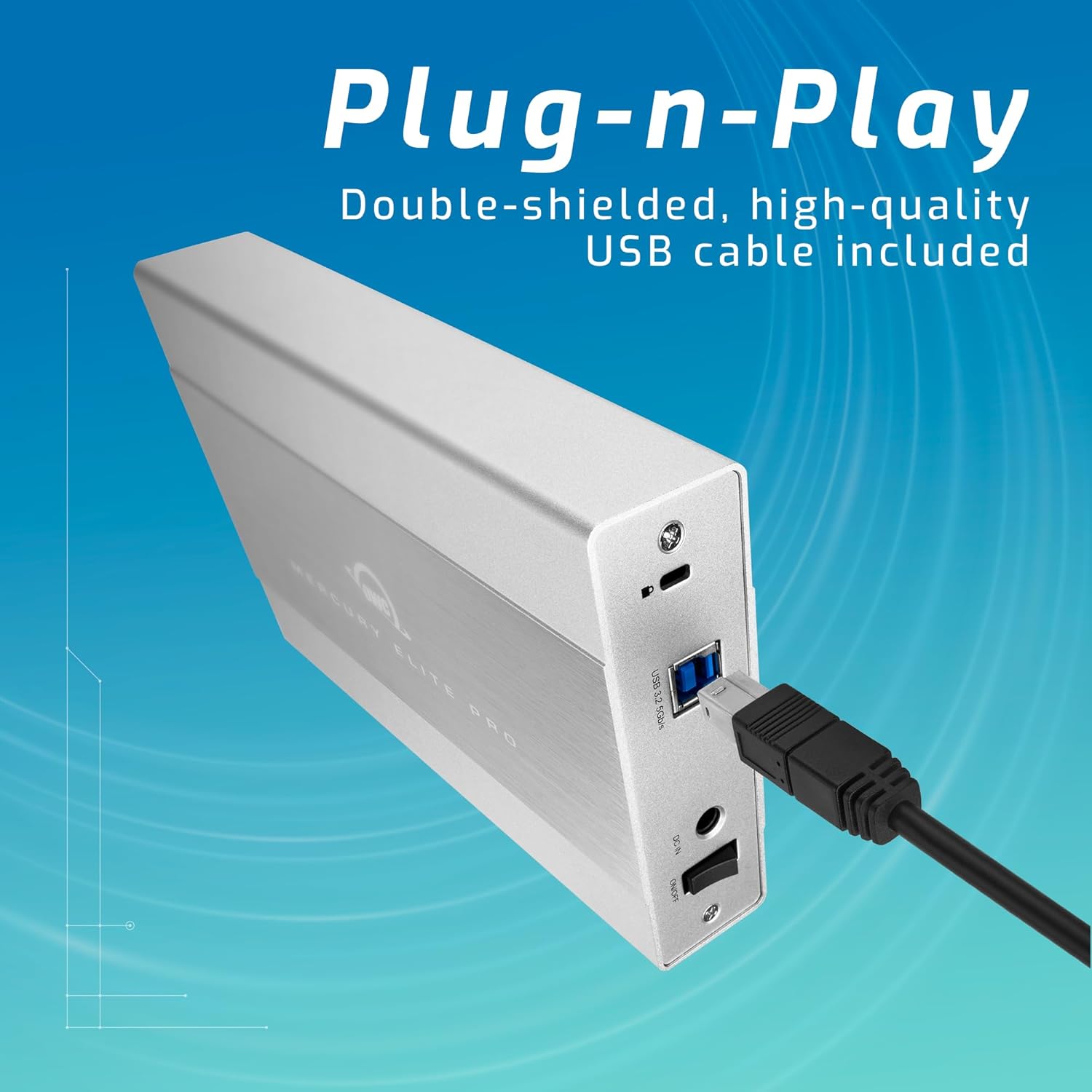
- USB 3.2 (5Gb/s) Type-B to Type-A Cable
- แหล่งจ่ายไฟภายนอก
- US Power Cable
- คู่มือเริ่มต้นอย่างรวดเร็ว
- คู่มือการประกอบและคู่มือผู้ใช้
- อะแดปเตอร์ AC
2.2 การติดตั้งไดรฟ์
- โปรดตรวจสอบให้แน่ใจว่าได้ปิดเครื่องและถอดสายเชื่อมต่ออุปกรณ์กับคอมพิวเตอร์แล้ว
- อ้างถึงสิ่งที่รวมอยู่ด้วย คู่มือการประกอบและคู่มือผู้ใช้ for detailed instructions on opening the enclosure and securely installing your 3.5-inch SATA drive.
- Once the drive is installed, close the enclosure according to the manual.
2.3 การเชื่อมต่อกับคอมพิวเตอร์ของคุณ
- Connect the external power supply to the enclosure's power input and then to a power outlet.
- Connect one end of the USB 3.2 Type-B to Type-A cable to the enclosure and the other end to an available USB-A port on your computer. For USB-C/Thunderbolt connections, use an appropriate adapter or cable (not included unless specified).
- Power on the OWC Mercury Elite Pro enclosure. The device should be recognized by your operating system.
3. ปฏิบัติการ
3.1 ความเข้ากันได้
The OWC Mercury Elite Pro is compatible with a wide range of operating systems and devices:
- แมค (macOS)
- หน้าต่าง
- ลินุกซ์
- เพลย์สเตชั่น (PS4, PS5)
- เอกซ์บอกซ์
- สมาร์ททีวี

3.2 การถ่ายโอนข้อมูลและประสิทธิภาพ
The enclosure supports USB 3.2 Gen 1 (5Gb/s) for fast data transfer. Actual speeds may vary based on the installed drive, system configuration, and data type. It is designed to achieve real-world data transfer speeds of up to 252MB/s.
3.3 Flexible Placement
The OWC Mercury Elite Pro can be positioned either vertically using the included stand or horizontally using its non-skid feet. This allows for optimal placement in your workspace. Multiple units can be stacked for efficient use of space when expanding your storage.

4. การบำรุงรักษา
4.1 การกระจายความร้อน
The aluminum enclosure acts as a large heat sink, helping to keep the internal hard drive cool during operation. This passive cooling design minimizes thermal throttling and ensures stable performance.
4.2 การทำความสะอาด
To maintain optimal performance, periodically clean the exterior of the enclosure with a soft, dry cloth. Ensure that the ventilation areas are free from dust and debris. For internal cleaning or drive replacement, refer to the คู่มือการประกอบและคู่มือผู้ใช้.
5 การแก้ไขปัญหา
- ไม่รู้จักอุปกรณ์: Ensure all cables (USB and power) are securely connected. Try connecting to a different USB port or computer to rule out port-specific issues. Verify the drive is properly seated within the enclosure.
- ประสิทธิภาพการทำงานช้า: Check that your computer's USB port supports USB 3.2 Gen 1 (5Gb/s) or Thunderbolt for optimal speeds. Ensure the internal hard drive is functioning correctly. Large file transfers or intensive tasks can sometimes cause temporary slowdowns.
- การตัดการเชื่อมต่อบ่อยครั้ง: Ensure the power adapter is providing stable power. Check the USB cable for damage and try a different cable if necessary. Ensure the enclosure is placed on a stable surface.
- Drive Noise: While the enclosure is designed for quiet operation, some mechanical hard drives may produce audible noise during activity. If the noise is excessive or unusual, consult the hard drive manufacturer's documentation.
6. ข้อมูลจำเพาะ
| คุณสมบัติ | รายละเอียด |
|---|---|
| ยี่ห้อ | โอดับเบิ้ลยูซี |
| ชุด | เมอร์คิวรี่ อิลิท โปร |
| หมายเลขรุ่น | ME3NH7T02 |
| ความจุฮาร์ดไดรฟ์ | ฮาร์ดดิสก์เชิงกล 2 TB |
| อินเทอร์เฟซฮาร์ดไดรฟ์ | อนุกรม ATA-600 |
| เทคโนโลยีการเชื่อมต่อ | ยูเอสบี |
| อินเทอร์เฟซ USB | USB 3.2 Gen 1 Type-B (5Gb/s) |
| อุปกรณ์ที่รองรับ | Mac, Windows, Linux, Gaming Consoles, Smart TVs |
| แพลตฟอร์มฮาร์ดแวร์ | แม็ค |
| น้ำหนักสินค้า | 2.97 ปอนด์ |
| ขนาดสินค้า | 7.7 x 1.4 x 4.6 นิ้ว |
| สี | สีดำ |
| คุณสมบัติพิเศษ | ไฟ LED |
7. การรับประกันและการสนับสนุน
The OWC Mercury Elite Pro External Storage Solution includes a การรับประกันแบบจำกัด 3 ปีจาก OWC. For technical support, warranty claims, or additional assistance, please refer to the contact information provided in your Quick Start Guide or visit the official OWC webเว็บไซต์.