
1. บทนำ
The Cosmic Byte CB-GK-14 Sirius is a versatile mechanical keyboard designed for both wired and wireless use. Featuring Outemu Blue switches, per-key RGB backlighting, and multi-device Bluetooth connectivity, it offers a responsive and customizable typing and gaming experience. This manual provides detailed instructions for setup, operation, customization, and maintenance to ensure optimal performance.
2. คุณสมบัติหลัก
- การเชื่อมต่อแบบคู่: Supports both wired (USB) and Bluetooth modes for flexible usage across various devices.
- ป้องกันภาพซ้อน: Full N-key rollover in wired mode and 6-key anti-ghosting in Bluetooth mode ensure accurate input during intense sessions.
- Outemu Blue Switches: Provides a tactile and audible click feedback, ideal for typing and gaming.
- Per Key RGB Backlighting: Offers 18 pre-set backlight effects and 15 levels of brightness adjustment. Customize and store individual key backlighting.
- Long Key Life: Each key is rated for over 60 million operations, ensuring durability.
- Multi-Device Bluetooth: Connects to up to three different Bluetooth devices simultaneously, allowing for easy switching.
- ความเข้ากันได้กว้าง: Compatible with Windows, Android, Linux, and iOS operating systems.
- แบตเตอรี่แบบบูรณาการ: 1000mAh rechargeable lithium-ion battery for wireless operation with a range of up to 10 meters.
3. คำแนะนำในการตั้งค่า
3.1 การเชื่อมต่อแบบมีสาย
- หาตำแหน่งสาย USB ที่ให้มาพร้อมกับคีย์บอร์ดของคุณ
- เสียบปลายด้านหนึ่งของสาย USB เข้ากับพอร์ต USB ของคีย์บอร์ด
- เชื่อมต่อปลายอีกด้านหนึ่งของสาย USB เข้ากับพอร์ต USB ที่ว่างอยู่บนคอมพิวเตอร์ของคุณ
- แป้นพิมพ์จะถูกตรวจจับโดยอัตโนมัติและพร้อมใช้งาน
3.2 การเชื่อมต่อบลูทูธ
The keyboard supports up to three Bluetooth devices. Ensure the keyboard is charged before attempting Bluetooth pairing.
- เปิดใช้งานคีย์บอร์ดโดยใช้สวิตช์เปิด/ปิด ซึ่งโดยปกติจะอยู่ด้านหลังหรือด้านข้าง
- กดปุ่มค้างไว้ เอฟเอ็น + คิว, FN + ว, หรือ FN + อี keys for 3-5 seconds to enter Bluetooth pairing mode for the respective channel (Q, W, or E). The indicator light for the selected channel will flash rapidly.
- On your device (PC, mobile, tablet), enable Bluetooth and search for available devices.
- Select "CB-GK-14 Sirius" from the list of found devices.
- ทำตามคำแนะนำบนหน้าจอเพื่อทำการจับคู่ให้เสร็จสมบูรณ์ ไฟแสดงสถานะจะหยุดกะพริบเมื่อจับคู่สำเร็จแล้ว
- Repeat these steps for other devices using FN + ว และ FN + อี for the other two Bluetooth channels.

ภาพ: ด้านบน view of the Cosmic Byte CB-GK-14 Sirius Mechanical Keyboard with RGB lighting active.
4. คู่มือการใช้งาน
4.1 การสลับโหมด
- โหมดสาย: Connect the USB cable. The keyboard will automatically switch to wired mode.
- โหมดบลูทู ธ : Disconnect the USB cable. The keyboard will operate wirelessly. To switch between paired Bluetooth devices, press เอฟเอ็น + คิว, FN + ว, หรือ FN + อี briefly to select the desired channel.
4.2 ปุ่มมัลติมีเดียและฟังก์ชัน
The keyboard features dedicated multimedia keys and function key shortcuts. Refer to the keycaps for specific icons. Typically, these are accessed by pressing the FN key in combination with the F1-F12 keys or other designated keys.
- การควบคุมระดับเสียง: Use the dedicated rotary dial on the right side of the keyboard to adjust volume. Press the dial to mute/unmute.
- ความเข้มของแสงไฟ: Use the dedicated rotary dial on the left side of the keyboard to adjust backlight brightness. Press the dial to cycle through backlight patterns.

ภาพ: มุมเอียง view of the keyboard highlighting the RGB lighting and the control dials.
5 การปรับแต่งค่า RGB
The CB-GK-14 Sirius offers extensive RGB backlighting options:
- Pre-set Effects: Cycle through 18 different backlight effects using the dedicated backlight intensity dial (press to change patterns) or specific FN key combinations (refer to keyboard markings).
- การปรับความสว่าง: Adjust the brightness of the backlighting using the dedicated backlight intensity dial (rotate). There are 15 levels of brightness.
- Custom Backlight Mode: The keyboard features an inbuilt flash memory to store your custom LED configurations. To customize individual key backlighting, refer to the specific instructions provided in the full product manual or Cosmic Byte's support resources.
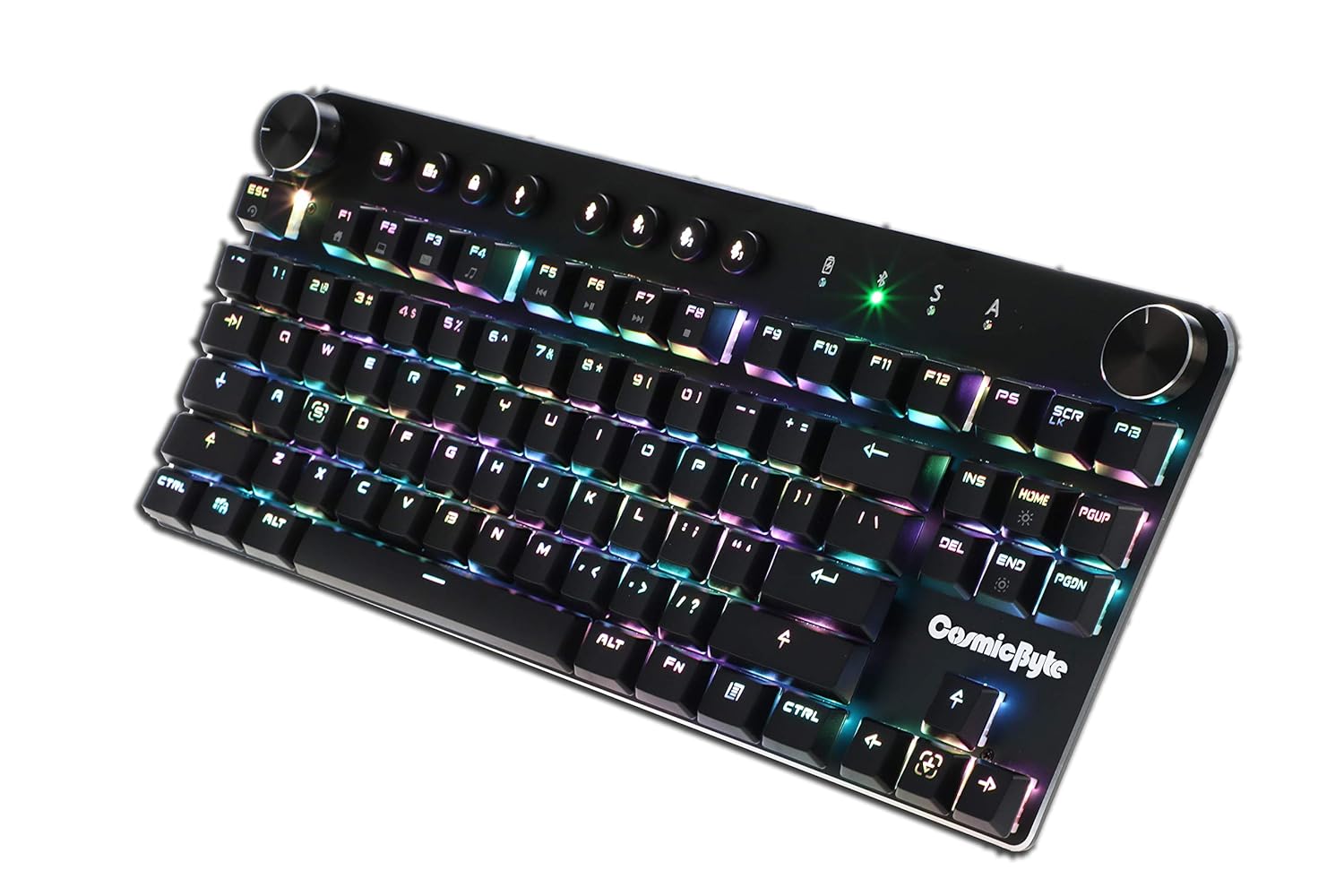
Image: Close-up angled view ของแป้นพิมพ์ที่แสดงasing the vibrant RGB lighting on the keys.
6. การบำรุงรักษา
เพื่อให้คีย์บอร์ดของคุณใช้งานได้ยาวนานและทำงานได้อย่างมีประสิทธิภาพสูงสุด:
- การทำความสะอาด: ใช้ผ้าแห้งนุ่มๆ เช็ดทำความสะอาดแป้นพิมพ์ สำหรับการทำความสะอาดอย่างล้ำลึก ให้ใช้ลมเป่าเพื่อกำจัดฝุ่นและเศษสิ่งสกปรกที่อยู่ระหว่างปุ่มต่างๆ หลีกเลี่ยงการใช้สารเคมีรุนแรงหรือวัสดุที่มีฤทธิ์กัดกร่อน
- การดูแลแบตเตอรี่ For wireless use, charge the keyboard regularly. Avoid completely draining the battery frequently to prolong its lifespan.
- พื้นที่จัดเก็บ: เก็บแป้นพิมพ์ไว้ในที่แห้งและเย็น หลีกเลี่ยงแสงแดดโดยตรงและอุณหภูมิที่สูงหรือต่ำเกินไป
7 การแก้ไขปัญหา
- แป้นพิมพ์ไม่ตอบสนอง (แบบมีสาย):
- ตรวจสอบให้แน่ใจว่าสาย USB เชื่อมต่อกับคีย์บอร์ดและคอมพิวเตอร์อย่างแน่นหนา
- ลองเชื่อมต่อกับพอร์ต USB อื่นบนคอมพิวเตอร์ของคุณ
- ทดสอบแป้นพิมพ์บนคอมพิวเตอร์เครื่องอื่นเพื่อตัดปัญหาเฉพาะระบบ
- ปัญหาการเชื่อมต่อบลูทูธ:
- Ensure the keyboard is in Bluetooth pairing mode (indicator light flashing).
- Verify Bluetooth is enabled on your device and it's discoverable.
- Remove any previous pairings of the keyboard from your device's Bluetooth settings and attempt to re-pair.
- ตรวจสอบให้แน่ใจว่าแบตเตอรี่แป้นพิมพ์มีประจุเพียงพอ
- Keep the keyboard within the 10-meter Bluetooth range of your device.
- Backlight Not Working/Customization Issues:
- Check the brightness level using the dedicated dial.
- Ensure the keyboard is not in a mode where backlighting is disabled.
- For custom backlight issues, ensure the settings were saved correctly.
- กุญแจไม่ลงทะเบียน:
- ทำความสะอาดปุ่มที่ได้รับผลกระทบเพื่อกำจัดเศษสิ่งสกปรกออกไป
- If using Bluetooth, ensure anti-ghosting limits (6-key) are not being exceeded for simultaneous presses.
8. ข้อมูลจำเพาะ
| คุณสมบัติ | รายละเอียด |
|---|---|
| ยี่ห้อ | คอสมิคไบต์ |
| ชื่อรุ่น | Sirius Blue Switch |
| เทคโนโลยีการเชื่อมต่อ | ไร้สาย (บลูทูธ), แบบมีสาย (USB) |
| คำอธิบายแป้นพิมพ์ | คีย์บอร์ดสำหรับเล่นเกม |
| ประเภทสวิตซ์ | Outemu Blue Switches |
| แสงไฟแบ็คไลท์ | Per Key RGB with 18 effects, 15 brightness levels |
| ป้องกันการโดนผีหลอก | All key (wired), 6-key (Bluetooth) |
| แบตเตอรี่ | ลิเธียมไอออนแบบชาร์จได้ 1000mAh |
| ช่วงบลูทูธ | 10 เมตร |
| อุปกรณ์ที่รองรับ | Laptop, PC, Mobiles, Tablets |
| ระบบปฏิบัติการ | Windows, Android, Linux, iOS |
| น้ำหนักสินค้า | 800 กรัม |
| ขนาดสินค้า | 34 x 14 x 50 ซม. |
9. การรับประกันและการสนับสนุน
9.1 ข้อมูลการรับประกัน
The Cosmic Byte CB-GK-14 Sirius Mechanical Keyboard comes with a รับประกัน 1 ปี against manufacturing defects. Please note that physical damage, water damage, and tampered products are not covered under this warranty.
9.2 การสนับสนุนลูกค้า
For any warranty claims or technical assistance, please contact Cosmic Byte customer support. You can raise a ticket through their customer support portal or directly email them.
Video: This video illustrates the Cosmic Byte warranty claim process, detailing steps for submitting a claim and product replacement procedures. (Note: Actual video URL (ไม่ได้ระบุในรูปแบบ JSON จึงใช้ตัวแทนแทน)
When contacting support, be prepared to provide your purchase invoice, product images from all angles, and a short video demonstrating the issue, if applicable. This will help expedite the support process.