
การแนะนำ
This manual provides instructions for the D-Link DUB-M530-US USB-C 5-in-1 Hub. This device expands the connectivity of your USB Type-C enabled computer by adding an HDMI port, two USB 3.0 ports, and a dual SD/microSD card reader.
โปรดอ่านคู่มือนี้อย่างละเอียดก่อนใช้งานผลิตภัณฑ์ เพื่อให้มั่นใจได้ว่าผลิตภัณฑ์ใช้งานได้อย่างถูกต้องและป้องกันความเสียหาย
สินค้าเกินview
The D-Link DUB-M530-US is designed to provide versatile connectivity for modern devices. It features:
- 1x HDMI port supporting up to 4K Ultra-HD @ 30 Hz resolution.
- 2x USB 3.0 ports for connecting peripherals.
- 1x SD card reader.
- 1x microSD card reader.
- USB-C and Thunderbolt 3 compatibility.
- Support for DisplayPort Alternate Mode over USB-C.
- Plug-and-Play functionality.

ภาพที่ 1: ด้านหน้า view of the D-Link DUB-M530-US USB-C 5-in-1 Hub, showing the HDMI port, two USB 3.0 ports, and the SD/microSD card slots. The attached USB-C cable is visible.
คำแนะนำการตั้งค่า
- เชื่อมต่อกับอุปกรณ์โฮสต์: Plug the USB-C connector of the DUB-M530-US hub into an available USB Type-C port on your computer (laptop, desktop, tablet, or smartphone). Ensure your device's USB-C port supports DisplayPort Alternate Mode for video output.
- เชื่อมต่อจอแสดงผล HDMI (ไม่บังคับ): If you wish to use an external display, connect an HDMI cable from your monitor or TV to the HDMI port on the DUB-M530-US hub.
- เชื่อมต่ออุปกรณ์ต่อพ่วง USB (ทางเลือก): Plug your USB devices (e.g., mouse, keyboard, USB flash drive) into the USB 3.0 ports on the hub.
- ใส่การ์ดหน่วยความจำ (ไม่จำเป็น): Insert an SD card into the SD card slot or a microSD card into the microSD card slot as needed. Ensure the card is inserted correctly.
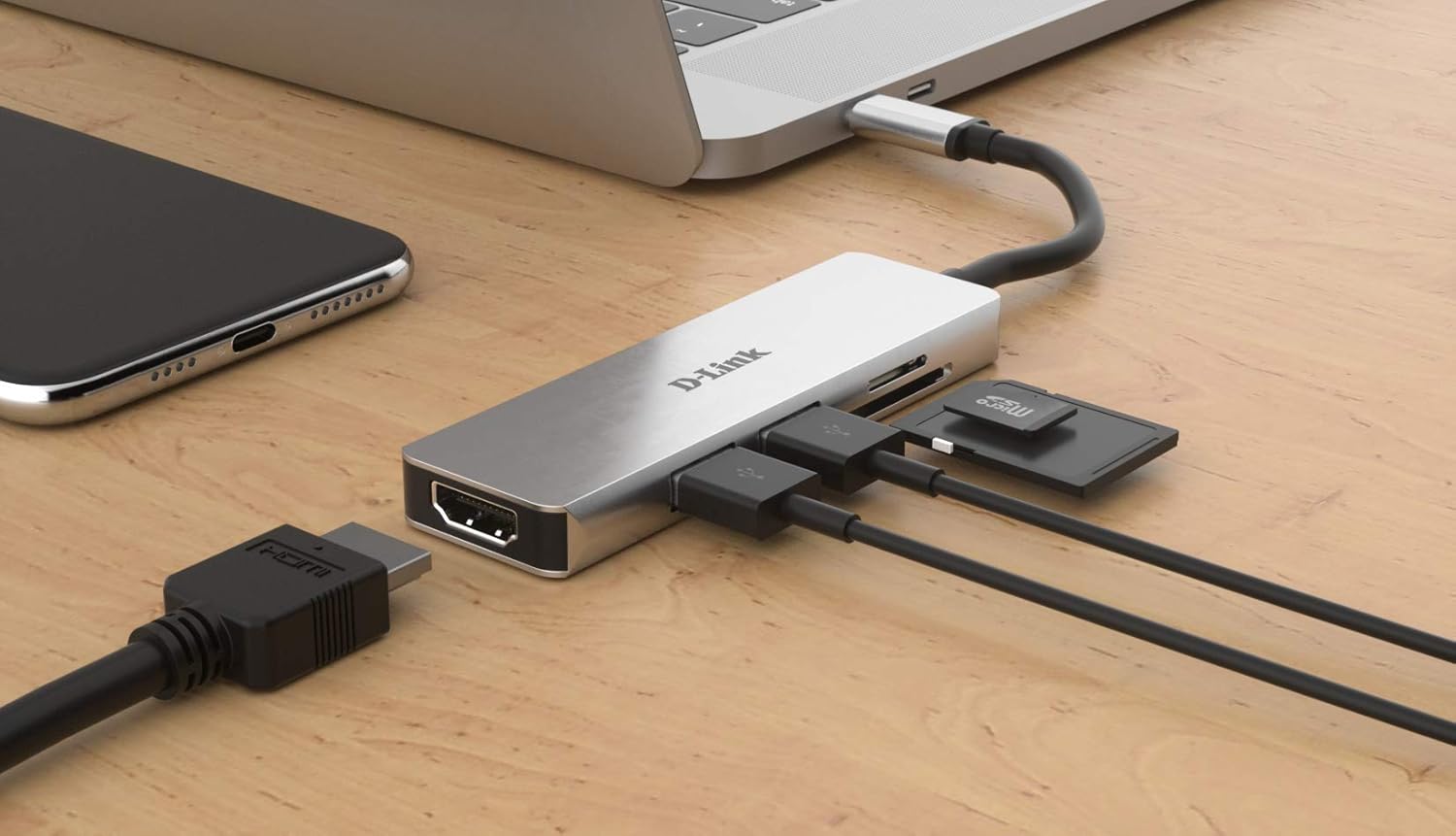
Image 2: The D-Link DUB-M530-US hub connected to a laptop via its USB-C cable. An HDMI cable, two USB devices, and an SD card are shown connected to the hub, illustrating a typical setup.
คำแนะนำการใช้งาน
การใช้งานพอร์ต HDMI:
Once connected, your operating system should automatically detect the external display. You may need to configure display settings (e.g., extend, duplicate) within your computer's display preferences.
- หน้าต่าง: Right-click on the desktop, select "Display settings," and configure multiple displays.
- MacOS: Go to "System Preferences" > "Displays" to arrange or mirror displays.
- ลินุกซ์: Use your desktop environment's display configuration tool.
Using USB 3.0 Ports:
Connect any standard USB device. The ports are backward compatible with USB 2.0 devices. Data transfer speeds will depend on the connected device and the host system's capabilities.
Using SD/microSD Card Readers:
Insert your SD or microSD card into the corresponding slot. The card will appear as a removable drive in your computer's file explorer. Ensure only one card is inserted per slot at a time.
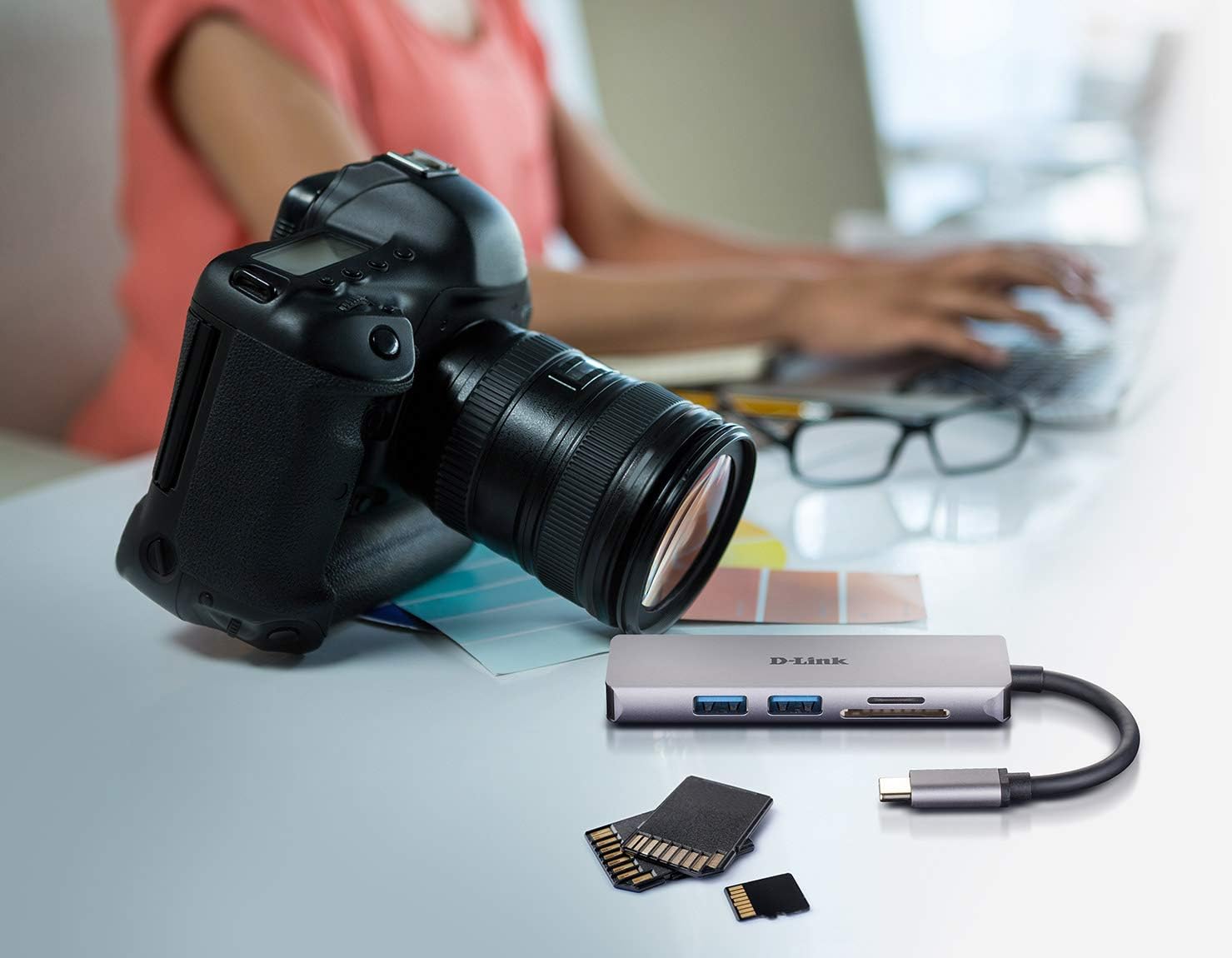
Image 3: The D-Link DUB-M530-US hub positioned next to a DSLR camera and various memory cards, illustrating its use for transferring photos and data from camera memory cards to a computer.
การซ่อมบำรุง
- รักษาดุมล้อให้สะอาดและปราศจากฝุ่น ใช้ผ้านุ่มและแห้งเช็ดทำความสะอาด
- หลีกเลี่ยงการให้อุปกรณ์สัมผัสกับอุณหภูมิ ความชื้น หรือแสงแดดโดยตรง
- Do not attempt to disassemble or repair the hub yourself. Refer to qualified service personnel.
- Disconnect the hub from your computer when not in use for extended periods.
การแก้ไขปัญหา
- ไม่มีการส่งสัญญาณภาพออกทาง HDMI:
- Ensure your computer's USB-C port supports DisplayPort Alternate Mode. Not all USB-C ports support video output.
- Check the HDMI cable connection at both the hub and the display.
- Verify the display input source is set correctly on your monitor/TV.
- อัปเดตไดร์เวอร์กราฟิกของคอมพิวเตอร์ของคุณ
- หากเป็นไปได้ ให้ลองใช้สาย HDMI หรือจอแสดงผลอื่นดู
- อุปกรณ์ USB ไม่ได้รับการตรวจพบ:
- Ensure the hub is securely connected to your computer.
- Try connecting the USB device directly to your computer to confirm it functions.
- Test the USB device in a different port on the hub.
- Some high-power USB devices may require direct connection or a powered hub.
- SD/microSD cards not detected:
- Ensure the card is fully and correctly inserted into the appropriate slot.
- Verify the card is not physically damaged.
- Test the card with another reader or device to confirm functionality.
- Ensure only one card is inserted per slot.
ข้อมูลจำเพาะ
| คุณสมบัติ | รายละเอียด |
|---|---|
| แบบอย่าง | DUB-M530-US |
| อินเทอร์เฟซ | USB Type-C (Host connection) |
| พอร์ต | 1x HDMI, 2x USB 3.0, 1x SD Card Reader, 1x microSD Card Reader |
| ความละเอียด HDMI | Up to 4K Ultra-HD @ 30 Hz |
| มาตรฐาน USB | USB 3.0 (เข้ากันได้กับ USB 2.0 ย้อนหลัง) |
| การรองรับเครื่องอ่านการ์ด | SD, SDHC, SDXC, microSD, microSDHC, microSDXC |
| ความเข้ากันได้ | USB-C and Thunderbolt 3 enabled devices (Mac, Windows, Linux) |
| ระบบปฏิบัติการ | ลินุกซ์, แมค, วินโดวส์ |
| ขนาด | ขนาดโดยประมาณ 7.8 x 5.5 x 1.5 นิ้ว (ขนาดบรรจุภัณฑ์) |
| น้ำหนัก | ประมาณ 3.2 ออนซ์ |
ข้อมูลการรับประกัน
D-Link products are backed by a limited warranty. For specific warranty terms and conditions applicable to your region, please refer to the official D-Link webตรวจสอบเว็บไซต์หรือบัตรรับประกันที่มาพร้อมกับผลิตภัณฑ์ของคุณ เก็บใบเสร็จรับเงินไว้เป็นหลักฐานการซื้อ
การสนับสนุนด้านเทคนิค
For technical assistance, product registration, or to download the latest drivers and firmware, please visit the official D-Link support webเว็บไซต์:
When contacting support, please have your product model number (DUB-M530-US) and serial number ready.