
การแนะนำ
The Elgato 4K60 S+ is an external capture card designed for recording and streaming high-fidelity gameplay. It supports 4K60 HDR10 capture and features zero-lag passthrough, allowing you to play games in their original quality while recording. The device includes an SD card slot for standalone recording, eliminating the need for a PC during capture. It is compatible with popular broadcasting software like OBS Studio and Streamlabs OBS, and its onboard HEVC encoding minimizes CPU load and file sizes. Flashback Recording functionality allows for retroactive saving of gameplay.
มีอะไรอยู่ในกล่อง
ตรวจสอบว่ามีส่วนประกอบทั้งหมดอยู่ในแพ็คเกจ:
- Elgato 4K60 S+ Capture Card
- แหล่งจ่ายไฟ
- 2x USB 3.0 Cables
- สาย HDMI 2.0
- คู่มือเริ่มต้นอย่างรวดเร็ว
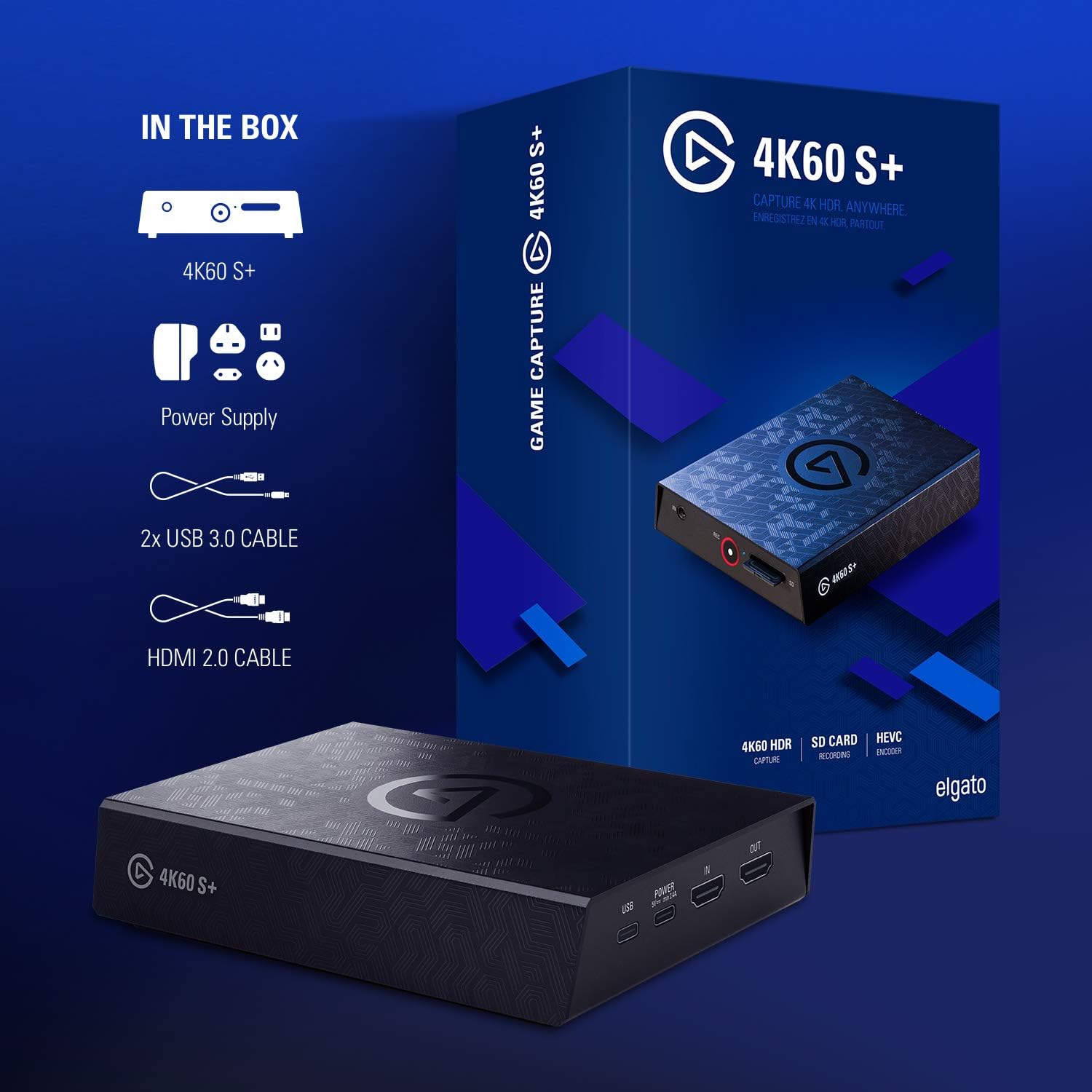
สินค้าเกินview
The Elgato 4K60 S+ features a compact design with essential ports for connectivity and control.
การเชื่อมต่อแผงด้านหลัง
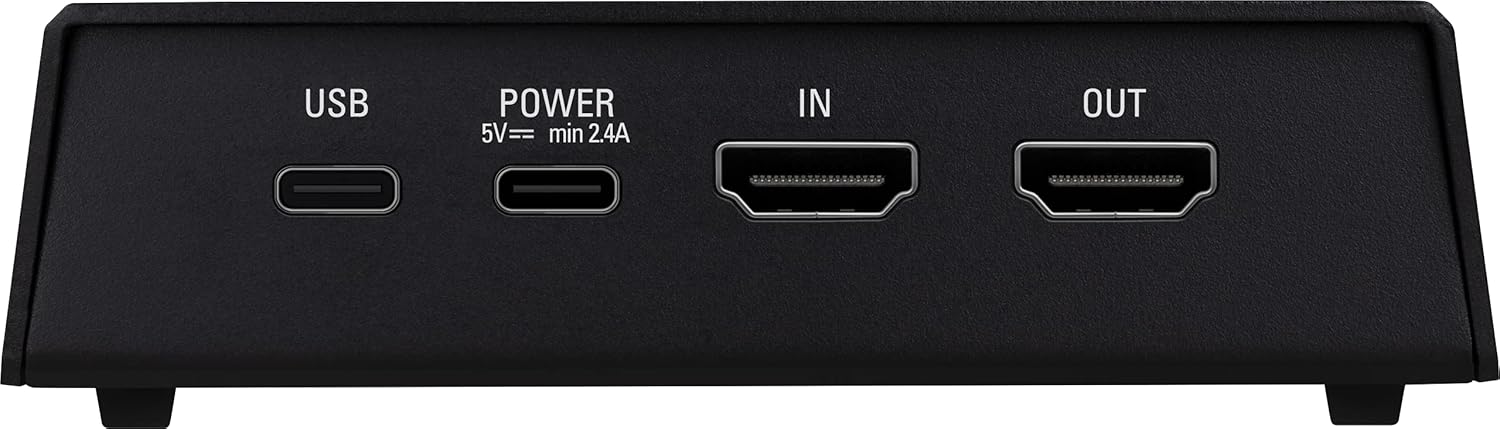
- ยูเอสบี: Connects to your PC for data transfer and software control.
- POWER (5V min 2.4A): เชื่อมต่อกับอะแดปเตอร์ไฟฟ้าที่ให้มา
- IN (HDMI): Connects to your game console or other video source.
- OUT (HDMI): Connects to your TV or monitor for zero-lag passthrough.
แผงควบคุมด้านหน้าและการเชื่อมต่อ
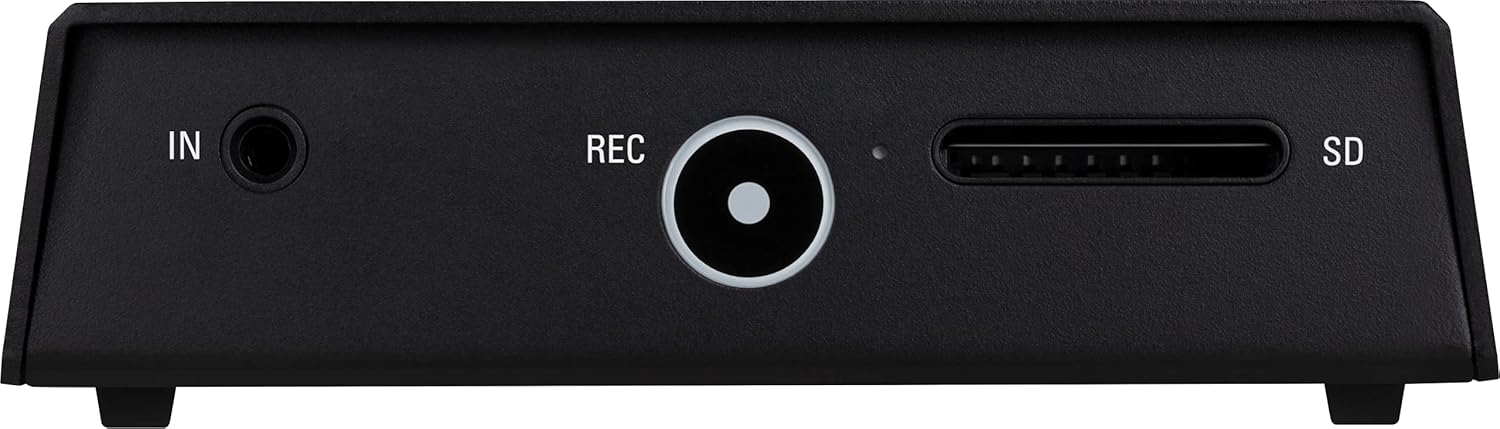
- IN (Audio): 3.5mm audio input for external audio sources.
- REC (Record Button): Initiates and stops standalone recording to the SD card.
- เอสดี: SD card slot for standalone recording.
การตั้งค่า
Follow these steps to set up your Elgato 4K60 S+.
1. Connect to your Console and Display
- Connect your game console (e.g., PS5, PS4, Xbox Series X/S, Xbox One X/S) to the HDMI IN port on the Elgato 4K60 S+ using the provided HDMI 2.0 cable.
- เชื่อมต่อทีวีหรือจอมอนิเตอร์ของคุณเข้ากับ... เอาต์พุต HDMI port on the Elgato 4K60 S+ using another HDMI cable (not included). This provides zero-lag passthrough for your gameplay.
- เชื่อมต่อแหล่งจ่ายไฟเข้ากับ พลัง port on the Elgato 4K60 S+ and plug it into a power outlet.

2. Connect to your PC (Optional for Standalone Recording)
If you plan to record or stream via a PC, follow these additional steps:
- Connect the Elgato 4K60 S+ to your PC using one of the provided USB 3.0 cables. Use a USB 3.0 port on your computer for optimal performance.
- Download and install the Elgato 4K Capture Utility software from the official Elgato website. This software is required for PC-based recording, streaming, and device configuration.
- For streaming, configure your preferred broadcasting software (e.g., OBS Studio, Streamlabs OBS) to recognize the Elgato 4K60 S+ as a video capture device.

3. SD Card Preparation for Standalone Recording
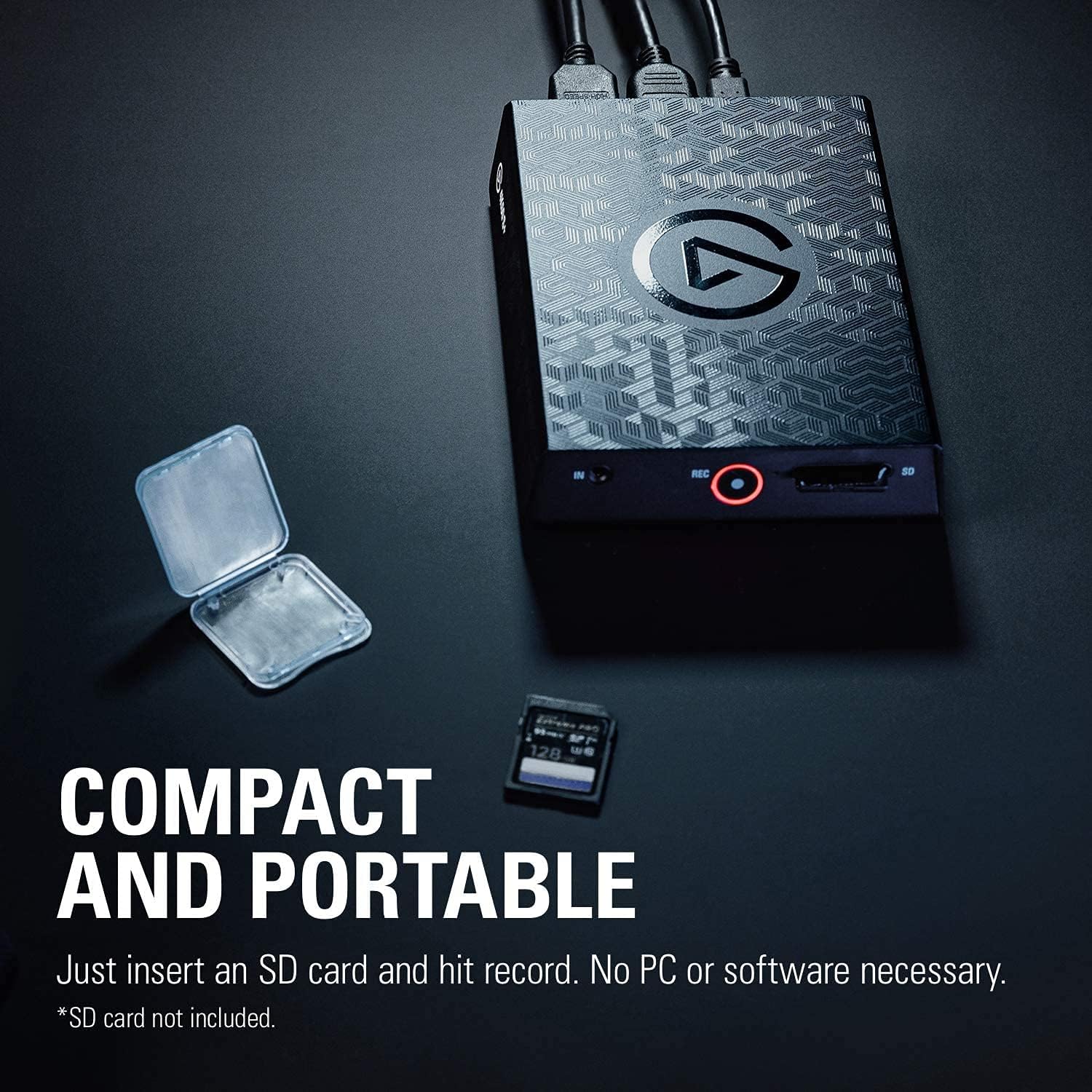
For standalone recording, an SD card (not included) is required. Ensure the SD card is formatted correctly and meets the recommended speed requirements for 4K recording.
- Insert a high-speed SD card (UHS-I / V30 or faster recommended) into the SD slot on the front of the device.
- The device will automatically create a configuration file on the SD card upon first insertion. This file can be edited via a PC to adjust recording settings such as bitrate and resolution.
Operating the Elgato 4K60 S+
PC-Based Recording and Streaming
- Ensure the Elgato 4K60 S+ is connected to your console, display, and PC as described in the Setup section.
- Launch the Elgato 4K Capture Utility software or your preferred broadcasting software (e.g., OBS Studio).
- Select the Elgato 4K60 S+ as your video input source.
- Configure your desired recording or streaming settings (resolution, frame rate, bitrate, audio sources).
- Initiate recording or streaming through the software interface.
Standalone Recording to SD Card
The 4K60 S+ allows recording directly to an SD card without a connected PC.
- Ensure the Elgato 4K60 S+ is connected to your console and display, and a compatible SD card is inserted.
- กดปุ่ม บันทึก button on the front of the device to start recording. The LED indicator around the button will illuminate red.
- กดปุ่ม บันทึก button again to stop recording. The LED indicator will turn off.
- เพื่อเข้าถึงข้อมูลที่บันทึกไว้ files, safely remove the SD card and insert it into a card reader connected to your PC.

การบันทึกย้อนหลัง
Flashback Recording is a feature available when connected to a PC. It continuously buffers gameplay, allowing you to retroactively save moments you might have missed recording.
- With the Elgato 4K Capture Utility running, gameplay is continuously buffered.
- To save a past moment, simply drag the timeline in the software to the desired starting point and click the record button. The software will save the buffered segment.
4K HDR10 Capture and HEVC Encoding
The 4K60 S+ supports capturing in 4K resolution at 60 frames per second with HDR10. The integrated HEVC (H.265) encoder ensures efficient compression, resulting in smaller file sizes without compromising video quality, and reduces the load on your computer's CPU.


การซ่อมบำรุง
Proper maintenance ensures the longevity and optimal performance of your Elgato 4K60 S+.
- การทำความสะอาด: ใช้ผ้าแห้งเนื้อนุ่มเช็ดทำความสะอาดภายนอกของอุปกรณ์ หลีกเลี่ยงการใช้สารทำความสะอาดที่มีฤทธิ์กัดกร่อนหรือตัวทำละลาย
- พื้นที่จัดเก็บ: เก็บอุปกรณ์ไว้ในที่แห้งและเย็น หลีกเลี่ยงแสงแดดโดยตรงและอุณหภูมิที่สูงหรือต่ำเกินไป
- อัพเดตเฟิร์มแวร์: Periodically check the official Elgato webเว็บไซต์สำหรับอัปเดตเฟิร์มแวร์ การอัปเดตเฟิร์มแวร์อย่างสม่ำเสมอจะช่วยเพิ่มประสิทธิภาพและเพิ่มคุณสมบัติใหม่ๆ
- การจัดการสายเคเบิล: Ensure cables are not excessively bent or strained to prevent damage to the connectors and ports.
การแก้ไขปัญหา
This section addresses common issues you might encounter with the Elgato 4K60 S+.
No Signal or Black Screen
- ตรวจสอบการเชื่อมต่อ: ตรวจสอบให้แน่ใจว่าสาย HDMI และสายไฟทั้งหมดเชื่อมต่อแน่นสนิทดีแล้ว
- HDMI Cable Quality: Use high-quality HDMI 2.0 cables, especially for 4K HDR signals.
- เอชดีซีพี: Verify that HDCP is disabled on your console settings if you are experiencing issues. Some consoles may require this for capture.
- ความละเอียด/อัตราการรีเฟรช: Ensure your console's output resolution and refresh rate are supported by the 4K60 S+.
Recording Stuttering or Choppiness (Standalone)
- ความเร็วการ์ด SD: Use an SD card with sufficient write speed (UHS-I / V30 or faster is recommended for 4K recording). Lower speed cards can cause stuttering.
- การตั้งค่าบิตเรต: If you have modified the configuration file on the SD card, ensure the bitrate is not set excessively high for your SD card's capabilities.
- เฟิร์มแวร์: Ensure your device firmware is up to date.
Recording Stuttering or Choppiness (PC-Based)
- การเชื่อมต่อ USB: Ensure the device is connected to a USB 3.0 port on your PC. Using a USB 2.0 port will limit bandwidth and can cause issues.
- PC Performance: Verify your PC meets the minimum system requirements for 4K capture and encoding. High CPU usage from other applications can affect performance.
- การตั้งค่าซอฟต์แวร์: Adjust bitrate and encoder settings in your capture software (e.g., OBS Studio) to match your PC's capabilities.
Device Enters Standby Mode Unexpectedly
- The device is designed to enter standby mode when inactive. To exit standby, press the capacitive record button on the device.
- If your console requires an active HDMI display connection for remote play, you may need to ensure the 4K60 S+ is active or bypass it with an HDMI coupler when not recording.
ปัญหาเสียง
- อินพุตเสียง: If using the 3.5mm audio input, ensure the cable is fully inserted and the audio source is active.
- การตั้งค่าซอฟต์แวร์: Check audio input settings in your capture software to ensure the correct audio device is selected and levels are adjusted.
ข้อมูลจำเพาะ
| คุณสมบัติ | ข้อมูลจำเพาะ |
|---|---|
| ยี่ห้อ | เอลกาโต้ |
| หมายเลขรุ่น | 10GAP 9901 |
| ชุด | 4K60 S+ |
| ฮาร์ดแวร์อินเตอร์เฟซ | ยูเอสบี 3.0 |
| ความละเอียดในการจับภาพวิดีโอ | สูงสุด 4K (3840x2160) ที่ 60fps |
| รองรับ HDR | HDR10 |
| การเข้ารหัส | เอชอีวีซี (H.265) |
| การส่งผ่าน | Zero-lag 4K60 HDR10 |
| พื้นที่จัดเก็บ | SD Card Slot (SD card not included) |
| ระบบปฏิบัติการ | หน้าต่าง |
| น้ำหนักสินค้า | 12 ออนซ์ (ประมาณ 340 กรัม) |
| ขนาดสินค้า (กxยxส) | 5.59 x 4.37 x 1.26 นิ้ว (ประมาณ 14.2 x 11.1 x 3.2 ซม.) |
วิดีโอผลิตภัณฑ์อย่างเป็นทางการ
Watch this official video for a visual guide on the features and usage of the Elgato 4K60 S+.
การรับประกันและการสนับสนุน
For detailed warranty information, please refer to the warranty card included with your product or visit the official Elgato website. Technical support and additional resources, including software downloads and FAQs, are available on the Elgato support pages.
แหล่งข้อมูลออนไลน์: Elgato Official Webเว็บไซต์
ติดต่อฝ่ายสนับสนุน: Refer to the contact information provided on the official Elgato support page for assistance.