
1. บทนำ
The QGeeM M9VC01 9-in-1 USB-C Docking Station is designed to expand the connectivity of your USB-C enabled devices, such as laptops, tablets, and smartphones. This versatile hub provides multiple ports for video output, data transfer, and power delivery, enhancing your productivity and multimedia experience.

Image 1.1: The QGeeM 9-in-1 USB-C Docking Station connected to various peripherals, illustrating its multi-functionality.
2. คุณสมบัติของผลิตภัณฑ์
The QGeeM M9VC01 docking station integrates nine essential ports into a single compact device:
- Dual 4K HDMI Ports: Connect to two external displays for high-resolution video output (up to 4K@30Hz).
- พอร์ต VGA: Connect to an external display for video output (up to 1080p@60Hz).
- พอร์ต USB 3.0 จำนวน 2 ช่อง: High-speed data transfer up to 5Gbps for peripherals like keyboards, mice, and external drives.
- ช่องเสียบการ์ด SD: เข้าถึง files from standard SD memory cards.
- ช่องเสียบการ์ด MicroSD: เข้าถึง files from MicroSD memory cards.
- แจ็คเสียงขนาด 3.5 มม.: Connect headphones or speakers for audio output.
- พอร์ตจ่ายพลังงาน USB-C (PD): Supports up to 87W charging for your host device while using the hub.

Image 2.1: Detailed diagram illustrating each of the 9 ports and their specifications on the QGeeM docking station.
3. ข้อมูลจำเพาะ
| คุณสมบัติ | ข้อมูลจำเพาะ |
|---|---|
| แบบอย่าง | M9VC01 |
| อินเทอร์เฟซ | 2x USB 3.0, 2x 4K HDMI, 1x SD Card, 1x MicroSD Card, 1x 3.5mm Audio Jack, 1x VGA, 1x Type C PD Charging |
| ความเร็วในการถ่ายโอนข้อมูล | Up to 5Gbps (USB 3.0), Up to 104MB/s (Card Readers) |
| ความละเอียด HDMI | สูงถึง 4K@30Hz |
| ความละเอียด VGA | สูงสุด 1080p@60Hz |
| การชาร์จ PD | สูงสุดถึง 87W |
| ขนาด | 115 x 46 x 15มม. |
| น้ำหนัก | 88กรัม |
| วัสดุ | อลูมิเนียม |
| แพลตฟอร์มฮาร์ดแวร์ | แล็ปท็อปพีซี |
| อุปกรณ์ที่รองรับ | Card Readers, Desktops, Keyboards, Laptops, Monitors, Mouse, Projectors, Smartphones, Tablets |
4. คำแนะนำในการตั้งค่า
Follow these steps to set up your QGeeM M9VC01 docking station:
- เชื่อมต่อกับอุปกรณ์โฮสต์: Plug the USB-C connector of the docking station into a compatible USB-C port on your laptop, tablet, or smartphone. Ensure your device's USB-C port supports DisplayPort (DP) Alt Mode for video output.
- การส่งกำลัง (ทางเลือก): If your host device requires charging, connect your USB-C power adapter to the USB-C PD port on the docking station.
- เชื่อมต่อจอแสดงผล:
- สำหรับจอแสดงผล HDMI ให้เชื่อมต่อสาย HDMI จากจอภาพของคุณเข้ากับพอร์ต HDMI บนแท่นวาง
- สำหรับจอแสดงผล VGA ให้เชื่อมต่อสาย VGA จากจอภาพของคุณเข้ากับพอร์ต VGA บนแท่นเชื่อมต่อ
Note: HDMI operation may require a driver installation on some systems. Please refer to your operating system's display settings for configuration.
- เชื่อมต่ออุปกรณ์ต่อพ่วง: Plug your USB devices (e.g., keyboard, mouse, external hard drive) into the USB 3.0 ports. Insert SD or MicroSD cards into their respective slots. Connect headphones or speakers to the 3.5mm audio jack.
- กำหนดการตั้งค่าการแสดงผล: Once connected, your operating system should detect the external displays. You may need to adjust display settings (e.g., extend, mirror, resolution) in your system preferences.
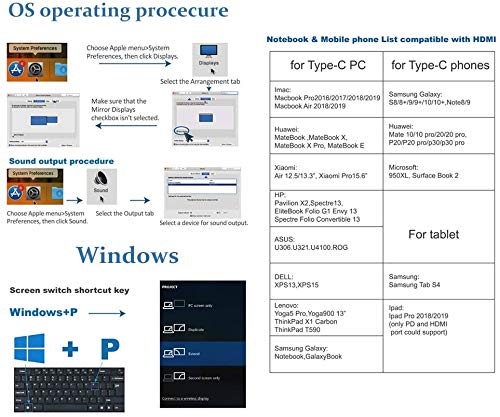
Image 4.1: Visual guide for configuring display settings on Mac OS and Windows, including a compatibility list for devices.
5. คู่มือการใช้งาน
5.1. Video Output (Triple Display)
The docking station supports connecting up to three external displays simultaneously (two HDMI, one VGA).
- ระบบ Windows: Supports triple display in 'Extend' or 'Mirror' mode. You can extend your desktop across all three external monitors and your laptop screen. The resolution for triple display via VGA is up to 1920x1080.
- ระบบ Mac OS: Supports dual display. Mac OS typically mirrors one external screen to the other instead of extending to two separate screens. You can extend your desktop to one external monitor, and the other external monitors will mirror that extended display.

Image 5.1: Illustration of triple display capabilities, highlighting the differences in extension modes between Windows and Mac OS.

Image 5.2: Visual representation of how display modes (Mirror and Extend) function on both Windows and Mac operating systems.
5.2. การส่งกำลัง
The USB-C PD port allows you to charge your host device while using the docking station. Connect your original USB-C power adapter to this port. The hub supports up to 87W power delivery.

Image 5.3: The USB-C PD port in use, demonstrating simultaneous charging of a laptop and a smartphone through the hub.
5.3. การโอนข้อมูล
Use the USB 3.0 ports for connecting external storage devices, keyboards, mice, or other USB peripherals. The SD and MicroSD card slots allow for convenient access to memory card data.
Note: Data transfer from SD and MicroSD cards cannot occur simultaneously. Only one card can be actively read or written to at a time.

Image 5.4: An SD card and a MicroSD card inserted into their respective slots on the docking station.
5.4. เอาต์พุตเสียง
Connect your headphones or speakers to the 3.5mm audio jack for audio playback from your host device.
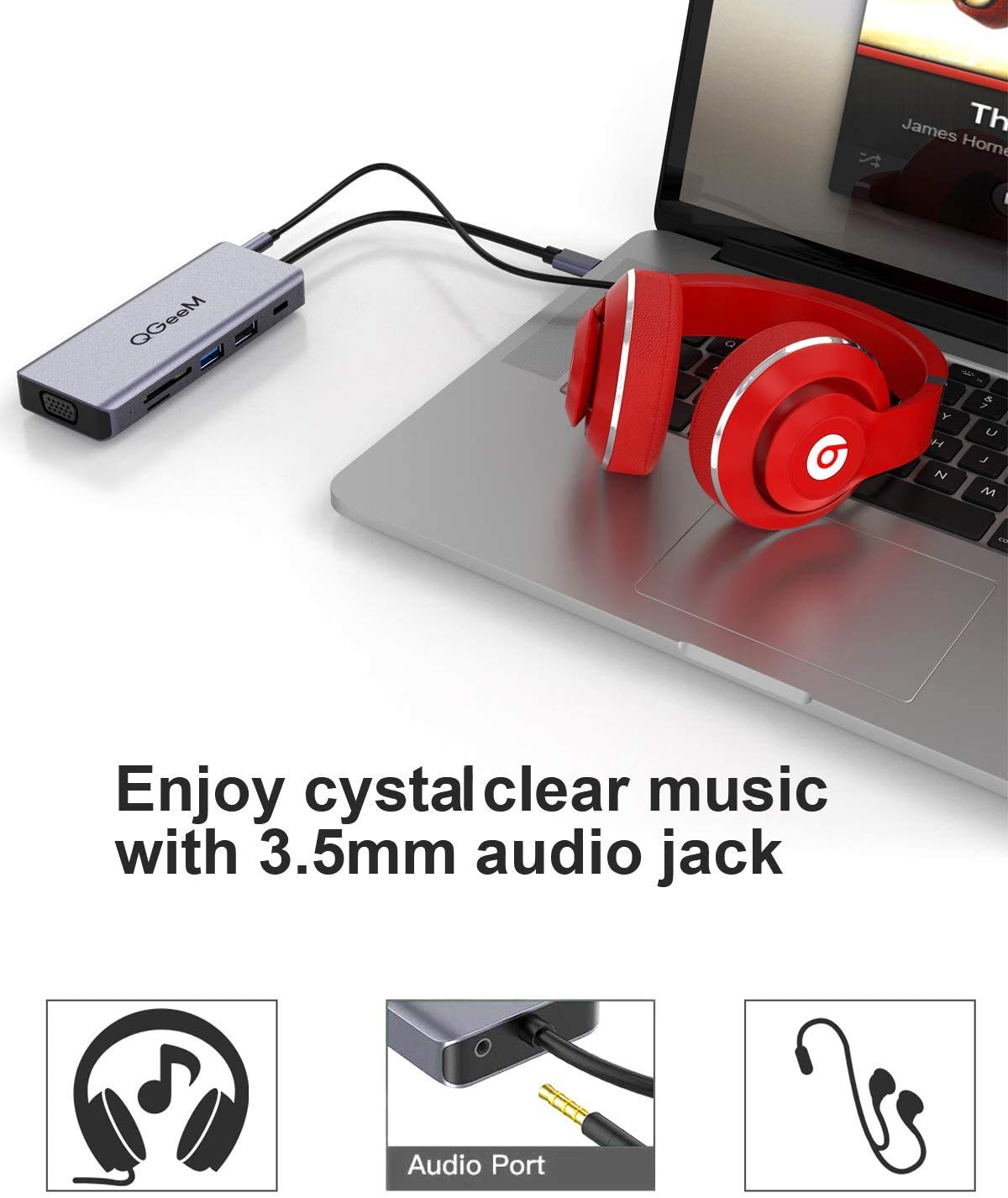
Image 5.5: Headphones connected to the 3.5mm audio jack on the docking station, indicating audio output functionality.
6. ความเข้ากันได้
The QGeeM M9VC01 docking station is compatible with a wide range of USB Type-C 3.1 enabled devices. Your laptop must have DisplayPort (DP) Alt Mode functionality for video output to work correctly.
6.1. Compatible USB Type-C PCs/Tablets (Partial List)
- แอปเปิล: MacBook Pro 2016/2017/2018/2019, MacBook Air 2018/2019, iPad Pro 2018/2019 (PD and HDMI port support only)
- หัวเว่ย: MateBook, MateBook X, MateBook X Pro, MateBook E
- เสี่ยวหมี่ : Air 12.5/13.3, Pro 15.6
- เอชพี: Pavilion X2, Spectre 13, EliteBook Folio G1, Envy 13, Spectre Folio Convertible 13
- อัสซุส : U306, U321, U4100, โรจี
- เดลล์ : XPS13, XPS15
- เลอโนโว : Yoga 5 Pro, Yoga 900 13", ThinkPad X1 Carbon, ThinkPad T590
- ซัมซุง: Galaxy Notebook, GalaxyBook, Tab S4
6.2. Compatible USB Type-C OTG Smartphones (Partial List)
- ซัมซุงกาแล็กซี: S8/8+/9/9+/10/10+, Note8/9
- หัวเว่ย: Mate 10/10pro/20/20 pro, P20/P20pro/P30/P30 pro
- ไมโครซอฟต์: 950XL, Surface Book 2
7. การบำรุงรักษา
เพื่อให้มั่นใจได้ว่าแท่นวางอุปกรณ์ของคุณจะมีอายุการใช้งานยาวนานและทำงานได้อย่างมีประสิทธิภาพสูงสุด โปรดปฏิบัติตามคำแนะนำในการบำรุงรักษาเหล่านี้:
- การทำความสะอาด: ใช้ผ้าแห้งเนื้อนุ่มเช็ดทำความสะอาดภายนอกของแท่นวาง หลีกเลี่ยงการใช้น้ำยาทำความสะอาดหรือสารละลาย เพราะอาจทำให้พื้นผิวหรือชิ้นส่วนภายในเสียหายได้
- พื้นที่จัดเก็บ: Store the docking station in a cool, dry place away from direct sunlight and extreme temperatures when not in use.
- การกระจายความร้อน: The aluminum alloy shell is designed for good heat dissipation. It is normal for the hub to warm up during operation, especially when using Power Delivery. Ensure adequate airflow around the device.
- จัดการด้วยความระมัดระวัง: หลีกเลี่ยงการทำอุปกรณ์หล่นหรือกระแทกอย่างรุนแรง
8 การแก้ไขปัญหา
If you encounter issues with your QGeeM M9VC01 docking station, please refer to the following common solutions:
- ไม่มีการแสดงผล:
- Ensure your host device's USB-C port supports DisplayPort (DP) Alt Mode.
- ตรวจสอบการเชื่อมต่อสายเคเบิลทั้งหมด (USB-C ไปยังโฮสต์, HDMI/VGA ไปยังจอภาพ)
- Verify that the correct input source is selected on your monitor.
- อัปเดตไดรเวอร์การ์ดจอในอุปกรณ์ของคุณ
- รีสตาร์ทอุปกรณ์โฮสต์ของคุณ
- For Mac OS, remember that it typically mirrors one external screen to others, rather than extending to multiple separate screens.
- Intermittent Display Connection:
- ตรวจสอบให้แน่ใจว่าการเชื่อมต่อ USB-C กับอุปกรณ์โฮสต์ของคุณแน่นหนาดีแล้ว
- ลองถอดและเสียบฮับใหม่อีกครั้ง
- Ensure your host device's power adapter is connected to the hub's PD port if power is insufficient.
- อุปกรณ์ USB ไม่ได้รับการรู้จัก:
- ตรวจสอบให้แน่ใจว่าได้เสียบอุปกรณ์ USB เข้ากับฮับอย่างถูกต้องแล้ว
- ลองเชื่อมต่ออุปกรณ์ USB เข้ากับอุปกรณ์หลักโดยตรงเพื่อตรวจสอบว่าใช้งานได้หรือไม่
- Some high-power USB devices may require external power or a direct connection to the host.
- SD/MicroSD Card Not Reading:
- ตรวจสอบให้แน่ใจว่าใส่การ์ดเข้าไปในช่องที่ถูกต้องจนสุด
- Verify that only one card (SD or MicroSD) is inserted at a time for data transfer.
- ตรวจสอบว่าการ์ดเสียหายหรือชำรุดหรือไม่
- ฮับรู้สึกอบอุ่น:
- It is normal for the hub to generate some heat during operation, especially when charging your device via the PD port or when multiple high-power peripherals are connected. This is due to the aluminum casinการออกแบบระบบระบายความร้อนของ g
- If the hub becomes excessively hot, disconnect it and allow it to cool down. Ensure it is placed in a well-ventilated area.
9. การรับประกันและการสนับสนุน
The QGeeM M9VC01 USB-C Docking Station comes with an 18-month warranty from the date of purchase. Additionally, QGeeM offers an unconditional 30-day return guarantee and life-long product support.
For technical assistance, warranty claims, or any product-related inquiries, please contact QGeeM customer service. Refer to the product packaging or the official QGeeM webเว็บไซต์สำหรับข้อมูลการติดต่อปัจจุบัน