
1. บทนำ
Thank you for choosing the iClever BK10 Bluetooth Keyboard. This manual provides essential information for setting up, operating, maintaining, and troubleshooting your new wireless keyboard. Please read it carefully to ensure optimal performance and longevity of your device.
มีอะไรอยู่ในกล่อง
- คีย์บอร์ดบลูทูธ iClever BK10
- สายชาร์จ USB-C
- คู่มือการใช้งาน
- Protective Silicone Cover (for key protection)

Figure 1: Included items with the iClever BK10 Bluetooth Keyboard.
2. คุณสมบัติหลัก
- Sleek & Wireless Design: Constructed with stainless steel and ABS, featuring a 10-degree tilt for comfortable desktop use.
- Multi-Device & Multi-OS Compatibility: Seamlessly switch between up to 3 devices using Bluetooth 5.1 technology. Automatically recognizes and adapts to Windows, macOS, iPadOS, Android, iPhone, and Chromebooks.
- Responsive & Low-Profile คีย์: Scissor-key mechanism provides enhanced feedback, stability, and quiet typing (below 50 dB). Optimized key-travel and anti-slip tapes ensure comfort and precision.
- Compact & Efficient: Full-size layout with a standard numeric keypad. Includes hotkeys for Calculator, Fn lock, Mute, Volume up/down, and more to boost productivity.
- USB-C Rechargeable & Energy Saving: Built-in rechargeable battery offers up to 45 days of use after a 2-hour charge. Features an automatic power-saving sleep mode after 30 minutes of inactivity.
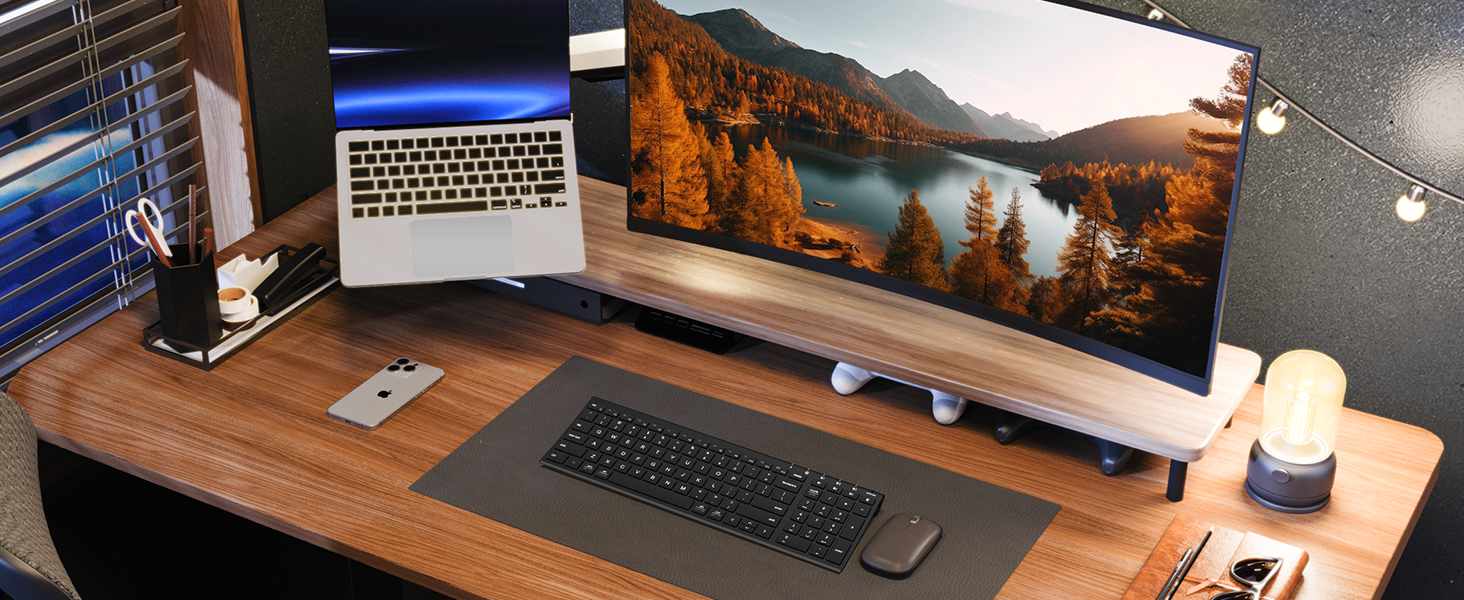
Figure 2: The sleek and wireless design of the iClever BK10 keyboard.
3. การตั้งค่า
3.1 การชาร์จคีย์บอร์ด
Before initial use, fully charge the keyboard using the provided USB-C cable. Connect the USB-C end to the keyboard's charging port (located on the right side) and the USB-A end to a power source (e.g., computer USB port, USB wall adapter). The charging indicator light will illuminate during charging and turn off when fully charged.

Figure 3: USB-C charging port on the iClever BK10 keyboard.
3.2 การเปิด/ปิดเครื่อง
Locate the ON/OFF switch on the top right side of the keyboard. Slide the switch to the 'ON' position to power on the keyboard. Slide it to 'OFF' when not in use to conserve battery life.
3.3 การจับคู่บลูทูธ
The iClever BK10 keyboard supports pairing with up to three devices simultaneously. Follow these steps to pair your devices:
- เปิดคีย์บอร์ดโดยใช้สวิตช์เปิด/ปิด
- Press and hold one of the Bluetooth channel keys (B1, B2, or B3) for 3-5 seconds until its indicator light starts flashing rapidly. This indicates the keyboard is in pairing mode.
- บนอุปกรณ์ของคุณ (คอมพิวเตอร์ แท็บเล็ต สมาร์ทโฟน) ไปที่การตั้งค่าบลูทูธ แล้วค้นหาอุปกรณ์ที่ใช้งานได้
- Select "iClever BK10" from the list of found devices.
- Follow any on-screen prompts to complete the pairing process. The indicator light on the keyboard will stop flashing and remain solid for a few seconds, then turn off, indicating successful pairing.
- Repeat these steps for up to two additional devices using the other Bluetooth channel keys (B2 and B3).

Figure 4: Multi-device connectivity of the iClever BK10 keyboard.
4. คู่มือการใช้งาน
4.1 การสลับระหว่างอุปกรณ์
To switch between paired devices, simply press the corresponding Bluetooth channel key (B1, B2, or B3) once. The keyboard will connect to the selected device automatically.
4.2 ปุ่มฟังก์ชันและปุ่มลัด
The iClever BK10 keyboard features a row of function keys (F1-F12) that also serve as hotkeys for various media and system controls. To use the hotkey functions, press the 'Fn' key simultaneously with the desired function key. Some common hotkeys include:
- Fn+F1: บ้าน
- Fn+F2: ค้นหา
- Fn+F3: เลือกทั้งหมด
- Fn+F4: สำเนา
- Fn+F5: แปะ
- Fn+F6: ตัด
- Fn+F7: เพลงก่อนหน้า
- Fn+F8: เล่น/หยุดชั่วคราว
- Fn+F9: เพลงถัดไป
- Fn+F10: ปิดเสียง
- Fn+F11: ลดระดับเสียง
- Fn+F12: เพิ่มระดับเสียง
The keyboard also includes dedicated keys for Calculator, Fn lock, and a standard numeric keypad for efficient data entry.

รูปที่ 5: เกินview of keyboard layout and multi-OS features.
4.3 Operating System Layout Recognition
The keyboard automatically recognizes different operating systems (Windows, macOS, iPadOS, Android) and adjusts its key layout accordingly. For example, the 'Win' key functions as 'Alt' on Mac, and 'Alt' functions as 'Cmd'.
5. การบำรุงรักษา
5.1 การทำความสะอาด
To clean your keyboard, power it off and disconnect any cables. Use a soft, lint-free cloth slightly dampened with water or a mild cleaning solution. Avoid excessive moisture and harsh chemicals. The included silicone cover can be removed and washed with mild soap and water.
5.2 การดูแลแบตเตอรี่
เพื่อยืดอายุการใช้งานแบตเตอรี่ให้สูงสุด:
- หลีกเลี่ยงการปล่อยแบตเตอรี่จนหมดบ่อยครั้ง
- ควรชาร์จคีย์บอร์ดเมื่อไฟแสดงสถานะแบตเตอรี่เหลือน้อย
- ควรเก็บแป้นพิมพ์ไว้ในที่แห้งและเย็นหากไม่ได้ใช้งานเป็นเวลานาน
- The keyboard enters a power-saving sleep mode after 30 minutes of inactivity. Press any key to wake it up.
6 การแก้ไขปัญหา
6.1 คีย์บอร์ดไม่เชื่อมต่อ/จับคู่
- ตรวจสอบให้แน่ใจว่าคีย์บอร์ดเปิดใช้งานอยู่และชาร์จแบตเตอรี่เต็มแล้ว
- ตรวจสอบให้แน่ใจว่าได้เปิดใช้งานบลูทูธบนอุปกรณ์ของคุณแล้ว
- Place the keyboard within the effective range (typically 10 meters) of your device.
- If already paired, try unpairing the keyboard from your device's Bluetooth settings and then re-pairing it.
- ลองรีสตาร์ททั้งคีย์บอร์ดและอุปกรณ์ของคุณดู
6.2 คีย์ไม่ตอบสนอง
- Check if the keyboard is connected to the correct device (verify the active Bluetooth channel).
- ตรวจสอบให้แน่ใจว่าแบตเตอรี่ไม่เหลือน้อยมากจนน่าเป็นห่วง
- ทำความสะอาดเศษสิ่งสกปรกรอบ ๆ คีย์ที่ได้รับผลกระทบ
6.3 Connectivity Issues/Lag
- Reduce interference by moving away from other wireless devices (e.g., Wi-Fi routers, cordless phones).
- ตรวจสอบให้แน่ใจว่าไดร์เวอร์บลูทูธของอุปกรณ์ของคุณได้รับการอัปเดตแล้ว
- Try connecting to a different Bluetooth channel on the keyboard.
7. ข้อมูลจำเพาะ
| คุณสมบัติ | รายละเอียด |
|---|---|
| หมายเลขรุ่น | BK10 |
| เทคโนโลยีการเชื่อมต่อ | บลูทูธ 5.1 |
| อุปกรณ์ที่รองรับ | Windows laptops/desktops, MacBook/iMac, iPad/iPhone, Android tablets/phones, Chromebooks |
| จำนวนคีย์ | 104 |
| ประเภทสวิตช์กุญแจ | กรรไกร-สวิตช์ |
| ระดับเสียง | <50 เดซิเบล |
| แหล่งพลังงาน | แบตเตอรี่แบบชาร์จไฟได้ (USB-C) |
| อายุการใช้งานแบตเตอรี่ | Up to 45 days (after 2 hours charging) |
| ขนาดสินค้า (กว้าง x ยาว x สูง) | 14.41" x 4.92" x 0.63" |
| วัสดุ | อะคริโลไนไตรล์ บิวทาไดอีน สไตรีน อะลูมิเนียม |
8. การรับประกันและการสนับสนุน
8.1 ข้อมูลการรับประกัน
The iClever BK10 Bluetooth Keyboard comes with a รับประกัน 12 เดือน นับจากวันที่ซื้อ การรับประกันนี้ครอบคลุมถึงข้อบกพร่องในการผลิต และรับประกันว่าผลิตภัณฑ์ของคุณจะปราศจากข้อบกพร่องด้านวัสดุและฝีมือการผลิตภายใต้การใช้งานปกติ
8.2 การสนับสนุนลูกค้า
If you encounter any issues or have questions regarding your iClever BK10 Bluetooth Keyboard, please refer to the contact information provided in your product packaging or visit the official iClever support webเว็บไซต์เพื่อขอความช่วยเหลือ