
Sitecom CH-005
Sitecom CH-005 Wireless Charging Stand & Power Bank
Model: CH-005 | Brand: Sitecom
การแนะนำ
The Sitecom CH-005 Wireless Charging Stand & Power Bank is a versatile 2-in-1 solution designed to quickly charge your smartphone and other devices. It functions as a wireless charging stand for home or office use and as a portable 10,000 mAh power bank for on-the-go charging. Featuring Qi-certified wireless charging, USB-C Power Delivery, and USB-A ports, it offers multiple fast-charging options for a wide range of devices.
มีอะไรอยู่ในกล่อง
- Sitecom CH-005 Wireless Charging Stand & Power Bank (10,000 mAh)
- สถานีเชื่อมต่อ
- USB-C to USB-A Cable (0.8m, male-to-male)
- คู่มือการใช้งาน
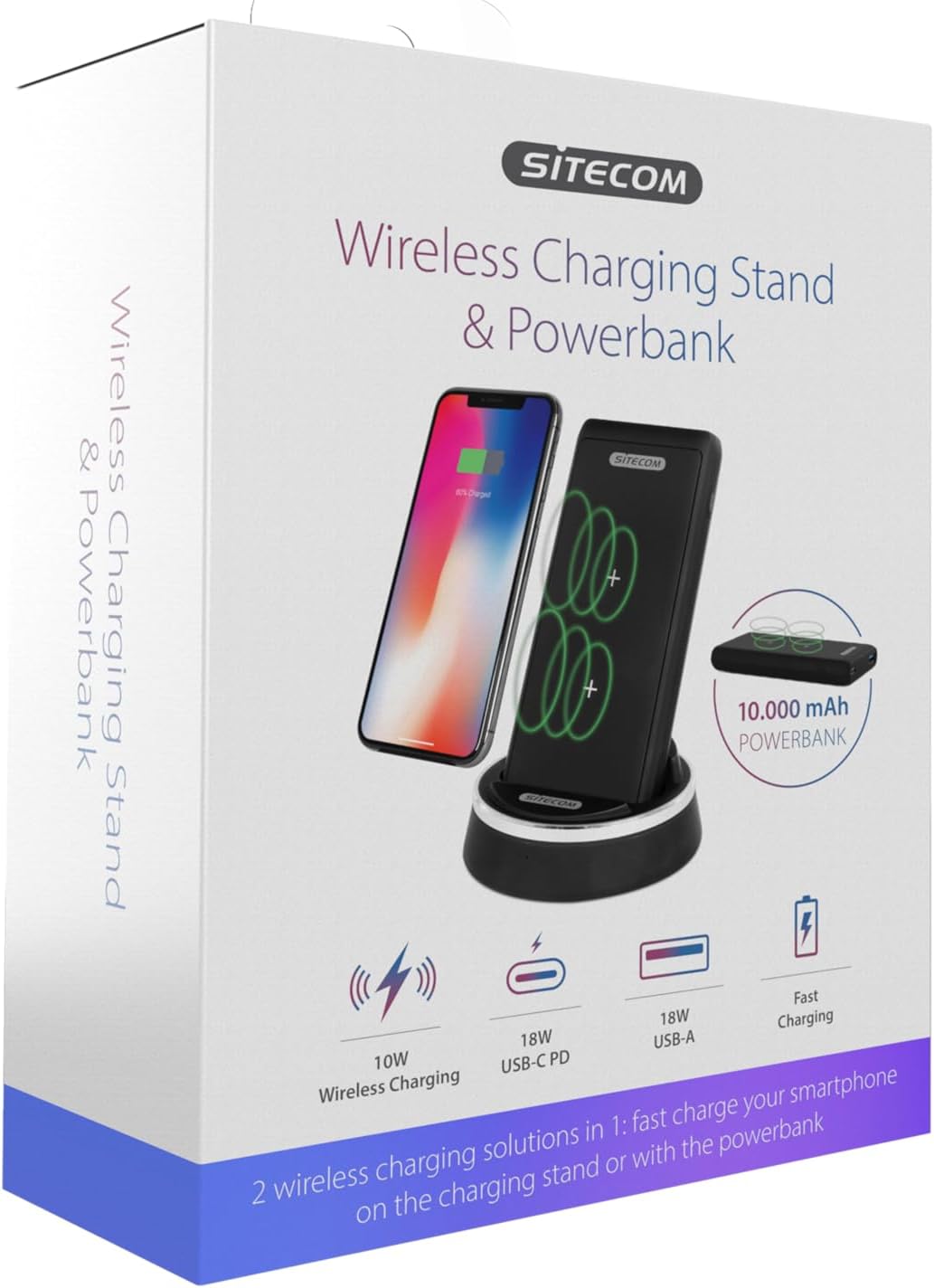
Image: The product packaging for the Sitecom CH-005, illustrating the wireless charging stand and power bank along with key features like 10W wireless charging, 18W USB-C PD, and 18W USB-A.
การตั้งค่า
- แกะ: นำส่วนประกอบทั้งหมดออกจากบรรจุภัณฑ์อย่างระมัดระวัง
- เชื่อมต่อแท่นวาง: Use the provided USB-C to USB-A cable to connect the docking station to a compatible USB power adapter (not included, 10W (5V/2A) USB charger recommended).
- Insert Power Bank: Place the 10,000 mAh power bank into the docking station. Ensure it is seated correctly; the power bank will automatically begin charging when docked.

Image: The Sitecom CH-005 Wireless Charging Stand with the power bank securely docked, ready for use.
คำแนะนำการใช้งาน
1. Wireless Charging (Stand Mode)
When the power bank is docked in the charging stand and connected to power, it acts as a wireless charging stand.
- ตรวจสอบให้แน่ใจว่าแท่นวางเปิดอยู่
- Place your Qi-compatible smartphone vertically on the power bank while it is in the docking station. The dual-coil charging zone allows for flexible placement.
- The charging indicator on your phone will show that charging has begun.

Image: A smartphone placed vertically on the Sitecom CH-005 charging stand, indicating active wireless charging.
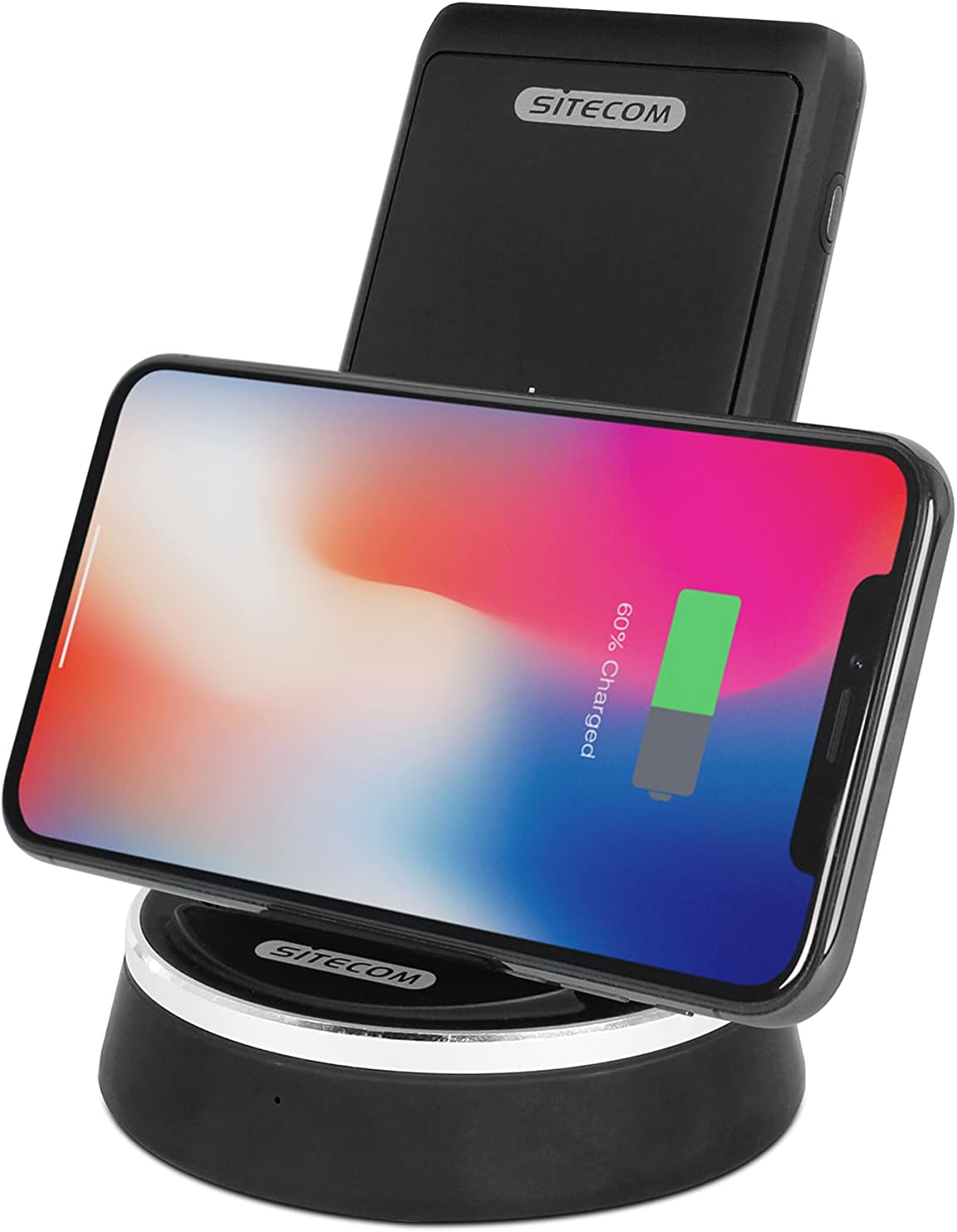
Image: A smartphone placed horizontally on the Sitecom CH-005 charging stand, demonstrating wireless charging in landscape mode.

Image: An illustrative diagram showing the internal wireless charging coils within the Sitecom CH-005 power bank and how a smartphone aligns for optimal charging.
2. Wireless Charging (Power Bank Mode)
The power bank can be used independently for wireless charging on the go.
- Remove the power bank from the docking station.
- Place your Qi-compatible smartphone directly on the rubberized surface of the power bank.
- Ensure the phone is centered over the charging coils for optimal performance. The power bank's rubberized surface helps keep the phone in place.
- The charging indicator on your phone will show that charging has begun.

Image: A smartphone lying flat on the Sitecom CH-005 power bank, demonstrating its portable wireless charging capability.

ภาพ: จากบนลงล่าง view of the Sitecom CH-005 power bank, highlighting its charging indicators and the USB-A and USB-C ports.
3. Wired Charging (Power Bank Mode)
The power bank features both USB-C Power Delivery (PD) and USB-A ports for fast wired charging.
- เอาต์พุต USB-C PD: Connect your device to the USB-C port using a compatible USB-C to USB-C cable for fast charging (e.g., 5V/2A, 9V/2A, 12V/1.5A).
- เอาต์พุต USB-A: Connect your device to the USB-A port using a compatible USB-A cable for fast charging (e.g., 5V/3A, 9V/2A, 12V/1.5A).
4. การชาร์จพาวเวอร์แบงค์
The power bank can be recharged in two ways:
- Via Docking Station: Simply place the power bank into the docking station. It will automatically begin to recharge.
- Via USB-C PD Input: Connect a USB-C cable from a power source to the USB-C port on the power bank (e.g., 5V/2A, 9V/2A).
ข้อมูลจำเพาะ
| คุณสมบัติ | รายละเอียด |
|---|---|
| หมายเลขรุ่น | ช-005 |
| ประเภทแบตเตอรี่ | 1 Lithium-Polymer Battery (3.7V/10,000mAh/37Wh) |
| เอาท์พุทชาร์จไร้สาย | 5W / 7.5W (for iPhone 8/X) / 10W (for Samsung Galaxy) |
| อินพุต USB-C PD | 5V/2A, 9V/2A |
| เอาต์พุต USB-C PD | 5V/2A, 9V/2A, 12V/1.5A |
| เอาต์พุต USB-A | 5V/3A, 9V/2A, 12V/1.5A |
| ผลผลิตรวม | สูงสุด 18 วัตต์ |
| Docking Station Input/Output | 5V/2A |
| ขนาด | 12.3 x 7 x 16.5 ซม. |
| น้ำหนัก | 354 กรัม |
| คุณสมบัติด้านความปลอดภัย | กระแสเกิน, ปริมาตรเกินtage, Short-circuit, Overheating Protection, Foreign Object Detection |
| การรับรอง | Qi-certified (Version 1.2.4) |
ข้อมูลด้านความปลอดภัย
- อย่าให้เครื่องสัมผัสกับอุณหภูมิที่สูงหรือต่ำเกินไป แสงแดดโดยตรง หรือความชื้นสูง
- ห้ามถอดประกอบ ดัดแปลง หรือซ่อมแซมอุปกรณ์ด้วยตนเอง โปรดติดต่อช่างผู้ชำนาญการ
- เก็บให้ห่างจากน้ำและของเหลวอื่นๆ
- หลีกเลี่ยงการทำอุปกรณ์หล่นหรือกระแทกอย่างรุนแรง
- Do not place metal objects or foreign materials between the charging surface and your device during wireless charging, as this may cause overheating or damage.
- Use only the provided cable or certified cables for charging.
- กำจัดผลิตภัณฑ์อย่างถูกวิธีตามระเบียบข้อบังคับท้องถิ่นเกี่ยวกับขยะอิเล็กทรอนิกส์
การแก้ไขปัญหา
| ปัญหา | วิธีแก้ปัญหาที่เป็นไปได้ |
|---|---|
| อุปกรณ์ไม่ชาร์จแบบไร้สาย | Ensure your device is Qi-compatible. Reposition the device on the charging surface to ensure proper alignment with the coils. Remove any thick phone cases or metal attachments. Check if the power bank/docking station is powered on. |
| ชาร์จช้า | Ensure you are using a compatible fast-charging adapter (e.g., 10W (5V/2A) for the docking station). Check the cable for damage. Some phone cases can hinder optimal wireless charging speed. |
| พาวเวอร์แบงค์ไม่ชาร์จ | Ensure the docking station is properly connected to a power source, or if charging via USB-C, ensure the cable and adapter are functional. Check the connection points for debris. |
| ไฟ LED ไม่ทำงาน | The device might be fully charged or not connected to a power source. If the issue persists, contact customer support. |
การซ่อมบำรุง
- การทำความสะอาด: ใช้ผ้าแห้งเนื้อนุ่มเช็ดทำความสะอาดพื้นผิวของอุปกรณ์ ห้ามใช้สารทำความสะอาดที่มีฤทธิ์กัดกร่อนหรือตัวทำละลาย
- พื้นที่จัดเก็บ: เก็บอุปกรณ์ไว้ในที่แห้งและเย็น หลีกเลี่ยงแสงแดดโดยตรงและอุณหภูมิที่สูงหรือต่ำมากเมื่อไม่ได้ใช้งานเป็นเวลานาน
- การดูแลแบตเตอรี่ For optimal battery life, avoid fully discharging the power bank frequently. Recharge it regularly, even if not in constant use.
การรับประกันและการสนับสนุน
Sitecom products are designed and manufactured to the highest quality standards. For information regarding warranty terms and conditions, please refer to the warranty card included with your product or visit the official Sitecom website. If you encounter any issues or require technical assistance, please contact Sitecom customer support through their official channels.
Webเว็บไซต์: www.sitecom.com
Ask a question about this manual
Ask about setup, troubleshooting, compatibility, parts, safety, or missing instructions. Manuals+ will review the question and use this page’s manual context to help answer it.