
การแนะนำ
This manual provides essential information for the proper setup, operation, and maintenance of your Philips 346B1C Curved Monitor. This 34-inch WQHD (3440 x 1440) display features a 100 Hz refresh rate, 5ms response time, and a curved VA panel for an immersive viewing experience. Key features include USB-C docking, MultiView functionality, FreeSync technology, LowBlue Mode, and FlickerFree technology for enhanced user comfort and productivity.

ภาพ: ด้านหน้า view of the Philips 346B1C curved monitor, showcasing its ultrawide display and key features like WQHD, USB-C Docking, and MultiView.
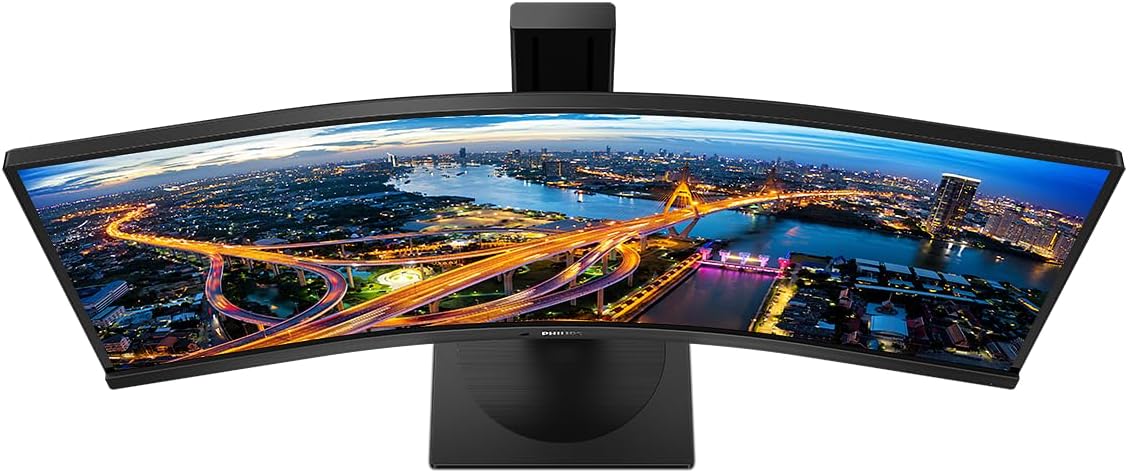
ภาพ: จากบนลงล่าง view of the Philips 346B1C curved monitor, emphasizing the curvature of the screen.
มีอะไรอยู่ในกล่อง
ตรวจสอบว่าส่วนประกอบทั้งหมดมีอยู่ก่อนดำเนินการติดตั้ง
- Philips 346B1C Curved Monitor
- ขาตั้งจอมอนิเตอร์ (ฐานและคอ)
- สายไฟ
- สาย HDMI
- สายเคเบิล DisplayPort
- สาย USB-C ถึง USB-C
- USB-A to USB-B Cable (Upstream)
- Documentation (Quick Start Guide, User Manual CD)
คำแนะนำการตั้งค่า
1. การประกอบขาตั้ง
- วางจอภาพคว่ำหน้าลงบนพื้นผิวที่นุ่มและสะอาดเพื่อป้องกันรอยขีดข่วน
- ติดส่วนคอของขาตั้งเข้ากับแผงจอภาพ ตรวจสอบให้แน่ใจว่าล็อคเข้าที่อย่างแน่นหนา หรือยึดด้วยสกรูหากมีให้
- ยึดฐานขาตั้งเข้ากับคอขาตั้ง ขันสกรูหัวแม่มือหรือสกรูตัวอื่น ๆ จากด้านล่างของฐานให้แน่น

ภาพ: ด้านหลัง view of the Philips 346B1C monitor, showing the stand attachment point and VESA mounting holes.
2. การเชื่อมต่อกับคอมพิวเตอร์ของคุณ
เชื่อมต่อจอภาพเข้ากับคอมพิวเตอร์ของคุณโดยใช้วิธีใดวิธีหนึ่งต่อไปนี้:
- การเชื่อมต่อ HDMI: ต่อปลายด้านหนึ่งของสาย HDMI เข้ากับพอร์ต HDMI ของจอภาพ และปลายอีกด้านหนึ่งเข้ากับช่องต่อ HDMI Output ของคอมพิวเตอร์
- การเชื่อมต่อดิสเพลย์พอร์ต: ต่อปลายด้านหนึ่งของสาย DisplayPort เข้ากับพอร์ต DisplayPort ของจอภาพ และปลายอีกด้านหนึ่งเข้ากับพอร์ต DisplayPort ของคอมพิวเตอร์
- การเชื่อมต่อ USB-C: Connect one end of the USB-C cable to the monitor's USB-C port and the other end to your computer's USB-C port. This connection supports video, data, and power delivery (up to 90W) to your laptop.
For USB hub functionality, connect the USB-A to USB-B upstream cable from your computer to the monitor's USB-B upstream port.
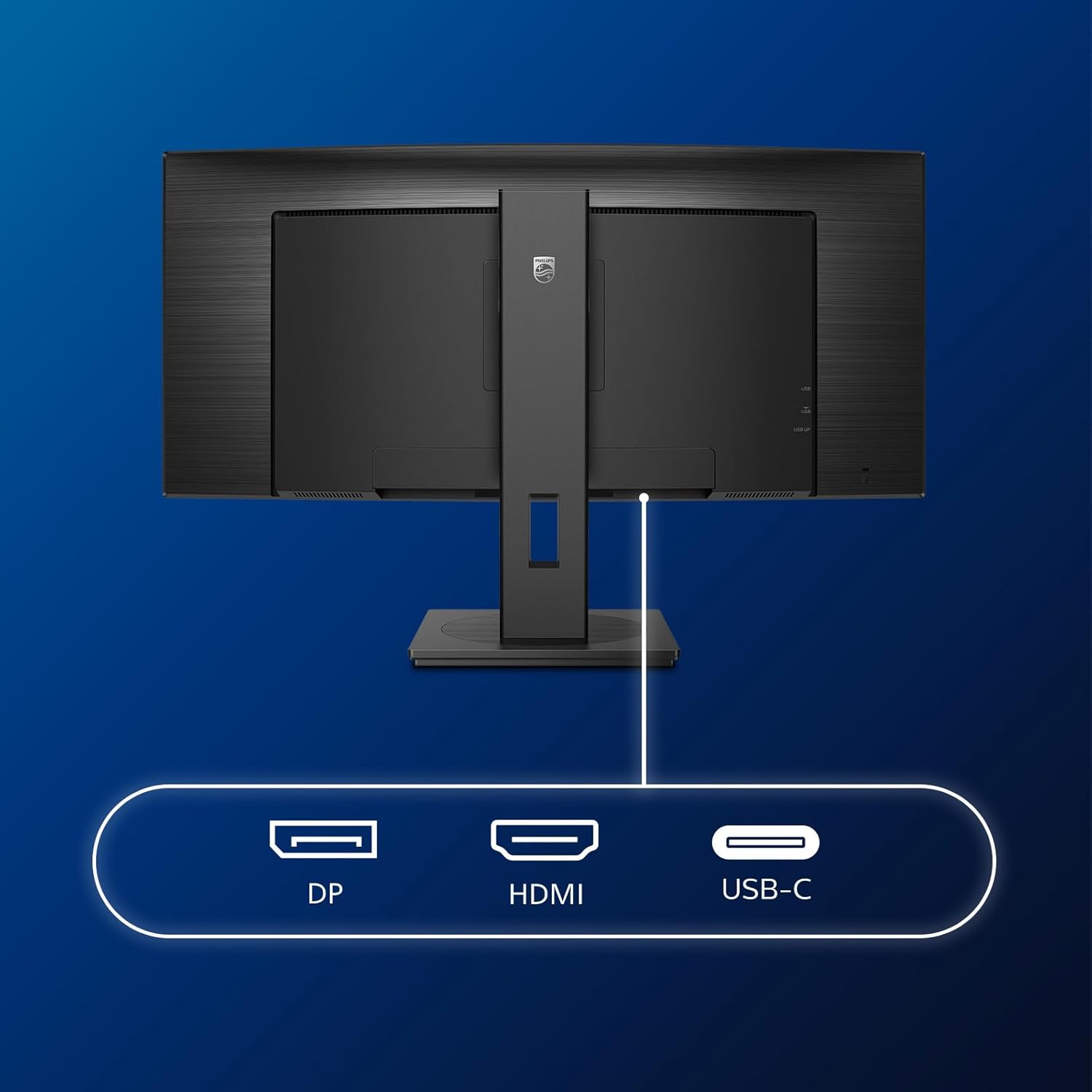
ภาพ: รายละเอียด view of the monitor's input ports, including DisplayPort (DP), HDMI, and USB-C, for connecting to various devices.
3. การเชื่อมต่อไฟฟ้า
เชื่อมต่อสายไฟเข้ากับแหล่งจ่ายไฟของจอภาพ จากนั้นจึงเชื่อมต่อกับเต้ารับไฟฟ้าที่มีสายดิน
4. เปิดเครื่องครั้งแรก
Press the power button located on the monitor to turn it on. The monitor should automatically detect the input signal. If not, use the On-Screen Display (OSD) menu to select the correct input source.
คำแนะนำการใช้งาน
เมนูที่แสดงบนหน้าจอ (OSD)
The OSD menu allows you to adjust various monitor settings. Use the joystick control located on the back or bottom of the monitor to navigate the menu.
- ความสว่าง/คอนทราสต์: ปรับความสว่างและความคมชัดโดยรวมของจอภาพ
- การตั้งค่าสี: Fine-tune color temperature, gamma, and color space.
- เลือกอินพุต: สลับการใช้งานระหว่างพอร์ต HDMI, DisplayPort และ USB-C ด้วยตนเอง
- เสียง: Adjust volume or mute the built-in speakers.
- โหมดภาพ: Select from preset picture modes (e.g., Standard, Gaming, Text).
มัลติView ฟังก์ชันการทำงาน
มัลติView feature allows you to connect and view content from two different sources simultaneously on the screen. Access this feature through the OSD menu to select Picture-by-Picture (PbP) or Picture-in-Picture (PiP) modes and configure input sources.
ช่องเสียบ USB-C
When connected via USB-C, the monitor acts as a docking station, providing video, data transfer through its integrated USB hub, and power delivery to charge your connected laptop (up to 90W).
SmartErgoBase and Adjustability
The monitor's SmartErgoBase allows for ergonomic adjustments including height, swivel, and tilt to optimize your viewความสะดวกสบาย

Image: Illustrations demonstrating the monitor's adjustable features, including height adjustment, tilt, and swivel capabilities for ergonomic positioning.
คุณสมบัติสบายตา
- โหมด LowBlue: Reduces harmful shortwave blue light emissions to prevent eye strain. Activate this mode via the OSD menu.
- FlickerFree Technology: Regulates brightness and reduces flicker for more comfortable viewing. This feature is always active.
- PowerSensor & LightSensor: These sensors automatically adjust monitor brightness based on ambient light conditions and user presence, saving energy and reducing eye strain.
การซ่อมบำรุง
การทำความสะอาดจอภาพ
- ถอดปลั๊กจอภาพทุกครั้งก่อนทำความสะอาด
- ใช้ผ้านุ่มไม่เป็นขุยค่อยๆ งampเคลือบด้วยน้ำหรือน้ำยาทำความสะอาดหน้าจอชนิดอ่อนที่ไม่กัดกร่อน
- Do not use alcohol, solvents, or ammonia-based cleaners, as these can damage the screen surface.
- เช็ดหน้าจอเบาๆ เพื่อขจัดฝุ่นและคราบต่างๆ
- ทำความสะอาดจอภาพคasinก. ด้วยผ้าแห้งนุ่มๆ
การดูแลทั่วไป
- หลีกเลี่ยงการวางวัตถุหนักบนจอภาพหรือสายเคเบิล
- อย่าวางจอภาพไว้ในที่ที่มีแสงแดดส่องโดยตรง ความร้อนสูง หรือความเย็นจัด
- ตรวจสอบให้แน่ใจว่ามีการระบายอากาศที่เหมาะสมรอบ ๆ จอภาพ
การแก้ไขปัญหา
หากคุณพบปัญหาเกี่ยวกับจอภาพของคุณ โปรดดูขั้นตอนการแก้ไขปัญหาทั่วไปต่อไปนี้:
| ปัญหา | สาเหตุที่เป็นไปได้ | สารละลาย |
|---|---|---|
| ไม่มีภาพบนหน้าจอ | สายไฟถูกตัดการเชื่อมต่อ; สายวิดีโอถูกตัดการเชื่อมต่อ; เลือกแหล่งสัญญาณอินพุตไม่ถูกต้อง | Ensure power cable is securely connected; Check video cable connections (HDMI, DP, USB-C); Select correct input source via OSD menu. |
| ภาพเบลอหรือบิดเบี้ยว | ความละเอียดหน้าจอไม่ถูกต้อง; ปัญหาจากไดรเวอร์การ์ดจอ | ตั้งค่าความละเอียดหน้าจอเป็น 3440 x 1440; อัปเดตไดรเวอร์การ์ดจอ |
| ไม่มีเสียงออกจากลำโพง | Volume muted or too low; Incorrect audio output selected on computer. | Adjust monitor volume via OSD; Check computer's audio output settings. |
| พอร์ต USB ไม่ทำงาน | ไม่ได้เชื่อมต่อสาย USB อัพสตรีม | Ensure the USB-A to USB-B upstream cable is connected from the monitor to your computer. |
หากต้องการความช่วยเหลือเพิ่มเติม โปรดดูที่ส่วนการสนับสนุนหรือติดต่อฝ่ายบริการลูกค้าของฟิลิปส์
ข้อมูลจำเพาะ
| คุณสมบัติ | รายละเอียด |
|---|---|
| ยี่ห้อ | ฟิลิปส์ |
| หมายเลขรุ่น | 346B1C |
| ขนาดหน้าจอ | 34 นิ้ว (86 ซม.) |
| ปณิธาน | 3440x1440 (WQHD) |
| อัตราส่วนภาพ | 21:9 น. |
| พื้นผิวหน้าจอ | Curved VA Panel |
| อัตราการรีเฟรช | 100 เฮิรตซ์ |
| เวลาตอบสนอง | 5 Milliseconds (GtG) |
| อัตราส่วนคอนทราสต์ | 3000:1 (ทั่วไป) |
| ความสว่าง | 300 ซีดี/ตรม. |
| Viewอิงแองเกิล | 178° (สูง) / 178° (ต่ำ) |
| การเชื่อมต่อ | 1x HDMI 2.0, 1x DisplayPort 1.2, 1x USB-C 3.2 Gen 1 (upstream, power up to 90W), 1x USB-B (upstream), 4x USB 3.2 (downstream), RJ45 (Ethernet) |
| การซิงค์แบบปรับตัว | ฟรีซิงค์ |
| ลำโพงในตัว | 2x 5วัตต์ |
| การใช้พลังงาน | 5 Watts (Eco mode) |
| น้ำหนัก | 7.8 Kilograms (with stand) |
การรับประกันและการสนับสนุน
ข้อมูลการรับประกัน
This Philips monitor comes with a การรับประกันจากผู้ผลิต 2 ปี. The specific terms and conditions of the warranty can be found in the detailed documentation provided with your product or on the official Philips support website. Your statutory rights as a consumer are not affected by this warranty.
การสนับสนุนลูกค้า
For technical assistance, product inquiries, or warranty claims, please visit the official Philips support website or contact their customer service department. You may need your monitor's model number (346B1C) and serial number (found on the back of the monitor) when contacting support.
ฝ่ายสนับสนุนของฟิลิปส์ Webเว็บไซต์: www.philips.com/support