
ร็อคแคท ROC-12-940-BN
Roccat Vulcan 122 Mechanical Gaming Keyboard User Manual
รุ่น: ROC-12-940-BN
1. บทนำ
The Roccat Vulcan 122 is a high-performance mechanical gaming keyboard designed for precision and durability. It features Roccat's unique Titan switches, advanced AIMO RGB lighting, and a robust aluminum construction. This manual provides detailed instructions for setting up, operating, maintaining, and troubleshooting your keyboard.

Image: The Roccat Vulcan 122 keyboard shown with a Roccat mouse and headset, demonstrating its vivid, dynamic lighting synergy with AIMO.
คุณสมบัติหลัก:
- Unique design with lowered keycaps and reduced reaction time.
- RGB lighting with configurable LED effects and adjustable AIMO effects.
- High-quality and resistant design with robust materials and an anodized aluminum surface.
- Advanced anti-ghosting with N-Key Rollover (NKRO).
- Programmable macro keys and ROCCAT Easy-Shift[+].
2. การตั้งค่า
2.1 การเชื่อมต่อคีย์บอร์ด
To connect your Roccat Vulcan 122 keyboard:
- Unpack the keyboard and its accessories.
- เสียบขั้วต่อ USB จากแป้นพิมพ์เข้ากับพอร์ต USB ที่ว่างอยู่บนคอมพิวเตอร์ของคุณ
- ระบบปฏิบัติการจะตรวจจับและติดตั้งไดรเวอร์ที่จำเป็นโดยอัตโนมัติ
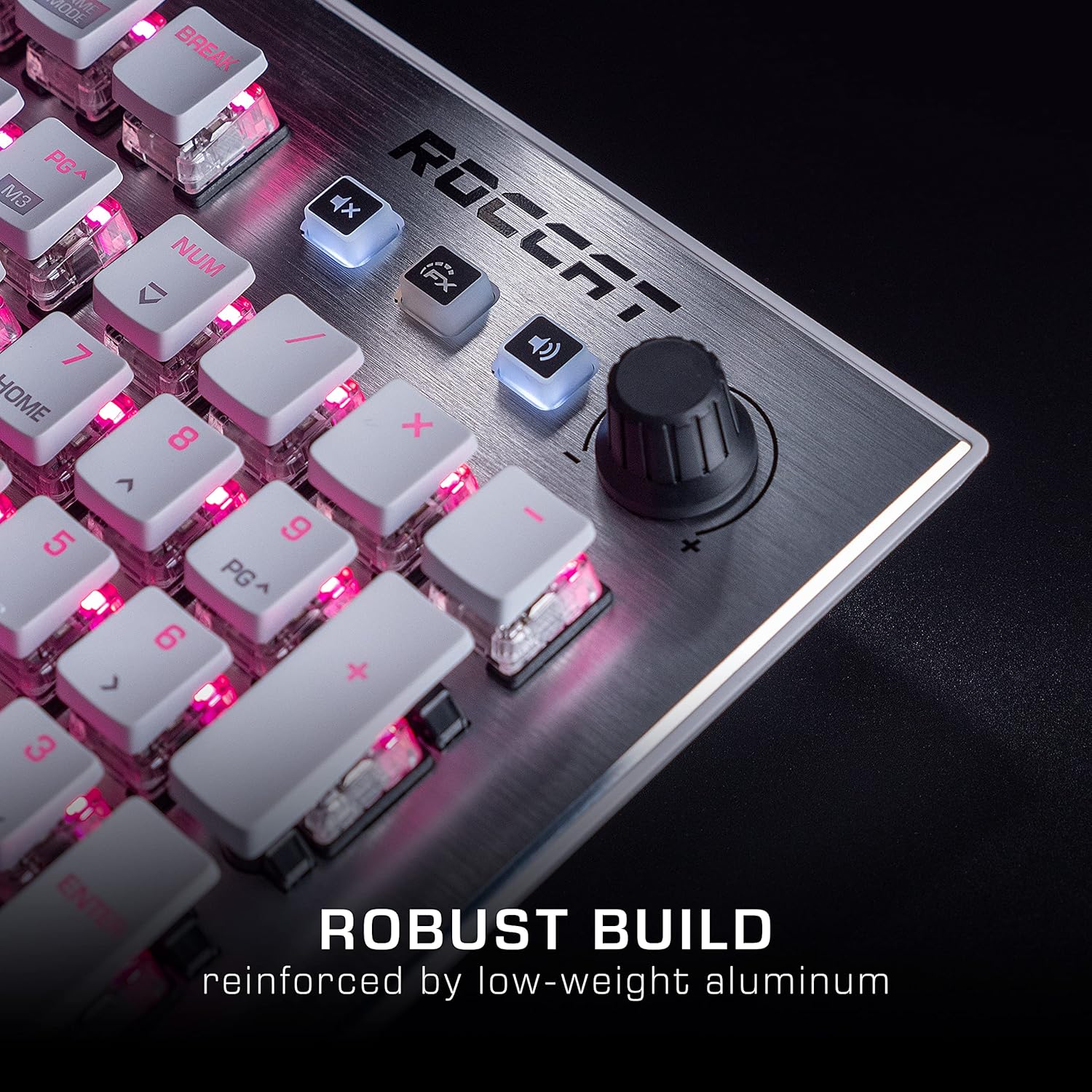
Image: The Roccat Vulcan 122 keyboard shown with its detachable wrist rest, ready for connection.
2.2 Software Installation (ROCCAT Swarm)
For full functionality and customization, install the ROCCAT Swarm software:
- เยี่ยมชมเว็บไซต์ทางการของ ROCCAT webงาน (www.roccat.com) และไปที่ส่วนการสนับสนุน
- Download the latest version of the ROCCAT Swarm software for your operating system.
- เรียกใช้ตัวติดตั้งและทำตามคำแนะนำบนหน้าจอ
- After installation, launch ROCCAT Swarm to configure your keyboard settings, lighting, and macros.
3. การใช้งานคีย์บอร์ด
3.1 ฟังก์ชันปุ่มมาตรฐาน
The Vulcan 122 functions as a standard QWERTY keyboard. All alphanumeric keys, function keys (F1-F12), navigation keys, and the numeric keypad operate as expected.
3.2 การควบคุมสื่อ
The keyboard features dedicated media controls for convenient audio management.
- ปุ่มปรับระดับเสียง: Located in the upper right corner, rotate to adjust system volume.
- ปุ่มปิดเสียง: กดเพื่อปิด/เปิดเสียง
- ปุ่มเอฟเฟ็กต์: Cycles through lighting effects or other programmable functions.

ภาพ: ภาพระยะใกล้ view of the mixer-style media controls on the Roccat Vulcan 122, including the volume knob and dedicated function keys.
3.3 RGB Lighting Customization (AIMO)
The Vulcan 122 features advanced RGB lighting with Roccat's AIMO intelligent lighting system. Use the ROCCAT Swarm software to:
- Select from various pre-set lighting effects.
- Customize individual key illumination.
- ปรับความสว่างและความเร็วของเอฟเฟ็กต์
- Synchronize lighting with other AIMO-compatible devices.
3.4 Programmable Macro Keys and Easy-Shift[+]
The keyboard includes programmable macro keys and the Easy-Shift[+] function, allowing you to assign secondary functions to keys.
- Use the ROCCAT Swarm software to record and assign macros to designated keys.
- Easy-Shift[+] allows you to double the number of assignable functions by holding down the Easy-Shift[+] key (usually Caps Lock by default, configurable in Swarm) and pressing another key.
3.5 Anti-Ghosting with NKRO
The Vulcan 122 features advanced anti-ghosting technology with N-Key Rollover (NKRO), ensuring that every key press is registered accurately, even when multiple keys are pressed simultaneously.

Image: A hand demonstrating typing on the Roccat Vulcan 122 keyboard, emphasizing the ergonomic design of the keys for comfortable use.
4. การบำรุงรักษา
4.1 การทำความสะอาดแป้นพิมพ์
To ensure the longevity and optimal performance of your Vulcan 122 keyboard, regular cleaning is recommended.
- ถอดแป้นพิมพ์ออกจากคอมพิวเตอร์ของคุณก่อนทำความสะอาด
- ใช้ผ้านุ่มไม่เป็นขุยเช็ดเล็กน้อยampened with water or a mild cleaning solution to wipe the keycaps and surface. Avoid harsh chemicals.
- For dust and debris between keys, use compressed air. The raised keycap design makes cleaning easier.
- ตรวจสอบให้แน่ใจว่าแป้นพิมพ์แห้งสนิทก่อนเชื่อมต่อใหม่

Image: A close-up of the Roccat Vulcan 122 keyboard keys, illustrating their design which facilitates easy cleaning and resistance to dust and liquids.
5 การแก้ไขปัญหา
If you encounter issues with your Roccat Vulcan 122 keyboard, refer to the following common problems and solutions:
- แป้นพิมพ์ไม่ตอบสนอง:
- ตรวจสอบให้แน่ใจว่าสาย USB เชื่อมต่อกับคีย์บอร์ดและคอมพิวเตอร์อย่างแน่นหนา
- ลองเสียบคีย์บอร์ดเข้ากับพอร์ต USB อื่น
- รีสตาร์ทเครื่องคอมพิวเตอร์ของคุณ
- Check if the keyboard is disabled in your operating system's device manager.
- แสง RGB ไม่ทำงานหรือไม่ถูกต้อง:
- Ensure the ROCCAT Swarm software is installed and up to date.
- ตรวจสอบการตั้งค่าแสงสว่างภายในซอฟต์แวร์ Swarm
- Perform a firmware update for the keyboard via Swarm.
- คีย์ไม่ลงทะเบียนหรือเกิดการโกสต์:
- Clean the affected keys as described in the Maintenance section.
- ตรวจสอบให้แน่ใจว่าเฟิร์มแวร์ของแป้นพิมพ์เป็นเวอร์ชันล่าสุด
- ทดสอบแป้นพิมพ์บนคอมพิวเตอร์เครื่องอื่นเพื่อตัดปัญหาเฉพาะระบบ
- ROCCAT Swarm software not detecting keyboard:
- ตรวจสอบให้แน่ใจว่าแป้นพิมพ์เชื่อมต่ออย่างถูกต้อง
- Restart the Swarm software and your computer.
- Reinstall the ROCCAT Swarm software.
- ตรวจสอบว่ามีซอฟต์แวร์หรือไดรเวอร์ใดที่อาจขัดแย้งกันหรือไม่
6. ข้อมูลจำเพาะ
| คุณสมบัติ | รายละเอียด |
|---|---|
| ยี่ห้อ | ROCCAT |
| ชื่อรุ่น | วัลแคน 122 |
| หมายเลขรุ่น | ROC-12-940-BN |
| คำอธิบายแป้นพิมพ์ | เครื่องจักรกล |
| ประเภทสวิตซ์ | สัมผัสได้ |
| วัสดุ | อลูมิเนียม |
| คุณสมบัติพิเศษ | การแบ็คไลท์ |
| อุปกรณ์ที่รองรับ | Laptop (PC) |
| การรองรับระบบปฏิบัติการ | วินโดว์ 10, วินโดว์ 7, วินโดว์ 8 |
| ขนาดสินค้า | 46.2 x 23.5 x 3.2 ซม. |
| น้ำหนักสินค้า | 1.15 กก. |

ภาพ: ระเบิด view diagram illustrating the components of a Roccat Titan Tactile mechanical switch, highlighting its design for swift and precise response.
7. การรับประกันและการสนับสนุน
7.1 ข้อมูลการรับประกัน
Your Roccat Vulcan 122 keyboard is covered by a manufacturer's warranty. The specific terms and duration of the warranty may vary by region and retailer. Please retain your proof of purchase for warranty claims. For detailed warranty information, refer to the warranty card included with your product or visit the official ROCCAT webเว็บไซต์.
7.2 การสนับสนุนด้านเทคนิค
For technical assistance, driver updates, or further inquiries, please visit the official ROCCAT support page:
คุณสามารถค้นหาคำถามที่พบบ่อย คำแนะนำในการแก้ไขปัญหา และข้อมูลติดต่อฝ่ายบริการลูกค้าได้ที่ webเว็บไซต์.
Ask a question about this manual
Ask about setup, troubleshooting, compatibility, parts, safety, or missing instructions. Manuals+ will review the question and use this page’s manual context to help answer it.