
1. บทนำ
This user manual provides comprehensive instructions for the FIDECO M.2 SSD Enclosure. Please read this manual carefully before using the product to ensure proper operation and to maximize its performance and lifespan. This enclosure is designed for external use with M.2 NVME PCIe M-Key SSDs, offering high-speed data transfer and broad compatibility.
2. สินค้าหมดview
2.1 คุณสมบัติหลัก
- Supports M.2 NVME SSDs (M-Key and B+M Key) and M.2 SATA SSDs (B+M Key). Note: Does not support AHCI protocol SSDs.
- USB 3.1 Gen 2 interface for data transfer speeds up to 10Gbps. Backward compatible with USB 3.1 and USB 3.0.
- 100% tool-free installation for quick and easy SSD insertion and removal.
- Plug and play functionality, no additional drivers required.
- ใช้งานได้กับระบบปฏิบัติการ Windows, Mac OS และ Linux
- Premium aluminum alloy shell for durability and excellent heat dissipation.
- Slim and portable design.
2.2 เนื้อหาบรรจุภัณฑ์
- FIDECO M.2 SSD Enclosure
- สาย USB-C ถึง USB-A
- อะแดปเตอร์ USB-A เป็น USB-C
- Soft fasteners for SSD installation
- คู่มือการใช้งาน (เอกสารนี้)

Figure 2.1: FIDECO M.2 SSD Enclosure and included accessories.

Figure 2.2: Compatibility details for M.2 SSDs, highlighting support for NVME PCIe M-Key and B+M Key, and M.2 SATA B+M Key. AHCI protocol SSDs are not supported.
3. การตั้งค่าและการติดตั้ง
The FIDECO M.2 SSD Enclosure features a tool-free design for easy installation.
- เปิดสิ่งที่แนบมา: Slide to open the rear cover of the enclosure.
- ใส่ SSD: Gently insert your M.2 NVME SSD into the slot inside the enclosure. Ensure it is fully seated.
- SSD ที่ปลอดภัย: Use the provided soft fastener to fix the SSD in place. This protects the SSD and ensures a secure connection.
- ปิดสิ่งที่แนบมา: Slide the rear cover back until it clicks into place.
- เชื่อมต่อกับอุปกรณ์: Use the USB-C to USB-A cable or the USB-A to USB-C adapter with the cable to connect the enclosure to your computer or compatible device.
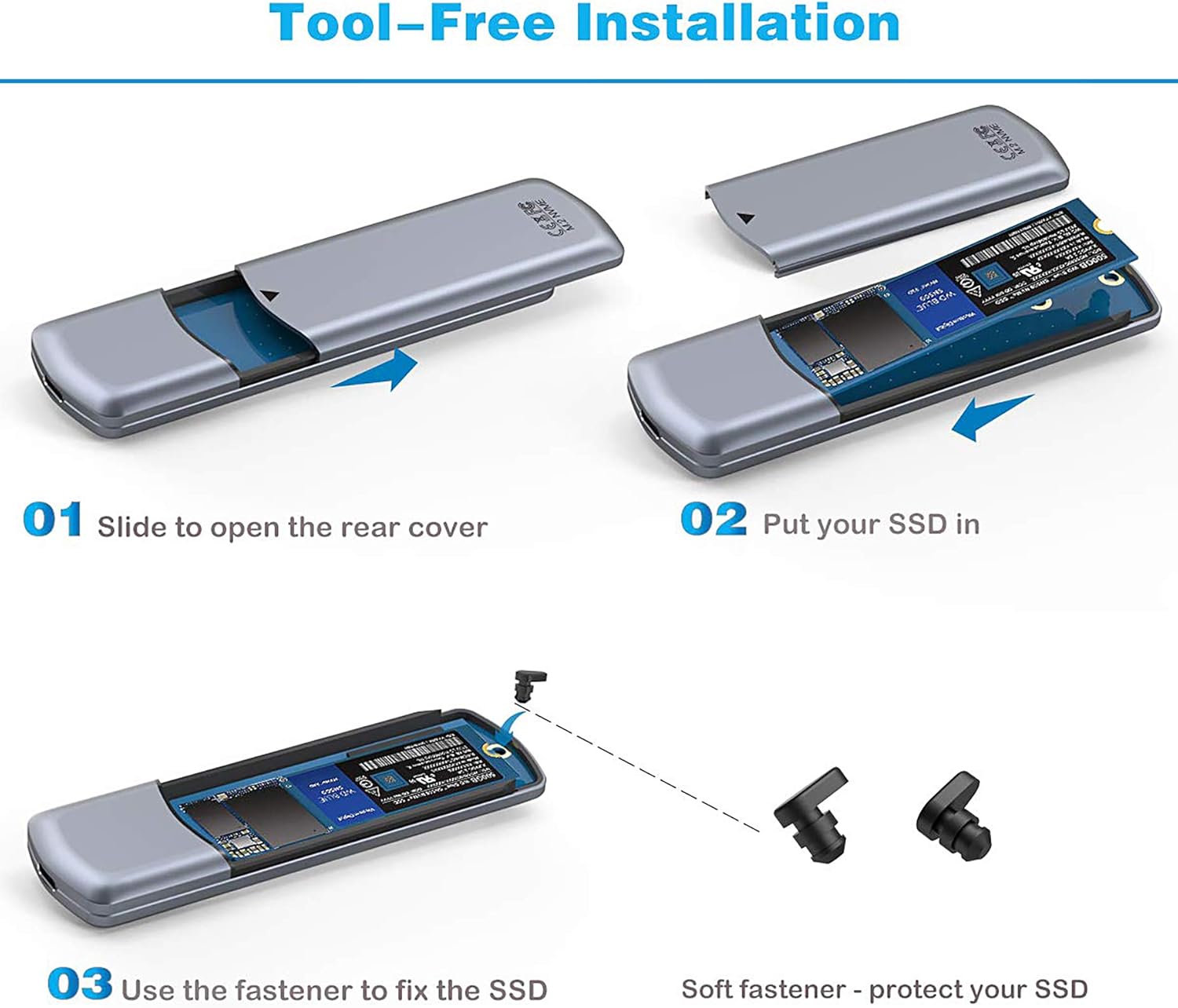
Figure 3.1: Visual guide for tool-free SSD installation: 1. Slide to open rear cover, 2. Put your SSD in, 3. Use the fastener to fix the SSD.
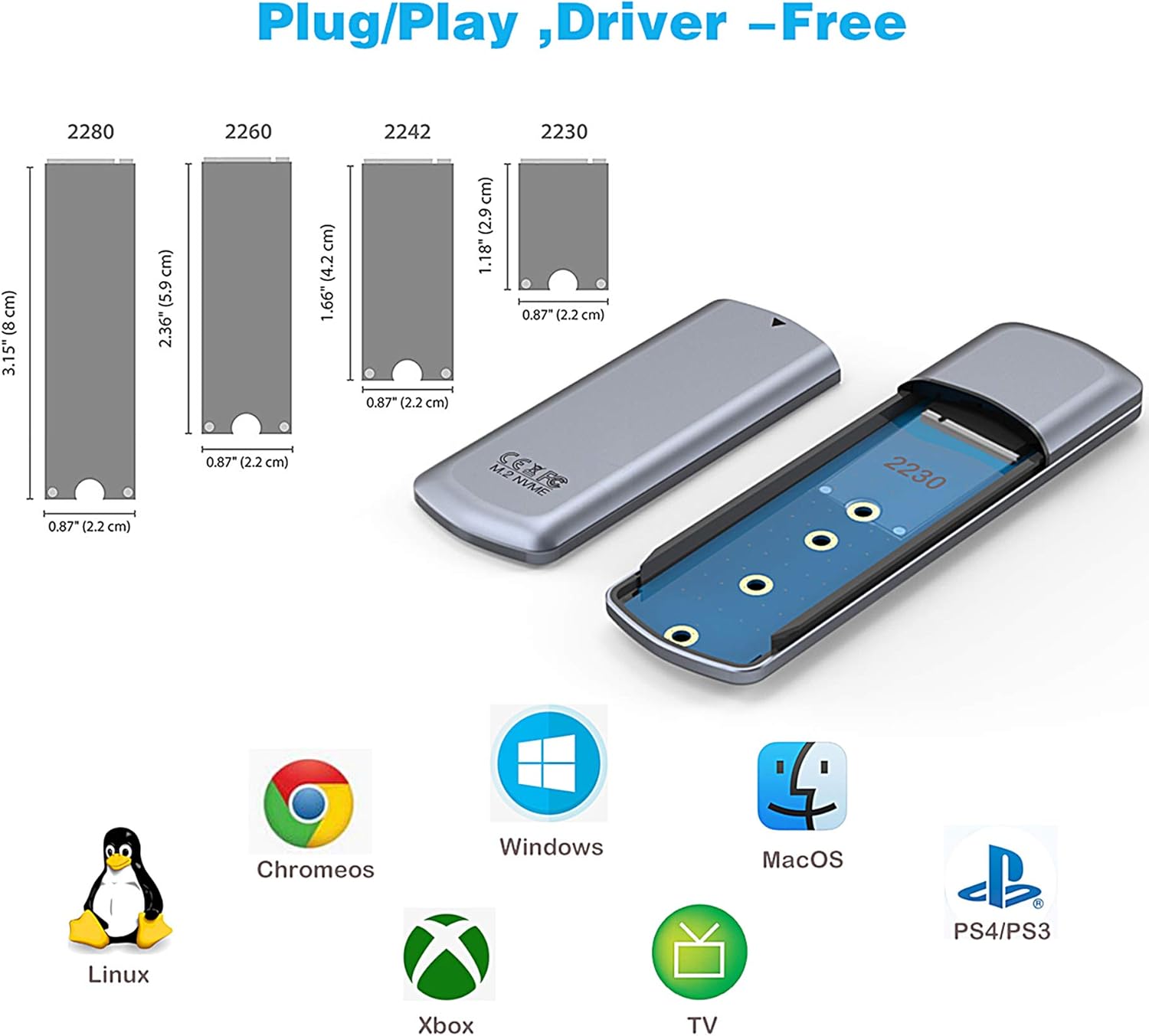
Figure 3.2: The enclosure supports M.2 SSDs of various lengths (2230, 2242, 2260, 2280) and is compatible with Linux, ChromeOS, Windows, MacOS, PS4/PS3, Xbox, and TV.
4. คู่มือการใช้งาน
4.1 การถ่ายโอนข้อมูล
Once connected, the SSD enclosure will appear as an external drive on your computer. You can drag and drop files, copy, paste, or use it for backup purposes. The USB 3.1 Gen 2 interface provides transmission speeds up to 10Gbps, significantly faster than older USB standards.
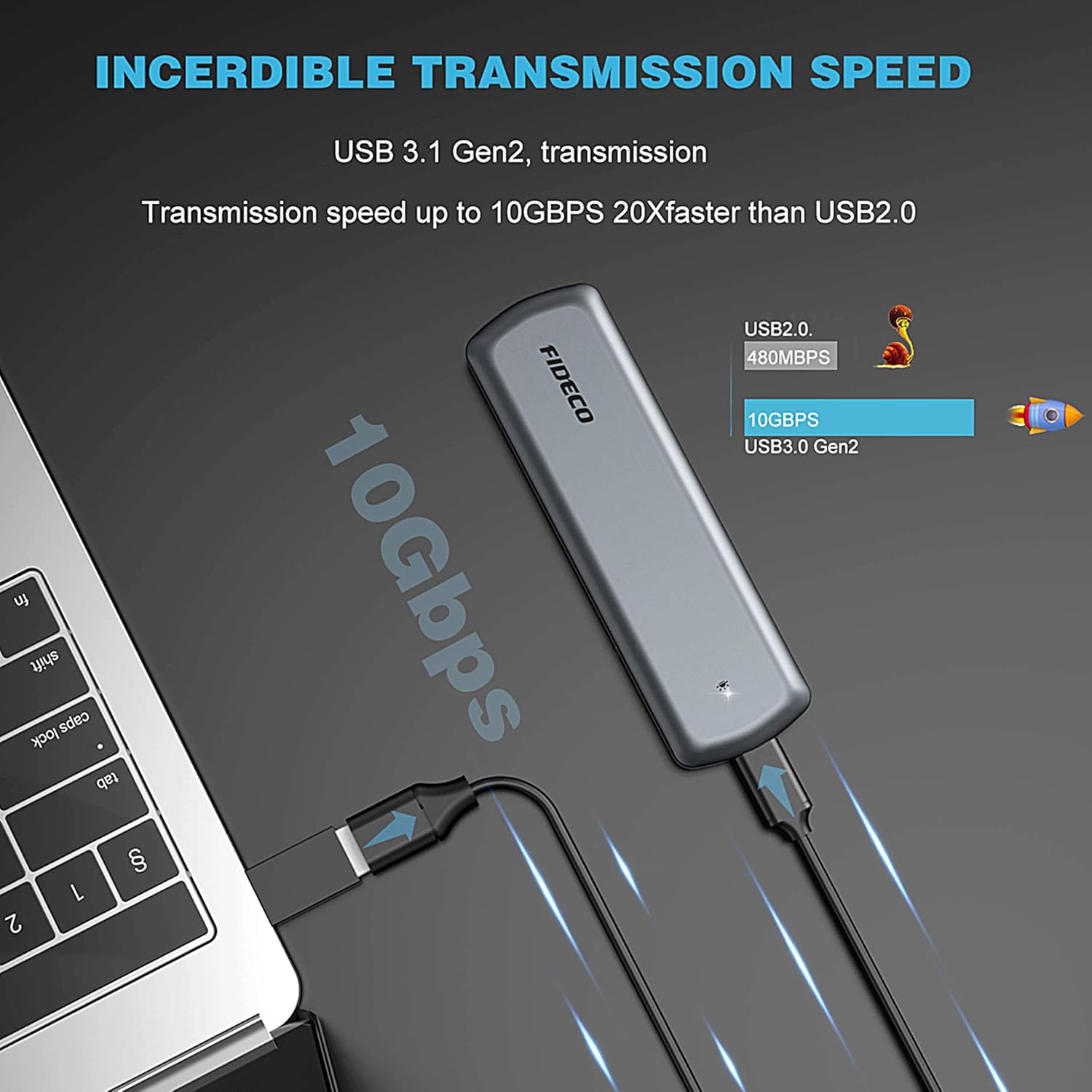
Figure 4.1: The enclosure supports USB 3.1 Gen 2, offering data transfer speeds up to 10Gbps, which is 20 times faster than USB 2.0.
4.2 Initializing a New Hard Drive
If you are using a brand new SSD, it may not be immediately recognized by your operating system until it is initialized and formatted. Follow the steps below or refer to the video for a visual guide.
Video 4.1: This video demonstrates the process of initializing a hard drive under both Windows and Mac OS, a necessary step for new SSDs to be recognized and used by your computer.
4.2.1 การเริ่มต้นระบบ Windows
- คลิกขวาที่ "พีซีเครื่องนี้" (หรือ "คอมพิวเตอร์ของฉัน") แล้วเลือก "จัดการ"
- ในหน้าต่างการจัดการคอมพิวเตอร์ ให้ไปที่ "การจัดการดิสก์" ภายใต้ "พื้นที่จัดเก็บข้อมูล"
- Locate your new SSD (it will likely show as "Unknown" or "Not Initialized").
- Right-click on the disk and select "Initialize Disk".
- Choose the appropriate partition style (GPT is recommended for modern systems, MBR for older systems or smaller drives). Click "OK".
- Right-click on the "Unallocated" space on the new disk and select "New Simple Volume".
- ทำตามขั้นตอนตัวช่วยสร้างไดรฟ์แบบใหม่ที่ใช้งานง่าย โดยกำหนดตัวอักษรไดรฟ์และเลือก... file system (NTFS for Windows, exFAT for cross-platform compatibility).
- Complete the wizard to format the drive.
4.2.2 Mac OS Initialization
- Open "Disk Utility" (found in Applications > Utilities, or via Spotlight search).
- In Disk Utility, select your new SSD from the sidebar (it may appear as "Uninitialized").
- คลิกปุ่ม "ลบ" ในแถบเครื่องมือ
- Provide a name for the drive, choose a format (e.g., APFS for macOS 10.13+, Mac OS Extended (Journaled) for older macOS, or exFAT for cross-platform compatibility), and a scheme (GUID Partition Map is recommended).
- Click "Erase" to format the drive.
4.3 การใช้งานอเนกประสงค์
The FIDECO M.2 SSD Enclosure is highly versatile, allowing you to back up pictures, watch movies, or access data from various devices.

Figure 4.2: Super convenience: Use with smartphones for on-the-go data access.
Figure 4.3: Seamlessly connect to laptops for expanded storage.
Figure 4.4: Ideal for desktop use, providing fast external storage.
5. การบำรุงรักษาและการดูแล
- การกระจายความร้อน: The aluminum alloy shell is designed for excellent heat dissipation. While normal operation may cause the enclosure to warm up, prolonged heavy use might lead to higher temperatures. Avoid leaving it plugged in for extended periods if not actively in use, especially during intensive data transfers.
- การกำจัดอย่างปลอดภัย: Always safely eject the drive from your operating system before disconnecting the enclosure to prevent data corruption.
- การทำความสะอาด: ใช้ผ้านุ่มและแห้งเช็ดทำความสะอาดภายนอกตัวเครื่อง หลีกเลี่ยงการใช้น้ำยาทำความสะอาดหรือวัสดุที่มีฤทธิ์กัดกร่อน
- พื้นที่จัดเก็บ: จัดเก็บสิ่งที่แนบมาในที่แห้งและเย็น หลีกเลี่ยงแสงแดดโดยตรงและอุณหภูมิที่สูงหรือต่ำเกินไป
- ความสามารถในการพกพา: Its slim and portable design makes it easy to carry.

Figure 5.1: The enclosure features an advanced built-in JMS583 chip for steady performance and includes features for better heat dissipation and short circuit protection.

Figure 5.2: The enclosure's compact dimensions (4.8" x 1.4" x 0.47") make it highly portable.
6 การแก้ไขปัญหา
| ปัญหา | สาเหตุที่เป็นไปได้ | สารละลาย |
|---|---|---|
| SSD not recognized by computer. | New SSD not initialized or formatted. Incorrect M.2 SSD type (e.g., AHCI not supported). Loose connection. |
|
| ตัวเครื่องจะร้อนขึ้นขณะใช้งาน | การทำงานปกติ โดยเฉพาะระหว่างการถ่ายโอนข้อมูลจำนวนมาก | This is normal due to heat dissipation from the SSD. For prolonged heavy use, consider disconnecting when not in active use to allow cooling. The aluminum casing is designed to dissipate heat effectively. |
| Difficulty opening the enclosure. | Tight fit for secure closure. | Apply firm, even pressure when sliding the rear cover. Some users find adding a small piece of tape for grip can help. |
| ข้อมูลเสียหายหรือสูญหาย | Improper disconnection. Connecting to an incompatible USB port (e.g., USB 2.0 with certain SSDs). |
|
7. ข้อมูลจำเพาะ
| คุณสมบัติ | รายละเอียด |
|---|---|
| ยี่ห้อ | ฟิเดโก้ |
| หมายเลขรุ่น | FD-M204CP-JP2 |
| ประเภท SSD ที่ใช้งานร่วมกันได้ | M.2 NVME PCIe (M-Key, B+M Key), M.2 SATA (B+M Key) |
| อินเทอร์เฟซ | พอร์ต USB 3.1 เจนเนอเรชั่น 2 (USB-C) |
| อัตราการถ่ายโอนข้อมูล | สูงสุดถึง 10 Gbps |
| ความจุสูงสุดที่รองรับ | 2TB |
| วัสดุ | อลูมิเนียม |
| สี | สีเทา |
| ขนาด (กxยxส) | 4.8 x 1.41 x 0.47 นิ้ว |
| น้ำหนักสินค้า | 3.98 ออนซ์ |
| ระบบปฏิบัติการที่รองรับ | Windows, Mac OS, ลินุกซ์ |
8. การรับประกันและการสนับสนุน
FIDECO products are designed for reliability and performance. For warranty information, technical support, or customer service inquiries, please refer to the contact details provided on the product packaging or visit the official FIDECO webไซต์ โปรดเก็บหลักฐานการซื้อไว้เพื่อใช้ในการเรียกร้องการรับประกัน