
1. บทนำ
ขอบคุณสำหรับการซื้อasing the DURGOD HK Venus RGB Mechanical Gaming Keyboard. This 60% layout keyboard features durable doubleshot PBT keycaps, Cherry MX Blue switches, and a robust aluminum chassis. It offers customizable RGB backlighting and advanced functionality through the DURGOD Hera Engine software. This manual provides detailed instructions for setup, operation, maintenance, and troubleshooting to ensure optimal performance and longevity of your keyboard.
2. เนื้อหาบรรจุภัณฑ์
โปรดตรวจสอบว่าสินค้าทั้งหมดมีอยู่ในแพ็คเกจของคุณ:
- DURGOD HK Venus RGB Mechanical Gaming Keyboard
- USB Type-C to Type-A Cable (5.9 ft / 1.8 m)
- USB Type-C to Type-C Cable (3.3 ft / 1 m)
- ตัวดึงกุญแจ
- คู่มือการใช้งาน (เอกสารนี้)
3. การตั้งค่า
3.1 การเชื่อมต่อคีย์บอร์ด
- Select the appropriate USB cable (Type-C to Type-A for standard USB ports, or Type-C to Type-C for compatible devices).
- Connect the USB Type-C end of the cable to the port on the back of the DURGOD HK Venus keyboard.
- เชื่อมต่อปลายอีกด้านของสายเคเบิลเข้ากับพอร์ต USB ที่มีอยู่ในคอมพิวเตอร์ของคุณ
- ระบบปฏิบัติการของคุณจะตรวจจับแป้นพิมพ์โดยอัตโนมัติ

รูปที่ 3.1: USB Type-C Interface for Keyboard Connection. This image shows a close-up of the USB Type-C port located on the side of the DURGOD HK Venus keyboard, highlighting its modern and reversible connector for reliable connectivity.
3.2 Software Installation (DURGOD Hera Engine)
To unlock the full potential of your DURGOD HK Venus keyboard, including macro programming, key remapping, and advanced RGB lighting customization, download and install the DURGOD Hera Engine software.
- Visit the official DURGOD website to download the latest version of the Hera Engine software.
- ปฏิบัติตามคำแนะนำบนหน้าจอเพื่อทำการติดตั้งให้เสร็จสมบูรณ์
- เมื่อติดตั้งเสร็จแล้ว ให้เปิดโปรแกรมเพื่อตั้งค่าแป้นพิมพ์ของคุณ

รูปที่ 3.2: Customization with DURGOD Hera Engine. This image illustrates the extensive customization options available through the DURGOD Hera Engine software, including personalized macros and dynamic RGB lighting effects.
4. คู่มือการใช้งาน
4.1 ฟังก์ชันพื้นฐานของแป้นพิมพ์
The DURGOD HK Venus is a 60% layout keyboard, meaning some functions are accessed via a combination of keys. The primary function layer is standard QWERTY.
4.2 การควบคุมไฟแบ็คไลท์ RGB
The keyboard features 16.8 million color RGB backlighting with multiple effects. Basic lighting adjustments can be made directly on the keyboard:
- เปลี่ยนโหมดแสงสว่าง: ใช้ Fn + [Key Combination] (refer to keyboard legends or software for specific combinations).
- ปรับความสว่าง: ใช้ Fn + ลูกศรขึ้น/ลง (if available, otherwise via software).
- ปรับความเร็ว/ทิศทาง: ใช้ Fn + ลูกศรซ้าย/ขวา (if available, otherwise via software).
For advanced customization, including specific color settings, effects, and per-key lighting, use the DURGOD Hera Engine software.

รูปที่ 4.1: DURGOD HK Venus RGB Backlighting. This image displays the DURGOD HK Venus keyboard illuminated with its customizable RGB backlighting, showcasing the vibrant color combinations across the keys.
4.3 Tap Mode for Arrow Keys
The DURGOD HK Venus features a "Tap Mode" which allows you to access arrow key functionality without a dedicated arrow cluster. This is typically achieved by tapping specific modifier keys:
- ลูกศรขึ้น: แตะ กะ
- ลูกศรซ้าย: แตะ Fn1
- ลูกศรลง: แตะ Fn2
- ลูกศรขวา: แตะ Ctrl
Note: The exact key combinations for Tap Mode may be configurable via the Hera Engine software.
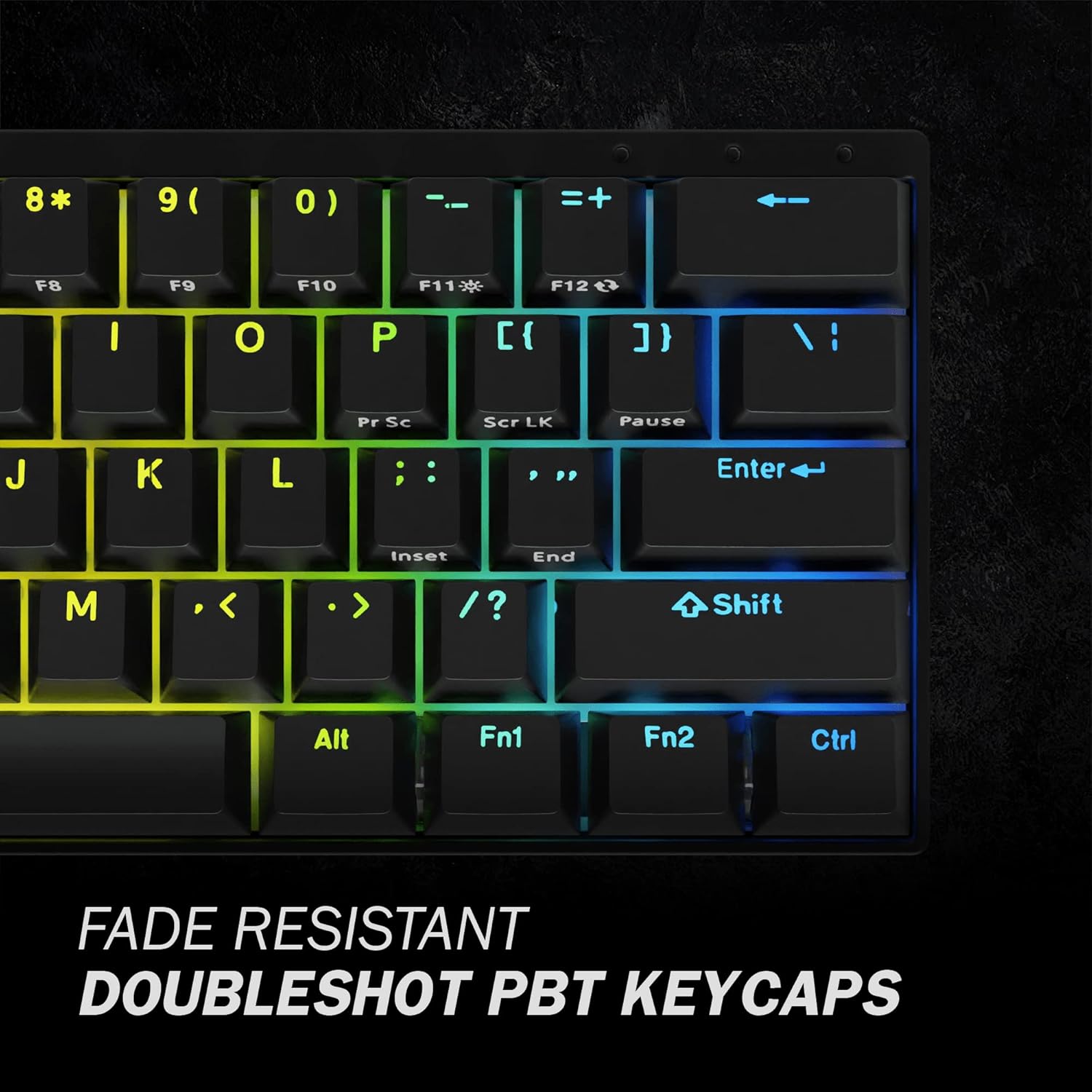
รูปที่ 4.2: Tap Mode Key Legends. This image provides a close-up view of the keycaps, specifically highlighting the secondary legends on the Shift, Fn1, Fn2, and Ctrl keys, which indicate their function as arrow keys in Tap Mode.
4.4 การหมุนปุ่ม N-Key (NKRO)
The DURGOD HK Venus supports N-Key Rollover (NKRO), which means every key press is registered independently, regardless of how many keys are pressed simultaneously. This prevents "ghosting" or "key jamming" and is crucial for fast-paced typing and gaming.
5. การบำรุงรักษา
5.1 การทำความสะอาดแป้นพิมพ์
การทำความสะอาดเป็นประจำจะช่วยรักษารูปลักษณ์และการทำงานของแป้นพิมพ์
- ถอดแป้นพิมพ์ออกจากคอมพิวเตอร์ของคุณก่อนทำความสะอาด
- ใช้กระป๋องอัดอากาศเพื่อกำจัดฝุ่นและเศษต่างๆ ออกจากระหว่างปุ่มต่างๆ
- Wipe the keycaps and chassis with a soft, slightly dampผ้าที่ไม่เป็นขุย หลีกเลี่ยงความชื้นมากเกินไป
- ห้ามใช้สารเคมีรุนแรง น้ำยาทำความสะอาดที่มีฤทธิ์กัดกร่อน หรือตัวทำละลาย
5.2 การถอดและเปลี่ยนปุ่มกด
The included keycap puller can be used to safely remove keycaps for cleaning or replacement.
- ค่อยๆ วางเครื่องมือถอดคีย์แคปครอบลงบนคีย์แคปที่คุณต้องการถอดออก
- Ensure the puller's wires hook under opposite sides of the keycap.
- ดึงขึ้นตรงๆ ด้วยแรงกดที่สม่ำเสมอจนกระทั่งปุ่มกดหลุดออกจากแกนสวิตช์
- ในการติดตั้ง ให้จัดตำแหน่งปุ่มกดให้ตรงกับแกนสวิตช์ แล้วกดลงไปให้แน่นจนกว่าจะมีเสียงคลิกเข้าที่
Caution: Be gentle when removing keycaps to avoid damaging the switch stems.

รูปที่ 5.1: Cherry MX Blue Switches. This image provides a detailed view of the Cherry MX Blue mechanical switches beneath the keycaps, illustrating the mechanism that provides tactile and audible feedback.
6 การแก้ไขปัญหา
If you encounter issues with your DURGOD HK Venus keyboard, refer to the following common solutions:
6.1 แป้นพิมพ์ไม่ตอบสนอง
- ตรวจสอบการเชื่อมต่อสายเคเบิล: ตรวจสอบให้แน่ใจว่าสาย USB เชื่อมต่อกับทั้งคีย์บอร์ดและคอมพิวเตอร์อย่างแน่นหนา ลองใช้พอร์ต USB อื่น
- ลองใช้สายเคเบิลอื่น: Use the alternative USB cable provided (Type-C to Type-C or Type-C to Type-A) to rule out a faulty cable.
- รีสตาร์ทคอมพิวเตอร์: การรีสตาร์ทระบบมักจะสามารถแก้ไขปัญหาการเชื่อมต่อได้
- ทดสอบบนคอมพิวเตอร์เครื่องอื่น: If possible, test the keyboard on another computer to determine if the issue is with the keyboard or the original computer's setup.
6.2 ปุ่มไม่ทำงานหรือกดซ้ำ
- ทำความสะอาดใต้ปุ่มคีย์แคป: Remove the affected keycap(s) using the keycap puller and clean any debris around the switch stem using compressed air.
- การรบกวนจากซอฟต์แวร์: Ensure no other keyboard software or macro programs are conflicting with the DURGOD Hera Engine.
- อัพเดตเฟิร์มแวร์: Check the DURGOD website for any available firmware updates for your keyboard model, as these often address performance issues.
6.3 ไฟ RGB ทำงานไม่ถูกต้อง
- ตรวจสอบการตั้งค่าซอฟต์แวร์: Open the DURGOD Hera Engine software and verify that lighting effects are enabled and configured as desired.
- รีเซ็ตแสงไฟ: Some keyboards have a factory reset option for lighting (refer to software or manufacturer's webเว็บไซต์).
- ติดตั้งซอฟต์แวร์ใหม่: If issues persist, try uninstalling and reinstalling the Hera Engine software.
7. ข้อมูลจำเพาะ
| แบบอย่าง | Venus 60% US |
| เค้าโครง | 60% (61 คีย์) |
| ประเภทสวิตซ์ | Cherry MX Blue Mechanical Switches |
| ปุ่มกด | Doubleshot PBT, Translucent |
| การแบ็คไลท์ | RGB (16.8 ล้านสี) |
| การเชื่อมต่อ | การเชื่อมต่อ USB Type-C แบบมีสาย |
| การพลิกแป้น N | Supported (NKRO) |
| วัสดุตัวถัง | อลูมิเนียม |
| ขนาด (กว้าง x ยาว x สูง) | 11.45 x 4.13 x 1.15 นิ้ว (29.08 x 10.49 x 2.92 ซม.) |
| น้ำหนัก | 1.98 ปอนด์ (0.9 กก.) |
| ความเข้ากันได้ | Windows 11/10/8/7/Vista/XP, Mac OS |
8. ข้อมูลการรับประกัน
DURGOD products are manufactured to the highest quality standards. For detailed warranty information, including terms, conditions, and duration, please refer to the official DURGOD webหรือบัตรรับประกันที่ให้มาพร้อมกับผลิตภัณฑ์ของคุณ โปรดเก็บหลักฐานการซื้อไว้เพื่อใช้ในการเรียกร้องการรับประกัน
9. การสนับสนุนลูกค้า
If you require further assistance or have questions not covered in this manual, please contact DURGOD customer support:
- เป็นทางการ Webเว็บไซต์: www.durgod.com (ตรวจสอบส่วนการสนับสนุนหรือหน้าติดต่อ)
- อีเมล: อ้างถึงเจ้าหน้าที่ webเว็บไซต์นี้รวบรวมที่อยู่อีเมลสำหรับติดต่อฝ่ายสนับสนุนโดยเฉพาะ
When contacting support, please have your product model (Venus 60% US) and purchase information ready.