
1. สินค้าหมดview
The NETVIP 300Mbps WiFi Repeater is designed to extend the coverage of your existing wireless network. It eliminates Wi-Fi dead zones, providing a stronger and more reliable internet connection throughout your home or office. This device supports both Repeater Mode and Access Point (AP) Mode, offering flexible solutions for network expansion.
2. คุณสมบัติหลัก
- ประสิทธิภาพความเร็วสูง: Delivers wireless speeds up to 300Mbps, ideal for streaming, gaming, and web เรียกดู
- โหมดการทำงานแบบคู่: Functions as a WiFi Repeater to extend existing networks or as an Access Point to create a new wireless network from a wired connection.
- ความคุ้มครองที่เพิ่มขึ้น: Equipped with integrated 3dBi antennas to improve signal strength and coverage, reducing dead zones.
- การเชื่อมต่อแบบมีสาย: Includes one Ethernet port for connecting wired devices such as desktop computers, gaming consoles, or smart TVs.
- ติดตั้งง่าย: Simple setup process via web เบราว์เซอร์หรือปุ่ม WPS

The NETVIP WiFi Repeater is designed to expand your existing Wi-Fi coverage, eliminating dead zones and providing a stronger signal throughout your home or office.

The device supports 2.4G wireless signals and enhances wall penetration by up to 40%, improving coverage and data transfer rates up to 300 Mbps.
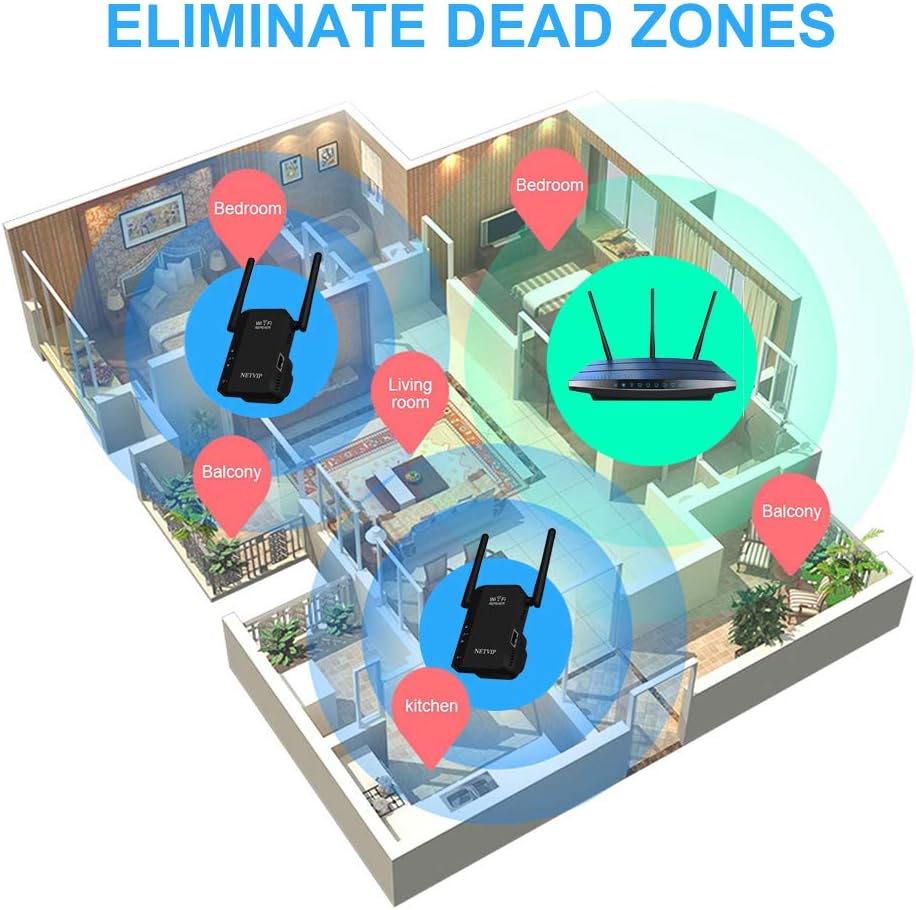
Strategically placing the NETVIP WiFi Repeater can effectively eliminate Wi-Fi dead zones, ensuring consistent internet access in areas like bedrooms, living rooms, and kitchens.

Key components of the repeater include LED indicators for status, a reset button for factory defaults, and a LAN port for wired connections.
3. เนื้อหาบรรจุภัณฑ์
โปรดตรวจสอบสิ่งของภายในบรรจุภัณฑ์อย่างละเอียด หากสินค้าใดสูญหายหรือเสียหาย โปรดติดต่อผู้ค้าปลีกของคุณ
- NETVIP 300Mbps WiFi Repeater
- คู่มือการใช้งาน
- สายเคเบิล RJ45 Ethernet
4. การตั้งค่าเริ่มต้น
Follow these steps for the initial setup of your NETVIP WiFi Repeater.
4.1 การเปิดเครื่อง
- Plug the repeater into a power outlet near your main router.
- Wait for the power LED indicator to light up, indicating the device is powered on.
4.2 Connecting to the Repeater
You can connect to the repeater wirelessly or via an Ethernet cable.
- การเชื่อมต่อแบบไร้สาย: On your computer or mobile device, search for available Wi-Fi networks. Connect to the network named 'NETVIP_XXXX' (XXXX will be the last four digits of the repeater's MAC address). No password is required for the initial connection.
- การเชื่อมต่อแบบมีสาย: Connect one end of the provided Ethernet cable to the LAN port of the repeater and the other end to your computer's Ethernet port.
4.3 Web-การกำหนดค่าตามฐาน
- เปิด web browser (e.g., Chrome, Firefox, Edge) on your connected device.
- ป้อนที่อยู่ IP เริ่มต้น 192.168.10.1 หรือว่า web ที่อยู่ wifi.repeater ในแถบที่อยู่แล้วกด Enter
- A login page will appear. The default username and password are แอดมิน (ตัวพิมพ์เล็กทั้งหมด)
- Once logged in, you will be guided through the setup wizard to select your desired operating mode (Repeater or AP) and configure network settings.
4.4 WPS Setup (If Supported by your Router)
If your main router has a WPS button, you can use it for a quick setup in Repeater Mode.
- Plug the repeater into a power outlet near your main router.
- กดปุ่ม WPS บนเราเตอร์หลักของคุณ
- Within two minutes, press the WPS button on the NETVIP WiFi Repeater.
- The repeater's signal LED should change to a solid color, indicating a successful connection. You can then unplug the repeater and move it to a desired location within your router's Wi-Fi range.
5. โหมดการทำงาน
The NETVIP WiFi Repeater supports two main operating modes:

This diagram shows the two primary operating modes: Access Point (AP) Mode, where the repeater connects to a wired router to create a wireless network, and Repeater Mode, where it extends an existing wireless network from a wireless router.
5.1 โหมดทวนสัญญาณ
In Repeater Mode, the device extends the coverage of an existing wireless network. It receives the Wi-Fi signal from your main router and re-broadcasts it, effectively expanding the range.
- ในระหว่าง web-based configuration, select 'Repeater Mode'.
- The repeater will scan for available Wi-Fi networks. Select your main router's Wi-Fi network from the list.
- ป้อนรหัสผ่านสำหรับเครือข่าย Wi-Fi ของเราเตอร์หลักของคุณ
- You can choose to keep the same SSID (network name) as your main router or create a new one for the extended network.
- Confirm settings and wait for the repeater to restart.
- Once restarted, the repeater will broadcast the extended Wi-Fi signal.
5.2 โหมดจุดเชื่อมต่อ (AP)
In AP Mode, the device transforms a wired internet connection into a wireless network. This is useful if you have a wired-only router or want to create a new Wi-Fi hotspot.
- Connect an Ethernet cable from your wired router or modem to the LAN port of the NETVIP Repeater.
- ในระหว่าง web-based configuration, select 'AP Mode'.
- Configure a new SSID (network name) and password for the new wireless network.
- Confirm settings and wait for the repeater to restart.
- Once restarted, the repeater will broadcast the new Wi-Fi network.
6. การบำรุงรักษา
To ensure optimal performance and longevity of your NETVIP WiFi Repeater, consider the following maintenance tips:
- การจัดวาง: Place the repeater in an open area, away from obstructions like large metal objects, concrete walls, and other electronic devices that may cause interference.
- การทำความสะอาด: เช็ดอุปกรณ์เบาๆ ด้วยผ้านุ่มและแห้ง ห้ามใช้น้ำยาทำความสะอาดหรือสเปรย์
- อัพเดตเฟิร์มแวร์: ตรวจสอบเว็บไซต์ทางการของ NETVIP เป็นระยะ webตรวจสอบเว็บไซต์เพื่อดูการอัปเดตเฟิร์มแวร์ที่มีให้ใช้งาน การอัปเดตเฟิร์มแวร์สามารถปรับปรุงประสิทธิภาพ เพิ่มคุณสมบัติใหม่ และแก้ไขข้อบกพร่องได้
- รีเซ็ต: If the device is not functioning correctly, you can perform a factory reset by pressing and holding the reset button for 5-10 seconds until the LEDs flash. This will revert all settings to their factory defaults.
7 การแก้ไขปัญหา
If you encounter issues with your NETVIP WiFi Repeater, refer to the following common problems and solutions:
| ปัญหา | สาเหตุที่เป็นไปได้ | สารละลาย |
|---|---|---|
| ไม่สามารถเข้าถึง web management page (192.168.10.1) | Incorrect IP address, device not connected, IP conflict. | Ensure your device is connected to the repeater's Wi-Fi or via Ethernet. Verify the IP address is typed correctly. Try resetting the repeater to factory defaults. |
| No internet access after setup | Incorrect Wi-Fi password for the main router, repeater out of range, main router issue. | Re-enter the main router's Wi-Fi password during setup. Move the repeater closer to the main router. Check if your main router has internet access. |
| Slow internet speed or unstable connection | Interference, poor placement, too many connected devices. | Relocate the repeater to a position with a strong signal from the main router (typically halfway between the router and the dead zone). Avoid placing near microwaves, cordless phones, or large metal objects. Reduce the number of active devices. |
| Repeater LEDs are off or blinking abnormally | No power, device malfunction. | Ensure the repeater is securely plugged into a working power outlet. Try a different outlet. If the issue persists, perform a factory reset. |
8. ข้อมูลจำเพาะ
- ยี่ห้อ: เน็ตวีพี
- หมายเลขรุ่น: zq-531eu-bk
- อัตราการถ่ายโอนข้อมูล: สูงสุดถึง 300 Mbps
- มาตรฐานไร้สาย: IEEE802.11b/g/n ไร้สาย
- ย่านความถี่: 2.4 กิกะเฮิรตซ์
- เสาอากาศ: Integrated 3dBi Antennas
- พอร์ต: 1 x 10/100Mbps Ethernet Port
- โหมดการทำงาน: ตัวขยายสัญญาณ, AP (Access Point)
- ความปลอดภัย: WPA-PSK/WPA2-PSK, WPA/WPA2
- อุปกรณ์ที่รองรับ: Tablets, Smartphones, Laptops, PCs, Smart TVs, Gaming Consoles, etc.
9. การรับประกันและการสนับสนุน
For warranty information, please refer to the documentation provided at the time of purchase or contact your retailer. For technical support, please visit the official NETVIP webเว็บไซต์หรือติดต่อฝ่ายบริการลูกค้าของพวกเขา