
การแนะนำ
This manual provides comprehensive instructions for the setup, operation, maintenance, and troubleshooting of your Zyxel AC750 Dual-band Wireless Router, model EMG1702-T10A. Please read this manual thoroughly before using the device to ensure proper installation and optimal performance.
ข้อมูลด้านความปลอดภัย
- คำเตือน: อย่าให้เครื่องโดนน้ำหรือความชื้น
- ตรวจสอบให้แน่ใจว่ามีการระบายอากาศที่เหมาะสมรอบๆ เราเตอร์เพื่อป้องกันความร้อนสูงเกินไป
- ใช้เฉพาะอะแดปเตอร์แปลงไฟที่ให้มากับเครื่องเท่านั้น
- เก็บอุปกรณ์ให้ห่างจากแสงแดดและแหล่งความร้อนโดยตรง
- อย่าพยายามเปิดหรือซ่อมแซมอุปกรณ์ด้วยตนเอง แนะนำให้ส่งช่างผู้ชำนาญเข้ารับบริการทั้งหมด
เนื้อหาแพ็คเกจ
ตรวจสอบว่าแพ็คเกจของคุณมีรายการต่อไปนี้:
- Zyxel AC750 Dual-band Wireless Router (EMG1702-T10A)
- อะแดปเตอร์แปลงไฟ
- สายเคเบิลอีเทอร์เน็ต
- คู่มือเริ่มต้นอย่างรวดเร็ว
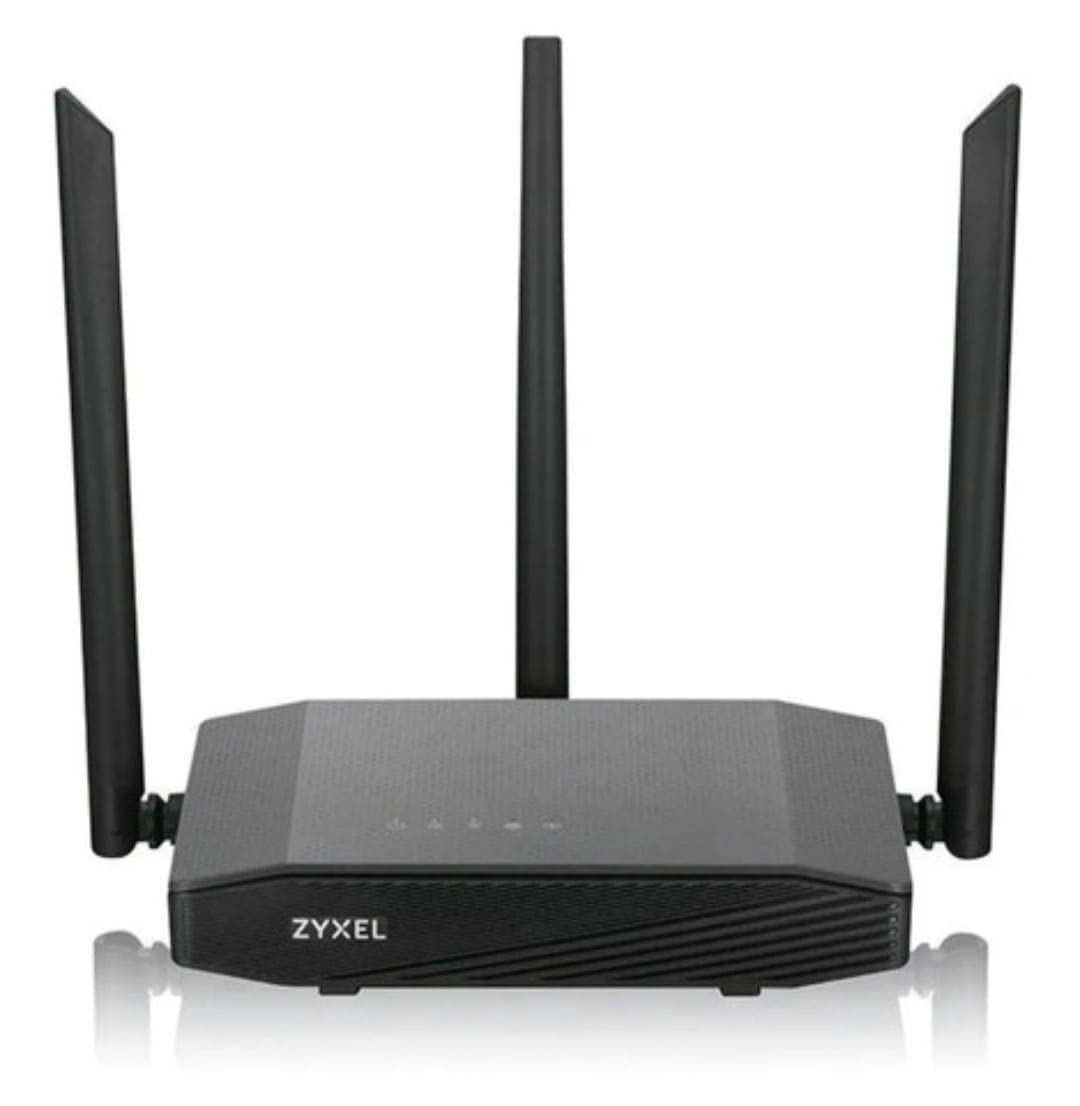
Image: Zyxel AC750 Dual-band Wireless Router with its power adapter and Ethernet cable.
คู่มือการติดตั้ง
1. การเชื่อมต่อฮาร์ดแวร์
- การวางตำแหน่งเราเตอร์: Place the router in a central location in your home or office, away from obstructions and potential sources of interference (e.g., microwaves, cordless phones).
- Connect the Internet Cable: Connect one end of an Ethernet cable from your modem's LAN port to the WAN port (usually blue) on the Zyxel router.
- เชื่อมต่อพลังงาน: Plug the power adapter into the router's power jack and then into a wall outlet.
- เปิดเครื่อง: Press the power button on the router. Wait for the power LED to turn solid green, indicating the device is ready.
Image: Rear panel of the Zyxel AC750 router, highlighting the WAN port, LAN ports, and power input.
2. การกำหนดค่าเริ่มต้น
- เชื่อมต่อกับเราเตอร์:
- มีสาย: เชื่อมต่อคอมพิวเตอร์ของคุณเข้ากับพอร์ต LAN (สีเหลือง) ของเราเตอร์โดยใช้สายอีเธอร์เน็ต
- ไร้สาย: On your computer or mobile device, search for the Wi-Fi network name (SSID) printed on the label at the bottom of the router. Connect using the provided Wi-Fi password.
- เข้าถึงอินเทอร์เฟซเราเตอร์: เปิด web เบราว์เซอร์และประเภท http://192.168.1.1 (or the address specified on the router label) into the address bar and press Enter.
- เข้าสู่ระบบ: ป้อนชื่อผู้ใช้และรหัสผ่านเริ่มต้น (โดยปกติ) แอดมิน/1234 or ผู้ดูแลระบบ/รหัสผ่าน, check the router label).
- เรียกใช้ตัวช่วยการตั้งค่า: Follow the on-screen instructions of the setup wizard to configure your internet connection and wireless settings. It is highly recommended to change the default Wi-Fi name (SSID) and password for security.
คำแนะนำการใช้งาน
การจัดการเครือข่ายไร้สาย
Your Zyxel AC750 router supports dual-band Wi-Fi (2.4 GHz and 5 GHz). You can manage these networks through the web อินเทอร์เฟซ
- การเปลี่ยน SSID และรหัสผ่าน: Navigate to the "Wireless" or "Wi-Fi Settings" section in the router's web interface. Here you can modify the network names (SSIDs) and passwords for both 2.4 GHz and 5 GHz bands.
- เครือข่ายแขก: Enable a guest network for visitors to provide internet access without sharing your main network's password. This feature is typically found under "Guest Network" settings.
- การควบคุมการเข้าถึง: Manage which devices can connect to your network by setting up MAC address filtering in the "Security" or "Access Control" section.
คุณสมบัติขั้นสูง
- การโอนย้ายพอร์ต: Configure port forwarding to allow external devices to access services on your local network, such as gaming servers or security cameras.
- การตั้งค่าไฟร์วอลล์: ปรับค่ากฎไฟร์วอลล์เพื่อเพิ่มความปลอดภัยของเครือข่าย
- การควบคุมโดยผู้ปกครอง: Set up parental controls to restrict internet access for specific devices or during certain times.
การซ่อมบำรุง
- อัพเดตเฟิร์มแวร์: ตรวจสอบฝ่ายสนับสนุนของ Zyxel เป็นประจำ webเว็บไซต์สำหรับอัปเดตเฟิร์มแวร์ การอัปเดตเฟิร์มแวร์จะช่วยเพิ่มประสิทธิภาพ เพิ่มคุณสมบัติใหม่ และแก้ไขช่องโหว่ด้านความปลอดภัย
- การทำความสะอาด: Gently wipe the router's exterior with a soft, dry cloth. Do not use liquid cleaners or aerosols. Ensure ventilation holes are free from dust.
- การรีสตาร์ทเราเตอร์: หากคุณประสบปัญหาเกี่ยวกับเครือข่าย ให้ลองรีสตาร์ทเราเตอร์โดยถอดอะแดปเตอร์ไฟออกเป็นเวลา 10 วินาที จากนั้นเสียบปลั๊กกลับเข้าไปอีกครั้ง
- รีเซ็ตเป็นค่าเริ่มต้นจากโรงงาน: To restore the router to its factory default settings, press and hold the reset button (usually a small pinhole button) for about 10 seconds while the router is powered on. Use a paperclip or similar object. หมายเหตุ: การดำเนินการนี้จะลบการตั้งค่าแบบกำหนดเองของคุณทั้งหมด
การแก้ไขปัญหา
| ปัญหา | สาเหตุที่เป็นไปได้ | สารละลาย |
|---|---|---|
| ไม่มีการเข้าถึงอินเตอร์เน็ต | Modem issue, incorrect router settings, cable disconnected. |
|
| สัญญาณ Wi-Fi อ่อน | Router placement, interference, outdated firmware. |
|
| ไม่สามารถเข้าถึงเราเตอร์ได้ Web อินเทอร์เฟซ | Incorrect IP address, network connection issue, browser cache. |
|
ข้อมูลจำเพาะ
| คุณสมบัติ | รายละเอียด |
|---|---|
| แบบอย่าง | EMG1702-T10A |
| ยี่ห้อ | ไซเซล |
| บริการ Wi-Fi มาตรฐาน | IEEE 802.11ac/n/a 5 GHz, IEEE 802.11n/g/b 2.4 GHz |
| ความเร็วไวไฟ | AC750 (300 Mbps 2.4 GHz + 433 Mbps 5 GHz) |
| เสาอากาศ | เสาอากาศภายนอก 3 เสา |
| พอร์ตอีเทอร์เน็ต | 1x WAN, 4x LAN (10/100 Mbps) |
| ย่านความถี่ | ดูอัลแบนด์ (2.4 GHz และ 5 GHz) |
| อุปกรณ์ที่รองรับ | Gaming Consoles, Tablets, Smart TVs |
ข้อมูลการรับประกัน
Zyxel products are covered by a limited warranty. The specific terms and duration of the warranty may vary by region and product. Please refer to the warranty card included with your product or visit the official Zyxel webเว็บไซต์สำหรับข้อมูลการรับประกันและการลงทะเบียนโดยละเอียด
เก็บใบเสร็จรับเงินของคุณไว้เป็นหลักฐานการซื้อสำหรับการเรียกร้องการรับประกัน
การสนับสนุนด้านเทคนิค
If you encounter any issues that cannot be resolved using the troubleshooting guide, please contact Zyxel technical support.
- Webเว็บไซต์: เยี่ยมชมเว็บไซต์ฝ่ายสนับสนุนอย่างเป็นทางการของ Zyxel website for FAQs, drivers, firmware, and contact information.
- โทรศัพท์: Refer to the support contact numbers provided in your product packaging or on the Zyxel webเว็บไซต์สำหรับภูมิภาคของคุณ
When contacting support, please have your product model (EMG1702-T10A) and serial number ready.