
1. บทนำ
Thank you for choosing the Gembird MUS-6B-01 Optical USB Mouse. This manual provides essential information for setting up, operating, maintaining, and troubleshooting your new mouse. Please read these instructions carefully to ensure optimal performance and longevity of your device.

Image: The official Gembird brand logo, featuring the company name in a stylized font with a geometric design.
2. สินค้าหมดview
The Gembird MUS-6B-01 is a reliable 6-button optical USB mouse designed for comfortable and precise navigation. Its ambidextrous design makes it suitable for both left and right-handed users.
คุณสมบัติหลัก:
- การติดตามด้วยแสง: Provides smooth and accurate cursor control.
- 6 ปุ่ม: Includes standard left/right click, scroll wheel, DPI adjustment, and two side buttons for enhanced functionality.
- การเชื่อมต่อ USB: Simple plug-and-play connection to your computer.
- การออกแบบตีสองหน้า: Comfortable for both left and right-handed users.
ส่วนประกอบ:
- ปุ่มคลิกซ้าย
- ปุ่มคลิกขวา
- ล้อเลื่อน (ยังทำหน้าที่เป็นปุ่มคลิกกลางด้วย)
- ปุ่มปรับ DPI
- ปุ่มเดินหน้า (ด้านข้าง)
- ปุ่มถอยหลัง (ด้านข้าง)
- Optical Sensor (underside)
- USB Connector (at the end of the cable)
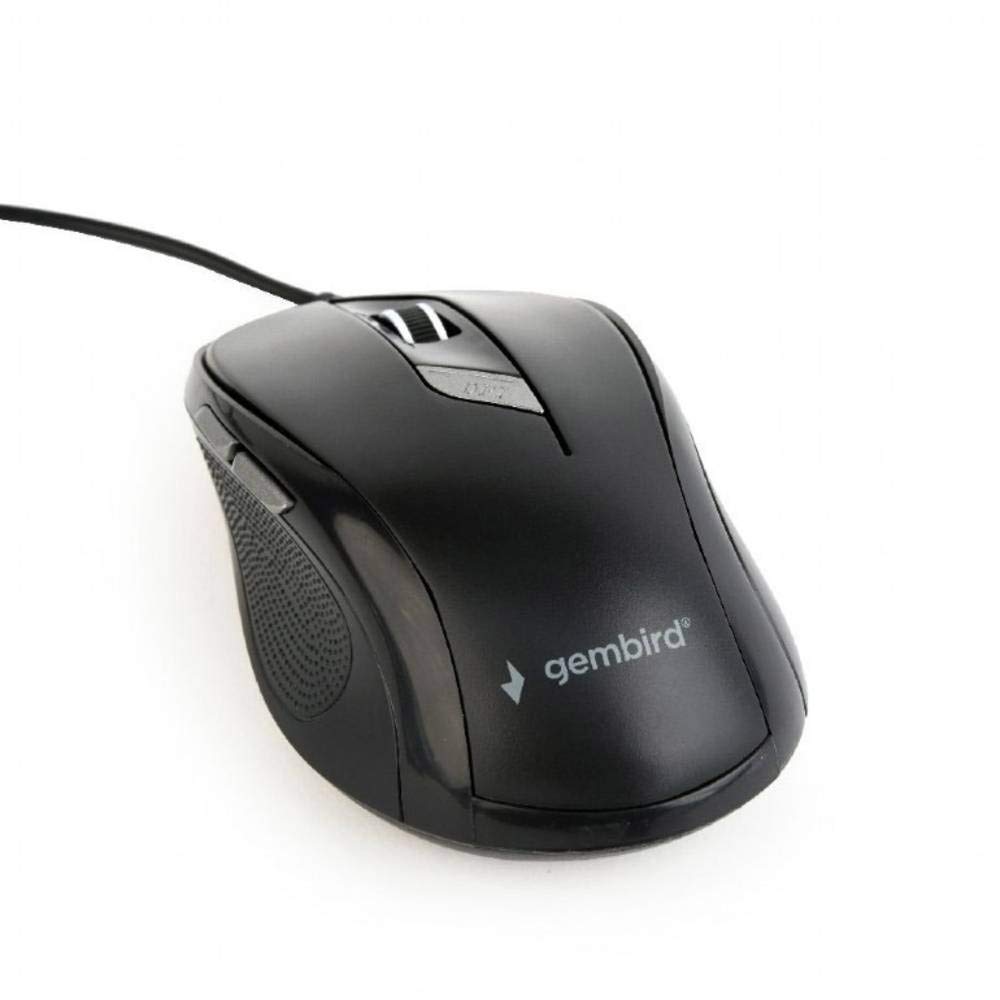
ภาพ: จากบนลงล่าง view of the Gembird MUS-6B-01 optical USB mouse. The mouse is black with a matte finish, featuring a scroll wheel, left and right click buttons, a DPI button, and two side buttons. A black USB cable extends from the front of the mouse.
3. การตั้งค่า
Setting up your Gembird MUS-6B-01 mouse is a simple plug-and-play process.
ขั้นตอนการติดตั้ง:
- ค้นหาพอร์ต USB ที่มีอยู่ในคอมพิวเตอร์ของคุณ
- Plug the USB connector of the Gembird MUS-6B-01 mouse firmly into the USB port.
- Your operating system (Windows, Linux) will automatically detect and install the necessary drivers. This process may take a few moments.
- เมื่อติดตั้งไดรเวอร์เสร็จแล้ว เมาส์ก็พร้อมใช้งานได้ทันที
โดยทั่วไปแล้วไม่จำเป็นต้องติดตั้งซอฟต์แวร์เพิ่มเติมสำหรับการใช้งานพื้นฐาน
4. คู่มือการใช้งาน
Familiarize yourself with the functions of each button on your Gembird MUS-6B-01 mouse.
ฟังก์ชั่นพื้นฐาน:
- คลิกซ้าย: Primary action, selecting items, opening files.
- คลิกขวา: Opens context menus, provides additional options.
- ล้อเลื่อน: เลื่อนขึ้นหรือลงผ่านเอกสารและ web หน้า
- คลิกกลาง (การกดล้อเลื่อนเมาส์): Often used to open links in new tabs or for specific application functions.
ฟังก์ชั่นขั้นสูง:
- ปุ่มปรับ DPI: Located behind the scroll wheel, this button allows you to cycle through different sensitivity (DPI) settings. Press it to change the cursor speed to suit your preference.
- ปุ่มเดินหน้า (ด้านข้าง): Typically navigates forward in web เบราว์เซอร์หรือ file นักสำรวจ
- ปุ่มย้อนกลับ (ด้านข้าง): Typically navigates backward in web เบราว์เซอร์หรือ file นักสำรวจ
The functionality of the side buttons may vary depending on the application or operating system settings. Some operating systems allow customization of these buttons.
5. การบำรุงรักษา
Proper care will help extend the life of your Gembird MUS-6B-01 mouse.
การทำความสะอาด:
- ถอดเมาส์ออกจากคอมพิวเตอร์ของคุณก่อนทำความสะอาด
- ใช้แปรงนุ่มๆ ปัดเบาๆamp, lint-free cloth to wipe the surface of the mouse.
- For stubborn dirt, a small amount of mild soap solution can be applied to the cloth (not directly to the mouse).
- ใช้สำลีหรือลมอัดทำความสะอาดรอบ ๆ ล้อเลื่อนและระหว่างปุ่มต่าง ๆ
- Ensure the optical sensor on the underside is clean and free of dust or debris.
- Do not use harsh chemicals, abrasive cleaners, or immerse the mouse in water.
พื้นที่จัดเก็บ:
เมื่อไม่ได้ใช้งานเป็นเวลานาน ควรเก็บเมาส์ไว้ในที่สะอาดและแห้ง หลีกเลี่ยงอุณหภูมิที่สูงหรือต่ำเกินไป และแสงแดดโดยตรง
6 การแก้ไขปัญหา
If you encounter issues with your Gembird MUS-6B-01 mouse, try the following troubleshooting steps:
| ปัญหา | วิธีแก้ปัญหาที่เป็นไปได้ |
|---|---|
| เมาส์ไม่ตอบสนอง |
|
| Erratic or jumpy cursor movement |
|
| ปุ่มไม่ทำงาน |
|
7. ข้อมูลจำเพาะ
Detailed technical specifications for the Gembird MUS-6B-01 Optical USB Mouse:
| คุณสมบัติ | ข้อมูลจำเพาะ |
|---|---|
| ยี่ห้อ | นกเจมเบิร์ด |
| ชื่อรุ่น | MUS-6B-01 |
| เทคโนโลยีการเชื่อมต่อ | สาย (USB) |
| เทคโนโลยีตรวจจับการเคลื่อนไหว | ออฟติคอล |
| จำนวนปุ่ม | 6 |
| การวางแนวมือ | ถนัดทั้งสองมือ |
| ระบบปฏิบัติการที่รองรับ | ลินุกซ์, วินโดวส์ 7, วินโดวส์ XP (และเวอร์ชันที่ใหม่กว่า) |
| แพลตฟอร์มฮาร์ดแวร์ | เครื่องคอมพิวเตอร์ส่วนบุคคล |
| ความยาวสายเคเบิล | 5.0 เมตร |
| น้ำหนักสินค้า | 74 กรัม |
| วัสดุ | พลาสติก |
| สี | สีดำ |
| แบตเตอรี่ที่จำเป็น | เลขที่ |
8. ข้อมูลด้านความปลอดภัย
โปรดปฏิบัติตามแนวทางความปลอดภัยดังต่อไปนี้:
- อย่าให้เมาส์โดนน้ำหรือความชื้นมากเกินไป
- หลีกเลี่ยงการทำตกหรือให้เมาส์ได้รับแรงกระแทกรุนแรง
- อย่าพยายามถอดประกอบหรือซ่อมแซมเมาส์ด้วยตนเอง โปรดติดต่อช่างผู้ชำนาญการ
- เก็บอุปกรณ์ให้ห่างจากอุณหภูมิที่สูงหรือต่ำเกินไปและถูกแสงแดดโดยตรง
- กำจัดขยะอิเล็กทรอนิกส์อย่างถูกวิธีตามกฎระเบียบของท้องถิ่น
9. การรับประกันและการสนับสนุน
Gembird products are designed for reliability and performance. For specific warranty terms and conditions, please refer to the warranty card included with your product or visit the official Gembird website. For technical support or further assistance, please contact your retailer or the Gembird customer service department.