
1. บทนำ
The D-Link DWR-930M 4G/LTE Mobile Router is a portable wireless device designed to provide high-speed internet access on the go. It functions as a 4G LTE Cat4 mobile hotspot, enabling you to share a broadband wireless WAN (WWAN) connection via Wi-Fi. This device supports internet speeds up to 150Mbps for downloads and 50Mbps for uploads, allowing up to 8 Wi-Fi devices to connect simultaneously.
Its compact size and rechargeable 3000 mAh Li-ion battery make it suitable for travel and situations requiring an impromptu network. The DWR-930M incorporates a built-in firewall and supports WPA/WPA2 security protocols to protect your data. Charging is facilitated via a Micro-USB port, and device management can be performed using a mobile application.
2. เนื้อหาบรรจุภัณฑ์
โปรดตรวจสอบว่าแพ็คเกจของคุณมีรายการต่อไปนี้:
- D-Link DWR-930M 4G/LTE Mobile Router
- แบตเตอรี่ลิเธียมไอออนแบบชาร์จไฟได้
- สายชาร์จไมโคร USB
- คู่มือการติดตั้งฉบับย่อ (ถ้ามี)
หากมีสินค้าใดขาดหายหรือเสียหาย โปรดติดต่อผู้ค้าปลีกของคุณ
3. สินค้าหมดview
Familiarize yourself with the physical components and indicator lights of your DWR-930M Mobile Router.
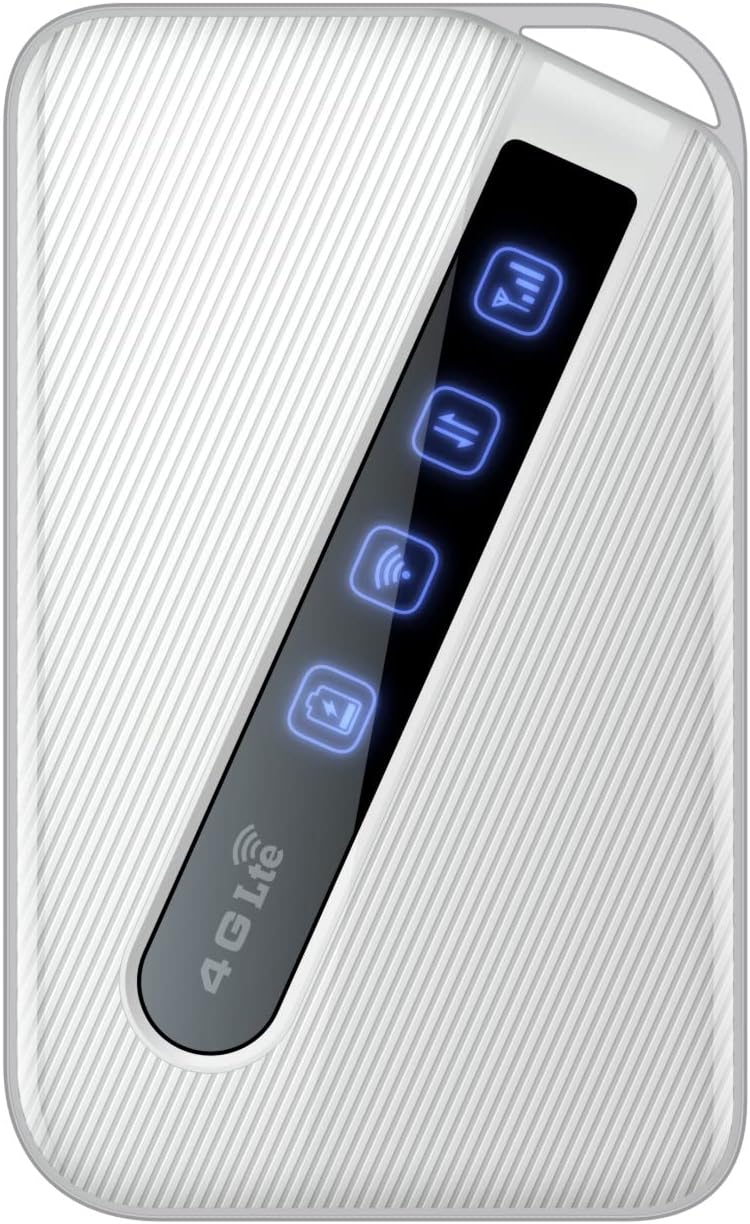
An image of the D-Link DWR-930M 4G/LTE Mobile Router, showing its compact white design and the illuminated indicator panel for signal, network, Wi-Fi, and battery status.
ไฟแสดงสถานะ:
- ตัวบ่งชี้ความแรงของสัญญาณ: Displays the strength of the 4G/LTE network signal.
- Network Type Indicator: Shows the current network connection status (e.g., 4G LTE).
- ตัวบ่งชี้สถานะ Wi-Fi: Indicates if the Wi-Fi hotspot is active.
- ไฟแสดงสถานะแบตเตอรี่: แสดงระดับประจุแบตเตอรี่ปัจจุบัน
พอร์ตและช่อง:
- ช่องใส่ซิมการ์ด: For inserting your data-enabled SIM card.
- พอร์ตไมโครยูเอสบี: ใช้สำหรับชาร์จอุปกรณ์
- ปุ่มเปิด/ปิด: เพื่อเปิดหรือปิดอุปกรณ์
4. การตั้งค่า
4.1. การใส่ซิมการ์ด
- Ensure the DWR-930M is powered off.
- Locate the SIM card slot, typically found under the battery cover or on the side of the device.
- Carefully insert your data-enabled SIM card into the slot with the gold contacts facing down and the notched corner aligned correctly.
- Close the SIM card slot cover or replace the battery cover.
4.2. การชาร์จอุปกรณ์
- Connect the Micro-USB charging cable to the Micro-USB port on the DWR-930M.
- Connect the other end of the cable to a USB power adapter (not always included) or a computer's USB port.
- The battery indicator light will show charging status. Allow the device to fully charge before first use.
4.3. การเปิด/ปิดเครื่อง
- การเปิดเครื่อง: กดปุ่มเปิด/ปิดค้างไว้จนกว่าไฟแสดงสถานะจะสว่างขึ้น
- วิธีปิดเครื่อง: กดปุ่มเปิด/ปิดค้างไว้จนกว่าไฟแสดงสถานะจะดับ
5. การดำเนินการ
5.1. การเชื่อมต่ออุปกรณ์กับ Wi-Fi
- Ensure the DWR-930M is powered on and the Wi-Fi indicator is active.
- On your Wi-Fi enabled device (smartphone, tablet, laptop), open the Wi-Fi settings.
- ค้นหาเครือข่าย Wi-Fi ที่ใช้งานได้
- Select the network name (SSID) of your DWR-930M (usually printed on a label inside the battery compartment or on the device itself).
- Enter the Wi-Fi password (WPA/WPA2 key), also found on the device label.
- Your device should now be connected to the internet via the DWR-930M.
5.2. การเข้าถึง Web อินเตอร์เฟซการจัดการ
สำหรับการตั้งค่าและการกำหนดค่าขั้นสูง คุณสามารถเข้าถึงการตั้งค่าของเราเตอร์ได้ webอินเทอร์เฟซการจัดการตาม
- Connect your device to the DWR-930M's Wi-Fi network.
- เปิด web เบราว์เซอร์ (เช่น Chrome, Firefox, Edge)
- ในแถบที่อยู่ ให้พิมพ์ที่อยู่ IP เริ่มต้นของเราเตอร์ (โดยทั่วไปคือ
192.168.0.1or192.168.1.1) and press Enter. Refer to your device's label or quick start guide for the exact IP address. - ป้อนชื่อผู้ใช้และรหัสผ่านเริ่มต้น (โดยปกติ)
adminfor both, or specified on the device label). - You can now configure settings such as Wi-Fi name, password, security, and network preferences.
6. การบำรุงรักษา
6.1. การดูแลแบตเตอรี่
- หลีกเลี่ยงการให้อุปกรณ์สัมผัสกับอุณหภูมิที่สูงเกินไป
- อย่าปล่อยแบตเตอรี่จนหมดเป็นเวลานาน
- เพื่อให้แบตเตอรี่ใช้งานได้นานที่สุด ควรชาร์จอุปกรณ์เป็นประจำ
6.2. การอัปเดตเฟิร์มแวร์
Periodically check the D-Link support website for firmware updates for your DWR-930M. Firmware updates can improve performance, add new features, and enhance security. Follow the instructions provided with the firmware update carefully.
6.3. การทำความสะอาด
Use a soft, dry cloth to clean the exterior of the device. Do not use liquid cleaners or aerosols, as they may damage the device.
7 การแก้ไขปัญหา
This section addresses common issues you might encounter with your DWR-930M Mobile Router.
| ปัญหา | วิธีแก้ปัญหาที่เป็นไปได้ |
|---|---|
| ไม่มีการเชื่อมต่ออินเตอร์เน็ต |
|
| ไม่สามารถเชื่อมต่อ Wi-Fi ได้ |
|
| ความเร็วอินเตอร์เน็ตช้า |
|
| แบตเตอรี่ไม่ชาร์จ |
|
8. ข้อมูลจำเพาะ
Key technical specifications for the D-Link DWR-930M 4G/LTE Mobile Router:
| คุณสมบัติ | รายละเอียด |
|---|---|
| ชื่อรุ่น | DWR-930M |
| เทคโนโลยีการเชื่อมต่อ | ยูเอสบี, ไวไฟ |
| มาตรฐานการสื่อสารไร้สาย | 802.11b, 802.11g, 802.11n |
| ระดับย่านความถี่ | ดูอัลแบนด์ |
| ความเร็วในการรับส่งข้อมูล | Up to 150Mbps Downlink, 50Mbps Uplink (4G LTE Cat4) |
| แบตเตอรี่ | 1 Lithium Ion battery required (included), 3000 mAh |
| ขนาดสินค้า | 10.3 x 1.3 x 6.3 ซม. |
| น้ำหนัก | 360 กรัม |
| อุปกรณ์ที่รองรับ | แล็ปท็อป, คอมพิวเตอร์ส่วนบุคคล, สมาร์ทโฟน, แท็บเล็ต |
| การใช้ที่แนะนำ | การเดินทาง, กลางแจ้ง |
9. การรับประกันและการสนับสนุน
D-Link products are backed by a limited warranty. For specific warranty terms and conditions applicable to your region, please refer to the warranty card included with your product or visit the official D-Link webเว็บไซต์.
For technical support, product registration, or to download the latest drivers and firmware, please visit the D-Link support portal:
When contacting support, please have your product model number (DWR-930M) and serial number ready.