
1. บทนำและเรื่องอื่นๆview
The Apricorn Aegis Fortress L3 is a FIPS 140-2 Level 3 validated, hardware-encrypted portable drive designed for robust data security. It features AES-XTS 256-bit hardware encryption, protecting data on the fly as it is written to the drive. The device is built with an aircraft-grade 6061 aluminum alloy enclosure and a membrane-style keypad for PIN entry.
คุณสมบัติที่สำคัญ ได้แก่:
- FIPS 140-2 Level 3 Validation: Ensures the entire device meets stringent security requirements.
- การเข้ารหัสฮาร์ดแวร์ AES-XTS 256 บิต: ข้อมูลทั้งหมดได้รับการเข้ารหัสแบบเรียลไทม์ โดยไม่ขึ้นอยู่กับระบบโฮสต์
- Forced Enrollment: Requires an Admin PIN to be set before first use, eliminating default PIN vulnerabilities.
- Separate Admin and User Modes: Allows for flexible access control and management.
- Two Read-Only Modes: Protects against malware and ensures data integrity in public or sensitive environments.
- Brute-Force Defense: Automatically performs a crypto-erase after a predetermined number of incorrect PIN entries, rendering data useless.
- ความเข้ากันได้ข้ามแพลตฟอร์ม: Operates with any PC, Mac, Linux, or mass storage compliant system with a powered USB port, without requiring software or drivers.
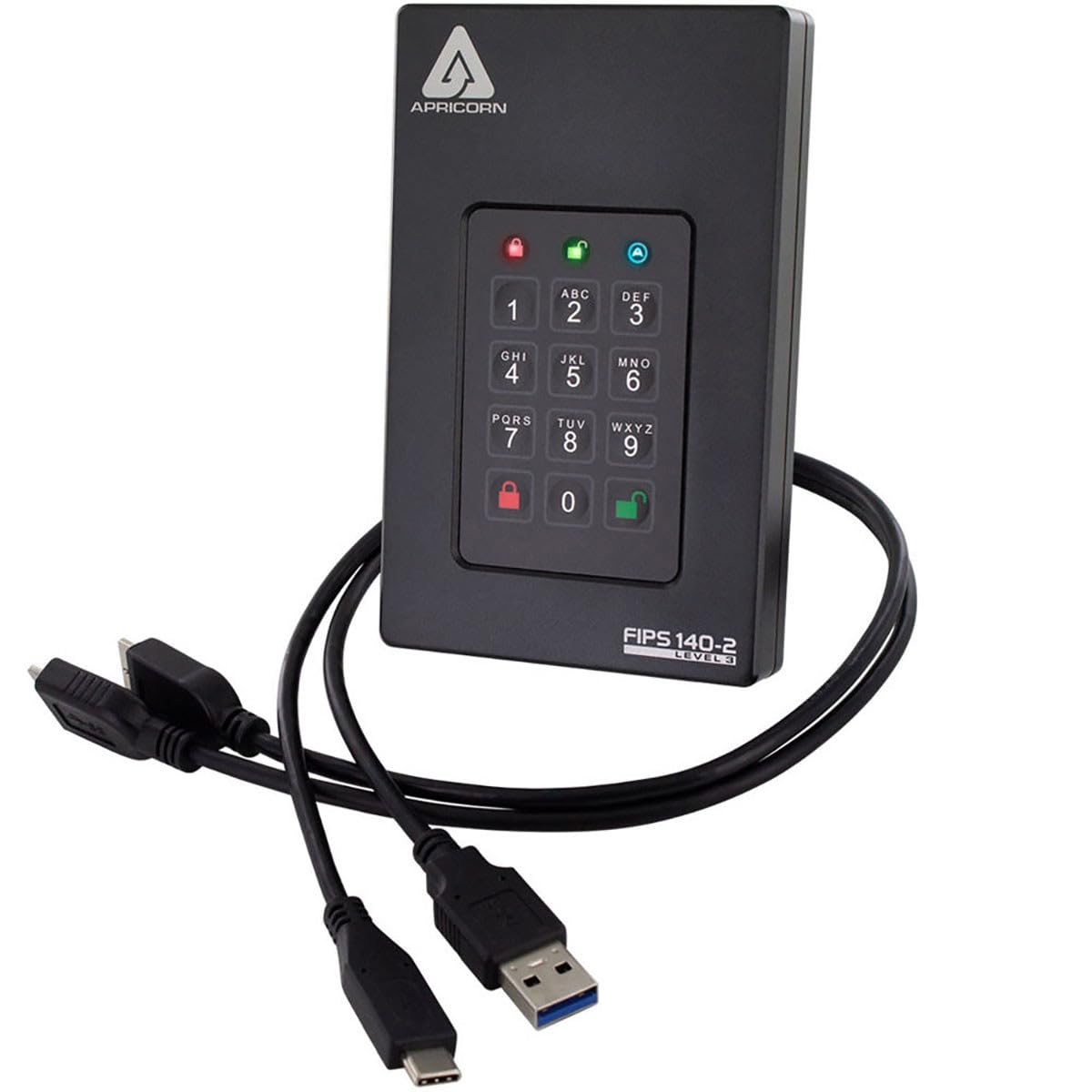
Figure 1: Apricorn Aegis Fortress L3 Portable Drive
2. อะไรอยู่ในกล่อง
ตรวจสอบว่าบรรจุภัณฑ์มีส่วนประกอบทั้งหมด:
- ฮาร์ดไดรฟ์ภายนอก Apricorn Aegis Fortress L3
- USB Type-A to Type-A Cable
- สาย USB Type-C เป็น Type-A
- กระเป๋าเดินทาง
- คู่มือเริ่มต้นอย่างรวดเร็ว
3. การตั้งค่า
3.1 การเชื่อมต่อเริ่มต้น
Connect the Aegis Fortress L3 to your computer using one of the provided USB cables. The drive is powered via the USB connection. No external power adapter is required.

Figure 2: Connecting the drive to a laptop
3.2 Admin PIN Creation (Forced Enrollment)
Upon first connection, the drive will require you to set an Admin PIN. This is a mandatory security measure. Follow the on-screen or Quick Start Guide instructions to establish your Admin PIN. The PIN must be between 7 and 16 digits long.
- กดปุ่ม กะ button (key with padlock icon).
- Enter your desired Admin PIN (7-16 digits).
- กดปุ่ม กะ ปุ่มอีกครั้ง
- ป้อนรหัส PIN ผู้ดูแลระบบอีกครั้งเพื่อยืนยัน
- กดปุ่ม กะ button one last time.
The drive's LEDs will indicate successful PIN creation. Refer to the Quick Start Guide for specific LED patterns.
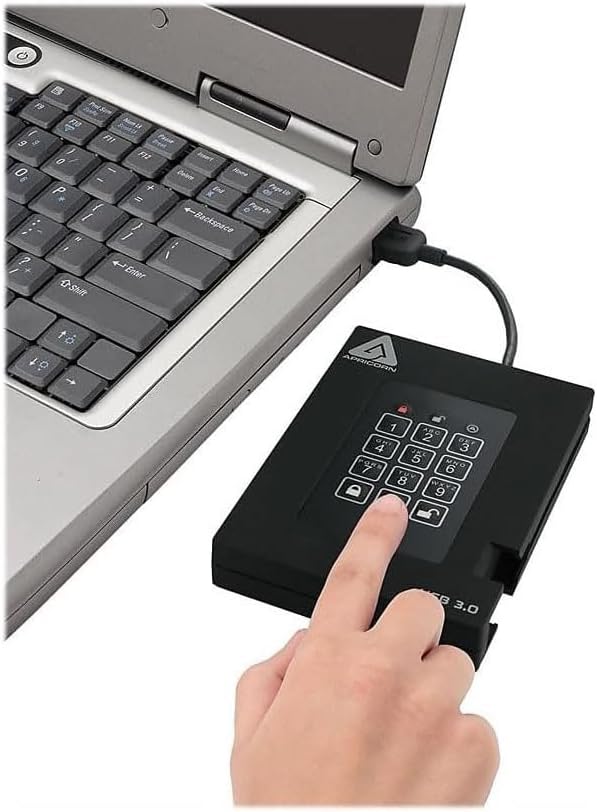
Figure 3: Entering PIN on the keypad
3.3 User PIN Creation (Optional)
As an Admin, you can create up to four User PINs. This allows other individuals to access the drive without knowing the Admin PIN. User PINs can be configured with different access rights (e.g., Read-Only). Consult the full user manual for detailed instructions on creating and managing User PINs.
4. คู่มือการใช้งาน
4.1 Unlocking the Drive
To access the drive, it must be unlocked using a valid PIN (Admin or User).
- Connect the Aegis Fortress L3 to a powered USB port.
- Enter your Admin or User PIN on the keypad.
- กดปุ่ม ปลดล็อค button (key with open padlock icon).
The drive's LED indicators will confirm successful unlocking, and the drive will become accessible on your computer.
4.2 การถ่ายโอนข้อมูล
Once unlocked, the Aegis Fortress L3 functions like any standard external hard drive. You can drag and drop files, copy, paste, and manage data using your operating system's file นักสำรวจ
4.3 Read-Only Modes
The Aegis Fortress L3 offers two Read-Only modes to protect data integrity:
- Standard Read-Only: Prevents any modification or deletion of data on the drive. Ideal for accessing data in potentially insecure environments (e.g., public computers) to prevent malware infection.
- Unalterable Read-Only: Designed for applications requiring data to be preserved in its original, unaltered state. Once enabled, data cannot be overwritten or modified until the mode is disabled by the Admin.
Refer to the full user manual for instructions on how to activate and deactivate these modes.
4.4 Locking the Drive
To secure your data, always lock the drive when not in use or before disconnecting it.
- ล็อคด้วยตนเอง: กดปุ่ม ล็อค button (key with closed padlock icon) on the keypad.
- ล็อคอัตโนมัติ: The drive will automatically lock after a period of inactivity (configurable by Admin) or when safely ejected/disconnected from the computer.
5. การบำรุงรักษา
To ensure the longevity and optimal performance of your Aegis Fortress L3 drive:
- การดูแลทางกายภาพ: Handle the drive with care. While rugged, it contains a mechanical hard disk drive which can be sensitive to drops or impacts.
- การทำความสะอาด: Use a soft, dry cloth to clean the enclosure and keypad. Avoid abrasive cleaners or liquids that could damage the electronics.
- อุณหภูมิ: Operate and store the drive within recommended temperature ranges (refer to specifications). Avoid extreme heat or cold.
- การระบายอากาศ : Ensure adequate airflow around the drive, especially during prolonged use, as it may generate some heat.
6 การแก้ไขปัญหา
6.1 ไม่รู้จักไดรฟ์
- Ensure the drive is properly connected to a powered USB port. Try a different USB port or cable.
- Verify the drive is unlocked. The appropriate LED indicator should be lit.
- ตรวจสอบโปรแกรมจัดการดิสก์ (สำหรับ Windows) หรือโปรแกรมยูทิลิตี้ดิสก์ (สำหรับ macOS) ในคอมพิวเตอร์ของคุณ เพื่อดูว่าตรวจพบไดรฟ์แล้ว แต่ยังไม่ได้รับการกำหนดตัวอักษรไดรฟ์หรือยังไม่ได้เชื่อมต่อหรือไม่
- รีสตาร์ทเครื่องคอมพิวเตอร์ของคุณ
6.2 Incorrect PIN Entry / Brute-Force Defense
If you enter an incorrect PIN multiple times, the drive's brute-force defense mechanism will activate. After a predetermined number of consecutive incorrect entries, the drive will perform a crypto-erase, deleting the encryption key and rendering all data inaccessible. This is a security feature and cannot be reversed. Ensure you remember your PINs.
6.3 ความเร็วในการถ่ายโอนข้อมูลช้า
The Aegis Fortress L3 utilizes a mechanical hard disk drive (HDD). While USB 3.0 provides fast connectivity, the inherent speed of an HDD is lower than Solid State Drives (SSDs). Transfer speeds may also vary depending on the file size, type, and the performance of your computer's USB port.
6.4 Drive Runs Warm
It is normal for the drive to become warm during extended periods of heavy use, especially during large data transfers. Ensure it has adequate ventilation and is not covered.
7. ข้อมูลจำเพาะ
| คุณสมบัติ | รายละเอียด |
|---|---|
| หมายเลขรุ่น | เอเอฟแอล3-2ทีบี |
| ความจุในการเก็บข้อมูลแบบดิจิตอล | 2000 GB (2TB) |
| อินเทอร์เฟซฮาร์ดดิสก์ | ยูเอสบี 3.0 |
| เทคโนโลยีการเชื่อมต่อ | ยูเอสบี |
| การเข้ารหัส | การเข้ารหัสฮาร์ดแวร์ AES-XTS 256 บิต |
| การตรวจสอบความถูกต้อง | FIPS 140-2 ระดับ 3 ได้รับการตรวจสอบแล้ว |
| ปัจจัยรูปแบบฮาร์ดดิสก์ | 2.5 นิ้ว |
| คำอธิบายฮาร์ดดิสก์ | ฮาร์ดดิสก์เชิงกล |
| ความเร็วในการหมุนของฮาร์ดดิสก์ | 5400 รอบต่อนาที |
| อัตราการถ่ายโอนข้อมูล | Up to 600 Megabytes Per Second (USB 3.0 theoretical max) |
| อุปกรณ์ที่รองรับ | Desktop, Laptop (PC, Mac, Linux) |
| ประเภทการติดตั้ง | ฮาร์ดไดรฟ์ภายนอก |
| สี | สีดำ |
| น้ำหนักสินค้า | ประมาณ 1.1 ปอนด์ |
| ฟอร์มแฟกเตอร์ | พกพาได้ |
| ผู้ผลิต | แอปริคอร์น ไดเร็ค |
8. ข้อมูลการรับประกัน
The Apricorn Aegis Fortress L3 (AFL3-2TB) comes with a รับประกันจำกัด 3 ปี from the date of purchase. This warranty covers defects in materials and workmanship under normal use. It does not cover damage caused by accident, misuse, abuse, unauthorized modification, or natural disaster.
For detailed warranty terms and conditions, please refer to the official Apricorn webไซต์หรือเอกสารที่รวมอยู่กับผลิตภัณฑ์ของคุณ
9. การสนับสนุน
For technical assistance, product inquiries, or warranty claims, please contact Apricorn customer support. You can typically find support contact information on the official Apricorn webงาน (www.apricorn.com) or in the Quick Start Guide provided with your device.
When contacting support, please have your model number (AFL3-2TB) and purchase information readily available.