
การแนะนำ
This manual provides instructions for the Insignia NS-PNKNUM19 Wired Numeric Keypad. This device is designed to enhance data entry for accounting functions and spreadsheet applications on both Mac and PC computers. It features a standard numeral arrangement and responsive keys for efficient operation.
ข้อมูลด้านความปลอดภัย
Please read these safety instructions carefully before using your new numeric keypad to prevent damage to the device or injury to yourself.
- Do not expose the keypad to water or excessive moisture.
- หลีกเลี่ยงอุณหภูมิที่สูงหรือต่ำเกินไป
- Do not attempt to disassemble or repair the keypad yourself. Refer all servicing to qualified personnel.
- Keep the keypad away from strong magnetic fields.
- ใช้เฉพาะกับอุปกรณ์ที่เข้ากันได้ตามที่ระบุไว้ในคู่มือนี้
เนื้อหาแพ็คเกจ
- Insignia NS-PNKNUM19 Wired Numeric Keypad
- คู่มือการตั้งค่าอย่างรวดเร็ว (ไม่รวมอยู่ในคู่มือดิจิทัลนี้)

Image: The Insignia NS-PNKNUM19 Wired Numeric Keypad shown in its retail packaging, highlighting the product and its simple design.
คุณสมบัติ
- 19 คีย์: Offers a comfortable and complete numeric typing experience.
- อินเทอร์เฟซ USB: Enables a simple wired connection to your computer.
- เข้ากันได้กับ PC และ Mac: Designed for use with both Windows and macOS operating systems.
- ปลั๊กแอนด์เพลย์: ไม่จำเป็นต้องติดตั้งไดรเวอร์สำหรับระบบปฏิบัติการส่วนใหญ่
- ไฟแสดงสถานะ LED: An LED light indicates when the keypad is connected and active.
การตั้งค่า
Setting up your Insignia NS-PNKNUM19 Wired Numeric Keypad is a straightforward process.
- เชื่อมต่อแป้นพิมพ์: Locate an available USB port on your computer (PC or Mac). Plug the USB connector of the numeric keypad into the USB port.
- การจดจำระบบ: คอมพิวเตอร์ของคุณควรจะตรวจจับและติดตั้งไดรเวอร์ที่จำเป็นโดยอัตโนมัติ อุปกรณ์นี้เป็นแบบเสียบแล้วใช้งานได้ทันที ดังนั้นโดยทั่วไปจึงไม่จำเป็นต้องติดตั้งไดรเวอร์ด้วยตนเอง
- ตรวจสอบการเชื่อมต่อ: An LED indicator on the keypad will illuminate, confirming that the device is connected and ready for use.
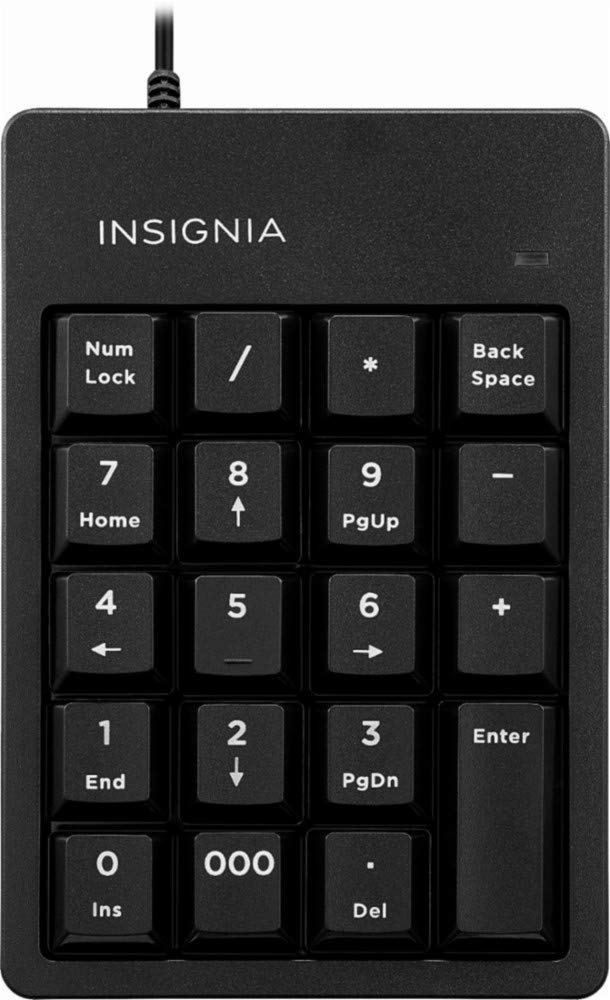
Image: The Insignia NS-PNKNUM19 Wired Numeric Keypad, showing its 19 keys and the attached USB cable ready for connection.
คำแนะนำการใช้งาน
Once connected, the numeric keypad functions similarly to the numeric section of a full-sized keyboard.
- การป้อนตัวเลข: Press the number keys (0-9) to input numerical data.
- ตัวดำเนินการทางคณิตศาสตร์: Use the +, -, *, and / keys for basic arithmetic operations.
- จุดทศนิยม: The '.' key allows for decimal input.
- ใส่รหัส: ทำหน้าที่เป็นปุ่ม Enter มาตรฐาน
- ล็อคหมายเลข: The "Num Lock" key toggles the numeric function of the keys. When Num Lock is active (indicated by the LED), the keys function as numbers. When Num Lock is off, some keys may perform alternative functions like Home, End, PgUp, PgDn, or arrow navigation, depending on the application.
- พื้นที่ด้านหลัง: ลบอักขระทางด้านซ้ายของเคอร์เซอร์
- Del (Delete): Deletes the character to the right of the cursor or selected text.
- 000 คีย์: Provides quick input for three zeros.
การซ่อมบำรุง
To ensure the longevity and optimal performance of your numeric keypad, follow these simple maintenance guidelines:
- การทำความสะอาด: ใช้ผ้าแห้งนุ่มๆ ที่ไม่มีขนเช็ดทำความสะอาดพื้นผิวแป้นพิมพ์ สำหรับคราบสกปรกที่ติดแน่น ให้ใช้ผ้าชุบน้ำหมาดๆ เช็ดเบาๆampen the cloth with water or a mild, non-abrasive cleaner. Avoid spraying liquids directly onto the keypad.
- พื้นที่จัดเก็บ: เมื่อไม่ใช้งาน ควรเก็บแป้นพิมพ์ไว้ในที่สะอาดและแห้ง หลีกเลี่ยงแสงแดดโดยตรงและอุณหภูมิที่สูงหรือต่ำเกินไป
- การจัดการ: ควรหลีกเลี่ยงการทำแป้นพิมพ์ตก หรือการกระแทกอย่างแรง เพราะอาจทำให้ชิ้นส่วนภายในเสียหายได้
การแก้ไขปัญหา
If you encounter issues with your Insignia NS-PNKNUM19 Wired Numeric Keypad, refer to the following common solutions:
| ปัญหา | สารละลาย |
|---|---|
| Keypad is not recognized by the computer. |
|
| แป้นพิมพ์ไม่ตอบสนองหรือพิมพ์ตัวอักษรไม่ถูกต้อง |
|
| ไฟ LED แสดงสถานะดับอยู่ |
|
ข้อมูลจำเพาะ
| หมายเลขรุ่น: | NS-PNKNUM19 |
| ยี่ห้อ: | เครื่องหมาย |
| การเชื่อมต่อ: | Wired USB (standard USB-A connector) |
| จำนวนคีย์: | 19 |
| ความเข้ากันได้: | พีซี, แมค |
| สี: | สีดำ |
| คำอธิบายแป้นพิมพ์: | การยศาสตร์ |
| ขนาด (ประมาณ): | 25.9 x 14.9 x 3.9 ซม. (ขนาดพัสดุ) |
| น้ำหนัก(ประมาณ): | 156 กรัม |
การรับประกันและการสนับสนุน
Insignia products are manufactured to high quality standards. For specific warranty information, please refer to the warranty card included with your purchase or visit the official Insignia website. For technical support or customer service, please contact Insignia customer support through their official channels.
Manufacturer Contact Information: Peachtree City, GA 30269, US