
BoxWave bw-1173-16092-8831
BoxWave SlimKeys Bluetooth Keyboard User Manual
Model: bw-1173-16092-8831
การแนะนำ
The BoxWave SlimKeys Bluetooth Keyboard is a portable, ultra-thin keyboard designed for seamless connectivity with your Bluetooth-enabled devices, including the Samsung Galaxy A6 (2018). Its chiclet-style keys provide a comfortable typing experience, making it ideal for productivity on the go. This manual provides detailed instructions for setting up, operating, maintaining, and troubleshooting your SlimKeys Bluetooth Keyboard.
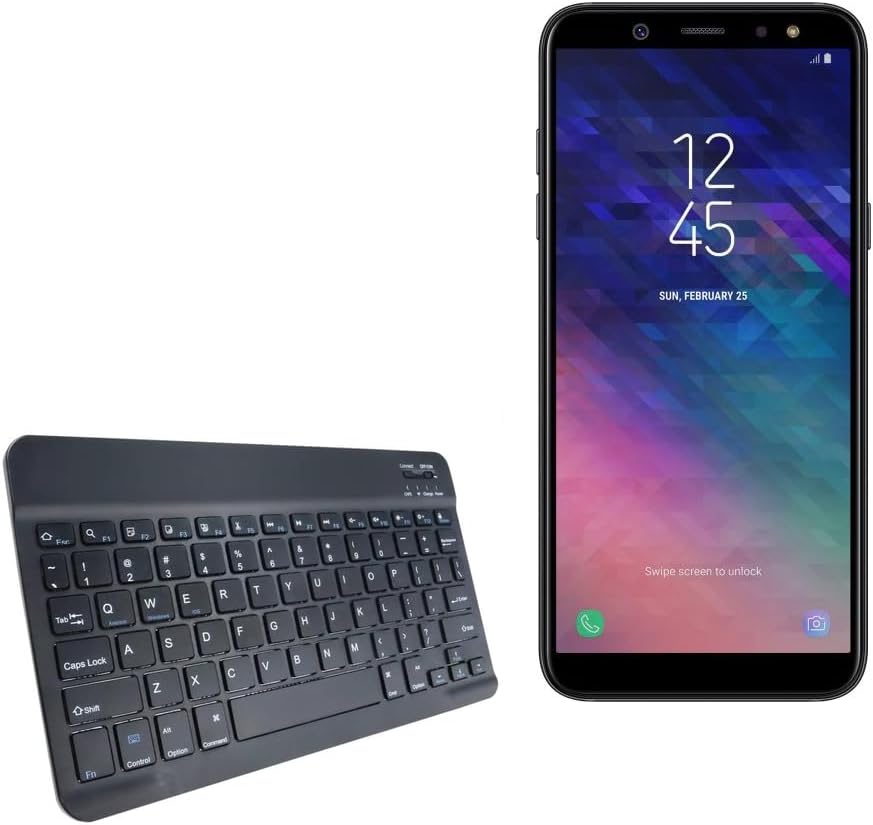
Image: The SlimKeys Bluetooth Keyboard shown alongside a compatible Samsung Galaxy A6 (2018) device, highlighting its compact size.
การตั้งค่า
การชาร์จคีย์บอร์ด
Before initial use, ensure your SlimKeys Bluetooth Keyboard is fully charged. Use the included charging cable to connect the keyboard to a USB power source (e.g., computer USB port, USB wall adapter). The charging indicator light will illuminate during charging and turn off when fully charged.

ภาพ: รายละเอียด view of the keyboard's charging port, demonstrating how to connect the charging cable for its long-lasting battery.
จับคู่บลูทู ธ
- เปิดเครื่อง: Locate the ON/OFF switch on the keyboard (usually on the top right) and slide it to the 'ON' position. The power indicator light will briefly illuminate.
- เข้าสู่โหมดจับคู่: Press the 'Connect' button (often located near the ON/OFF switch or as a dedicated key). The Bluetooth indicator light will start blinking, indicating the keyboard is in pairing mode.
- เปิดใช้งานบลูทูธบนอุปกรณ์ของคุณ: On your Samsung Galaxy A6 (2018) or other compatible device, go to 'Settings' > 'Connections' > 'Bluetooth' and turn Bluetooth ON.
- เลือกแป้นพิมพ์: Your device will scan for available Bluetooth devices. Select 'BoxWave SlimKeys Keyboard' (or similar name) from the list.
- ยืนยันการจับคู่: Follow any on-screen prompts to complete the pairing process. You may be asked to enter a code displayed on your device using the keyboard and then press Enter. Once paired, the Bluetooth indicator light on the keyboard will stop blinking.
The keyboard supports Bluetooth 3.0 for quick and reliable pairing across Android, Windows, and iOS platforms.
คำแนะนำการใช้งาน
การใช้งานพื้นฐาน
Once paired, the SlimKeys Bluetooth Keyboard functions like a standard keyboard. Simply open any application that requires text input (e.g., messaging app, word processor) and begin typing. The chiclet-style keys are designed for quiet and comfortable typing.

Image: A user's hands demonstrating comfortable and efficient typing on the SlimKeys keyboard.
ปุ่มฟังก์ชั่นพิเศษ
The SlimKeys Bluetooth Keyboard includes specialized function keys (F1-F12) that provide quick access to common commands. These functions are typically accessed by pressing the Fn กดปุ่มพร้อมกับปุ่มฟังก์ชั่นที่ต้องการ
| คีย์ผสม | การทำงาน |
|---|---|
| Fn + Esc (F1) | บ้าน |
| Fn+F2 | ค้นหา |
| Fn+F3 | เลือกทั้งหมด |
| Fn+F4 | สำเนา |
| Fn+F5 | ตัด |
| Fn+F6 | ข้ามกลับ |
| Fn+F7 | เล่น / หยุดชั่วคราว |
| Fn+F8 | ข้ามไปข้างหน้า |
| Fn+F9 | ลดระดับเสียง |
| Fn+F10 | เพิ่มระดับเสียง |
| Fn+F11 | ลดความสว่าง |
| Fn+F12 | เพิ่มความสว่าง |
| Fn + ลบ | ล็อค |

Image: A visual guide to the specialized function keys available on the SlimKeys keyboard for quick access to various commands.
การซ่อมบำรุง
การทำความสะอาด
To clean your keyboard, gently wipe the surface with a soft, lint-free cloth. For stubborn dirt or grime, slightly dampen the cloth with water or a mild, non-abrasive cleaning solution. Avoid excessive moisture and do not spray cleaners directly onto the keyboard.
พื้นที่จัดเก็บ
When not in use, store the keyboard in a cool, dry place away from direct sunlight and extreme temperatures. Its ultra-thin design allows for easy storage in bags or cases, making it ideal for travel.

Image: The SlimKeys keyboard being stored in a bag, emphasizing its convenience for travel and compact design.
การแก้ไขปัญหา
- แป้นพิมพ์ไม่เชื่อมต่อ/จับคู่:
- ตรวจสอบให้แน่ใจว่าคีย์บอร์ดได้รับการชาร์จและเปิดอยู่
- ตรวจสอบให้แน่ใจว่าได้เปิดใช้งานบลูทูธบนอุปกรณ์ของคุณแล้ว
- Ensure the keyboard is in pairing mode (Bluetooth indicator blinking).
- ลบอุปกรณ์ออกจากเมนูบลูทูธในโทรศัพท์ของคุณ แล้วลองจับคู่ใหม่อีกครั้ง
- รีสตาร์ททั้งแป้นพิมพ์ (ปิดแล้วเปิดใหม่) และอุปกรณ์ของคุณ
- คีย์ไม่ตอบสนอง:
- Check if the keyboard is still connected via Bluetooth.
- ตรวจสอบให้แน่ใจว่าแป้นพิมพ์มีประจุแบตเตอรี่เพียงพอ
- ลองจับคู่คีย์บอร์ดกับอุปกรณ์ของคุณอีกครั้ง
- ความล่าช้าหรือการป้อนข้อมูลที่หน่วงเวลา:
- Ensure there are no strong interferences (e.g., other Bluetooth devices, Wi-Fi routers) nearby.
- ขยับเข้ามาใกล้อุปกรณ์ของคุณมากขึ้น
- ชาร์จคีย์บอร์ดอีกครั้ง
ข้อมูลจำเพาะ
- หมายเลขรุ่น: บีดับบลิว-1173-16092-8831
- เทคโนโลยีการเชื่อมต่อ: บลูทูธ 3.0
- คำอธิบายแป้นพิมพ์: Wireless, Chiclet-Style Keys
- สี: สีดำเจ็ทแบล็ค
- น้ำหนักสินค้า: 7.7 ออนซ์
- ขนาดแพ็คเกจ: 11.06 x 6.81 x 0.55 นิ้ว
- คุณสมบัติพิเศษ: Lightweight, Ultra-Thin Design (3/16 inch thick)
- แบตเตอรี่: แบตเตอรี่เฉพาะผลิตภัณฑ์ 1 ก้อน (รวมอยู่ด้วย)
- ผู้ผลิต: บ็อกซ์เวฟ
- ประเทศต้นกำเนิด: จีน

Image: A diagram illustrating the precise dimensions of the SlimKeys keyboard, emphasizing its compact and lightweight form factor.
การรับประกันและการสนับสนุน
For warranty information or technical support, please contact BoxWave Corporation directly. Refer to the product packaging or the official BoxWave webเว็บไซต์สำหรับรายละเอียดการติดต่อและเงื่อนไขการรับประกันล่าสุด
บริษัท บ็อกซ์เวฟ คอร์ปอเรชั่น
Webเว็บไซต์: www.boxwave.com
Ask a question about this manual
Ask about setup, troubleshooting, compatibility, parts, safety, or missing instructions. Manuals+ will review the question and use this page’s manual context to help answer it.