
1. บทนำ
The D-Link N300 Mesh Wi-Fi Range Extender (DAP-1325-US) is designed to expand the coverage of your existing wireless network. This device helps eliminate Wi-Fi dead zones and weak signal areas in your home or office, providing improved connectivity for your devices. It supports wireless N standards, offering connection speeds up to 300 Mbps, and is backward compatible with older wireless devices. The DAP-1325-US also features an Ethernet port for connecting wired devices.
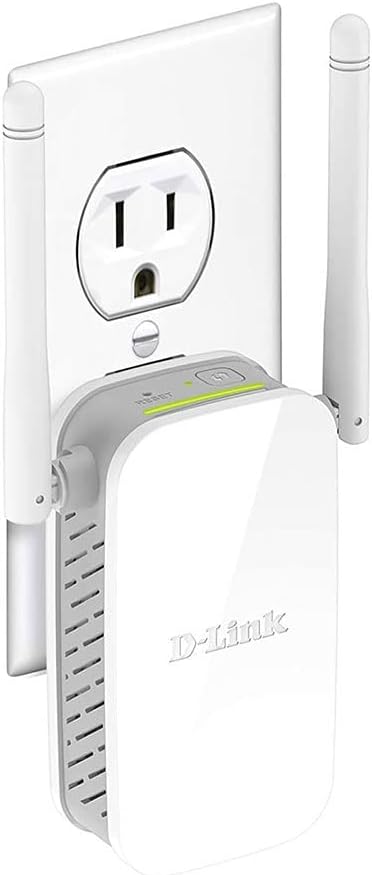
Image: The D-Link N300 Mesh Wi-Fi Range Extender (DAP-1325-US) shown plugged into a standard wall outlet, illustrating its compact, wall-plug design.
2. เนื้อหาบรรจุภัณฑ์
ตรวจสอบว่าแพ็คเกจของคุณมีรายการต่อไปนี้:
- D-Link DAP-1325-US N300 Mesh Wi-Fi Range Extender
- คู่มือการติดตั้งอย่างรวดเร็ว (QIG)
If any items are missing or damaged, please contact your local D-Link reseller.
3. สินค้าหมดview
3.1 เค้าโครงอุปกรณ์

ภาพ: ด้านบน view of the D-Link DAP-1325-US, highlighting the Reset button and the WPS button.
- ปุ่ม WPS: ใช้สำหรับการตั้งค่าอย่างรวดเร็วกับเราเตอร์ที่รองรับ WPS
- ปุ่มรีเซ็ต: กดค้างไว้เพื่อคืนค่าเป็นการตั้งค่าเริ่มต้นจากโรงงาน
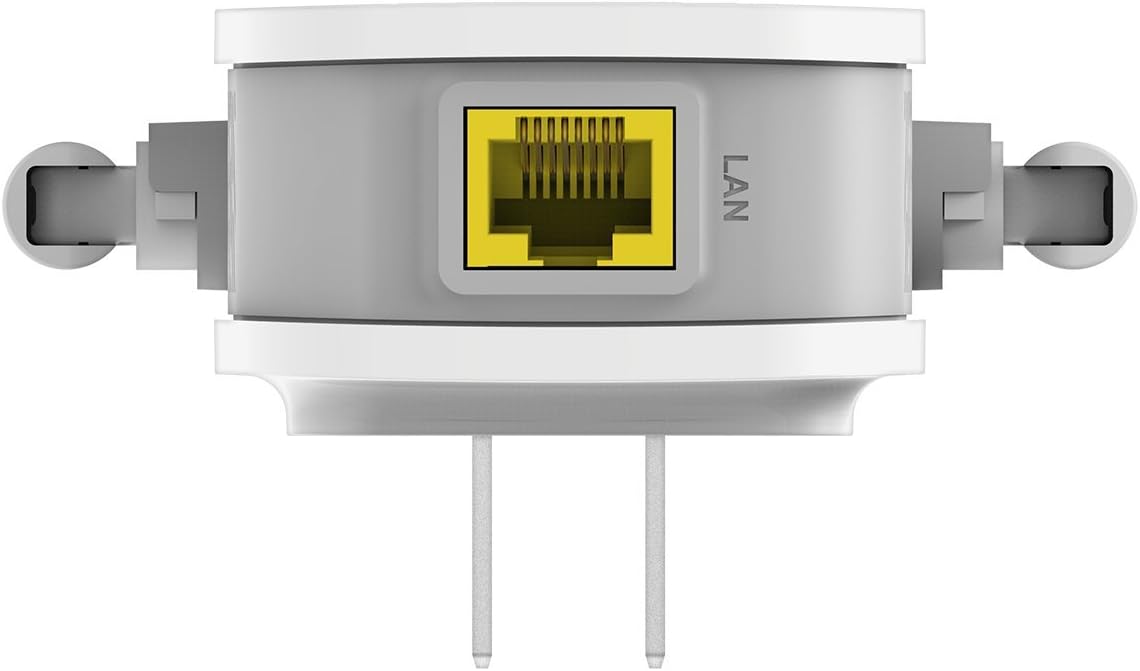
ภาพ: ด้านล่าง view of the D-Link DAP-1325-US, showing the Ethernet (LAN) port.
- พอร์ตอีเทอร์เน็ต (LAN): Connects wired devices to your extended network.
3.2 ไฟแสดงสถานะ LED
- Signal Indicator LED: Displays the strength of the signal from your router. Green indicates a good connection, amber indicates a fair connection, and red indicates a poor or no connection.
- กำลังไฟ LED: ระบุสถานะพลังงานของอุปกรณ์
4. การตั้งค่า
The D-Link DAP-1325-US offers multiple setup methods:
4.1 WPS (Wi-Fi Protected Setup) Method
- Plug the DAP-1325-US into a power outlet near your existing Wi-Fi router.
- รอจนกว่าไฟ LED แสดงสถานะเปิดเครื่องจะติดเป็นสีเขียวค้าง
- กดปุ่ม WPS บนเราเตอร์ Wi-Fi ของคุณ
- Within two minutes, press the WPS button on the DAP-1325-US.
- The Signal Indicator LED on the DAP-1325-US will flash during connection and then turn solid green or amber when successfully connected.
- Once connected, unplug the DAP-1325-US and move it to a location between your router and the area where you need extended Wi-Fi coverage. Ensure the Signal Indicator LED remains solid green or amber in the new location for optimal performance.
4.2 QRS Mobile App Setup
For a guided setup using your smartphone or tablet:
- Download the D-Link QRS Mobile app from the App Store (iOS) or Google Play (Android).
- Plug the DAP-1325-US into a power outlet.
- Open the QRS Mobile app and follow the on-screen instructions to connect to the extender and configure its settings.
4.3 Web การตั้งค่าเบราว์เซอร์
You can also configure the extender using a web เบราว์เซอร์:
- Plug the DAP-1325-US into a power outlet.
- Connect your computer or mobile device to the extender's default Wi-Fi network (SSID and password can be found on the device label or Quick Installation Guide).
- เปิด web เบราว์เซอร์และเข้าสู่
http://dlinkap.local/or the IP address provided in the Quick Installation Guide. - Follow the on-screen setup wizard to configure the extender.
5. คู่มือการใช้งาน
5.1 การจัดวางที่เหมาะสมที่สุด
After initial setup, place the DAP-1325-US in a location that is roughly halfway between your wireless router and the area where you need to extend coverage. The Signal Indicator LED should be solid green or amber to ensure a strong connection to your router.
5.2 การเชื่อมต่ออุปกรณ์
Once the extender is set up, devices in the extended coverage area can connect to the new Wi-Fi network created by the DAP-1325-US. If Mesh Smart Roaming is enabled, your devices will automatically connect to the strongest available Wi-Fi signal (either from your router or the extender) as you move around your home.
5.3 Using the Ethernet Port
The built-in Ethernet port allows you to connect a wired device, such as a desktop computer, gaming console, or smart TV, to your extended wireless network. Simply connect an Ethernet cable from your device to the LAN port on the DAP-1325-US.
6. การบำรุงรักษา
- การทำความสะอาด: ใช้ผ้านุ่มและแห้งเช็ดทำความสะอาดอุปกรณ์ ห้ามใช้น้ำยาทำความสะอาดชนิดน้ำหรือสเปรย์
- อัพเดตเฟิร์มแวร์: Periodically check the D-Link support webไซต์สำหรับอัพเดตเฟิร์มแวร์เพื่อให้มั่นใจถึงประสิทธิภาพและความปลอดภัยที่เหมาะสมที่สุด
- การเริ่มต้นใหม่: If the device experiences issues, try unplugging it from the power outlet for 10 seconds and then plugging it back in.
7 การแก้ไขปัญหา
7.1 No Internet Connection After Setup
- Ensure the DAP-1325-US is within range of your main router. The Signal Indicator LED should be solid green or amber.
- ตรวจสอบว่าเราเตอร์หลักของคุณมีการเชื่อมต่ออินเทอร์เน็ตที่ใช้งานได้
- Try restarting both your main router and the DAP-1325-US.
- If using WPS, ensure you pressed the WPS button on both devices within the two-minute window.
7.2 ความเร็ว Wi-Fi ช้า
- Relocate the DAP-1325-US to a more central position between your router and devices. A solid green Signal Indicator LED is ideal.
- Reduce interference from other electronic devices (e.g., microwaves, cordless phones).
- ตรวจสอบให้แน่ใจว่าเราเตอร์หลักของคุณมีความเร็วเพียงพอ
7.3 ไม่สามารถเข้าถึงได้ Web-Based Setup
- ตรวจสอบให้แน่ใจว่าอุปกรณ์ของคุณเชื่อมต่อกับเครือข่าย Wi-Fi ของตัวขยายสัญญาณ
- ลองใช้ตัวอื่น web เบราว์เซอร์
- ล้างแคชและคุกกี้ของเบราว์เซอร์ของคุณ
- If
http://dlinkap.local/does not work, try using the extender's IP address (refer to your router's client list or the Quick Installation Guide).
7.4 รีเซ็ตเป็นค่าโรงงาน
If all troubleshooting steps fail, you may need to perform a factory reset:
- With the DAP-1325-US powered on, use a paperclip to press and hold the Reset button for approximately 5-10 seconds until the Power LED blinks.
- Release the button and wait for the device to restart. All settings will be restored to factory defaults.
8. ข้อมูลจำเพาะ
| คุณสมบัติ | ข้อมูลจำเพาะ |
|---|---|
| หมายเลขรุ่น | DAP-1325-US |
| ประเภทไร้สาย | 802.11ก./น |
| อัตราการถ่ายโอนข้อมูล | สูงสุด 300 เมกะบิตต่อวินาที |
| ระดับย่านความถี่ | แบนด์เดียว (2.4 GHz) |
| พอร์ตอีเทอร์เน็ต | 1 x 10/100 Mbps LAN Port |
| ขนาด (กxยxส) | 3.26 x 2.71 x 3.86 นิ้ว |
| น้ำหนักสินค้า | 3.52 ออนซ์ |
| สี | สีขาว |
| คุณสมบัติพิเศษ | Foldable Antennas |
9. ข้อมูลด้านความปลอดภัย
- ห้ามเปิดเครื่องหรือพยายามซ่อมแซม
- เก็บอุปกรณ์ให้ห่างจากน้ำ ไฟ และอุณหภูมิสูง
- ตรวจสอบให้แน่ใจว่ามีการระบายอากาศที่เหมาะสมรอบๆ อุปกรณ์
- ใช้เฉพาะแหล่งจ่ายไฟที่ระบุไว้สำหรับอุปกรณ์นี้เท่านั้น
10. การรับประกันและการสนับสนุน
For warranty information and technical support, please refer to the documentation included with your product or visit the official D-Link website. D-Link provides various support resources, including FAQs, troubleshooting guides, and contact information for technical assistance.
การสนับสนุน D-Link Webเว็บไซต์: https://us.dlink.com/support