
1. บทนำ
This manual provides essential instructions for the installation, operation, and maintenance of your Xigmatek Vanguard Plus PC Case. This full tower case is designed to accommodate ATX, Micro ATX, and Mini ITX motherboards and comes with a pre-installed 600W 80PLUS Active PFC power supply. It features convenient front panel connectivity including USB 3.0 and USB 2.0 ports, along with audio jacks, and includes LED fans for enhanced cooling and aesthetics.
2. การตั้งค่าและการติดตั้ง
Before beginning installation, ensure your workspace is clean and static-free. Refer to your motherboard and component manuals for specific installation details.
2.1. การเปิดคดี
Carefully remove the side panels of the case. Typically, this involves unscrewing thumbscrews at the rear and sliding the panels backward.
2.2. การติดตั้งเมนบอร์ด
Install the I/O shield provided with your motherboard into the rear opening of the case. Align your ATX, Micro ATX, or Mini ITX motherboard with the standoffs inside the case. Secure the motherboard using the appropriate screws. Ensure all standoffs are correctly aligned to prevent damage.

ภาพ: ภายใน view of the Xigmatek Vanguard Plus PC case, illustrating the motherboard mounting area and drive bays.
2.3. หน่วยจ่ายไฟ (PSU)
The 600W 80PLUS Active PFC power supply is pre-installed in the lower section of the case. Connect the necessary power cables to your motherboard, CPU, graphics card, and storage devices. Route cables through the designated cutouts for optimal airflow and a tidy build.
2.4. การติดตั้งไดรฟ์จัดเก็บข้อมูล
Install your 2.5-inch SSDs or 3.5-inch HDDs into the available drive bays. Secure them with screws or tool-less mechanisms if provided. Connect SATA data and power cables.
2.5. Expansion Cards
Remove the necessary expansion slot covers at the rear of the case. Insert your graphics card or other expansion cards into the PCIe slots on your motherboard and secure them with screws.
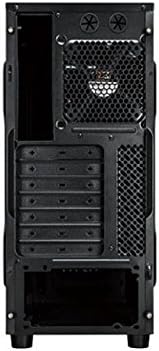
ภาพ: ด้านหลัง view of the Xigmatek Vanguard Plus PC case, highlighting the expansion slots and rear fan mounting area.
2.6. การเชื่อมต่อแผงด้านหน้า
เชื่อมต่อสายเคเบิลแผงด้านหน้า (USB 3.0, USB 2.0, HD Audio, สวิตช์เปิด/ปิด, สวิตช์รีเซ็ต, ไฟ LED แสดงสถานะการทำงาน, ไฟ LED แสดงสถานะฮาร์ดดิสก์) เข้ากับหัวต่อที่ตรงกันบนเมนบอร์ดของคุณ โปรดดูคู่มือเมนบอร์ดของคุณสำหรับตำแหน่งของหัวต่อ

ภาพ: ด้านหน้า view of the Xigmatek Vanguard Plus PC case, showcasing the front panel design and an illuminated LED fan.
3. คู่มือการใช้งาน
Once all components are installed and cables are connected, replace the side panels. Connect your monitor, keyboard, mouse, and power cable to the rear of the PC. Press the power button on the front panel to start your system.
3.1. พอร์ตด้านหน้า
- พอร์ต USB 3.0 (x2): สำหรับการถ่ายโอนข้อมูลความเร็วสูงกับอุปกรณ์ที่รองรับ
- พอร์ต USB 2.0 (x1): สำหรับอุปกรณ์ USB มาตรฐาน
- Microphone Input (x1): เชื่อมต่อไมโครโฟนของคุณ
- Speaker Output (x1): เชื่อมต่อหูฟังหรือลำโพงของคุณ
3.2. LED Fans
The case includes LED fans that provide cooling and visual effects. These fans typically draw power directly from the power supply or motherboard fan headers and operate automatically based on system temperature or a fixed speed.
4. การบำรุงรักษา
การบำรุงรักษาตามปกติจะช่วยให้มั่นใจได้ถึงประสิทธิภาพสูงสุดและอายุการใช้งานที่ยาวนานของส่วนประกอบพีซีของคุณ
- ตัวกรองฝุ่น: Periodically check and clean any removable dust filters (e.g., on the front, top, or bottom of the case) to maintain good airflow. Use compressed air or a soft brush.
- การทำความสะอาดภายใน: Every few months, open the case and use compressed air to remove dust buildup from fans, heatsinks, and other components. Hold fan blades gently to prevent over-spinning during cleaning.
- การทำความสะอาดภายนอก: เช็ดพื้นผิวภายนอกด้วยผ้านุ่ม damp ผ้า. หลีกเลี่ยงสารเคมีที่รุนแรง
5 การแก้ไขปัญหา
หัวข้อนี้จะกล่าวถึงปัญหาทั่วไปที่คุณอาจพบเจอ
- ไม่มีไฟฟ้า:
- ตรวจสอบให้แน่ใจว่าสายไฟเชื่อมต่อกับ PSU และเต้ารับที่ผนังอย่างแน่นหนา
- ตรวจสอบให้แน่ใจว่าสวิตช์เปิด/ปิดด้านหลังของแหล่งจ่ายไฟ (PSU) อยู่ในตำแหน่ง 'เปิด' (ON)
- Verify all internal power cables (24-pin ATX, 8-pin CPU, GPU power) are correctly seated.
- ตรวจสอบว่าสายสวิตช์ไฟแผงด้านหน้าเชื่อมต่อกับหัวเมนบอร์ดอย่างถูกต้อง
- Fans Not Spinning / No LED Lights:
- Check fan power connections to the motherboard or PSU.
- Ensure LED cables (if separate) are connected.
- พอร์ต USB/เสียงด้านหน้าใช้งานไม่ได้:
- Verify that the USB 3.0, USB 2.0, and HD Audio cables from the front panel are correctly connected to the corresponding headers on your motherboard.
- Check your motherboard's BIOS/UEFI settings to ensure front panel audio/USB is enabled.
- ปัญหาความพอดีของส่วนประกอบ:
- Ensure all components, especially large graphics cards or CPU coolers, are compatible with the case dimensions.
- Some larger gaming motherboards or specific cooler designs may require careful planning for exhaust fan placement.
6. ข้อมูลจำเพาะ
| คุณสมบัติ | รายละเอียด |
|---|---|
| ยี่ห้อ | ซิกม่าเท็ก |
| หมายเลขรุ่น | Vanguard Plus |
| ประเภทเคส | ฟูลทาวเวอร์ |
| ความเข้ากันได้ของเมนบอร์ด | ATX, Micro ATX, Mini ITX |
| รวมพาวเวอร์ซัพพลาย | 600W 80PLUS Active PFC |
| พอร์ตแผงด้านหน้า | 2x USB 3.0, 1x USB 2.0, 1x Microphone, 1x Speaker |
| วิธีการทำความเย็น | Air (includes LED fans) |
| น้ำหนักผลิตภัณฑ์ | 6.82 กิโลกรัม |
| ประเทศต้นกำเนิด | จีน |
7. ข้อมูลการรับประกัน
The Xigmatek Vanguard Plus PC Case comes with a การรับประกันจากผู้ผลิต 2 ปี from the date of purchase. This warranty covers defects in materials and workmanship under normal use. Please retain your proof of purchase for warranty claims. The warranty does not cover damage caused by misuse, accident, modification, or unauthorized repair.
8. การสนับสนุน
For technical assistance, troubleshooting beyond this manual, or warranty inquiries, please contact Xigmatek customer support through their official website or the retailer where the product was purchased. Have your product model number (Vanguard Plus) and proof of purchase ready when contacting support.