
การแนะนำ
This manual provides detailed instructions for the assembly, operation, and maintenance of your Displays2go Tablet Floor Stand with Locking Enclosure, model IPEVRFLBK2. This versatile stand is designed to securely display tablets in both floor-standing and countertop configurations, featuring a robust locking mechanism and integrated cable management. Please read these instructions carefully before assembly and use to ensure proper functionality and safety.
ข้อมูลด้านความปลอดภัย
- ตรวจสอบให้แน่ใจว่าส่วนประกอบทั้งหมดถูกยึดแน่นสนิทระหว่างการประกอบ เพื่อป้องกันการโยกเยก
- Do not exceed the recommended weight capacity for the tablet enclosure.
- Place the stand on a stable, level surface to avoid tipping.
- Keep keys for the locking enclosure in a safe place.
- Route cables carefully to prevent tripping hazards.
เนื้อหาแพ็คเกจ
Please verify that all the following components are present before beginning assembly. If any parts are missing or damaged, contact customer support.
- แผ่นฐาน
- Main Support Pole (for floor stand)
- Short Support Arm (for countertop stand)
- กล่องใส่แท็บเล็ต
- Mounting Hardware (screws, washers, Allen wrench)
- Set of Keys for Enclosure Lock
- Foam Padding Inserts for Tablet
คำแนะนำในการประกอบ
1. Floor Stand Assembly
- Attach the Main Support Pole to the Base Plate: Align the bottom of the main support pole with the designated holes on the base plate. Secure it using the provided screws and Allen wrench. Ensure it is tightened firmly.
- Attach the Tablet Enclosure to the Main Support Pole: Position the tablet enclosure onto the top of the main support pole. Align the mounting holes and secure with the appropriate screws. The enclosure should be able to tilt and rotate once attached.
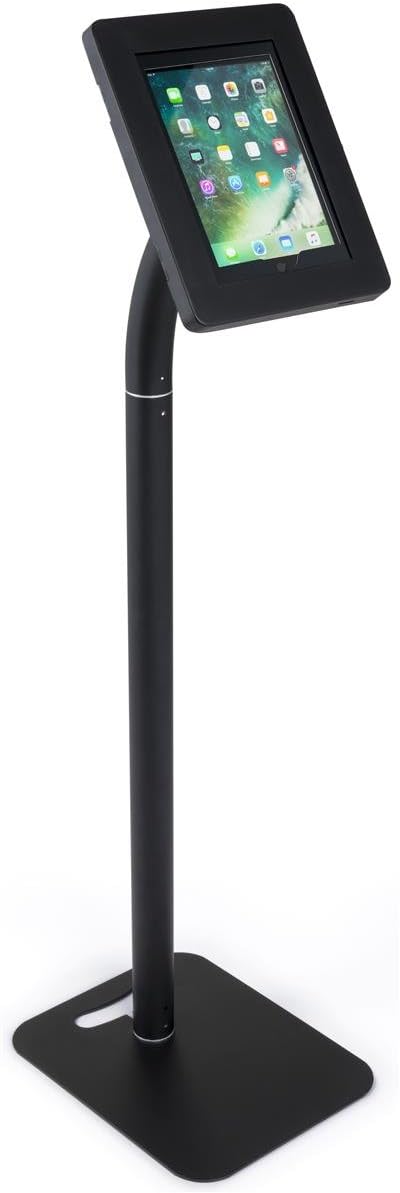
The fully assembled Displays2go Tablet Floor Stand in its upright configuration, showcasing a tablet securely housed within the locking enclosure.
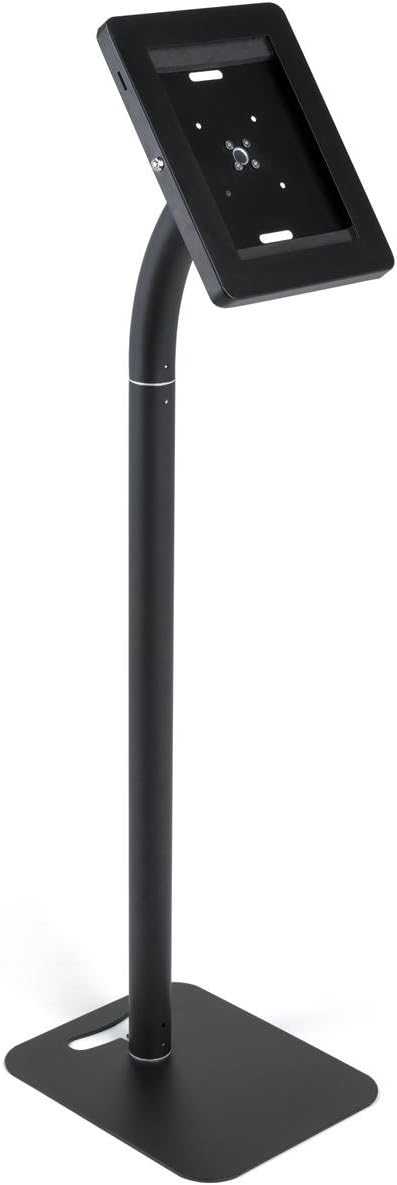
This image displays the rear of the tablet enclosure and the connection point to the stand's pole, illustrating the mounting mechanism.
2. Countertop Stand Assembly
- Attach the Short Support Arm to the Base Plate: If converting from a floor stand, remove the main support pole. Align the short support arm with the designated holes on the base plate and secure it using the provided screws and Allen wrench.
- Attach the Tablet Enclosure to the Short Support Arm: Position the tablet enclosure onto the top of the short support arm. Align the mounting holes and secure with the appropriate screws.

The tablet stand configured for countertop use, with a tablet displayed in the enclosure, highlighting its compact form.

This image shows the back of the tablet enclosure when configured for countertop use, detailing its attachment to the shorter base.
3. การใส่แท็บเล็ตของคุณ
- Unlock the Enclosure: Use the provided key to unlock the tablet enclosure. The front panel will open.
- Apply Foam Padding: Place the appropriate foam padding inserts inside the enclosure to ensure a snug and secure fit for your specific tablet model.
- ใส่แท็บเล็ต: Carefully place your tablet into the enclosure, ensuring it sits flush against the padding.
- ปิดและล็อค: Close the front panel of the enclosure and turn the key to lock it securely. Remove the key.
4. การจัดการสายเคเบิล
The stand features integrated cable management to keep charging cables tidy and out of sight.
- Route Cable Through Enclosure: If your tablet requires charging while in the stand, feed the charging cable through the designated opening in the tablet enclosure.
- Guide Cable Down the Pole: Carefully guide the cable down the interior or exterior channel of the support pole.
- Exit Through Base: Route the cable out through the opening in the base plate to connect to a power source.

รายละเอียด view of the base of the stand, illustrating the integrated cable management channel designed to route charging cables discreetly.
Operating the Tablet Stand
การปรับแต่ง Viewอิงแองเกิล
The tablet enclosure can be tilted and rotated to achieve optimal viewing angles. Gently adjust the enclosure to your desired position. Avoid excessive force.
การล็อกและการปลดล็อก
To secure your tablet, ensure the enclosure is closed and use the provided key to turn the lock mechanism. To access the tablet, insert the key and turn to unlock, then open the front panel.
การซ่อมบำรุง
- การทำความสะอาด: Wipe the stand and enclosure with a soft, dry cloth. For stubborn marks, a slightly damp cloth with mild soap can be used, followed by drying. Avoid abrasive cleaners.
- การตรวจสอบ: ตรวจสอบสกรูและข้อต่อทั้งหมดเป็นระยะ เพื่อให้แน่ใจว่ายังแน่นอยู่ ขันให้แน่นอีกครั้งหากจำเป็น
- การดูแลที่สำคัญ: Keep the keys clean and dry. Do not force the key if it feels stiff; apply a small amount of graphite lubricant if needed.
การแก้ไขปัญหา
- ขาตั้งโคลงเคลง: Ensure all assembly screws are fully tightened. Verify the stand is on a flat, stable surface.
- Tablet Does Not Fit: Check that the correct foam padding inserts are used for your tablet model. Ensure the tablet is aligned properly before closing the enclosure.
- Lock Mechanism is Stiff: Apply a small amount of graphite lubricant to the keyhole. Ensure the key is fully inserted and turned gently.
- Cables Not Routing Properly: Ensure cables are not kinked or obstructed within the pole or base channels.
ข้อมูลจำเพาะ
| คุณสมบัติ | รายละเอียด |
|---|---|
| Product Dimensions (Floor Stand) | 15 x 12 x 48.5 นิ้ว |
| น้ำหนักสินค้า | 12 ปอนด์ |
| วัสดุ | เหล็กและอลูมิเนียม |
| สี | สีดำ |
| ประเภทการติดตั้ง | แบบตั้งพื้น แบบตั้งโต๊ะ |
| อุปกรณ์ที่รองรับ | Apple iPad 2 (and similarly sized tablets) |
การรับประกันและการสนับสนุน
This product is covered by the standard manufacturer's warranty. For warranty claims, technical support, or replacement parts, please contact Displays2go customer service. Refer to your purchase documentation for specific warranty terms and contact information.
Displays2go Customer Service: Please visit the official Displays2go website or refer to your product packaging for current contact details.