
1. บทนำ
This manual provides essential information for the safe and efficient use of your ZTE Trek 2 HD K88 Tablet. The ZTE Trek 2 HD K88 is an 8-inch tablet featuring an HD display, an Octa-core processor, 2GB RAM, 16GB internal storage (expandable), and a 4600mAh battery. It operates on Android 6.0 Marshmallow and supports Wi-Fi and 4G-LTE connectivity.
Please read this manual thoroughly before operating your device to ensure proper functionality and to understand its features.

ภาพที่ 1.1: ด้านหลัง view of the ZTE Trek 2 HD K88 Tablet, showing the AT&T logo and product labels.
2. การตั้งค่า
2.1. การชาร์จแบตเตอรี่
Before first use, fully charge the tablet's battery. Connect the included power adapter to the tablet's charging port and then to a power outlet. The battery indicator on the screen will show charging status.
- Use only the power adapter provided with your device.
- A full charge can take several hours.
2.2. การเปิด/ปิดเครื่อง
- การเปิดเครื่อง: กดปุ่มเปิด/ปิดค้างไว้จนกว่าโลโก้ ZTE จะปรากฏขึ้น
- วิธีปิดเครื่อง: กดปุ่มเปิด/ปิดค้างไว้จนกว่าเมนูตัวเลือกพลังงานจะปรากฏขึ้น จากนั้นเลือก "ปิดเครื่อง"
2.3. การตั้งค่าเริ่มต้น
เมื่อเปิดเครื่องครั้งแรก โปรดทำตามคำแนะนำบนหน้าจอเพื่อกำหนดค่าการตั้งค่าพื้นฐาน:
- เลือกภาษาที่คุณต้องการ
- เชื่อมต่อกับเครือข่าย Wi-Fi
- ลงชื่อเข้าใช้ด้วยบัญชี Google ของคุณหรือสร้างบัญชีใหม่
- Review และยอมรับข้อกำหนดและเงื่อนไข
2.4. การใส่การ์ด MicroSD (ทางเลือก)
The tablet supports expandable memory up to 128GB via a microSD card. Locate the microSD card slot, typically on the side of the device. Carefully insert the card with the gold contacts facing down until it clicks into place.

ภาพที่ 2.1: ด้านข้าง view of the ZTE Trek 2 HD K88 Tablet, illustrating its thin design. The microSD slot is typically located on one of the side edges.
3. คู่มือการใช้งาน
3.1. การนำทางพื้นฐาน
The ZTE Trek 2 HD K88 features a responsive touchscreen. Use the following gestures:
- แตะ: การเลือกสินค้าหรือเปิดแอป
- แตะค้างไว้: เพื่อเข้าถึงเมนูบริบทหรือย้ายรายการ
- ปัด: การเลื่อนดูหน้าจอหรือรายการ
- หยิก: To zoom in or out on content like photos or web หน้า
3.2. หน้าจอหลักและแอปพลิเคชัน
The home screen displays your favorite apps, widgets, and notifications. Swipe left or right to access additional home screens. Tap the "Apps" icon to view แอปพลิเคชันที่ติดตั้งทั้งหมด

ภาพที่ 3.1: ด้านหน้า view of the ZTE Trek 2 HD K88 Tablet with the display active, showing the Android home screen with various application icons.
3.3. การเชื่อมต่อกับ Wi-Fi
- ไปที่ การตั้งค่า > ไวไฟ.
- สลับ Wi-Fi On.
- เลือกเครือข่ายที่คุณต้องการจากรายการ
- ป้อนรหัสผ่านหากได้รับแจ้ง จากนั้นแตะ เชื่อมต่อ.
3.4. การใช้กล้อง
The tablet is equipped with 5 MP front and rear cameras. Open the Camera app to capture photos and videos.
- แตะปุ่มชัตเตอร์เพื่อถ่ายภาพ
- สลับระหว่างกล้องด้านหน้าและด้านหลังโดยใช้ไอคอนสลับกล้อง
- Explore various modes and settings within the camera app.
3.5. คุณสมบัติด้านเสียง
The ZTE Trek 2 HD K88 features Dolby Audio powered dual front-facing speakers for an enhanced audio experience. Adjust volume using the physical volume buttons on the side of the tablet or through the on-screen volume controls.
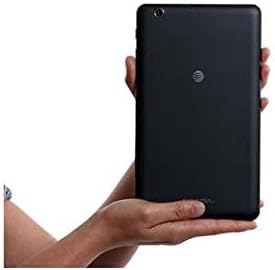
Image 3.2: The ZTE Trek 2 HD K88 Tablet held horizontally in two hands, demonstrating its comfortable and portable 8-inch form factor.
4. การบำรุงรักษา
4.1. การทำความสะอาดอุปกรณ์
To clean your tablet, use a soft, lint-free cloth. For stubborn marks, slightly dampen the cloth with water. Avoid using harsh chemicals, abrasive cleaners, or aerosol sprays, as these can damage the screen and finish.
4.2. การอัปเดตซอฟต์แวร์
ตรวจสอบการอัปเดตซอฟต์แวร์เป็นระยะเพื่อให้แน่ใจว่าแท็บเล็ตของคุณมีคุณสมบัติล่าสุดและแพทช์ความปลอดภัย ไปที่ การตั้งค่า > เกี่ยวกับแท็บเล็ต > การอัพเดทระบบ.
4.3. การจัดการการจัดเก็บข้อมูล
หมั่นตรวจสอบและจัดการพื้นที่จัดเก็บข้อมูลของแท็บเล็ตอย่างสม่ำเสมอ เพื่อรักษาประสิทธิภาพการทำงานให้ดีที่สุด ลบข้อมูลที่ไม่จำเป็นออก files ถอนการติดตั้งแอปที่ไม่ได้ใช้และย้ายสื่อขนาดใหญ่ files to a microSD card or cloud storage. Go to การตั้งค่า > ที่เก็บข้อมูลและ USB ถึง view การใช้พื้นที่จัดเก็บข้อมูล
4.4. การดูแลแบตเตอรี่
เพื่อยืดอายุแบตเตอรี่:
- หลีกเลี่ยงอุณหภูมิที่สูงหรือต่ำเกินไป
- อย่าปล่อยให้แบตเตอรี่หมดจนหมดบ่อยๆ
- ถอดปลั๊กเครื่องชาร์จเมื่อแบตเตอรี่เต็ม
- Adjust screen brightness and disable unused features like Wi-Fi or Bluetooth when not needed.
5 การแก้ไขปัญหา
5.1. ปัญหาทั่วไปและวิธีแก้ไข
| ปัญหา | สารละลาย |
|---|---|
| แท็บเล็ตเปิดไม่ติด | ตรวจสอบให้แน่ใจว่าแบตเตอรี่ชาร์จเต็มแล้ว กดปุ่มเปิด/ปิดค้างไว้อย่างน้อย 10-15 วินาทีเพื่อบังคับให้รีสตาร์ท |
| ปัญหาการเชื่อมต่อ Wi-Fi | Restart the tablet and your Wi-Fi router. Forget the network in Wi-Fi settings and reconnect. |
| แอปขัดข้องหรือค้าง | Close and reopen the app. Clear the app's cache (Settings > Apps > [App Name] > Storage > Clear cache). Restart the tablet. |
| ประสิทธิภาพการทำงานช้า | ปิดแอปที่ไม่ได้ใช้งาน ล้างแคช เพิ่มพื้นที่จัดเก็บข้อมูล รีสตาร์ทแท็บเล็ต |
5.2. รีเซ็ตเป็นค่าโรงงาน
If issues persist, a factory reset may resolve them. This will erase all data on your tablet, so back up important information first. Go to การตั้งค่า > การสำรองข้อมูลและรีเซ็ต > รีเซ็ตข้อมูลโรงงาน.
6. ข้อมูลจำเพาะ
| คุณสมบัติ | รายละเอียด |
|---|---|
| ยี่ห้อ | แซดทีอี |
| ชื่อรุ่น | เค88 |
| ระบบปฏิบัติการ | แอนดรอยด์ 6.0 มาร์ชเมลโลว์ |
| ขนาดหน้าจอ | 8 นิ้ว |
| ความละเอียดการแสดงผล | 1280 x 800 (ความคมชัดสูง) |
| โปรเซสเซอร์ | Qualcomm Snapdragon 617 Octa-core (1.5 GHz) |
| หน่วยความจำแรม | 2GB |
| ความจุในการเก็บข้อมูล | หน่วยความจำ 16 GB (สามารถเพิ่มได้สูงสุด 128 GB ด้วย microSD) |
| กล้องหลัง | 5 MP |
| กล้องหน้า | 5 MP |
| ความจุของแบตเตอรี่ | 4600 mAh (up to 10 hours average life) |
| การเชื่อมต่อ | Wi-Fi (802.11n), 4G-LTE (AT&T) |
| เสียง | Dolby Audio, Dual Front-Facing Speakers |
| น้ำหนัก | 1.3 ปอนด์ |
| อุปกรณ์เสริมที่รวมอยู่ด้วย | อะแดปเตอร์แปลงไฟ |
7. การรับประกันและการสนับสนุน
7.1. ข้อมูลการรับประกัน
This ZTE Trek 2 HD K88 Tablet comes with a 90-day limited warranty. Please refer to your purchase documentation for specific terms and conditions regarding warranty claims.
7.2. การสนับสนุนลูกค้า
For further assistance, technical support, or warranty inquiries, please contact the retailer or ZTE customer service. You may also visit the official ZTE support webไซต์สำหรับคำถามที่พบบ่อยและแหล่งข้อมูลเพิ่มเติม