
การแนะนำ
This manual provides comprehensive instructions for the installation, operation, and maintenance of your Techage Analog CCTV Camera HD 1080P Complete Security Bullet Camera Kit. Please read this manual carefully before using the product to ensure proper setup and functionality.

Figure 1: Techage Analog CCTV Camera HD 1080P Complete Security Bullet Camera Kit, showing the DVR and four bullet cameras.
การติดตั้งและการตั้งค่า
Follow these steps to set up your Techage security system.
1. ส่วนประกอบของระบบ
Your kit includes a Digital Video Recorder (DVR) and multiple 1080P bullet cameras. Each camera is designed for robust outdoor and indoor use with IP66 weatherproofing.

Figure 2: A single Techage 1080P bullet camera, featuring a 3.6mm lens and infrared LEDs for night vision.
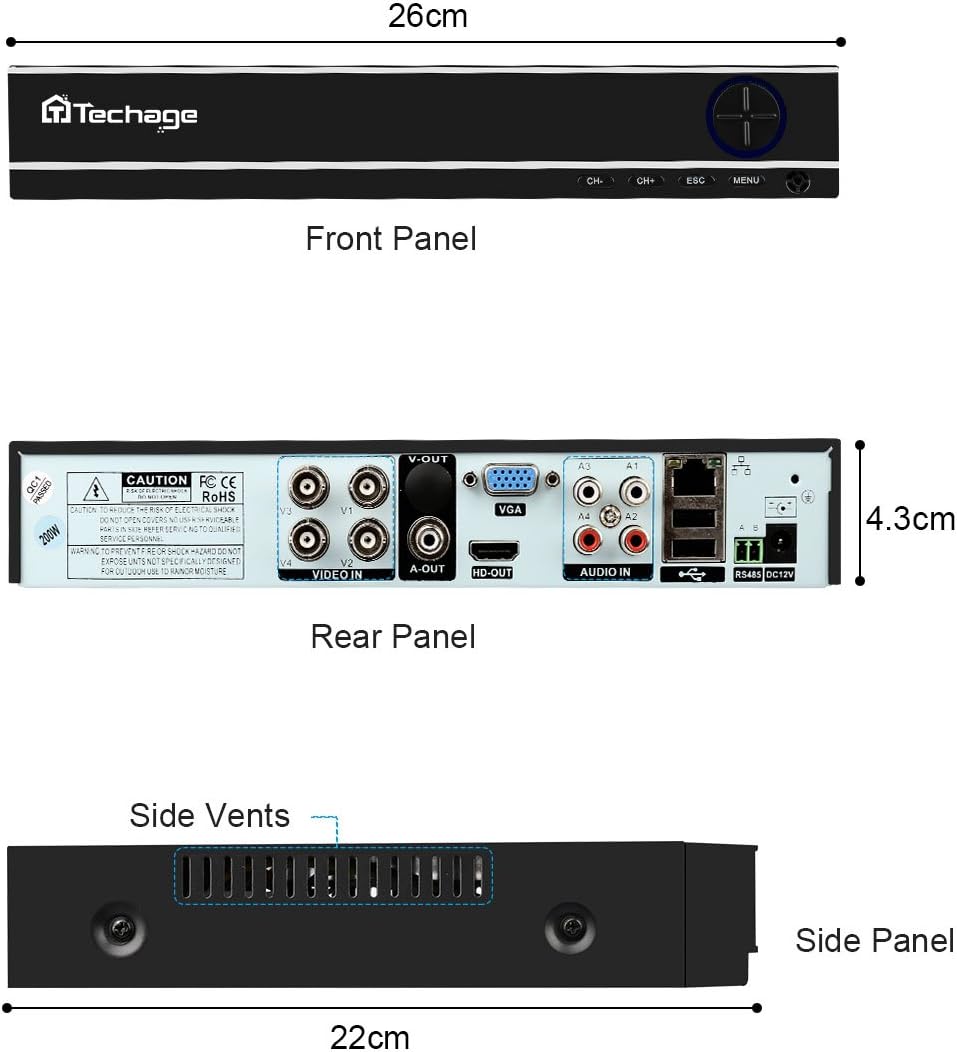
Figure 3: Front, Rear, and Side Panels of the Techage DVR, showing input/output ports and dimensions.
2. การเชื่อมต่อฮาร์ดแวร์
Connect all components as illustrated in the diagram below. Ensure all connections are secure before powering on the system.
- Connect each camera to the DVR using the provided power and video cables.
- Connect the DVR to a monitor or TV using an HDMI or VGA cable.
- Connect the DVR to your network router using an Ethernet cable for remote viewความสามารถในการพัฒนา
- Connect the power supply to the DVR and cameras.

Figure 4: Installation and Connection Diagram. This diagram illustrates how to connect the cameras to the DVR, and the DVR to a monitor/HDTV and network for live viewการไอเอ็นจี
3. Mobile Settings for Remote Viewกำลังทำ
ถึง view your cameras remotely on your mobile device, follow these steps:
- Install the Xmeye App: Scan the QR code or visit the links below to download the Xmeye mobile application for your device.
- Local Login: Open the Xmeye app and select "Local Login".
- เพิ่มอุปกรณ์: แตะไอคอน "+" เพื่อเพิ่มอุปกรณ์ใหม่
- กรอกหมายเลขซีเรียล: Input the 16-digit serial number of your DVR. This can usually be found on the DVR itself or in the system information menu.
- เลือกอุปกรณ์: Select the device from the list to begin viewกับกล้องของคุณ

Figure 5: Mobile Settings for Remote Viewing. This image illustrates the 5 steps to configure the Xmeye app for live camera viewใช้งานผ่านสมาร์ทโฟน
คำแนะนำการใช้งาน
สด View และการบันทึก
เมื่อเชื่อมต่อแล้ว คุณสามารถ view อยู่ footage from your cameras on a connected monitor, or remotely via the Xmeye app on your computer, tablet, or smartphone. The DVR continuously records footage, which can be reviewเอ็ดในภายหลัง
Day and Night Monitoring
The cameras are equipped with infrared (IR) LEDs for true day and night monitoring. During the day, the cameras provide full-color video. As light levels decrease, the cameras automatically switch to black and white night vision mode to ensure continuous surveillance.

Figure 6: Day and Night Vision Comparison. This image shows the difference in camera footage during daytime (color) and nighttime (black and white infrared).
Motion Detection and Email Notifications
Configure motion detection settings on your DVR to trigger recordings and send instant email notifications to your registered email address when activity is detected. This feature enhances security by alerting you to potential incidents in real-time.

Figure 7: Email Notifications for Motion Detection. This image depicts how the system can send email alerts to your mobile device upon detecting suspicious activity.
การซ่อมบำรุง
- เลนส์กล้อง: ควรทำความสะอาดเลนส์กล้องเป็นระยะด้วยผ้าเนื้อนุ่มที่ไม่เป็นขุย เพื่อให้ได้ภาพที่คมชัด หลีกเลี่ยงการใช้สารทำความสะอาดที่มีฤทธิ์กัดกร่อน
- การเชื่อมต่อสายเคเบิล: Regularly check all cable connections (power, video, network) to ensure they are secure and free from damage.
- ระบบระบายอากาศ DVR: Ensure the DVR's side vents are clear of obstructions to prevent overheating.
- การอัปเดตซอฟต์แวร์: ตรวจสอบของผู้ผลิต webเข้าชมเว็บไซต์เพื่อตรวจสอบการอัปเดตเฟิร์มแวร์ที่มีให้สำหรับ DVR ของคุณ เพื่อให้มั่นใจได้ถึงประสิทธิภาพและความปลอดภัยสูงสุด
การแก้ไขปัญหา
| ปัญหา | สาเหตุที่เป็นไปได้ | สารละลาย |
|---|---|---|
| No video display on monitor/TV. | สายวิดีโอหลวม, เลือกอินพุตไม่ถูกต้องบนจอภาพ, เครื่องบันทึก DVR ไม่ได้เปิดใช้งาน | Check all video cable connections. Ensure monitor is set to the correct HDMI/VGA input. Verify DVR power supply. |
| ไม่มีรีโมท viewing via mobile app. | เครื่องบันทึกวิดีโอ (DVR) ไม่ได้เชื่อมต่อกับเครือข่าย การตั้งค่าเครือข่ายไม่ถูกต้อง แอปไม่ได้ตั้งค่าอย่างถูกต้อง | Ensure DVR is connected to the internet. Verify network settings on DVR. Re-check mobile app configuration steps (Figure 5). |
| คุณภาพของภาพไม่ดี | Dirty camera lens, low light conditions (if not in night mode), cable interference. | Clean camera lens. Ensure sufficient lighting or verify night vision is active. Check cable integrity. |
| การตรวจจับการเคลื่อนไหวไม่ทำงาน | Motion detection settings not enabled, sensitivity too low, recording schedule not set. | Access DVR settings to enable motion detection, adjust sensitivity, and set recording schedules. |
ข้อมูลจำเพาะ
| คุณสมบัติ | รายละเอียด |
|---|---|
| ยี่ห้อ | เทจ |
| เทคโนโลยีการเชื่อมต่อ | มีสาย |
| ความละเอียดในการจับภาพวิดีโอ | 1080p |
| คุณสมบัติพิเศษ | การมองเห็นตอนกลางคืน |
| จำนวนช่องสัญญาณ | 4 |
| แหล่งพลังงาน | สายไฟ |
| อุปกรณ์ที่รองรับ | กล้องถ่ายรูป |
| รูปแบบสัญญาณ | อนาล็อก |
| เทคโนโลยีแสงน้อย | การมองเห็นตอนกลางคืน |
| ผู้ผลิต | Tinosec |
| ขนาดแพ็คเกจ | 11.7 x 10 x 9.7 นิ้ว |
| น้ำหนักสินค้า | 9.83 ปอนด์ |
| ASIN | B07BB7FYKX |
| วันที่พร้อมใช้งานครั้งแรก | 6 พฤศจิกายน 2018 |
การรับประกันและการสนับสนุน
ข้อมูลการรับประกันเฉพาะสำหรับผลิตภัณฑ์นี้ไม่มีอยู่ในข้อมูลที่มีอยู่ โปรดดูที่บรรจุภัณฑ์ของผลิตภัณฑ์หรือเอกสารอย่างเป็นทางการจากผู้ผลิต webเว็บไซต์สำหรับข้อกำหนดและเงื่อนไขการรับประกันโดยละเอียด
For technical support or further assistance, please contact Techage customer service through their official channels. Keep your purchase receipt and product serial number handy when contacting support.