
BenQ EX3501R
BenQ EX3501R Ultrawide Curved Gaming Monitor User Manual
Model: EX3501R
1. การตั้งค่า
1.1 การแกะกล่องมอนิเตอร์
นำส่วนประกอบทั้งหมดออกจากบรรจุภัณฑ์อย่างระมัดระวัง ตรวจสอบให้แน่ใจว่ามีอุปกรณ์ครบตามรายการด้านล่าง:
- BenQ EX3501R Monitor
- ขาตั้งจอมอนิเตอร์ (ฐานและคอ)
- อะแดปเตอร์แปลงไฟ
- สายไฟ
- สาย HDMI
- สายเคเบิล DisplayPort
- สาย USB-C
- คู่มือการใช้งาน (เอกสารนี้)
1.2 การประกอบขาตั้ง
ปฏิบัติตามขั้นตอนเหล่านี้เพื่อติดขาตั้งเข้ากับจอภาพของคุณ:
- วางจอภาพคว่ำหน้าลงบนผ้าสะอาดที่นุ่มเพื่อป้องกันรอยขีดข่วน
- ติดส่วนคอของขาตั้งเข้ากับด้านหลังของจอภาพ ตรวจสอบให้แน่ใจว่าล็อคเข้าที่อย่างแน่นหนา
- Connect the stand base to the neck, tightening any screws as indicated in the quick start guide.

รูปที่ 1 : ด้านหน้า view of the BenQ EX3501R monitor with its stand.
1.3 สายเชื่อมต่อ
Connect the necessary cables to the monitor and your computer. The monitor supports various input options:
- พลัง: เชื่อมต่ออะแดปเตอร์ไฟเข้ากับจอภาพแล้วจึงเสียบเข้ากับเต้ารับไฟฟ้า
- อินพุตวิดีโอ: Use either the HDMI, DisplayPort, or USB-C cable to connect your computer to the monitor.
- ยูเอสบี-C: The USB-C port supports video, data transfer, and power delivery, allowing for a single-cable connection with compatible devices.
- พอร์ต USB 3.0: Utilize the integrated USB 3.0 ports for connecting peripherals.
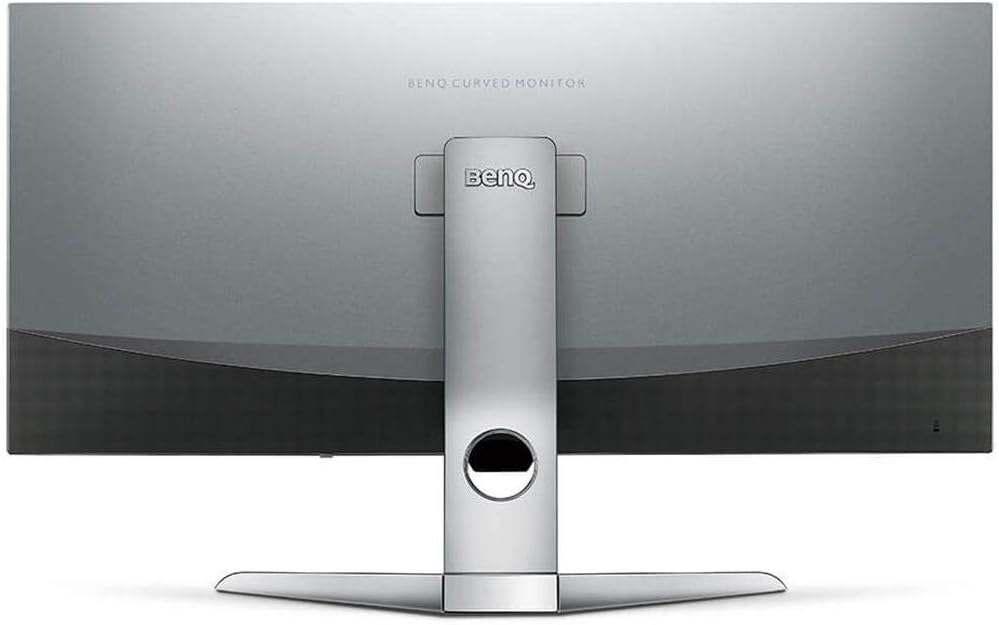
รูปที่ 2: ด้านหลัง view of the monitor displaying the connectivity ports.
2. การใช้งานจอภาพ
2.1 เปิด/ปิดเครื่อง
กดปุ่มเปิด/ปิด ซึ่งโดยปกติจะอยู่ด้านล่างขวาของจอภาพ เพื่อเปิดหรือปิดเครื่อง ไฟแสดงสถานะการทำงานจะสว่างขึ้นเมื่อจอภาพทำงานอยู่
2.2 การนำทางบนหน้าจอ (OSD)
Use the joystick or buttons located on the monitor's underside to navigate the On-Screen Display (OSD) menu. This menu allows you to adjust various settings such as brightness, contrast, color modes, and input sources.
2.3 Display Features and Eye-Care Technology
The BenQ EX3501R incorporates several technologies designed to enhance viewing experience and reduce eye strain:
- Brightness Intelligence Plus (B.I.+): This patented technology automatically senses ambient lighting conditions and adjusts the screen's brightness and color temperature to provide optimal viewing comfort and protect your eyes during extended use.
- แสงสีฟ้าต่ำ: Filters out harmful blue light emissions to reduce eye fatigue. Multiple levels of blue light reduction are available.
- ZeroFlicker™: Eliminates screen flickering at all brightness levels, further reducing eye strain and discomfort.
- HDR (ช่วงไดนามิกสูง): Offers enhanced brightness and contrast, bringing greater detail and vibrancy to HDR video content.
วิดีโอ 1: จบแล้วview of BenQ's Eye-Care technology, including Low Blue Light, ZeroFlicker, and Brightness Intelligence Plus, demonstrating how these features work to reduce eye strain and adjust screen settings automatically based on ambient light.
2.4 ความละเอียดและอัตราการรีเฟรช
The monitor features a QHD (3440x1440) resolution and a 100Hz refresh rate, providing a smooth and detailed visual experience. The 21:9 ultrawide aspect ratio offers ample screen space for multitasking, such as viewing multiple documents side-by-side without needing a second monitor.
2.5 เอเอ็มดี ฟรีซิงค์
For a fluid gaming experience, the monitor supports AMD FreeSync technology, which synchronizes the monitor's refresh rate with your graphics card's frame rate to eliminate screen tearing and stuttering.
3. การบำรุงรักษา
3.1 การทำความสะอาดจอภาพ
To maintain optimal performance and appearance, regularly clean your monitor:
- หน้าจอ: เช็ดหน้าจอเบาๆ ด้วยผ้าเนื้อนุ่มที่ไม่เป็นขุย สำหรับคราบสกปรกที่ติดแน่น ให้ใช้น้ำยาทำความสะอาดสำหรับจอภาพโดยเฉพาะ โดยทาลงบนผ้าก่อนแล้วค่อยเช็ดลงบนหน้าจอโดยตรง
- ภายนอก: Use a soft, dry cloth to wipe dust and debris from the monitor casing และยืน
หลีกเลี่ยงการใช้น้ำยาทำความสะอาดที่มีฤทธิ์กัดกร่อน แว็กซ์ หรือตัวทำละลาย เนื่องจากอาจทำให้พื้นผิวของจอภาพเสียหายได้
3.2 เคล็ดลับการดูแลทั่วไป
- ห้ามปิดกั้นช่องระบายอากาศบนจอภาพ
- หลีกเลี่ยงการวางจอภาพให้โดนแสงแดดโดยตรงหรือใกล้แหล่งความร้อน
- จับจอภาพด้วยความระมัดระวังเพื่อป้องกันความเสียหายทางกายภาพ
4 การแก้ไขปัญหา
If you encounter issues with your BenQ EX3501R monitor, refer to the following common troubleshooting steps:
4.1 No Display or Black Screen
- ตรวจสอบให้แน่ใจว่าสายไฟเชื่อมต่อกับจอภาพและเต้าเสียบไฟอย่างแน่นหนา
- Verify that the video cable (HDMI, DisplayPort, or USB-C) is firmly connected to both the monitor and your computer.
- ตรวจสอบว่าได้เลือกแหล่งสัญญาณเข้าที่ถูกต้องในเมนู OSD ของจอภาพแล้ว
- รีสตาร์ทเครื่องคอมพิวเตอร์ของคุณ
4.2 Flickering or Unstable Image
- Ensure the ZeroFlicker™ feature is enabled in the OSD menu.
- ตรวจสอบว่าสายเคเบิลวิดีโอเชื่อมต่อหลวมหรือไม่
- อัปเดตไดรเวอร์การ์ดแสดงผลของคุณเป็นเวอร์ชันล่าสุด
- If using AMD FreeSync, ensure it is properly configured in your graphics card settings.
4.3 Color or Brightness Issues
- ปรับความสว่าง ความคมชัด และการตั้งค่าสีผ่านเมนู OSD
- Enable or disable Brightness Intelligence Plus (B.I.+) to see if it resolves the issue.
- ทำการรีเซ็ตเป็นค่าเริ่มต้นจากโรงงานผ่านเมนู OSD
5. ข้อมูลจำเพาะ
Key technical specifications for the BenQ EX3501R monitor:
| คุณสมบัติ | ข้อมูลจำเพาะ |
|---|---|
| ขนาดหน้าจอ | 35 นิ้ว |
| ความละเอียดหน้าจอสูงสุด | 3440 x 1440 Pixels (QHD Ultrawide) |
| อัตราส่วนภาพ | 21:9 น. |
| อัตราการรีเฟรช | 100 เฮิรตซ์ |
| ความโค้ง | 1800อาร์ |
| ประเภทแผง | VA (การจัดวางแนวตั้ง) |
| การเชื่อมต่อ | USB-C, HDMI, DisplayPort |
| คุณสมบัติพิเศษ | AMD FreeSync, Brightness Intelligence Plus, Low Blue Light, ZeroFlicker |
| น้ำหนักสินค้า | 21.3 ปอนด์ |
| ขนาดสินค้า | 6.88 x 3.47 x 12.93 นิ้ว |
6. การรับประกันและการสนับสนุน
6.1 การรับประกันสินค้า
The BenQ EX3501R monitor typically comes with a 3-year manufacturer's warranty. Please refer to the warranty card included in your product packaging for specific terms and conditions, or visit the official BenQ webเว็บไซต์สำหรับข้อมูลการรับประกันโดยละเอียด
6.2 การสนับสนุนลูกค้า
For further assistance, technical support, or warranty claims, please contact BenQ customer service. You can find contact information and support resources on the official BenQ webเว็บไซต์: www.benq.com/en-us/support.html
Ask a question about this manual
Ask about setup, troubleshooting, compatibility, parts, safety, or missing instructions. Manuals+ will review the question and use this page’s manual context to help answer it.