
1. บทนำ
The FIDECO SATA/IDE to USB 3.0 Adapter is a versatile tool designed to connect various types of hard drives and optical drives to your computer via a high-speed USB 3.0 interface. This adapter provides a convenient solution for data recovery, transfer, and backup from older or external storage devices without needing to install them internally.

Figure 1: FIDECO SATA/IDE to USB 3.0 Adapter. This image shows the main unit of the adapter with its USB 3.0 cable connected, ready for use.
2. คุณสมบัติหลัก
- ความเข้ากันได้ในวงกว้าง: Supports 2.5"/3.5" SATA/IDE hard drives and 5.25-inch DVD/CD drives.
- การเชื่อมต่อพร้อมกัน: Capable of connecting up to three hard drives concurrently: one 2.5" IDE, one 3.5" IDE, and one 2.5"/3.5" SATA drive.
- การถ่ายโอนข้อมูลความเร็วสูง: Equipped with a USB 3.0 port, offering data transfer speeds up to 5Gbps. Backward compatible with USB 2.0/1.1.
- ปลั๊กแอนด์เพลย์: No driver or software installation required for Windows, Mac OS, and Linux operating systems.
- แหล่งจ่ายไฟคู่: Includes a DC 12V input and a 4-pin power cable for 3.5" IDE HDDs, ensuring stable power for various drive types.

Figure 2: Adapter Interfaces. This image illustrates the different interfaces available on the FIDECO adapter, including SATA, 2.5" IDE, and 3.5" IDE ports.
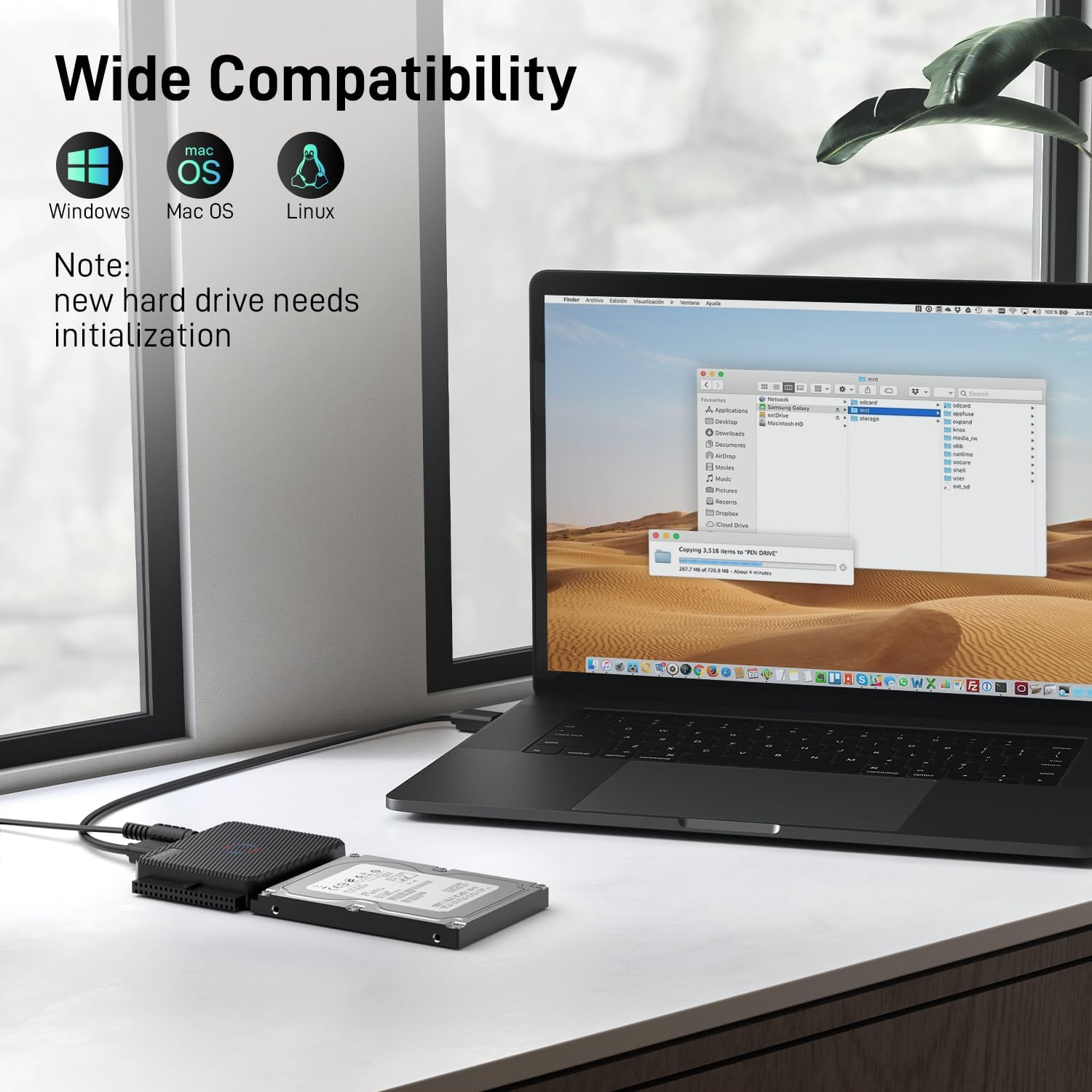
Figure 3: High-Speed Data Transfer. This image demonstrates the adapter connected to a laptop and a hard drive, highlighting its 5Gbps data transfer capability.
3. ข้อมูลจำเพาะ
| คุณลักษณะ | ค่า |
|---|---|
| ยี่ห้อ | ฟิเดโก้ |
| หมายเลขรุ่น | S3G-PL03-1 |
| ประเภทขั้วต่อ | USB ประเภทเอ |
| ประเภทสายเคเบิล | ยูเอสบี |
| อุปกรณ์ที่รองรับ | TV, PC, DVD Player, Xbox |
| คุณสมบัติพิเศษ | การถ่ายโอนข้อมูลความเร็วสูง |
| อัตราการถ่ายโอนข้อมูล | 5 กิกะบิตต่อวินาที |
| แหล่งพลังงาน | DC |
| น้ำหนักสินค้า | 10.6 ออนซ์ |
| ขนาดสินค้า | 2.3 x 0.43 x 1.44 นิ้ว |
4. คำแนะนำในการตั้งค่า
Follow these steps to connect your hard drive or optical drive to your computer using the FIDECO adapter:
- เตรียมไดรฟ์ของคุณ: Ensure your hard drive or optical drive is clean and free of debris.
- Connect the Drive to the Adapter:
- สำหรับ SATA drives (2.5"/3.5" HDD/SSD): Align the SATA data and power connectors on your drive with the corresponding ports on the FIDECO adapter and firmly push the drive onto the adapter.
- สำหรับ 2.5" IDE HDDs: Connect the 44-pin IDE connector on your drive to the 2.5" IDE interface on the adapter.
- สำหรับ 3.5" IDE HDDs or 5.25" Optical Drives: Connect the 40-pin IDE connector on your drive to the 3.5" IDE interface on the adapter.
- เชื่อมต่อพลังงาน:
- สำหรับ 2.5" SATA/IDE HDDs/SSDs: The adapter typically draws sufficient power from the USB connection.
- สำหรับ 3.5" SATA/IDE HDDs or 5.25" Optical Drives: Connect the provided power adapter to the DC 12V input on the FIDECO adapter. For 3.5" IDE HDDs, you will also need to connect the 4-pin power cable from the power adapter to the drive itself.
- เชื่อมต่อกับคอมพิวเตอร์: Plug the USB 3.0 cable from the FIDECO adapter into an available USB port on your computer.
- เปิดเครื่อง: If your adapter has a power switch, turn it on. Your computer should detect the connected drive automatically.

Figure 4: Easy Setup. This diagram illustrates the simple steps to connect a hard drive to the FIDECO adapter and then to a computer.
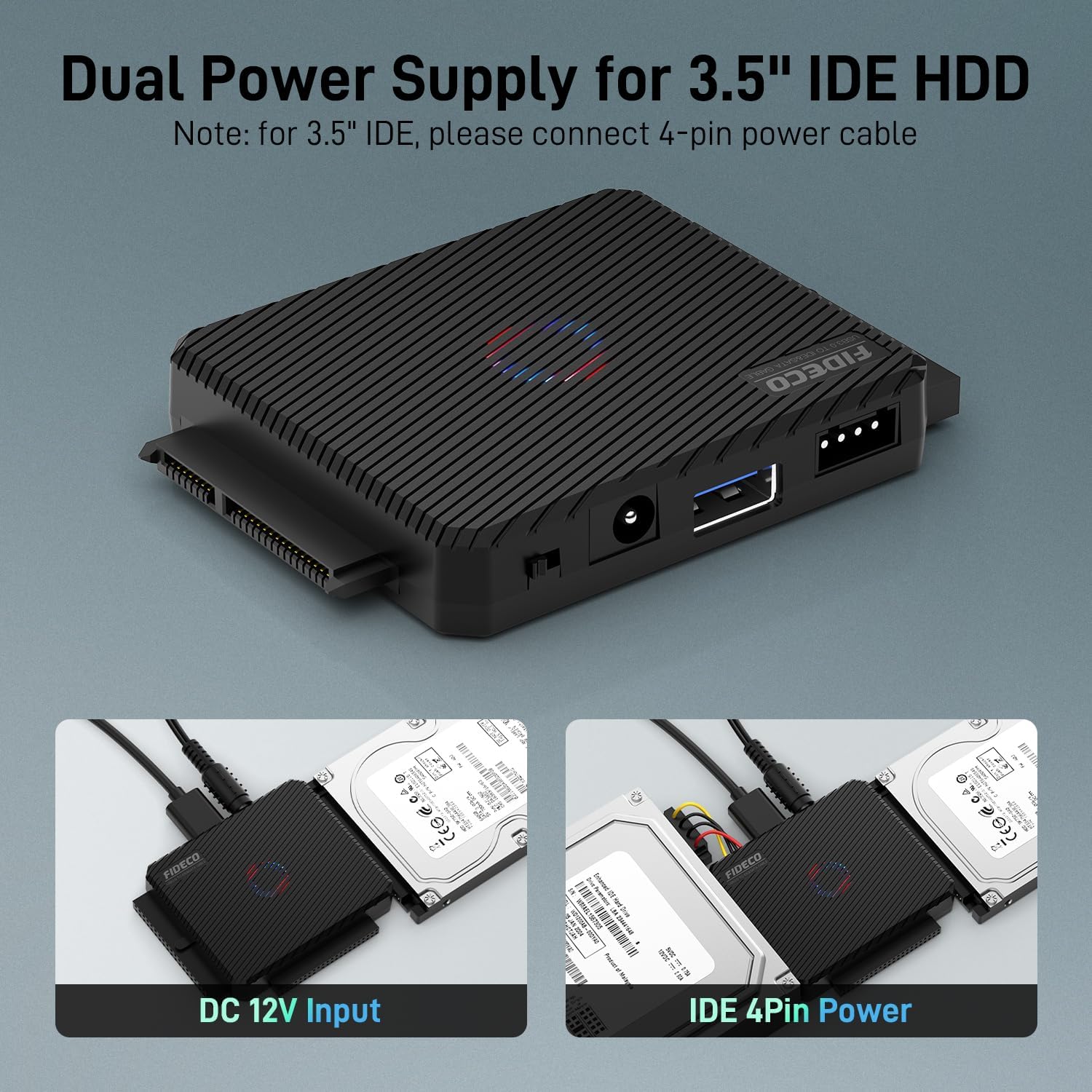
Figure 5: Dual Power Supply for 3.5" IDE HDD. This image highlights the necessary power connections for 3.5" IDE hard drives, including the DC 12V input and the 4-pin power cable.
5. คู่มือการใช้งาน
Once the FIDECO adapter and drive are connected and powered on, your computer should recognize the drive as an external storage device.
- การเข้าถึงข้อมูล: The connected drive will appear in your computer's file explorer (e.g., 'This PC' on Windows, 'Finder' on Mac). You can then browse, copy, and transfer fileเหมือนกับการใช้งานฮาร์ดไดรฟ์ภายนอกอื่นๆ ทั่วไป
- New Hard Drives: For brand new hard drives that have not been initialized or formatted, they may not appear immediately in your file explorer. You will need to go to 'Disk Management' (Windows) or 'Disk Utility' (Mac OS) to initialize and format the drive before it can be used.
- Simultaneous Drive Use: The adapter supports simultaneous connection of one 2.5" IDE, one 3.5" IDE, and one 2.5"/3.5" SATA drive. Each connected drive will appear as a separate volume on your computer.

Figure 6: Simultaneous Connection of 3 Hard Drives. This image illustrates the capability of the adapter to connect and access three different types of hard drives at the same time.

Figure 7: Wide Compatibility. This image highlights the adapter's compatibility with major operating systems including Windows, Mac OS, and Linux.
6. การบำรุงรักษา
To ensure the longevity and optimal performance of your FIDECO SATA/IDE to USB 3.0 Adapter, please follow these simple maintenance guidelines:
- รักษาความสะอาด: ควรเช็ดทำความสะอาดอะแดปเตอร์ด้วยผ้าแห้งเนื้อนุ่มเป็นประจำเพื่อกำจัดฝุ่นและสิ่งสกปรก หลีกเลี่ยงการใช้น้ำยาทำความสะอาดหรือสารละลาย
- จัดเก็บอย่างถูกต้อง: เมื่อไม่ใช้งาน ให้เก็บอะแดปเตอร์ไว้ในที่แห้งและเย็น ห่างจากแสงแดดโดยตรงและอุณหภูมิที่สูงหรือต่ำเกินไป
- จัดการด้วยความระมัดระวัง: Avoid dropping the adapter or subjecting it to strong impacts, which can damage internal components.
- ตัดการเชื่อมต่ออย่างปลอดภัย: Always safely eject or unmount the drive from your operating system before physically disconnecting the adapter or turning off its power.
7 การแก้ไขปัญหา
If you encounter issues while using your FIDECO adapter, refer to the common questions and solutions below:

Figure 8: Q&A Section. This image provides quick answers to frequently asked questions regarding the adapter's functionality and common issues.
- คำถามที่ 1: จำเป็นต้องมีซอฟต์แวร์ใด ๆ หรือไม่?
- A1: No, the FIDECO adapter is plug and play. No driver or additional software is needed for most operating systems.
- Q2: Why is my 3.5" IDE hard drive not recognized?
- A2: For 3.5" IDE hard drives, you must connect the 4-pin power cable in addition to the DC 12V power adapter. Ensure both power connections are secure.
- Q3: Why is my new HDD not recognized?
- A3: For new hard drives, you need to initialize and format them first. Go to 'Disk Management' (Windows) or 'Disk Utility' (Mac OS) to perform this action. After initialization, your hard drive should be recognized.
- Q4: Does the device support offline cloning?
- A4: The SATA or IDE adapter does not support offline cloning. You can insert your HDD/SSD and connect the entire device to your computer for file copying and transfer.
- Q5: Why is the hard drive not recognized by my Macbook Pro?
- A5: Please ensure there is a backup for your data. Then, format your HDD to exFAT. This format is widely compatible across different operating systems, including macOS.
- เคล็ดลับการแก้ไขปัญหาทั่วไป:
- ตรวจสอบการเชื่อมต่อ: Ensure all cables (USB, power, data) are securely connected to both the adapter and the drive.
- แหล่งจ่ายไฟ: Verify that the power adapter is correctly plugged into a working power outlet and the adapter.
- Jumper Settings (for 2.5" and 3.5" IDE drives): If both 2.5" and 3.5" IDE hard drives are connected simultaneously, you may need to adjust the jumper settings on the 3.5" IDE hard drive to 'slave' mode. The 2.5" IDE hard drive is typically the default master.
- ลองใช้พอร์ต USB อื่น: Connect the adapter to a different USB port on your computer to rule out a faulty port.
- รีสตาร์ทคอมพิวเตอร์: บางครั้งการรีสตาร์ทเครื่องง่ายๆ ก็สามารถแก้ไขปัญหาการตรวจจับได้
8. การรับประกันและการสนับสนุน
FIDECO products are designed for reliability and performance. For warranty information, technical support, or any inquiries regarding your FIDECO SATA/IDE to USB 3.0 Adapter, please contact FIDECO customer service through their official webเว็บไซต์หรือแพลตฟอร์มที่คุณซื้อสินค้า
โปรดเก็บหลักฐานการซื้อของคุณไว้เพื่อเรียกร้องการรับประกัน