
1. บทนำ
This manual provides essential information for the safe and efficient use of your Alienware AW3418DW 34.1-inch Curved Gaming Monitor. This monitor features a WQHD (3440x1440) resolution, a 120Hz refresh rate (overclocked), and NVIDIA G-SYNC technology for an immersive gaming experience. Please read this manual thoroughly before operating the device.
2. ข้อมูลด้านความปลอดภัย
- Always disconnect the power cable from the wall outlet before cleaning the monitor.
- ห้ามให้จอภาพโดนฝนหรือความชื้น เพื่อหลีกเลี่ยงอันตรายจากไฟไหม้หรือไฟฟ้าช็อต
- อย่าเปิดจอภาพcasinก. ไม่มีชิ้นส่วนใดที่ผู้ใช้สามารถซ่อมบำรุงเองได้ภายใน แนะนำให้ช่างผู้ชำนาญการซ่อมบำรุงนำชิ้นส่วนทั้งหมดไปซ่อม
- วางจอภาพบนพื้นผิวที่มั่นคงและเรียบเพื่อป้องกันไม่ให้ตก
- ตรวจสอบให้แน่ใจว่ามีการระบายอากาศที่เหมาะสมรอบ ๆ จอภาพ อย่าปิดกั้นช่องระบายอากาศ
- ใช้เฉพาะอะแดปเตอร์ไฟและสายไฟที่มาพร้อมกับจอภาพเท่านั้น
3. เนื้อหาบรรจุภัณฑ์
ตรวจสอบว่ามีส่วนประกอบทั้งหมดอยู่ในแพ็คเกจ:
- Alienware AW3418DW Monitor
- ขาตั้งจอภาพ (ฐานและขาตั้งยกสูง)
- สายไฟ
- สายเคเบิล DisplayPort
- สาย HDMI
- สาย USB 3.0 อัพสตรีม
- Documentation (Quick Setup Guide, Safety Information)
4. การตั้งค่า
4.1 การตั้งค่าทางกายภาพ
Carefully remove the monitor and its components from the packaging. Place the monitor face down on a soft cloth or cushion to prevent scratches.
การติดตั้งขาตั้ง
- Attach the stand riser to the monitor panel until it clicks into place.
- Attach the stand base to the stand riser and tighten the captive screw.

รูปที่ 4.1 : ด้านหน้า view of the Alienware AW3418DW monitor with its stand attached.

รูปที่ 4.2: ด้านข้าง view of the Alienware AW3418DW monitor with its stand.
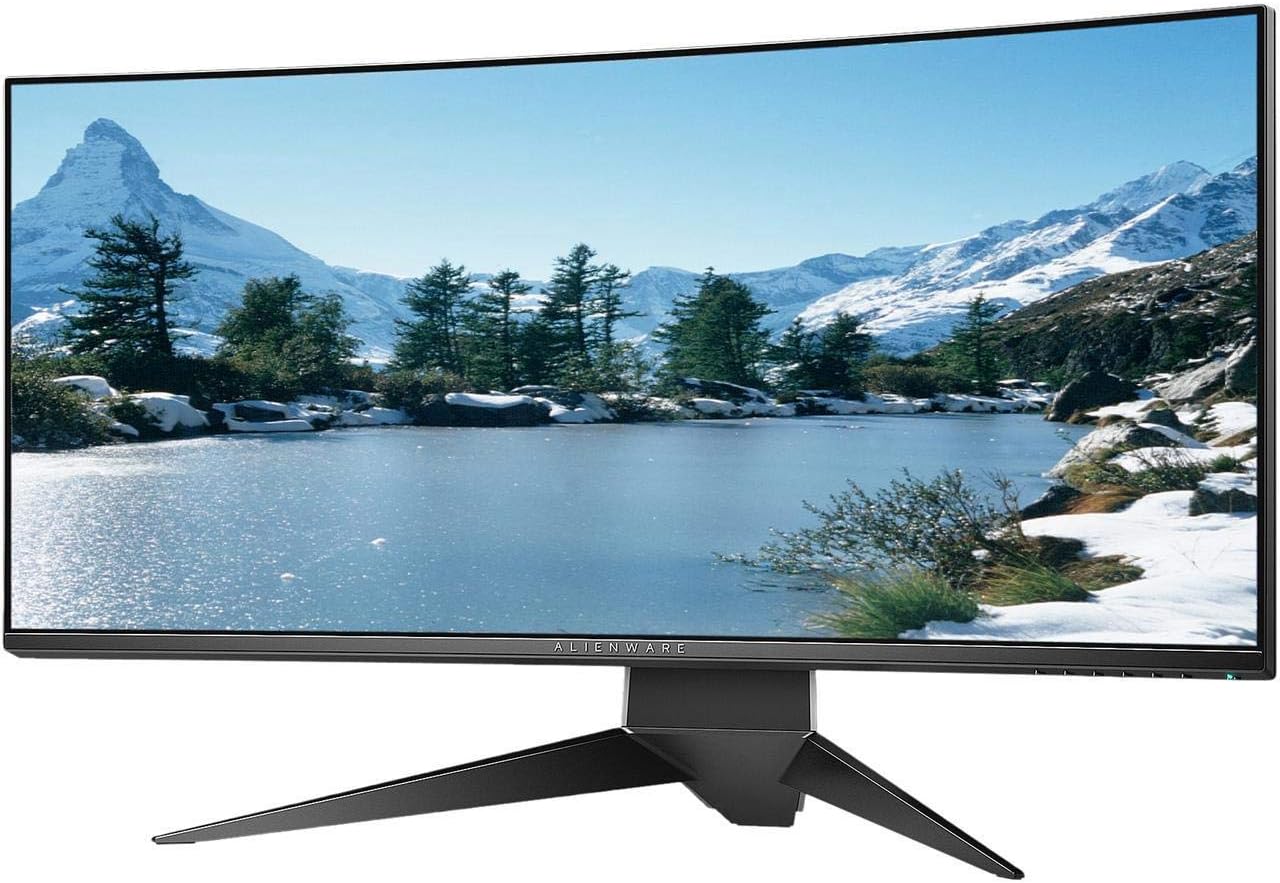
รูปที่ 4.3: ด้านหลัง view of the Alienware AW3418DW monitor showing the stand and AlienFX lighting.
การติดตั้ง VESA
The monitor supports VESA mounting (100 x 100 mm). Remove the stand riser by pressing the release button and then attach the VESA-compatible mount to the monitor using appropriate screws. Ensure the mount can support the monitor's weight of 26.1 pounds (without stand).

Figure 4.4: Monitor dimensions for VESA mount compatibility.
4.2 สายเชื่อมต่อ
เชื่อมต่อสายเคเบิลที่จำเป็นเข้ากับจอภาพและคอมพิวเตอร์ของคุณ
- สายไฟ: เชื่อมต่อสายไฟเข้ากับพอร์ตจ่ายไฟของจอภาพ จากนั้นเสียบเข้ากับเต้ารับที่ผนัง
- สายวิดีโอ: Connect either the DisplayPort cable or the HDMI cable from your computer's graphics card to the corresponding port on the monitor. For optimal performance, especially for 120Hz refresh rate and G-SYNC, use the DisplayPort connection.
- สายเคเบิล USB อัปสตรีม: Connect the USB 3.0 upstream cable from your computer to the monitor's upstream USB port to enable the monitor's USB hub functionality.
- พอร์ตดาวน์สตรีม USB: Connect your USB devices (e.g., keyboard, mouse, webcam) to the four USB 3.0 downstream ports on the monitor.
5. คู่มือการใช้งาน
5.1 เปิด/ปิดเครื่อง
Press the power button located on the monitor to turn it on or off. The power LED will indicate the monitor's status.
5.2 การนำทางบนหน้าจอ (OSD)
The On-Screen Display (OSD) menu allows you to adjust various monitor settings. Use the control buttons, typically located on the bottom right or rear of the monitor, to navigate the OSD.
- กดปุ่มควบคุมเพื่อเปิดใช้งานเมนู OSD
- Use the navigation buttons (up/down/left/right) to move through menu options.
- กดปุ่มเลือกเพื่อยืนยันการเลือกหรือเข้าสู่เมนูย่อย
- ใช้ปุ่มย้อนกลับ/ออก เพื่อกลับไปยังเมนูก่อนหน้า หรือออกจากเมนู OSD
5.3 การตั้งค่าการแสดงผล
ปรับการตั้งค่าการแสดงผลให้เหมาะสมที่สุด viewing and gaming performance.
- ปณิธาน: Set your computer's display resolution to 3440x1440 for the native WQHD experience.
- อัตราการรีเฟรช: The monitor supports up to 120Hz refresh rate (overclocked). Ensure your graphics card drivers are updated and the refresh rate is set in your operating system's display settings or graphics control panel.
- NVIDIA G-SYNC: For tear-free and smooth gameplay, enable G-SYNC in your NVIDIA Control Panel. This feature synchronizes the monitor's refresh rate with your GPU's frame rate.
- ความสว่าง/คอนทราสต์: Adjust these settings in the OSD menu to suit your environment and preference.
5.4 AlienFX Lighting
Customize the AlienFX lighting zones on your monitor through the OSD menu or Alienware Command Center software (if installed on your PC). You can select colors, effects, and synchronize lighting with other Alienware devices.
5.5 การใช้งานฮับ USB
The monitor acts as a USB 3.0 hub, providing convenient access to four downstream USB ports for connecting peripherals. Ensure the USB upstream cable is connected to your computer for this feature to function.
6. การบำรุงรักษา
6.1 การทำความสะอาดจอภาพ
- Always unplug the monitor from the electrical outlet before cleaning.
- ใช้ผ้านุ่มไม่เป็นขุยค่อยๆ งampเคลือบด้วยน้ำหรือน้ำยาทำความสะอาดหน้าจอที่ไม่กัดกร่อน
- ห้ามฉีดน้ำยาทำความสะอาดลงบนหน้าจอโดยตรง
- เช็ดหน้าจอเบาๆ เพื่อขจัดฝุ่นและคราบต่างๆ
- ทำความสะอาดภายนอกasinก. ด้วยผ้าแห้งนุ่มๆ
6.2 พื้นที่จัดเก็บ
If storing the monitor for an extended period, disconnect all cables, carefully disassemble the stand (if applicable), and store it in its original packaging in a cool, dry place.
7 การแก้ไขปัญหา
หากคุณพบปัญหาเกี่ยวกับจอภาพของคุณ โปรดดูขั้นตอนการแก้ไขปัญหาทั่วไปต่อไปนี้:
- ไม่มีจอแสดงผล: Ensure all power and video cables are securely connected. Check if the monitor is powered on and the correct input source is selected in the OSD.
- ภาพกระพริบ/กระตุก: Verify that your graphics drivers are up to date. Ensure G-SYNC is properly configured in the NVIDIA Control Panel. Check for interference from other electronic devices.
- ความละเอียด/อัตราการรีเฟรชไม่ถูกต้อง: Adjust the display settings in your operating system or graphics control panel to the native resolution (3440x1440) and desired refresh rate (up to 120Hz).
- พิกเซลที่ตายแล้ว: The Alienware AW3418DW comes with a Premium Panel Guarantee. Refer to the warranty information for details on pixel policy.
- พอร์ต USB ไม่ทำงาน: ตรวจสอบให้แน่ใจว่าได้เสียบสาย USB 3.0 upstream จากจอภาพไปยังคอมพิวเตอร์ของคุณแล้ว
8. ข้อมูลจำเพาะ
| คุณสมบัติ | ข้อมูลจำเพาะ |
|---|---|
| ยี่ห้อ | เอเลี่ยนแวร์ |
| หมายเลขรุ่น | AW3418DW |
| ขนาดหน้าจอ | 34.1 นิ้ว |
| ปณิธาน | WQHD (3440 x 1440 พิกเซล) |
| อัตราส่วนภาพ | 21:9 น. |
| อัตราการรีเฟรช | 120 Hz (Overclocked) |
| เวลาตอบสนอง | 4 มิลลิวินาที |
| เทคโนโลยี Adaptive Sync | NVIDIA G-SYNC |
| ประเภทจอภาพ | LED IPS |
| ความโค้ง | 1900อาร์ |
| ความสว่าง | 300 ซีดี/ตรม. |
| อัตราส่วนคอนทราสต์ | 1000:1 น. |
| Viewอิงแองเกิล | 178 องศา |
| การเชื่อมต่อ | 1x DisplayPort (1.2), 1x HDMI (1.4), 4x USB 3.0 Downstream, 1x USB 3.0 Upstream |
| น้ำหนักสินค้า | 26.1 ปอนด์ (ไม่รวมขาตั้ง) |
| ประเภทการติดตั้ง | VESA Compatible (100 x 100 mm) |
9. การรับประกันและการสนับสนุน
Your Alienware AW3418DW monitor is covered by a 3 Years Limited Hardware Warranty และ 3 Years Advance Exchange Serviceรวมถึง Premium Panel Guarantee. The Premium Panel Guarantee ensures a free panel replacement during the limited hardware warranty period even if only one bright pixel is found.
For technical support, warranty claims, or additional information, please visit the official Alienware or Dell support website. You may also find updated drivers and firmware there.
การสนับสนุนทางออนไลน์: www.dell.com/support