
1. บทนำ
The EVGA GeForce GTX 1080 Ti Founders Edition is a high-performance graphics card designed for demanding gaming and professional applications. Based on the NVIDIA Pascal architecture, it features 11GB of GDDR5X memory and advanced technologies for an immersive visual experience.

Figure 1: EVGA GeForce GTX 1080 Ti Founders Edition Graphics Card.
2. อะไรอยู่ในกล่อง
ตรวจสอบว่ารายการทั้งหมดต่อไปนี้รวมอยู่ในแพ็คเกจผลิตภัณฑ์ของคุณ:
- EVGA GTX 1080 Ti FOUNDERS EDITION GAMING Graphics Card
- ซีดีไดร์เวอร์
- คู่มือการติดตั้ง
- 6Pin(2) to 8 Pin Adapter
- EVGA Gaming Poster
- Powered by EVGA Case Badge
- EVGA Enthusiast Built Sticker

Figure 2: Packaging contents for the EVGA GeForce GTX 1080 Ti.
3. การตั้งค่าและการติดตั้ง
Before beginning installation, ensure your computer is powered off and unplugged from the wall outlet. It is recommended to wear an anti-static wrist strap to prevent electrostatic discharge (ESD) damage.
3.1 ข้อกำหนดของระบบ
- PCI Express graphics slot required
- Microsoft Windows 10/11 64-bit or Linux 64-bit operating system required
- One 8-pin power connector required
- 450W system power supply required
3.2 การติดตั้งฮาร์ดแวร์
- เตรียมระบบของคุณ: Power down your computer and unplug all cables. Open your computer case to access the motherboard.
- Locate the PCIe slot: Find an available PCI Express x16 slot on your motherboard. This is typically the longest slot.
- Remove expansion slot covers: Remove the necessary expansion slot covers from the back of your computer case to accommodate the graphics card's output ports.
- ใส่การ์ดจอ: วางการ์ดจอให้ตรงกับช่อง PCIe อย่างระมัดระวัง แล้วกดลงไปให้แน่นจนกว่าจะเข้าที่ ตรวจสอบให้แน่ใจว่าคลิปล็อกบนช่อง PCIe ล็อกเข้าที่แล้ว
- รักษาความปลอดภัยของบัตร: Use screws to fasten the graphics card to the computer case's expansion slot bracket.
- เชื่อมต่อสายไฟ: Connect the required 8-pin PCIe power connector from your power supply to the graphics card. If your power supply only has 6-pin connectors, use the provided 6-pin to 8-pin adapter.
- ปิดเคส: เมื่อติดตั้งการ์ดและจ่ายไฟเรียบร้อยแล้ว ให้ปิดเคสคอมพิวเตอร์

Figure 3: Graphics card with power connectors visible.
4. คู่มือการใช้งาน
4.1 การติดตั้งไดรเวอร์
- เปิดเครื่องคอมพิวเตอร์ของคุณ: Connect your monitor to one of the graphics card's output ports (DisplayPort or HDMI).
- ติดตั้งไดรเวอร์: Insert the provided Driver CD into your optical drive and follow the on-screen instructions. Alternatively, download the latest drivers from the official EVGA or NVIDIA webไซต์เพื่อประสิทธิภาพและความเข้ากันได้สูงสุด
- Restart your system: After driver installation is complete, restart your computer.
4.2 การเชื่อมต่อจอแสดงผล
The EVGA GeForce GTX 1080 Ti Founders Edition supports multiple display outputs for a versatile setup. Connect your monitor(s) using the available ports:
- ดิสเพย์พอร์ต 1.4: สำหรับจอแสดงผลความละเอียดสูงและอัตราการรีเฟรชสูง
- HDMI2.0b: For connecting to TVs and monitors with HDMI input.

Figure 4: Available display output ports on the graphics card.
4.3 EVGA Precision XOC Software
Utilize the EVGA Precision XOC software for advanced control over your graphics card. This software allows for:
- การโอเวอร์คล็อก: Fine-tune clock speeds and memory for enhanced performance.
- การควบคุมพัดลม: Customize fan curves for optimal cooling and noise levels.
- การรองรับ OSD: Monitor critical system information directly on your screen during gameplay.
- การควบคุม LED: Adjust the integrated LED lighting effects.
5. การบำรุงรักษา
การบำรุงรักษาอย่างเหมาะสมจะช่วยให้การ์ดจอของคุณมีอายุการใช้งานยาวนานและมีประสิทธิภาพเหมาะสมที่สุด
- รักษาความสะอาด: ควรทำความสะอาดฝุ่นจากพัดลมและแผ่นระบายความร้อนเป็นประจำโดยใช้ลมเป่าอัดแรงดันสูง ตรวจสอบให้แน่ใจว่าได้ปิดเครื่องคอมพิวเตอร์และถอดปลั๊กออกก่อนทำความสะอาด
- อัพเดตไดรเวอร์: Keep your graphics drivers updated to the latest version from the official NVIDIA or EVGA website. Driver updates often include performance improvements, bug fixes, and compatibility enhancements.
- Monitor temperatures: Use monitoring software (like EVGA Precision XOC) to keep an eye on your GPU temperatures, especially during heavy loads. Ensure temperatures remain within safe operating limits.
- ตรวจสอบให้แน่ใจว่าการไหลเวียนของอากาศเหมาะสม: Make sure your computer case has adequate airflow to prevent heat buildup. Clear any obstructions around the graphics card.
6 การแก้ไขปัญหา
หากคุณพบปัญหาเกี่ยวกับกราฟิกการ์ด โปรดลองทำตามขั้นตอนการแก้ไขปัญหาต่อไปนี้:
- ไม่มีภาพแสดงผล/หน้าจอดำ:
- ตรวจสอบให้แน่ใจว่าสายเคเบิลจอภาพเชื่อมต่อกับการ์ดจอและจอภาพอย่างแน่นหนา
- ตรวจสอบว่าการ์ดกราฟิกติดตั้งอยู่ในสล็อต PCIe อย่างสมบูรณ์
- ตรวจสอบให้แน่ใจว่าได้เชื่อมต่อสายไฟที่จำเป็นทั้งหมดเข้ากับการ์ดกราฟิกแล้ว
- Try connecting to a different display output port or using a different cable.
- ปัญหาเกี่ยวกับไดรเวอร์:
- Perform a clean installation of the latest graphics drivers. Uninstall existing drivers using DDU (Display Driver Uninstaller) in Safe Mode, then install the new drivers.
- ความร้อนสูงเกินไป:
- ทำความสะอาดฝุ่นออกจากแผงระบายความร้อนและพัดลม
- ตรวจสอบให้แน่ใจว่ามีการระบายอากาศที่เหมาะสมภายในเคสคอมพิวเตอร์ของคุณ
- Adjust fan curves using EVGA Precision XOC to increase cooling.
- ปัญหาประสิทธิภาพการทำงาน:
- Ensure your system meets the minimum requirements for the games/applications you are running.
- อัพเดตไดร์เวอร์กราฟิกของคุณ
- ตรวจสอบแอปพลิเคชันเบื้องหลังที่ใช้ทรัพยากรระบบ
7. ข้อมูลจำเพาะ
| คุณสมบัติ | รายละเอียด |
|---|---|
| ยี่ห้อ | อีวีจีเอ |
| หมายเลขรุ่น | 11G-P4-6390-KR |
| โคโปรเซสเซอร์กราฟิก | NVIDIA GP102 |
| คำอธิบายการ์ด | การ์ดจอ GeForce GTX 1080 Ti |
| ขนาดแรมการ์ดจอ | 11GB GDDR5X ความจุ |
| Real Base Clock | 1480 เมกะเฮิรตซ์ |
| Real Boost Clock | 1582 เมกะเฮิรตซ์ |
| ความเร็วหน่วยความจำ | 11000 เมกะเฮิรตซ์ |
| ความละเอียดหน้าจอสูงสุด | ขนาด 7680x4320 |
| อินเทอร์เฟซเอาท์พุตวิดีโอ | DisplayPort 1.4 and HDMI 2.0b |
| น้ำหนักสินค้า | 3 ปอนด์ |
| ขนาดสินค้า (กxยxส) | 10.5 x 1.5 x 4.38 นิ้ว |
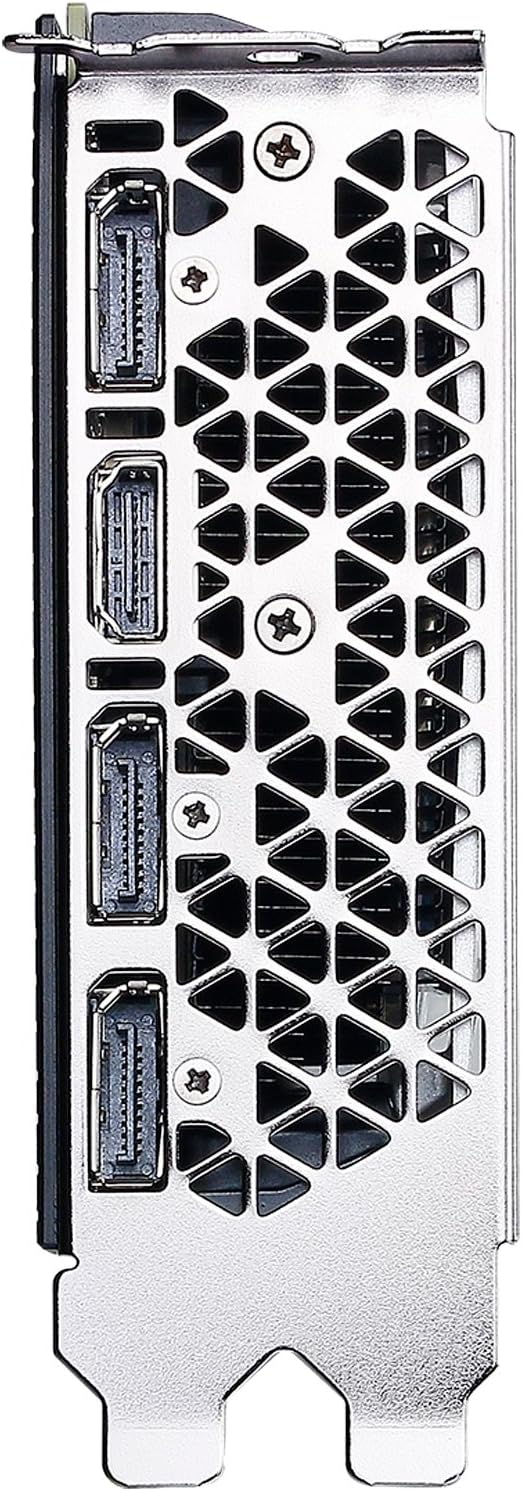
รูปที่ 5: ด้านบน view of the EVGA GeForce GTX 1080 Ti.
8. การรับประกันและการสนับสนุน
EVGA products typically come with a manufacturer's warranty. Please refer to the official EVGA website or your product registration for specific warranty terms and conditions.
For technical support, driver downloads, and product registration, visit the official EVGA support page: www.evga.com.
Legal Disclaimer: A 20% restock fee may apply for returns.