
1. สินค้าหมดview
The BENFEI USB-C to HDMI 4K UHD Cable provides a direct connection from your USB-C enabled device to an HDMI display. This cable supports high-definition video and audio transmission, making it ideal for extending your desktop, mirroring your screen, or enjoying multimedia content on a larger display. It is compatible with devices featuring a USB-C port that supports DisplayPort Alternate Mode (DP Alt Mode) or Thunderbolt 3/4.

Image 1.1: BENFEI USB-C to HDMI 4K UHD Cable. This image shows the full length of the black cable with a USB-C connector on one end and an HDMI connector on the other.
2. คำแนะนำในการตั้งค่า
Setting up your BENFEI USB-C to HDMI cable is a simple plug-and-play process. No additional drivers or software are required for most operating systems.
- ระบุพอร์ต: Locate the USB-C port on your source device (laptop, tablet, smartphone) and the HDMI input port on your display (monitor, TV, projector). Ensure your USB-C port supports DisplayPort Alternate Mode (DP Alt Mode).
- เชื่อมต่อ USB-C: Insert the USB-C connector of the cable into the USB-C port on your source device.
- เชื่อมต่อ HDMI: Insert the HDMI connector of the cable into an available HDMI input port on your display.
- เลือกอินพุต: On your display, use the remote control or on-screen menu to select the correct HDMI input source.

Image 2.1: Connection Diagram. This image illustrates connecting the USB-C end of the cable to a laptop and the HDMI end to a monitor.
3. คู่มือการใช้งาน
Once connected, your display should automatically detect the signal. You can configure your display settings on your source device for optimal viewการไอเอ็นจี
โหมดการแสดงผล:
- โหมดมิเรอร์: Duplicates your source device's screen onto the external display. This is useful for presentations or sharing content.
- โหมดขยาย: Extends your desktop across multiple screens, allowing you to have different applications open on each display. This enhances productivity.
To switch between display modes, access your operating system's display settings. For Windows, press ปุ่ม Windows + P. For macOS, go to การตั้งค่าระบบ > การแสดงผล.
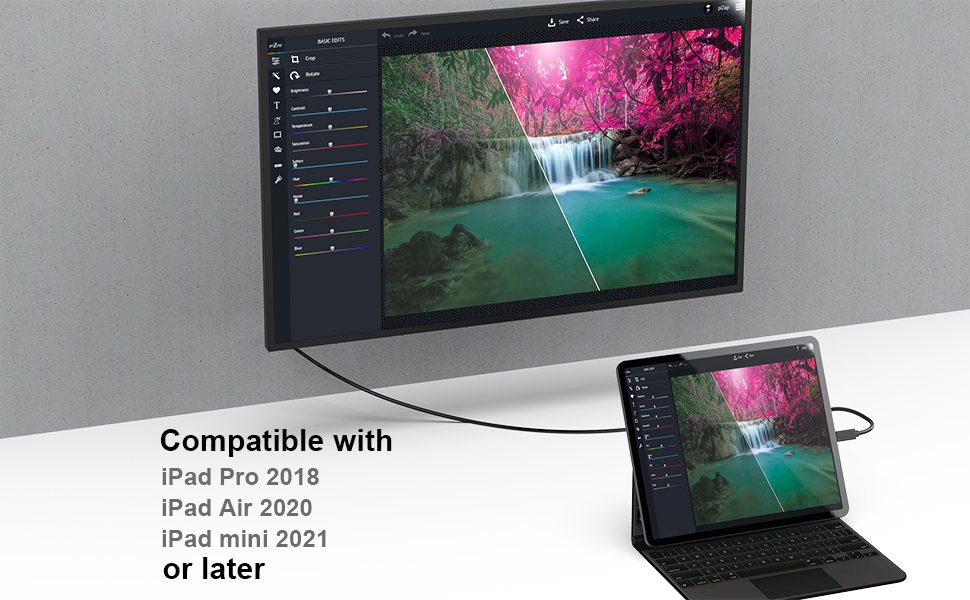
Image 3.1: Extended and Mirror Mode. This image demonstrates a laptop connected to an external monitor, showing both extended desktop and mirrored display configurations.
เอาต์พุตเสียง:
The cable transmits both video and audio. If no sound is heard from your HDMI display, check your source device's sound settings to ensure the HDMI output is selected as the default audio device.
4. ความเข้ากันได้
This cable requires your USB-C source device to support DisplayPort Alternate Mode (DP Alt Mode) for video output. Not all USB-C ports support this function.
Compatible Devices (USB-C with DP Alt Mode / Thunderbolt 3/4):
- โน๊ตบุ๊ค: MacBook Pro (2016-2023), MacBook Air (2018-2022), MacBook (2015-2017), Surface Book 2/3, Surface Laptop 3 or later, Dell XPS Series, HP Pavilion x2, DELL Venue Pro, Lenovo YOGA 900S, Chromebook Pixel, Gigabyte PC.
- โทรศัพท์: iPhone 15 Series, Galaxy S8 or later, Galaxy Note 8 or later, Galaxy Fold Series, LG V20 or later, HTC 10 / U11 / U11+ / U12+ / U19e, OnePlus 8 / 8Pro / 7 / 7 Pro, Lumia 950/950 XL, Razer Phone / Razer Phone 2.
- แท็บเล็ต: All USB-C iPads (iPad Pro 2018, iPad Air 2020, iPad mini 2021 or later), Surface Go Series, Surface Pro 7 or later, Galaxy Tab S4 or later.
Incompatible Devices/Ports:
- อุปกรณ์: Nintendo Switch, Samsung Galaxy A Series, Samsung S6 / S7 / J6 / J7 / M20 / M30, Galaxy Tab A / 10.1 / 10.5 / S3, Huawei P30 lite/P20 lite/P10 lite, LG Google Nexus 5X/6P, LG Stylist/LG G6, LG V30, LG K10/K20, Asus Zenpad tablets, HP Probook 455 G4, Acer Predator Helios 300, Xiaomi phones (e.g., 12/12 Ultra/12X/Mi 11 Pro/11T/11T Pro/Redmi Note 11/Redmi Note 10 Pro/Poco F4/Redmi 10/Mi 9T), iPhone (Lightning port), Motorola Z Force, Moto G 5 plus, Google Pixel, Pixel2, Pixel 3, OnePlus 2/3/3T/5/6/6T, ZTE/ZTE max pro Phone, GoPro, Amazon Fire Tablet, MacBook Air 7.2, Surface Dock 2.
- พอร์ต: USB Type-A ports, USB-C ports for data transfer only (without DP Alt Mode), USB-C for Power Delivery only.
หมายเหตุสำคัญ:
Please verify that the USB-C port on your device supports video output functions (DisplayPort Alternate Mode). For iPad Pro 2018, image output may be 4:3, and only some applications support full-screen display. Samsung Dex mode and Huawei PC mode only support 1920 x 1080p @ 60 Hz.

Image 4.1: Device Compatibility. This chart lists various compatible laptops, phones, and tablets, as well as incompatible devices and port types.


Image 4.2: Compatible USB-C Port Types. This series of images shows examples of USB-C ports that support video output, including those with Power Delivery, Display Alt Mode, Thunderbolt 3, and Thunderbolt 4 capabilities.

Image 4.3: Nintendo Switch Incompatibility. This image explicitly states that the product is not compatible with Nintendo Switch, showing a crossed-out image of the console.
5 การแก้ไขปัญหา
If you encounter issues, please refer to the following troubleshooting steps:
- ไม่มีการแสดงผล/สัญญาณ:
- Ensure both the USB-C and HDMI connectors are securely plugged into their respective ports.
- Verify that your source device's USB-C port supports DisplayPort Alternate Mode (DP Alt Mode). Refer to your device's manual or manufacturer's webเว็บไซต์.
- Check if your display is set to the correct HDMI input source.
- Try connecting the cable to a different HDMI port on your display or a different display altogether.
- รีสตาร์ทอุปกรณ์ต้นทางของคุณ
- ไม่มีเสียง:
- Confirm that the HDMI output is selected as the default audio device in your source device's sound settings.
- Ensure the volume on both your source device and display is turned up and not muted.
- จอภาพกะพริบหรือไม่เสถียร:
- Ensure the cable is not excessively bent or damaged.
- Try a different resolution or refresh rate setting on your source device.
- Ensure your display supports the selected resolution and refresh rate.
- ความเข้ากันไม่ได้กับอุปกรณ์เฉพาะ:
- As noted in the compatibility section, some devices like Nintendo Switch, certain Samsung Galaxy A series phones, and USB-C ports without DP Alt Mode are not supported. This is a hardware limitation of the source device, not a defect of the cable.
6. ข้อมูลจำเพาะ
| หมายเลขรุ่น | 000120สีดำ |
| ยี่ห้อ | เบนเฟย |
| ประเภทขั้วต่อ | USB-C Male to HDMI Male |
| ความยาวสายเคเบิล | 1.8 เมตร |
| ความละเอียดสูงสุด | 3840 x 2160 @ 30 Hz (4K Ultra HD) |
| การสนับสนุนด้านเสียง | 7.1, 5.1, or 2-channel uncompressed digital audio |
| คุณสมบัติพิเศษ | Plug & Play, Gold-plated connectors, Superior stability, Advanced chip solution |
| อุปกรณ์ที่รองรับ | Personal Computer, Projector, Smartphone, Tablet, Television (with USB-C DP Alt Mode) |

Image 6.1: Cable Features. This image highlights the 24K gold-plated HDMI and USB-C connectors, the integrated smart chip, and the durable 32 AWG cable construction.
7. การบำรุงรักษา
To ensure the longevity and optimal performance of your BENFEI USB-C to HDMI cable, follow these simple maintenance guidelines:
- พื้นที่จัดเก็บ: เก็บสายเคเบิลไว้ในที่แห้งและเย็น หลีกเลี่ยงแสงแดดโดยตรงและอุณหภูมิที่สูงหรือต่ำเกินไป
- การจัดการ: Avoid sharp bends or kinks in the cable, as this can damage the internal wires. Always grasp the connector housing when plugging or unplugging, rather than pulling on the cable itself.
- การทำความสะอาด: If necessary, gently wipe the cable and connectors with a soft, dry cloth. Do not use liquid cleaners or abrasive materials.
- การป้องกัน: Keep the connectors free from dust and debris. Consider using dust caps if the cable is stored for extended periods.
8. การรับประกันและการสนับสนุน
BENFEI stands behind the quality of its products.
- การรับประกัน: This product is covered by an exclusive 18-month (1.5 years) unconditional warranty. This warranty ensures long-term satisfaction with your purchase.
- การสนับสนุนลูกค้า: For any questions, concerns, or warranty claims, please contact BENFEI customer service. Our friendly and easy-to-reach support team is available to assist you promptly.
For further assistance, please refer to the contact information provided with your product packaging or visit the official BENFEI webเว็บไซต์.