
การแนะนำ
The ARRIS SURFboard TM822G is a high-performance DOCSIS 3.0 cable modem and a 2-port telephony modem, designed for use with XFINITY from Comcast Internet & Voice service. This device provides a reliable connection for your internet and supports two Voice over IP (VoIP) telephone lines. By owning your modem, you can avoid monthly rental fees from your service provider.
เนื้อหาแพ็คเกจ
ตรวจสอบให้แน่ใจว่ามีสินค้าทั้งหมดอยู่ในบรรจุภัณฑ์ผลิตภัณฑ์ของคุณ:
- ARRIS SURFboard TM822G Cable Modem
- สายเคเบิลอีเทอร์เน็ต
- Coaxial Cable Splitter
- สายโคแอกเชียลสองสาย
- สายไฟ
- คู่มือการใช้งาน (เอกสารนี้)
อุปกรณ์โอเวอร์view
Familiarize yourself with the ARRIS SURFboard TM822G's components and indicators.
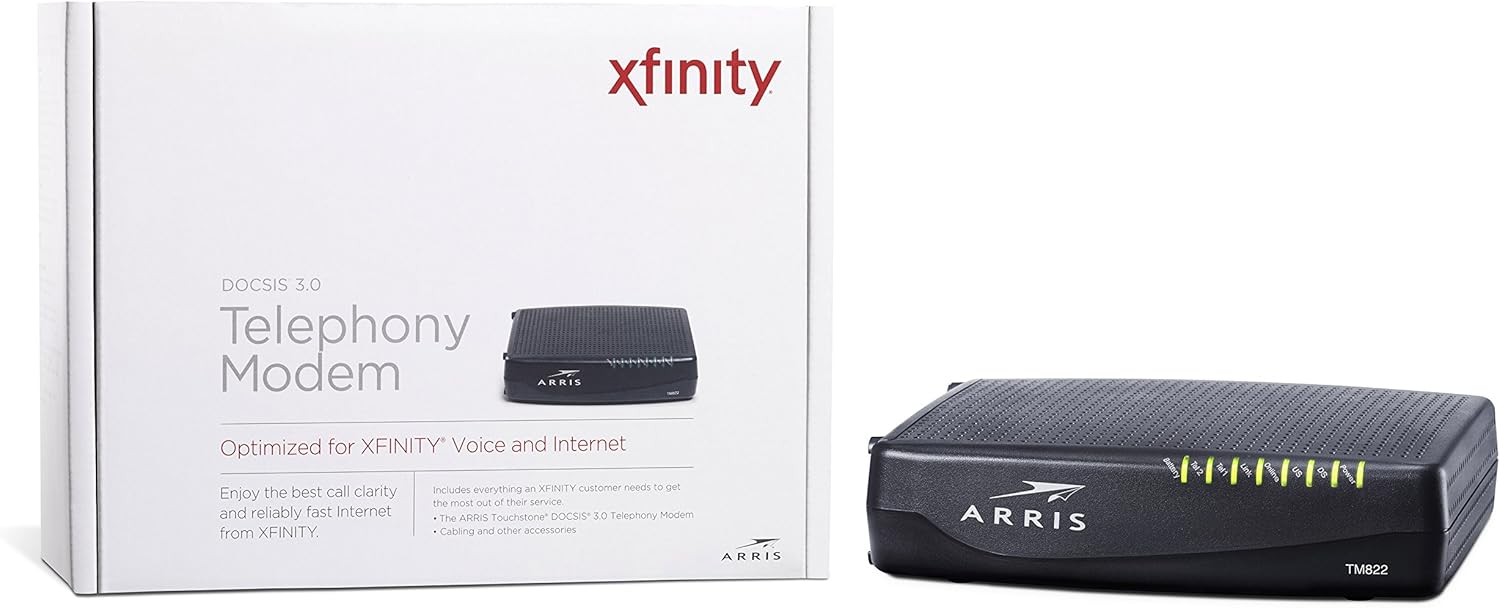
รูปที่ 1 : ด้านหน้า View of ARRIS SURFboard TM822G
This image shows the front panel of the ARRIS SURFboard TM822G cable modem, highlighting the status indicator lights.

รูปที่ 2: ด้านหลัง View of ARRIS SURFboard TM822G
This image displays the rear panel of the ARRIS SURFboard TM822G, detailing the coaxial input, Ethernet port, and two telephone line ports.
ไฟแสดงสถานะ LED
ไฟ LED ที่แผงด้านหน้าจะแสดงข้อมูลเกี่ยวกับสถานะการทำงานของโมเด็ม:
- พลัง: Indicates the modem's power status.
- DS (ดาวน์สตรีม): แสดงถึงการเชื่อมต่อช่องทางปลายทาง
- สหรัฐอเมริกา (ต้นน้ำ): แสดงถึงการเชื่อมต่อช่องทางต้นทาง
- ออนไลน์: แสดงว่าเชื่อมต่ออินเทอร์เน็ตสำเร็จแล้ว
- ลิงค์: แสดงสถานะการเชื่อมต่ออีเธอร์เน็ต
- Tel1 / Tel2: Indicate the status of the two telephone lines.
- แบตเตอรี่: Indicates the status of an optional battery backup (sold separately).
การตั้งค่า
Follow these steps to set up your ARRIS SURFboard TM822G cable modem:
- เชื่อมต่อสายโคแอกเชียล: ต่อปลายด้านหนึ่งของสายเคเบิลโคแอกเซียลเข้ากับเต้ารับสายเคเบิลที่ผนัง และปลายอีกด้านหนึ่งเข้ากับพอร์ต "Cable In" ที่ด้านหลังของโมเด็ม ตรวจสอบให้แน่ใจว่าการเชื่อมต่อแน่นพอดีมือ
- เชื่อมต่อสายเคเบิลอีเทอร์เน็ต: Connect one end of the Ethernet cable to the Ethernet port on the back of the modem and the other end to your computer or wireless router.
- เชื่อมต่อสายโทรศัพท์: If you have Xfinity Voice service, connect your telephone(s) to the "Tel1" and/or "Tel2" ports on the back of the modem.
- เชื่อมต่อพลังงาน: Plug the power cord into the modem's power port and then into an electrical outlet.
- เปิดเครื่อง: Wait for the modem to power on and for the front panel LEDs (Power, DS, US, Online, Link, Tel1/Tel2) to become solid green or blue, indicating a stable connection. This may take several minutes.
- เปิดใช้งานบริการ:
- For Xfinity Users: เปิด web browser on a connected device and navigate to xfinity.com/activate. Follow the on-screen instructions to activate your modem. You may need your Xfinity account information.
- For Other ISPs: Refer to your Internet Service Provider's activation instructions or contact their customer support.
คำแนะนำการใช้งาน
Once successfully set up and activated, your ARRIS SURFboard TM822G will provide internet and telephone service. The modem operates continuously to maintain your connection. Monitor the front panel LEDs to ensure proper operation. Solid lights typically indicate a stable connection, while blinking lights or specific color changes may indicate activity or a problem.
For optimal performance, ensure the modem is placed in a well-ventilated area, away from direct sunlight or heat sources, and not obstructed by other objects.
การซ่อมบำรุง
Regular maintenance helps ensure the longevity and optimal performance of your modem:
- การทำความสะอาด: Periodically wipe the exterior of the modem with a soft, dry cloth. Avoid using liquid cleaners or abrasive materials.
- การระบายอากาศ : ตรวจสอบให้แน่ใจว่ารูระบายอากาศของโมเด็มไม่ถูกอุดตันเพื่อป้องกันความร้อนสูงเกินไป
- อัพเดตเฟิร์มแวร์: โดยปกติแล้ว ผู้ให้บริการอินเทอร์เน็ตของคุณจะดำเนินการอัปเดตเฟิร์มแวร์โดยอัตโนมัติ อย่าพยายามอัปเดตเฟิร์มแวร์ด้วยตนเอง เว้นแต่จะได้รับคำแนะนำจากผู้ให้บริการอินเทอร์เน็ตของคุณ
- การรีบูต: If you experience connectivity issues, a simple reboot of the modem (unplugging the power for 30 seconds and plugging it back in) can often resolve minor problems.
การแก้ไขปัญหา
If you encounter issues with your ARRIS SURFboard TM822G, refer to the following common troubleshooting tips:
| ปัญหา | สาเหตุที่เป็นไปได้ | สารละลาย |
|---|---|---|
| ไม่มีไฟ LED | Modem is not receiving power. | Check power cord connections to the modem and electrical outlet. Ensure the outlet is functional. |
| DS/US/Online LEDs are blinking or off | No connection to the cable network or internet. | Ensure coaxial cable is securely connected. Check for service outages in your area. Contact your ISP if the issue persists. |
| Link LED is off | No Ethernet connection to your computer/router. | Verify the Ethernet cable is securely connected to both the modem and your device/router. Try a different Ethernet cable. |
| Tel1/Tel2 LEDs are off or blinking | Telephone service issue. | Ensure telephone lines are correctly connected. Contact your Xfinity Voice service provider. |
| ความเร็วอินเตอร์เน็ตช้า | Network congestion, outdated router, or ISP issue. | Reboot the modem and router. Ensure your router is capable of handling your internet speed plan. Contact your ISP to check line quality and service plan. |
The ARRIS SURFboard TM822G supports Loop Diagnostics for remote testing and troubleshooting of in-house wiring, which can be utilized by your service provider.
ข้อมูลจำเพาะ
Key technical specifications for the ARRIS SURFboard TM822G:
- ยี่ห้อ: อาร์ริส
- แบบอย่าง: TM822G
- ประเภทโมเด็ม: Cable Modem with Telephony Adapter
- DOCSIS Standard: DOCSIS 3.0
- Downstream Channels: 8 ช่องที่ยึดติดกัน
- Upstream Channels: 4 ช่องที่ยึดติดกัน
- Maximum Downstream Speed: สูงสุดถึง 343 Mbps
- Maximum Upstream Speed: สูงสุดถึง 131 Mbps
- พอร์ตอีเธอร์เน็ต: พอร์ตอีเทอร์เน็ตกิกะบิต 1
- พอร์ตโทรศัพท์: 2 (for Voice over IP)
- Compatible ISP: Certified for Comcast Xfinity Internet & Voice service only.
- เทคโนโลยีการเชื่อมต่อ: อีเธอร์เน็ต
- สี: สีดำ
การรับประกันและการสนับสนุน
The ARRIS SURFboard TM822G comes with a รับประกันอะไหล่และแรงงานจำกัด 2 ปี. For technical assistance or warranty claims, please contact ARRIS customer support. You can find contact information and additional resources on the official ARRIS support webเว็บไซต์.