
การแนะนำ
This manual provides detailed instructions for the installation, operation, and maintenance of your INIM Alien/SN Touchscreen User Interface. Please read this manual thoroughly before using the device to ensure proper functionality and to prevent damage. Keep this manual for future reference.
สินค้าเกินview
The INIM Alien/SN is a 4.3-inch touchscreen user interface designed for i-bus systems. It integrates several features for enhanced control and monitoring within your environment.
คุณสมบัติหลัก:
- 4.3-inch Touchscreen Display
- เซ็นเซอร์ตรวจจับระยะใกล้
- เซ็นเซอร์อุณหภูมิแวดล้อม
- ไมโครโฟนและลำโพงในตัว
- อินเทอร์เฟซ USB
- ช่องเสียบการ์ด SD
- Designed for i-bus systems
ส่วนประกอบ:
- INIM Alien/SN Touchscreen User Interface
- การ์ด SD (มีให้ในชุด)
- Mounting hardware (not specified, typically included with wall-mount devices)
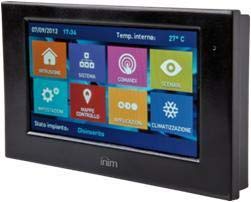
ภาพนี้แสดงด้านหน้า view of the INIM Alien/SN Touchscreen User Interface, featuring its sleek black design and the 4.3-inch display.
การตั้งค่า
Follow these steps for the initial setup of your INIM Alien/SN Touchscreen User Interface.
1. การติดตั้งอุปกรณ์:
- เลือกสถานที่: Choose a suitable wall location, ensuring it is within reach of the necessary electrical cabling and i-bus connection.
- เตรียมเดินสายไฟ: Ensure all power and i-bus wiring is safely routed to the mounting location.
- เมาท์ที่ปลอดภัย: Use appropriate wall-mounting hardware to securely attach the device's backplate or mounting bracket to the wall.
- การเชื่อมต่อสายไฟ: Connect the electrical power cable and i-bus communication cables to the designated terminals on the device. Refer to the wiring diagram provided with your i-bus system documentation for specific connections.
- อุปกรณ์เชื่อมต่อ: Carefully attach the touchscreen unit to the mounted backplate, ensuring it clicks securely into place.
2. การเพิ่มพลังครั้งแรก:
- Once mounted and wired, apply power to the device. The touchscreen should illuminate.
- Follow any on-screen prompts for initial configuration, such as language selection or network settings.
3. SD Card and USB:
- The included SD card is typically used for firmware updates, configuration backups, or data logging. Insert it into the designated slot if not already pre-installed.
- The USB interface can be used for direct connection to a computer for advanced configuration or diagnostics using INIM software.
คำแนะนำการใช้งาน
The INIM Alien/SN features an intuitive touchscreen interface for easy navigation and control.
1. Touchscreen Navigation:
- แตะ: Lightly touch the screen to select icons, buttons, or menu items.
- ปัด: Drag your finger across the screen to scroll through lists or switch between screens.
- เซ็นเซอร์ตรวจจับระยะใกล้: The screen may automatically activate or adjust brightness when you approach it.
2. การควบคุมระบบ:
- Access various functions of your i-bus system, such as arming/disarming security zones, viewing system status, or controlling connected devices.
- Specific menu structures and options will depend on your i-bus system configuration.
3. Audio Functions:
- The integrated microphone and speaker allow for two-way audio communication, typically used for intercom functions or alarm verification within the i-bus system.
- Adjust volume settings through the on-screen menu.
4. การตรวจติดตามอุณหภูมิ:
- The ambient temperature sensor displays the current room temperature.
- If configured as a thermostat, you can view and adjust temperature setpoints for HVAC systems directly from the interface.
การซ่อมบำรุง
Regular maintenance ensures the longevity and optimal performance of your touchscreen user interface.
การทำความสะอาด:
- หน้าจอ: ใช้ผ้านุ่มไม่เป็นขุยเช็ดเล็กน้อยampล้างออกด้วยน้ำหรือน้ำยาทำความสะอาดหน้าจอที่ไม่ทำให้เกิดรอยขีดข่วน ห้ามฉีดน้ำยาทำความสะอาดลงบนหน้าจอโดยตรง
- Casing: เช็ดพลาสติกasing with a soft, dry cloth. Avoid harsh chemicals or abrasive materials.
การอัปเดตซอฟต์แวร์:
- Periodically check the INIM Electronics website or consult your system installer for available firmware updates.
- Updates can be applied via the USB interface or by loading files onto the SD card, as per specific instructions provided with the update.
การแก้ไขปัญหา
If you encounter issues with your INIM Alien/SN, refer to the following common problems and solutions.
อุปกรณ์ไม่ได้เปิดเครื่อง:
- ตรวจสอบการเชื่อมต่อพลังงาน: Ensure the electrical cable is securely connected and receiving power.
- Verify i-bus Connection: Confirm the i-bus communication cable is properly connected, as some systems draw power through this connection.
- เบรกเกอร์: Check your building's circuit breaker for any tripped circuits.
หน้าจอสัมผัสไม่ตอบสนอง:
- รีสตาร์ทอุปกรณ์: If possible, power cycle the device by temporarily disconnecting and reconnecting its power source.
- ทำความสะอาดหน้าจอ: Ensure the screen is clean and free of dirt or moisture that might interfere with touch detection.
ไม่มีเสียงออกจากลำโพง/ไมโครโฟน:
- การตั้งค่าระดับเสียง: Check the on-screen volume settings to ensure they are not muted or set too low.
- การกำหนดค่าระบบ: Verify that audio functions are enabled and correctly configured within your i-bus system settings.
For persistent issues, contact your system installer or INIM Electronics technical support.
ข้อมูลจำเพาะ
| คุณสมบัติ | ข้อมูลจำเพาะ |
|---|---|
| ผู้ผลิต | บริษัท อินนิม อิเล็กทรอนิกส์ |
| หมายเลขรุ่น | 8050617014619 |
| ประเภทจอภาพ | หน้าจอสัมผัสขนาด 4.3 นิ้ว |
| สี | สีดำ |
| วัสดุ | พลาสติก |
| แหล่งพลังงาน | สายไฟฟ้า |
| การเชื่อมต่อ | ยูเอสบี |
| คุณสมบัติพิเศษ | Integrated Microphone, Ambient Temperature Sensor, Proximity Sensor |
| ส่วนประกอบที่รวมอยู่ | การ์ด SD |
| ประเภทการติดตั้ง | ติดผนัง |
| ขนาดสินค้า | 15 x 10 x 3 ซม. |
| น้ำหนักผลิตภัณฑ์ | 250 กรัม |
การรับประกันและการสนับสนุน
For warranty information, please refer to the documentation provided by your retailer or visit the official INIM Electronics webไซต์ เงื่อนไขการรับประกันอาจแตกต่างกันไปตามภูมิภาคและสถานที่ซื้อ
For technical support, assistance with installation, or troubleshooting beyond the scope of this manual, please contact your authorized INIM Electronics dealer or system installer. You may also find additional resources and contact information on the official INIM Electronics webเว็บไซต์.
Webเว็บไซต์: www.inim.biz (Please note: This is a generic placeholder for the manufacturer's website. Verify the correct URL if available.)