
1. สินค้าหมดview
The J-Tech Digital ProAV Unlimited HDMI Extender Transmitter (TX) is designed to extend 1080P HDMI signals over a single Cat5e/6 cable up to 400 feet (120 meters). This device facilitates flexible audio-video distribution, supporting various configurations including point-to-point, point-to-many, and many-to-many broadcasting when used with compatible receivers and an Ethernet switch. It converts HDMI signals to standard TCP/IP for transmission over an internet cable or local area network (LAN). The system supports 1080p resolution, 3D content, HDCP, and wideband IR control (38-56 kHz).
2. เนื้อหาบรรจุภัณฑ์
ตรวจสอบว่ามีรายการทั้งหมดอยู่ในแพ็คเกจ:
- 1x J-Tech Digital ProAV Unlimited HDMI Extender Transmitter (TX)
- 1x คู่มือผู้ใช้
- 1x IR TX สายเคเบิล
- 1x Power Adapter DC 5V/1A

3. คุณสมบัติของผลิตภัณฑ์
- Supports Point-to-Point, Point-to-Many, and Many-to-Many Broadcasting configurations.
- Extends 1080P HDMI signals up to 120m (394ft) over a single Cat5e/6 cable.
- Converts HDMI signals to standard TCP/IP for transmission over Ethernet or LAN.
- Compatible with 1080p, 3D, and HDCP content.
- Features wideband IR (38-56 kHz) control for remote device management.
- Can be cascaded for multiple layers by integrating additional Ethernet switches.
- Android application available for matrix switching control (search "J-Tech Digital Matrix" on Google Play).

4. การตั้งค่าและการติดตั้ง
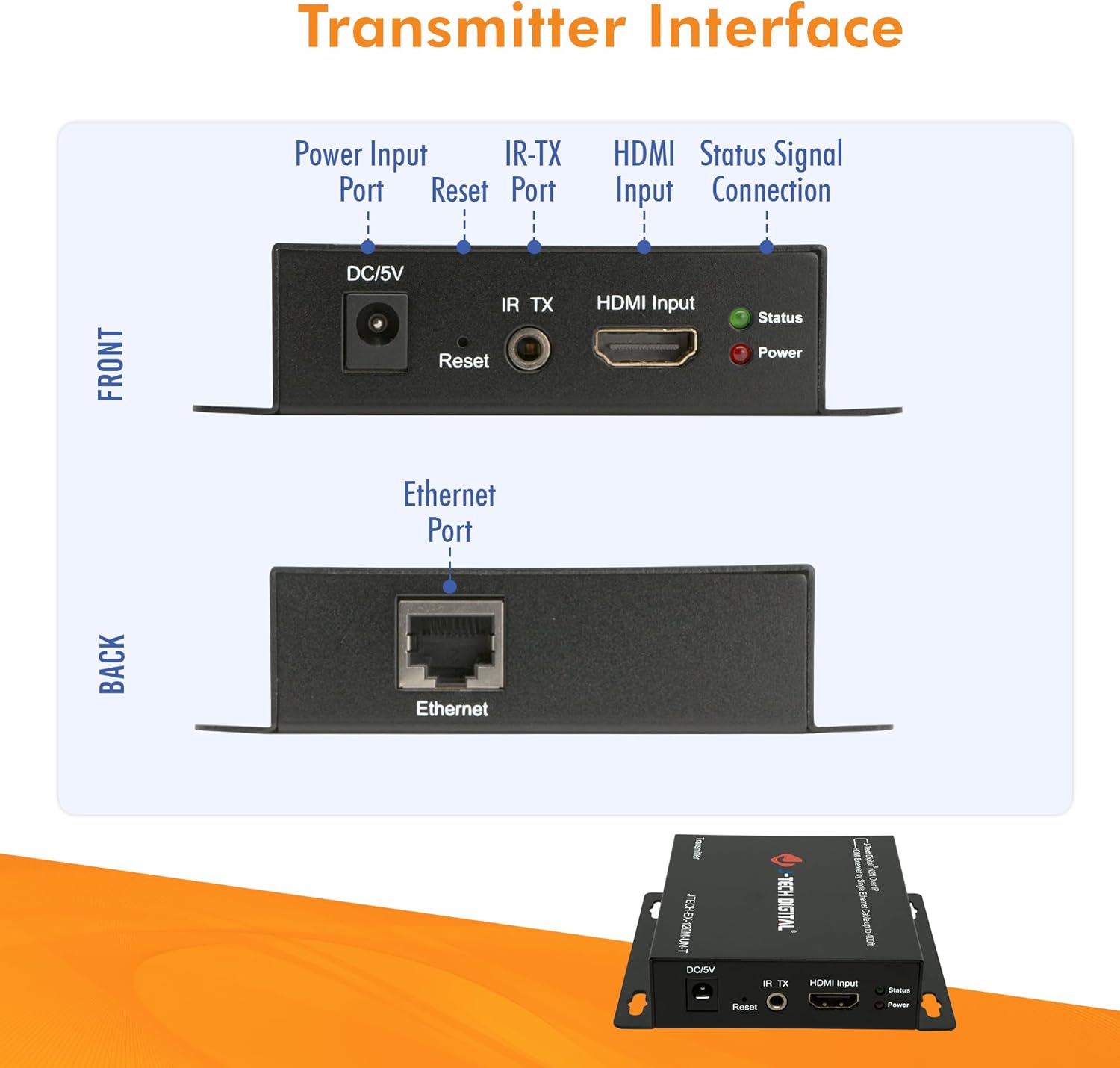
4.1. Transmitter Interface
Familiarize yourself with the ports and indicators on the Transmitter unit:
- กระแสตรง/5V: Power Input Port.
- รีเซ็ต: ปุ่มสำหรับรีเซ็ตอุปกรณ์
- IR เท็กซัส: IR Transmitter Port for sending IR signals to the source device.
- อินพุต HDMI: เชื่อมต่ออุปกรณ์แหล่งสัญญาณ HDMI ของคุณที่นี่
- สถานะ: LED indicator for signal status.
- พลัง: LED indicator for power status.
- อีเธอร์เน็ต: RJ45 port for Cat5e/6 cable connection to the network switch or receiver.
4.2. โหมดการเชื่อมต่อ
The J-Tech Digital HDMI Extender system supports various connection modes:
4.2.1. One-to-One Connection
In a point-to-point setup, a single Transmitter connects directly to a single Receiver via a Cat5e/6 cable. This extends the HDMI signal from one source to one display.

4.2.2. Many-to-Many Connection (Matrix Setup)
For more complex installations, multiple Transmitters and Receivers can be connected through one or more Gigabit Ethernet switches to create a flexible HDMI matrix. This allows any source to be routed to any display, or multiple displays simultaneously.

4.3. ขั้นตอนการติดตั้งพื้นฐาน
- Connect your HDMI source (e.g., Blu-Ray Player, Gaming Console) to the HDMI Input port of the Transmitter unit using an HDMI cable.
- Connect a Cat5e/6 Ethernet cable from the Ethernet port of the Transmitter to a Gigabit Ethernet switch (for matrix setup) or directly to a Receiver unit (for point-to-point).
- If using a matrix setup, connect Receiver units to the same or cascaded Gigabit Ethernet switches using Cat5e/6 cables.
- Connect your HDMI display (e.g., Monitor, Projector, Television) to the HDMI Output port of each Receiver unit using an HDMI cable.
- Connect the provided power adapters to all Transmitter and Receiver units, then plug them into a power outlet.
- For IR control, connect the IR TX cable to the Transmitter unit and position the IR emitter near the IR sensor of your source device.
5. คู่มือการใช้งาน
5.1. Matrix Switching via Web อินเทอร์เฟซ
When using the J-Tech Digital ProAV Unlimited HDMI Extender system with a compatible Gigabit Ethernet switch, you can manage input-to-output routing via a web-based interface. Connect a computer to the same network as the switch to access its configuration menu.
5.2. Android App Control
An Android application is available for convenient control of the matrix switching functionality. ค้นหา "J-Tech Digital Matrix" on Google Play to download and install the app. This allows for intuitive management of your HDMI sources and displays from a mobile device.
6. ข้อมูลจำเพาะ
| คุณสมบัติ | ข้อมูลจำเพาะ |
|---|---|
| ยี่ห้อ | เจ-เทค ดิจิตอล |
| แบบอย่าง | ProAV Unlimited HDMI Extender Transmitter (TX) |
| สี | สีดำ |
| ประเภทขั้วต่อ | HDMI |
| อุปกรณ์ที่รองรับ | Blu-Ray Player, Gaming Console, Monitor, Projector, Television |
| ประเภทสายเคเบิล | อีเธอร์เน็ต, HDMI |
| ระยะทางขยาย | Up to 120m (394ft) over Cat5e/6 cable |
| การสนับสนุนความละเอียด | 1080p, 3D |
| รองรับ HDCP | ใช่ |
| การควบคุมอินฟราเรด | Wideband IR (38-56 kHz) |
| ยูพีซี | 766150278057 |
| ASIN | B01C3HCZPK |

7 การแก้ไขปัญหา
- ไม่มีภาพ/สัญญาณ:
- ตรวจสอบให้แน่ใจว่าสาย HDMI และสาย Ethernet เชื่อมต่อแน่นสนิทดีแล้ว
- Verify that both the Transmitter and Receiver units are powered on.
- Check the status LEDs on the units; refer to the manual for their meaning.
- Test with shorter, certified Cat5e/6 cables to rule out cable issues.
- Ensure your display supports the output resolution (e.g., 1080p).
- Picture Flickering/Intermittent Signal:
- ตรวจสอบการเชื่อมต่อสายเคเบิลหลวม
- Ensure the Cat5e/6 cable is of good quality and within the specified length limit (up to 400ft).
- Minimize electromagnetic interference by keeping cables away from power lines or other electronic devices.
- ระบบควบคุมอินฟราเรดใช้งานไม่ได้:
- Ensure the IR TX cable is correctly plugged into the Transmitter and the IR emitter is directly facing the IR sensor of the source device.
- Verify that the remote control is functioning correctly.
- Matrix Switching Issues:
- Ensure the Gigabit Ethernet switch is compatible and properly configured.
- Verify network connectivity to the switch and the extender units.
- ตรวจสอบ web interface settings to ensure correct input-to-output routing.
8. การบำรุงรักษา
To ensure optimal performance and longevity of your J-Tech Digital HDMI Extender Transmitter, follow these maintenance guidelines:
- ควรเก็บอุปกรณ์ไว้ในที่เย็น แห้ง และมีอากาศถ่ายเทสะดวก
- Avoid exposing the unit to excessive heat, moisture, or direct sunlight.
- เช็ดทำความสะอาดเครื่องด้วยผ้าแห้งเนื้อนุ่ม ห้ามใช้น้ำยาทำความสะอาดหรือสเปรย์กระป๋อง
- ตรวจสอบให้แน่ใจว่าการเชื่อมต่อสายเคเบิลทั้งหมดมีความปลอดภัยและไม่มีความเสียหาย
- Periodically check for firmware updates from the J-Tech Digital website to ensure compatibility and improved performance.
9. การรับประกันและการสนับสนุน
ผลิตภัณฑ์ของ J-Tech Digital ได้รับการออกแบบมาเพื่อความน่าเชื่อถือและประสิทธิภาพ สำหรับข้อมูลการรับประกันและการสนับสนุนทางเทคนิค โปรดดูที่เว็บไซต์อย่างเป็นทางการของ J-Tech Digital website or contact their customer service. Their knowledgeable employees are based in Stafford, TX, and are available to assist with product inquiries and troubleshooting.
หากต้องการความช่วยเหลือเพิ่มเติม โปรดไปที่ J-Tech Digital Store.