
1. บทนำ
The CHERRY KC 1000 is a reliable wired keyboard designed for professional office use and everyday computing. It features a full-size Italian QWERTY layout, a flat design, and quiet keystrokes for comfortable and efficient typing. This manual provides essential information for setting up, operating, maintaining, and troubleshooting your keyboard.
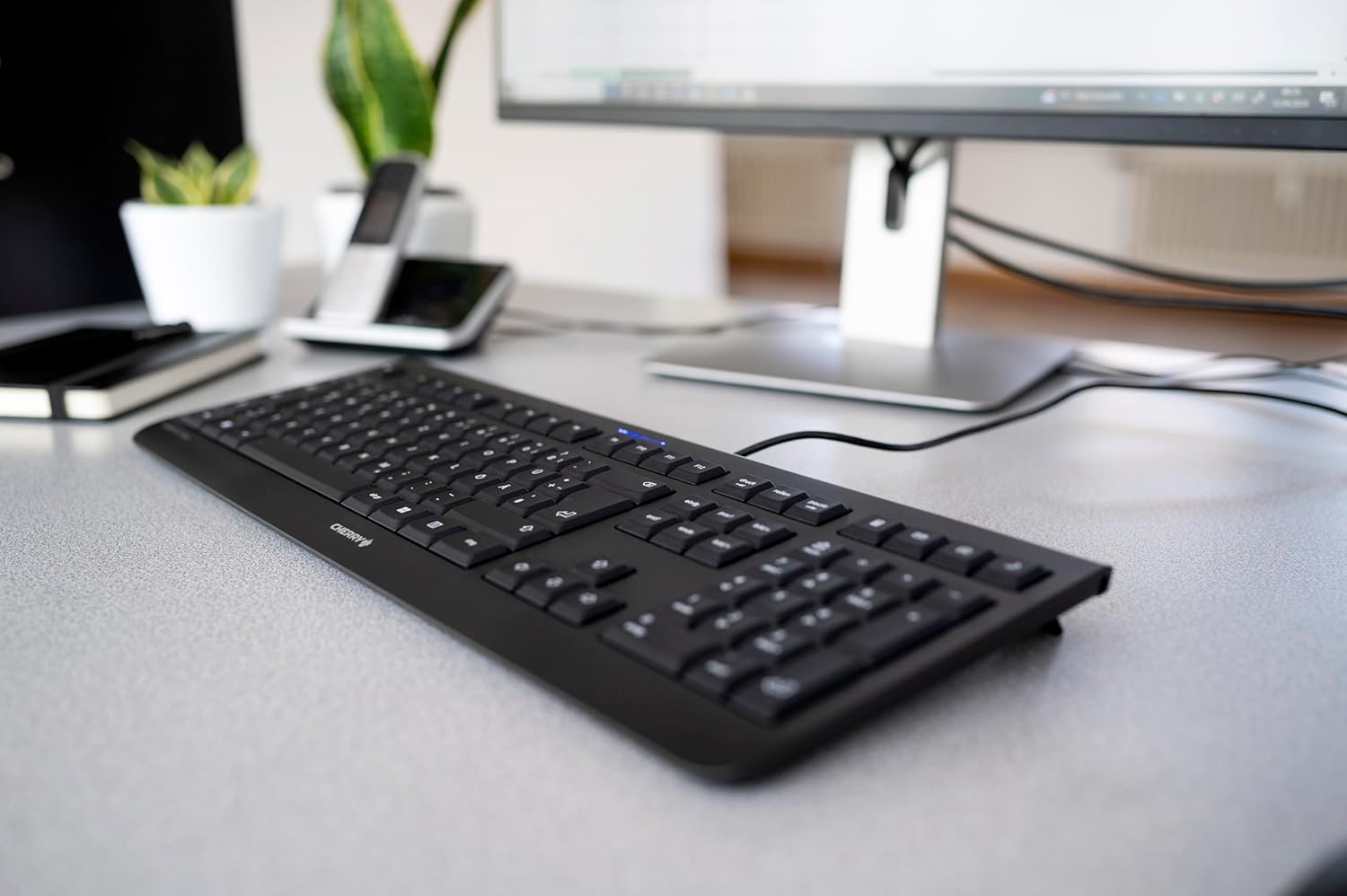
Image 1.1: The CHERRY KC 1000 keyboard in a typical office setup.
2. การตั้งค่า
The CHERRY KC 1000 keyboard is designed for simple Plug & Play installation. No additional drivers are required for most operating systems.
2.1 การเชื่อมต่อคีย์บอร์ด
- Locate an available USB-A port on your computer (desktop PC, laptop, or compatible device).
- Insert the USB connector of the CHERRY KC 1000 keyboard into the USB-A port.
- Your operating system will automatically detect and install the necessary drivers. This process usually takes a few seconds.
- แป้นพิมพ์พร้อมใช้งานแล้ว
The keyboard features a 180 cm (approximately 5.9 feet) long cable, providing ample flexibility for desk arrangements.

Image 2.1: The USB cable connection of the CHERRY KC 1000 keyboard.
3. การใช้งานคีย์บอร์ด
The CHERRY KC 1000 offers a standard Italian QWERTY layout with additional function keys for enhanced productivity.
3.1 รูปแบบปุ่มและฟังก์ชัน
The keyboard includes a full-size layout with a dedicated numeric keypad and cursor keys. The Italian QWERTY layout supports specific characters and symbols commonly used in the Italian language.

ภาพที่ 3.1: จบแล้วview of the CHERRY KC 1000 Italian QWERTY key layout.
3.2 ปุ่มฟังก์ชันพิเศษ
The keyboard features 4 additional keys located above the numeric keypad for quick access to common functions:
- เครื่องคิดเลข: Opens the default calculator application.
- อีเมล: Launches your default email client.
- เบราว์เซอร์: เปิดค่าเริ่มต้นของคุณ web เบราว์เซอร์
- โหมดสลีป: ตั้งค่าคอมพิวเตอร์ของคุณเข้าสู่โหมดพักเครื่อง
ไฟ LED แสดงสถานะ 3.3 ดวง
Three blue status LEDs are located above the function keys to indicate the status of:
- แคปล็อค: ไฟจะสว่างขึ้นเมื่อกดปุ่ม Caps Lock
- หมายเลข: ไฟจะสว่างขึ้นเมื่อเปิดใช้งาน Num Lock
- เลื่อน: ไฟจะสว่างขึ้นเมื่อเปิดใช้งาน Scroll Lock

Image 3.2: User interacting with the CHERRY KC 1000 keyboard.
4. การบำรุงรักษา
Proper care and maintenance will ensure the longevity and optimal performance of your CHERRY KC 1000 keyboard.
4.1 การทำความสะอาดแป้นพิมพ์
- ถอดแป้นพิมพ์ออกจากคอมพิวเตอร์ของคุณก่อนทำความสะอาด
- ใช้ผ้านุ่มไม่เป็นขุยเช็ดเล็กน้อยampened with water or a mild cleaning solution (e.g., isopropyl alcohol) to wipe the keycaps and keyboard surface.
- Avoid using abrasive cleaners, solvents, or harsh chemicals, as these can damage the keyboard's finish or key legends.
- สำหรับฝุ่นละอองและเศษต่างๆ ระหว่างคีย์ ให้ใช้ลมอัดหรือแปรงขนาดเล็ก
- ตรวจสอบให้แน่ใจว่าแป้นพิมพ์แห้งสนิทก่อนจะเสียบเข้ากับคอมพิวเตอร์อีกครั้ง
4.2 การดูแลทั่วไป
- หลีกเลี่ยงการหกของเหลวบนแป้นพิมพ์
- Do not expose the keyboard to extreme temperatures or direct sunlight for extended periods.
- Do not attempt to disassemble the keyboard, as this may void the warranty.
5 การแก้ไขปัญหา
If you encounter issues with your CHERRY KC 1000 keyboard, refer to the following common troubleshooting steps.
5.1 แป้นพิมพ์ไม่ตอบสนอง
- ตรวจสอบการเชื่อมต่อ USB: Ensure the USB cable is securely plugged into both the keyboard and the computer's USB port. Try a different USB port.
- รีสตาร์ทคอมพิวเตอร์: บางครั้งการรีสตาร์ทคอมพิวเตอร์ง่ายๆ ก็สามารถแก้ไขปัญหาการเชื่อมต่อได้
- ทดสอบบนคอมพิวเตอร์เครื่องอื่น: If possible, connect the keyboard to another computer to determine if the issue is with the keyboard or the original computer.
- การติดตั้งไดรเวอร์ใหม่: Although Plug & Play, sometimes reinstalling drivers can help. Disconnect the keyboard, restart the computer, and then reconnect the keyboard.
5.2 ปุ่มกดใช้งานไม่ถูกต้อง
- คีย์สะอาด: Dust or debris under the keycaps can cause keys to stick or not register. Refer to the cleaning instructions in Section 4.1.
- ความขัดแย้งของซอฟต์แวร์: Ensure no other software or keyboard utilities are interfering with the keyboard's operation.
5.3 Status LEDs Not Working
- Verify that the corresponding lock function (Caps Lock, Num Lock, Scroll Lock) is activated.
- If the keyboard is otherwise functional, a minor software glitch might be preventing the LED from lighting up. A computer restart may resolve this.
6. ข้อมูลจำเพาะ
Below are the technical specifications for the CHERRY KC 1000 Wired Keyboard.
| คุณสมบัติ | รายละเอียด |
|---|---|
| ชื่อรุ่น | เชอร์รี่ KC 1000 |
| หมายเลขรุ่น | JK-0800IT-2 |
| การเชื่อมต่อ | USB-A แบบมีสาย |
| เค้าโครงแป้นพิมพ์ | Italian QWERTY |
| จำนวนคีย์ | 109 |
| เทคโนโลยีที่สำคัญ | Membrane or Rubber Dome |
| คุณสมบัติพิเศษ | Whisper-quiet keystroke, 4 additional function keys (Calculator, Email, Browser, Sleep Mode), 3 blue status LEDs |
| ความยาวสายเคเบิล | 1.8 เมตร (5.9 ฟุต) |
| วัสดุ | พลาสติก |
| สี | สีดำ |
| น้ำหนัก | 530 กรัม |
| อุปกรณ์ที่รองรับ | แล็ปท็อปพีซี |
| การรับรอง | c-tick, cULus, CE, FCC, BSMI, TÜV/GS, Blue Angel eco-label |
7. การรับประกันและการสนับสนุน
CHERRY products are manufactured to high-quality standards. For information regarding warranty coverage, please refer to the warranty card included with your product or visit the official CHERRY website. For technical support or further assistance, please contact CHERRY customer service through their official channels.
The product package includes: 1 CHERRY KC 1000 keyboard and a printed instruction manual.